

Where it lives
Power BI sits under Settings, at Integrations.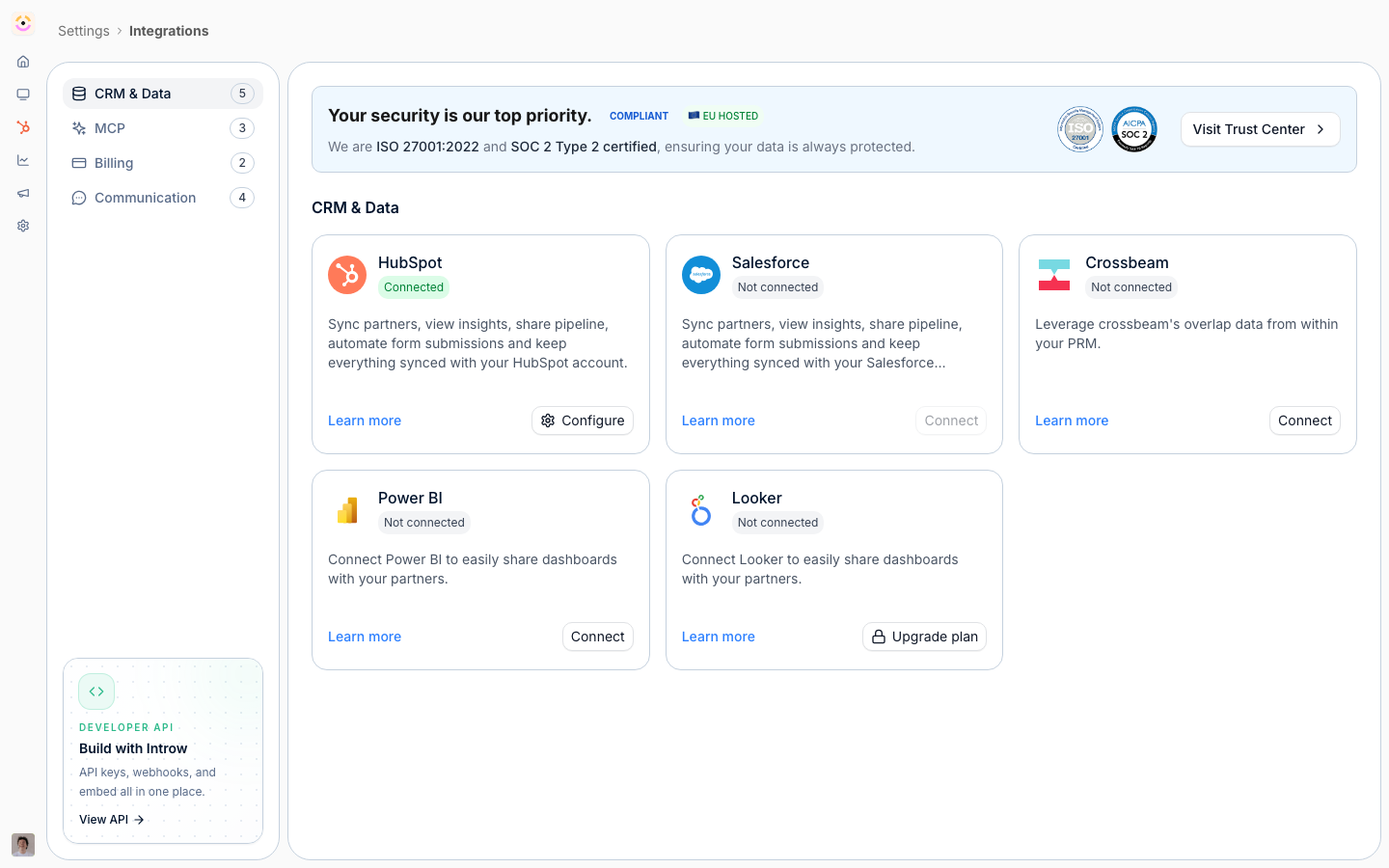
Before you start
Add row-level security roles in Power BI if you need per-partner scoping.
How it works
Power BI is set up from the Integrations settings, where the Power BI card connects your tenant via an Azure AD service principal and OAuth. Once connected, you manage the integration on its own page, registering the reports and dashboards you want to embed and configuring per-partner dataset roles for row-level security. In the Experience builder, a Power BI embed section surfaces a registered report or dashboard. Embeds are rendered with secure embed tokens, and the configured roles ensure each partner sees only their own data. Power BI is a paid module, so it must be enabled on your plan.Settings & configuration
Power BI is configured from Integrations.Connect the tenant
Use the Power BI card to connect via OAuth and the Azure AD service principal.Manage embeds
On the integration page, register the reports and dashboards you want to embed.Row-level security
Configure per-partner dataset roles so each partner’s embed is scoped to their own rows.Test the connection
Use the connection test to confirm credentials work before embedding.Portal embed
In the Experience builder, add a Power BI embed section and select a registered report or dashboard.How-to guides
Troubleshooting
The Power BI card shows an upgrade prompt
The Power BI card shows an upgrade prompt
The module is not enabled on your plan.
The connection test fails
The connection test fails
Check the service principal credentials and workspace access.
A partner sees all the data
A partner sees all the data
Row-level security roles are not configured for the embed.