

Where it lives
MCP sits under Settings, at Integrations.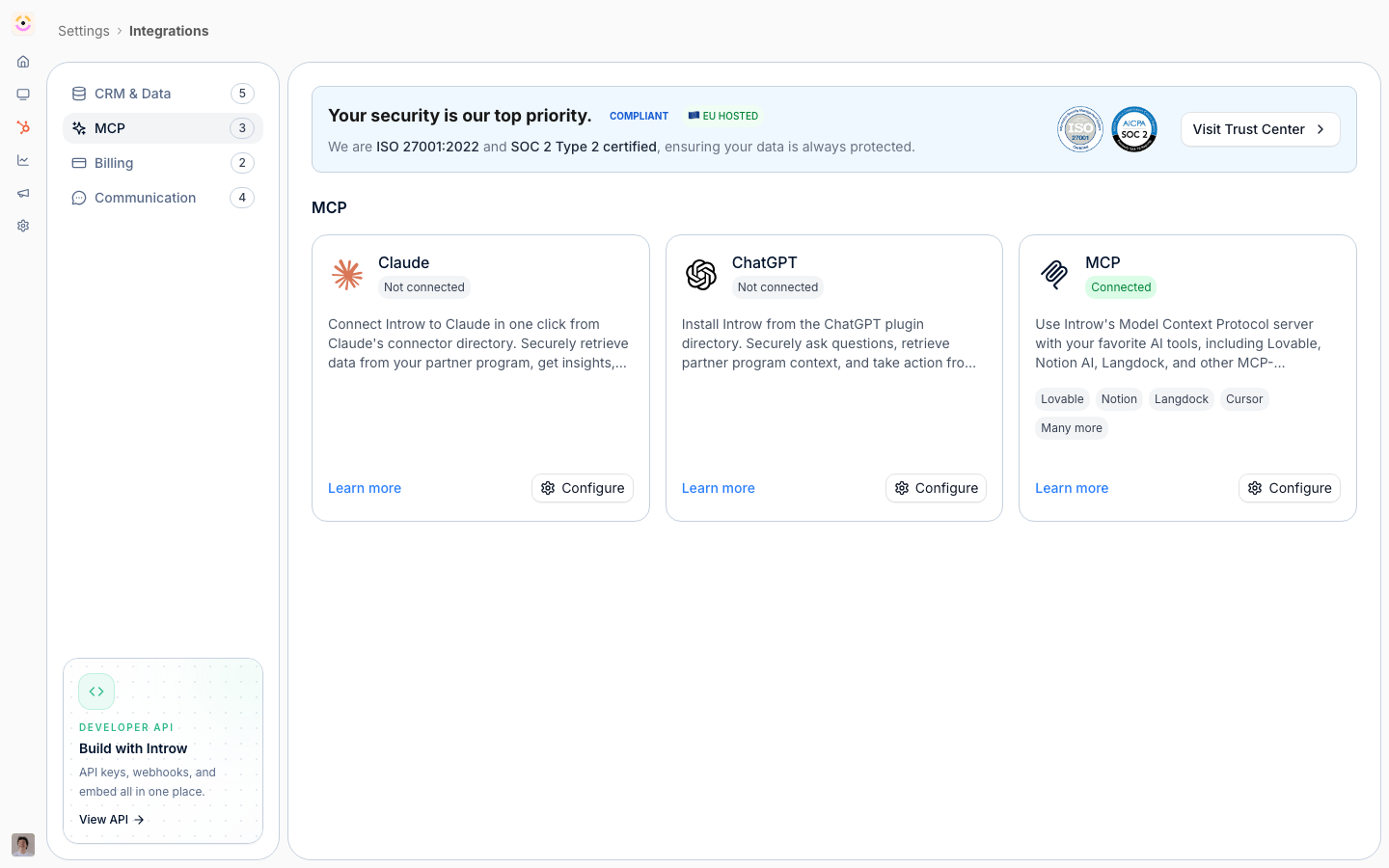
Before you start
How it works
Introw exposes an OAuth-protected MCP server that AI clients connect to. You do not flip a switch to turn MCP on; instead, you connect each AI client by pointing it at the Introw MCP server and completing a secure sign-in. Once connected, the client can use Introw’s tools, scoped to your access. The MCP category in Integrations gives you a connector per client, Claude, ChatGPT, and a generic MCP option, each with quick-setup steps and the server URL to copy. The connection uses OAuth, so the client authenticates as you and can be disconnected at any time.Settings & configuration
MCP connectors live under the MCP category of Integrations.Connectors
Each connector, Claude, ChatGPT, and MCP, opens a configure page with quick-setup steps for that client. Introw is published in Claude’s connector directory and in the ChatGPT plugin directory, so those two configure pages lead with a deeplink to the listing (Connect in Claude, Install in ChatGPT). Connecting from a listing takes one click plus the OAuth sign-in, and the client shows Introw by name with its description and tools instead of an anonymous custom endpoint.HubSpot agents
HubSpot is the one client you do not connect from Introw. The Introw HubSpot app ships its own MCP server, so Introw MCP appears in the Connectors tab when a HubSpot admin adds an action to an agent in Agent Hub, and the authorization happens there. Nothing in the MCP category has to be configured for it. See HubSpot Agent Hub for what to build on it.MCP server URL
The configure page also provides the MCP Server URL. This is the address your AI client connects to; copy it from the page rather than typing it. It is the only route for the generic MCP connector, which covers clients without a directory listing, and it stays available on the Claude and ChatGPT pages for setups that add the endpoint by hand.Connection status
After you complete the OAuth sign-in in your client, the connector shows whether the connection is active. You can disconnect a connector here to revoke a client’s access.How-to guides
Troubleshooting
The connection shows as not active
The connection shows as not active
Complete the OAuth sign-in in your AI client while logged in to Introw.
The generic MCP connector is locked
The generic MCP connector is locked
It requires the MCP connection add-on on your plan.
An assistant cannot see expected data
An assistant cannot see expected data
It is scoped to your access; confirm you can see that data in Introw.