

What you’ll achieve
A deal embed in a partner experience where the partners you choose get a guided quote builder: they add line items at your governed prices, produce a quote on your template with a locked title, optionally require an e-signature and collect payment, and either publish the quote themselves or submit it to your team for approval. The quote is written as a native HubSpot object on the deal, so everything stays in your CRM.Before you start
1
Confirm the Product Hub module
Viewing line items and quotes works on any plan, but creating and editing them requires the
Product Hub module on your plan. Without it, the creation toggles show an upgrade prompt instead.
2
Connect HubSpot with quote write access
Quote and line-item creation is HubSpot only, and HubSpot must be connected with quote write
permissions. On Salesforce, partners can view line items but cannot create quotes, so this guide
applies to HubSpot deals.
3
Have a deal experience ready
You need a portal experience that includes a deal collaboration embed (a CRM list of deals).
Create or open that experience before you begin.
Watch it
- Video
- Click through
Steps
Turn on line items and quotes
1
Open the deal embed
Go to Experience builder and open the experience your partners
use. Select the deal collaboration embed and open its configuration. The quoting controls live in
the Quotes & Line Items section of the Configuration tab.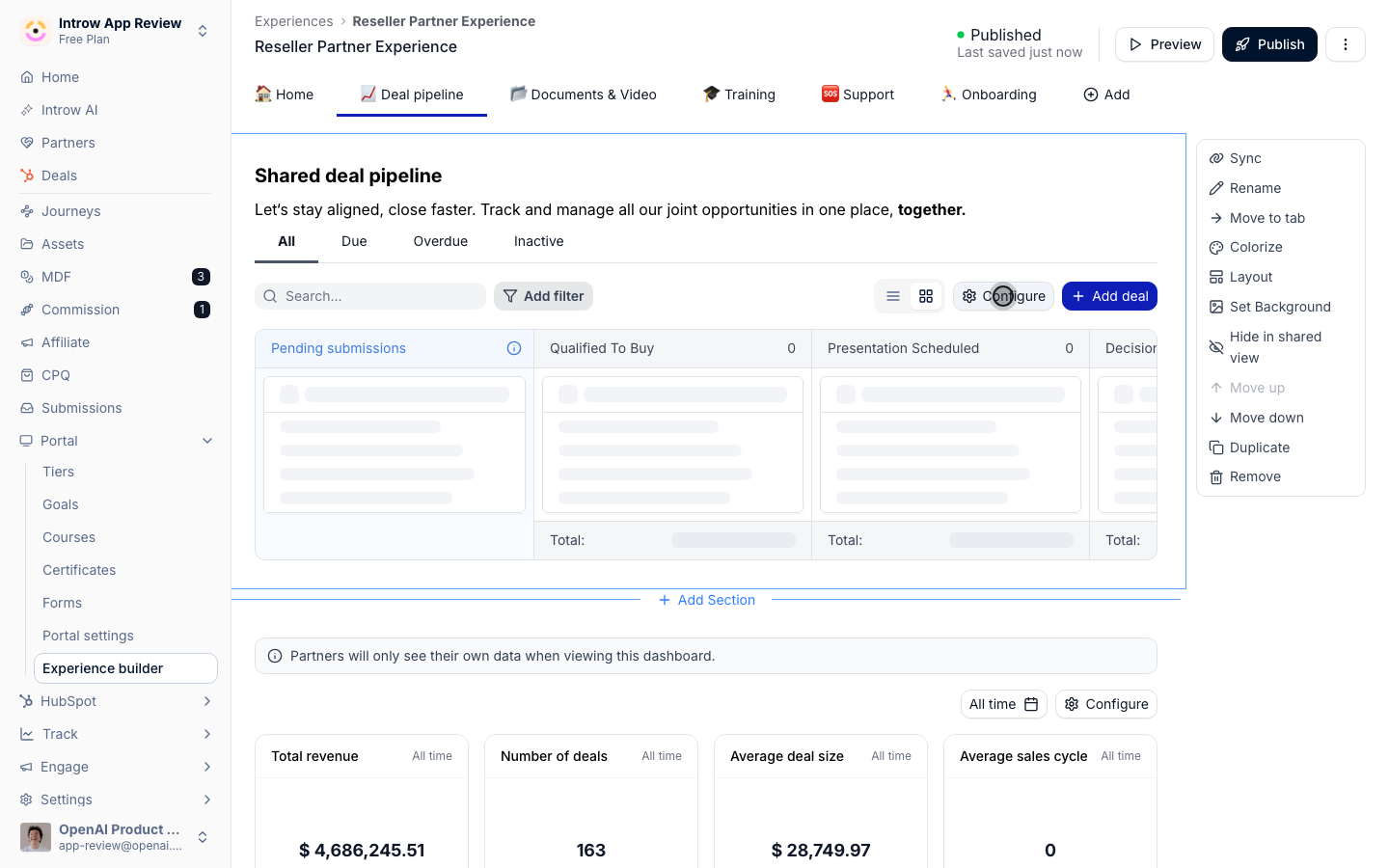
2
Show line items and allow editing
Decide what partners can do with products on the deal: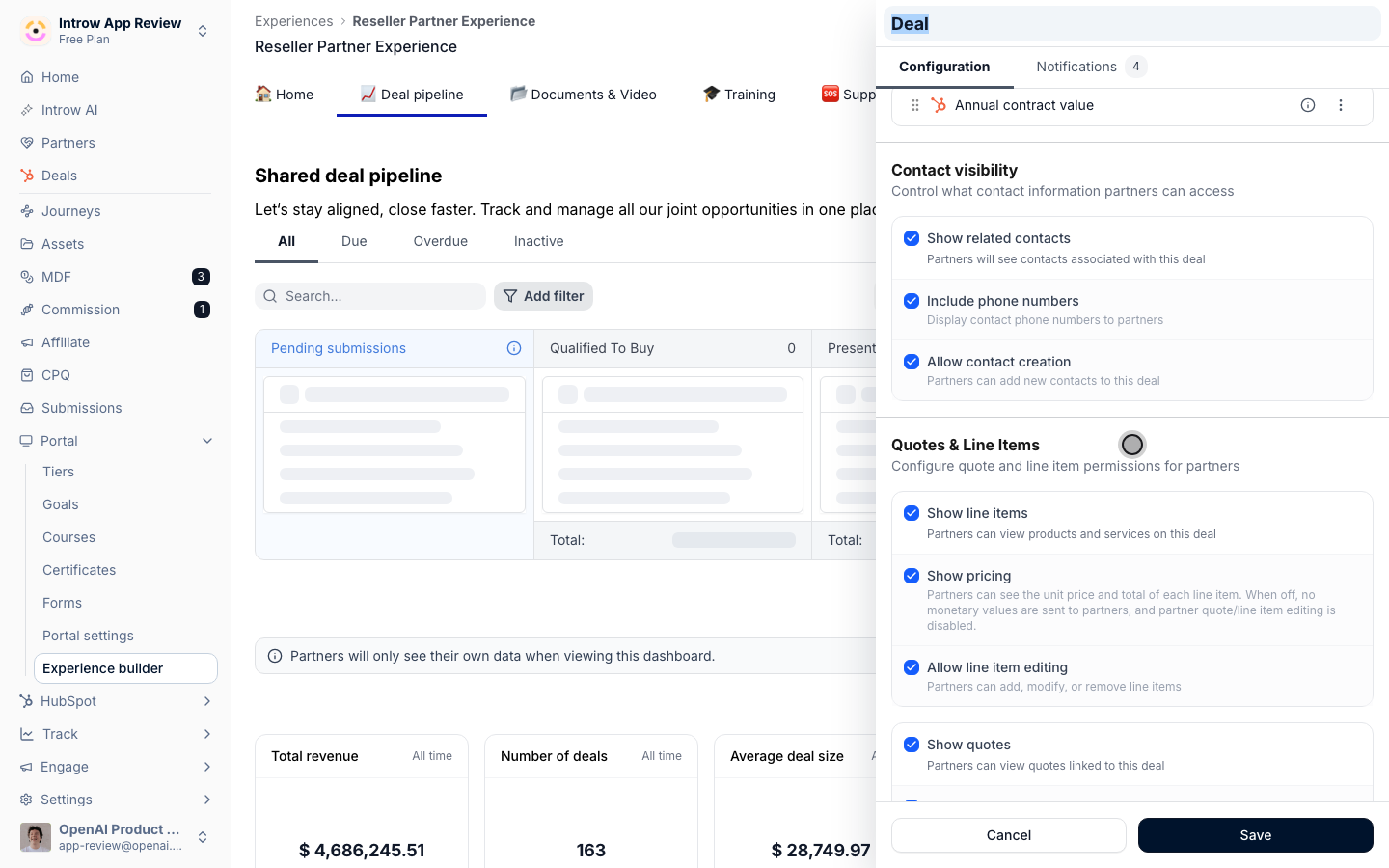
- Show line items - lets partners view the products and services on the deal. Turn this on as the foundation for quoting; on its own it is view-only and works on any plan.
- Show pricing - lets partners see each line item’s unit price and total. Leave it on for quoting. Turn it off and no monetary values reach partners at all, which also switches off partner quote and line-item editing, since there is nothing to quote. Use that only for programs where partners should see which products are on the deal but not what they cost.
- Allow line item editing - lets partners add, modify, or remove line items. This requires the Product Hub module; with it on, partners can build the line items a quote is made of.
If the quote controls below read “Enable Show pricing on the line items above to let partners
create or publish quotes”, that is the gate: quoting needs pricing visible.
3
Show quotes and allow creation
Turn on the quote permissions partners need:
- Show quotes - lets partners view quotes linked to the deal. This is the base quote visibility and is HubSpot only.
- Allow quote creation - lets partners create new quotes on the deal, which reveals the builder and the configuration below. Requires Product Hub and HubSpot quote write access.
- Allow quote publishing - lets partners publish their own quotes. Leave it on for fully self-serve quoting, or turn it off to hold quotes for manual approval (covered in the last phase).
Control who can quote and how it looks
1
Choose who can create quotes
Use Who can create quotes to limit quoting to specific partner segments. Leave it empty to
allow every partner who sees the embed, or select segments to restrict creation to, for example,
certified or higher-tier partners. This keeps quoting in the hands of partners you trust to send
pricing to a customer.
2
Decide whose name the quote goes out in
Use Seller to set whose company details appear as the seller on the quote. Us (the
organisation) is the default: the quote goes out under your company. Choose The partner and
the partner’s own linked CRM company is used instead.Set it to the partner for a reseller motion, where the partner sells to their customer in their own
name and a vendor-branded quote would expose the relationship. The seller is resolved from the
partner’s linked CRM company on the server, so the setting holds wherever the quote is created.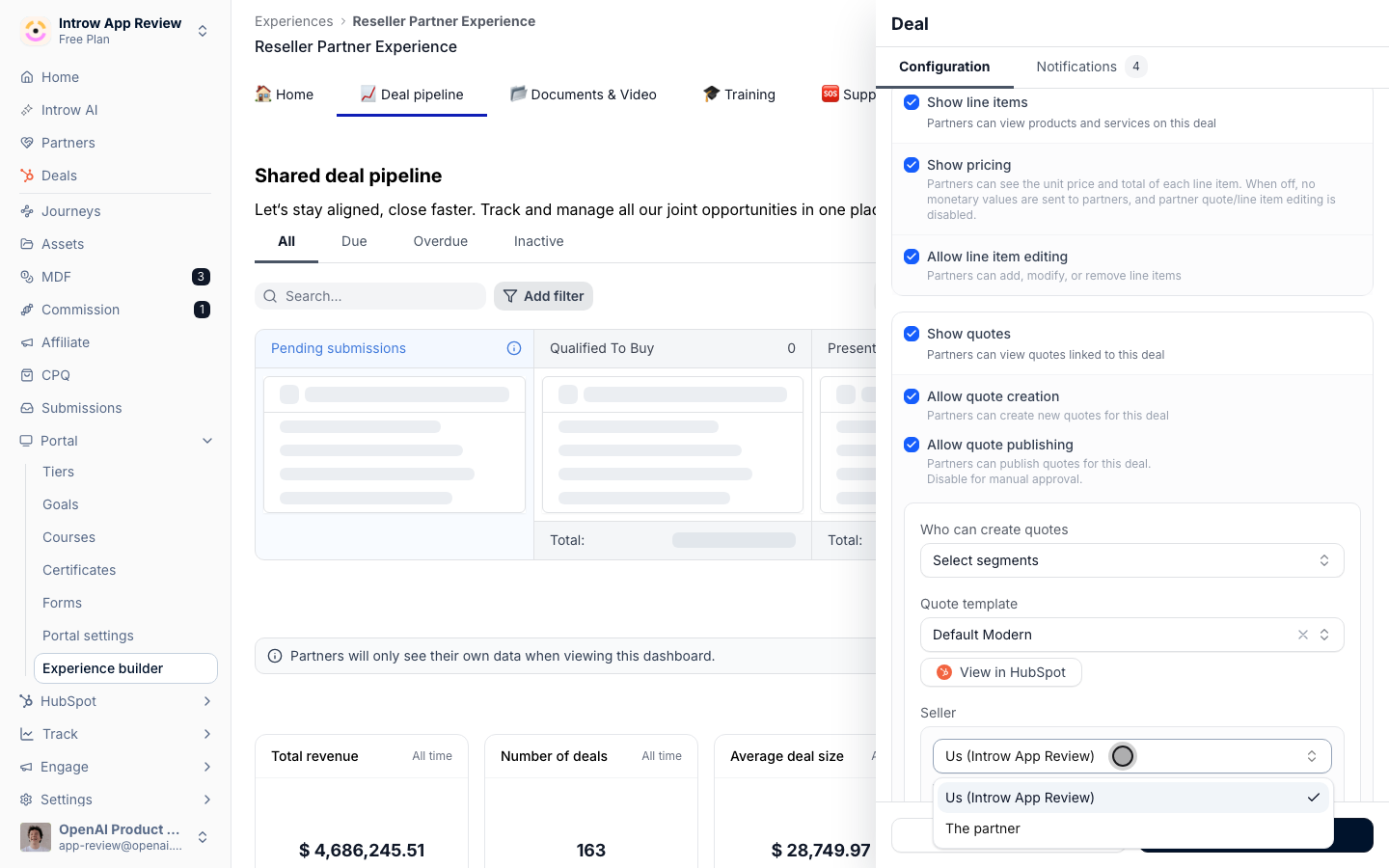
3
Pick a quote template
Use Quote template to choose the HubSpot template every partner quote is built on, so output
stays on-brand and consistent. Templates marked “(CPQ)” are HubSpot’s CPQ templates, which
support signing and payment collection; plain templates are the legacy quote format. Choose a CPQ
template if you plan to require e-signatures or collect payment.
4
Lock the quote title
Standardize naming with the Quote title controls: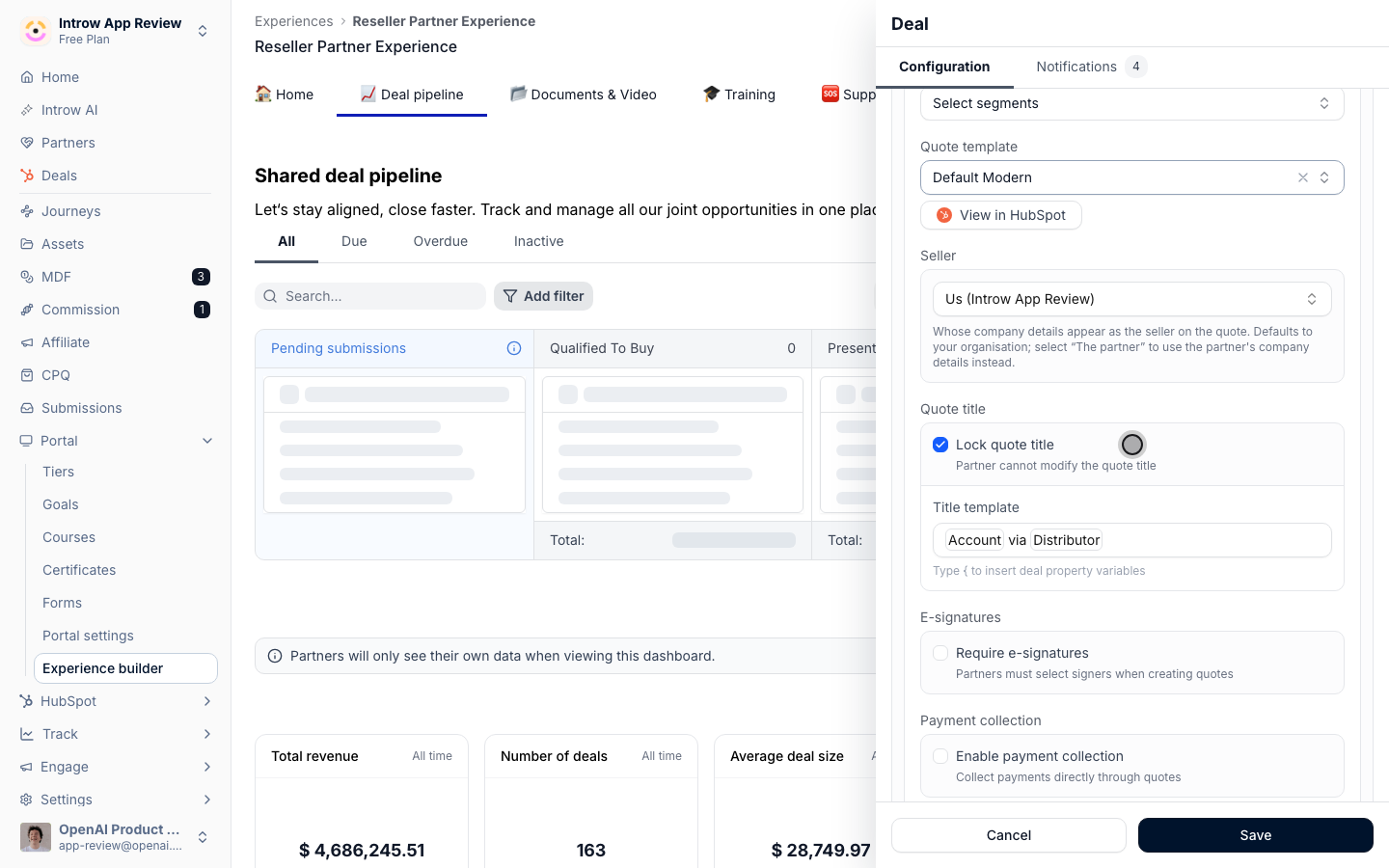
- Lock quote title - prevents partners from changing the quote title, so every quote follows your convention and is easy to find.
- Title template - the naming pattern used when the title is locked. Type
{to insert deal property variables, for example “Quote for ”, so each title is generated from the deal.
Add signing, payment, and expiration
1
Require e-signatures
In E-signatures, turn on Require e-signatures so partners must select signers when
creating the quote and the quote must be signed before it can be accepted. This gives you a clean
record of agreement without a separate signing tool. (Signing and payment require a CPQ
template.)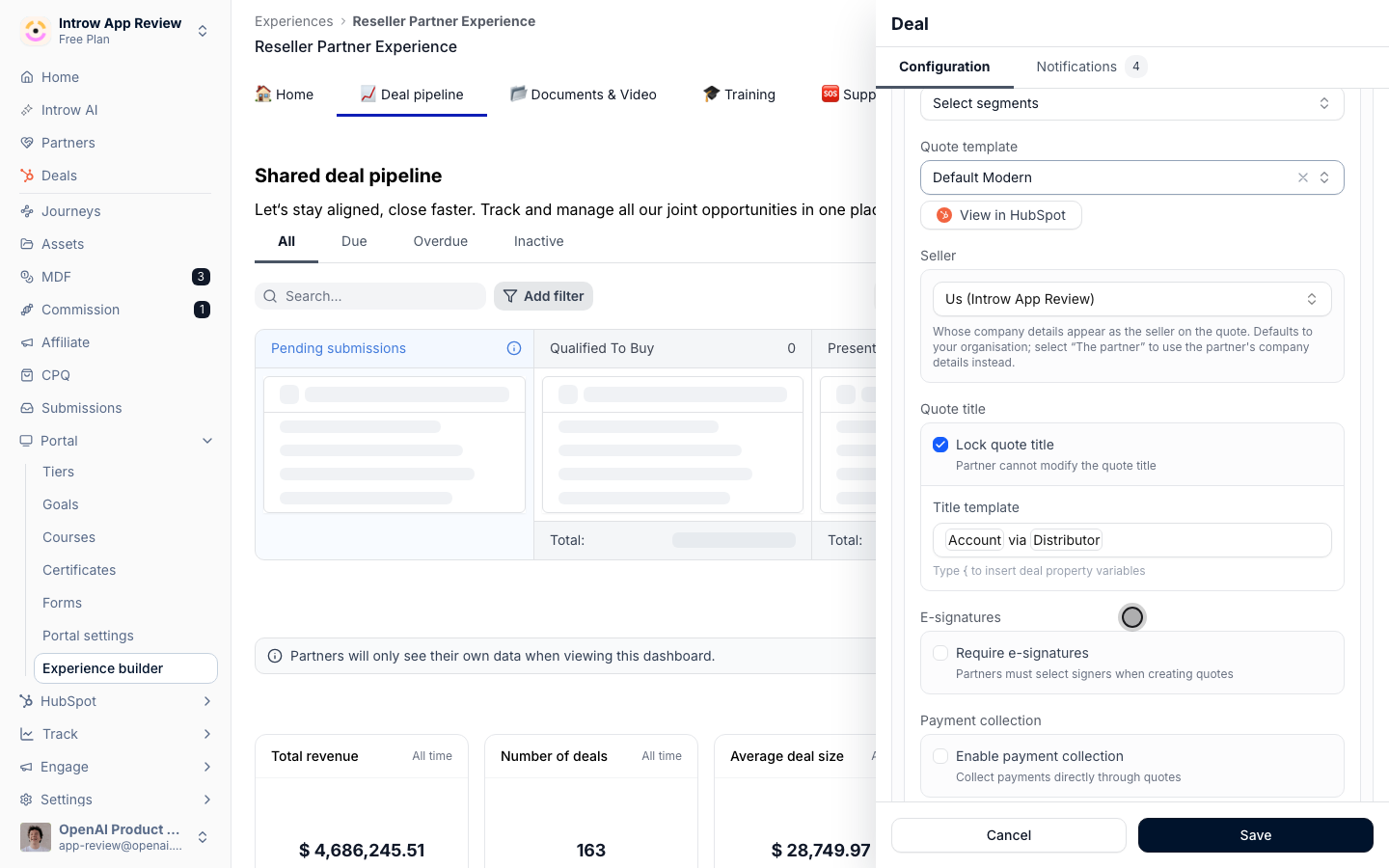
2
Collect payment
In Payment collection, decide whether the customer can pay from the quote: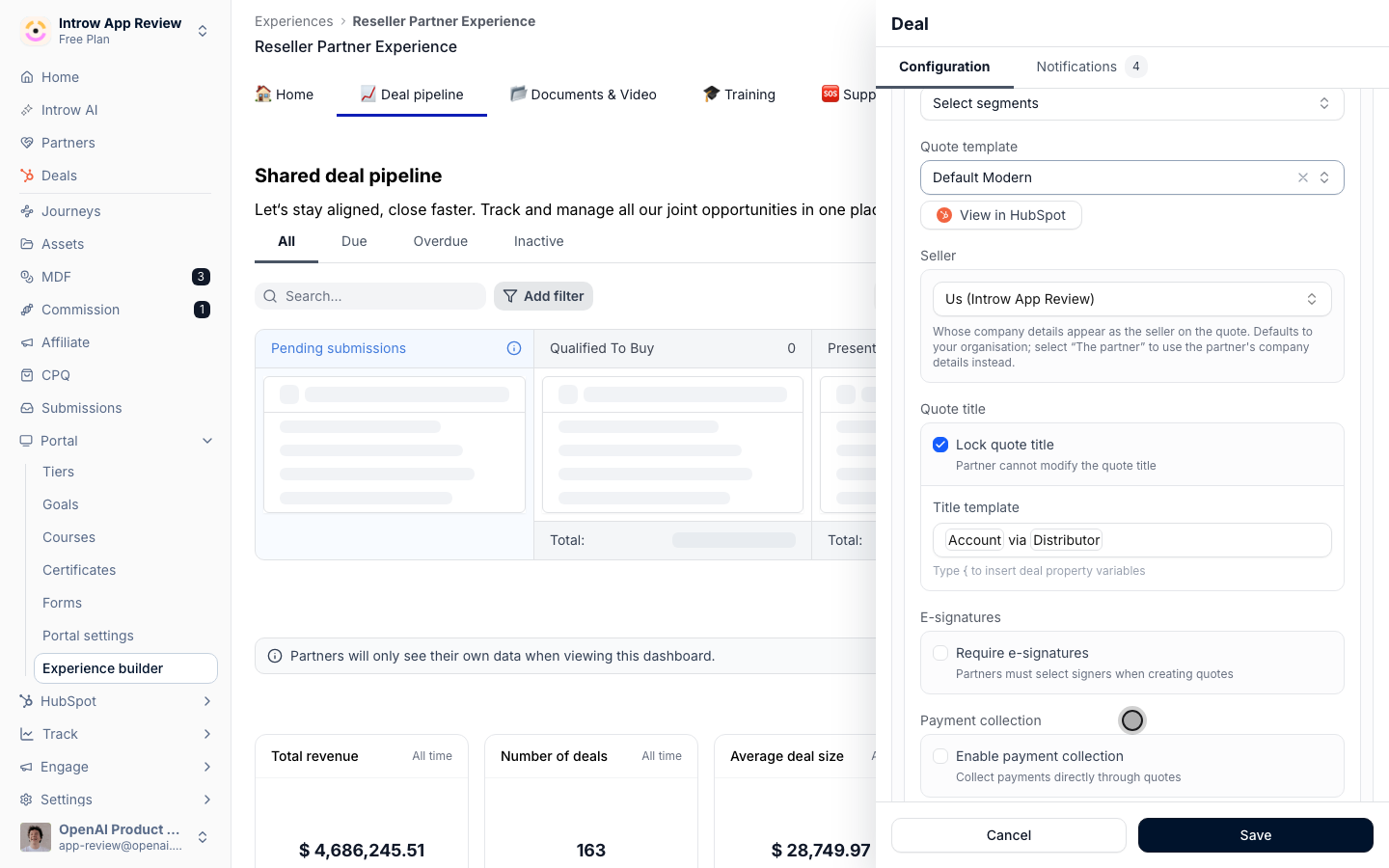
- Enable payment collection - turns on paying directly through the quote, shortening the path from accepted quote to revenue.
- Processor - choose HubSpot Payments or Stripe to process the payment.
- Accepted methods - enable Card, ACH, or both, depending on how you want customers to pay.
3
Set an expiration
In Expiration, control how long a quote stays valid: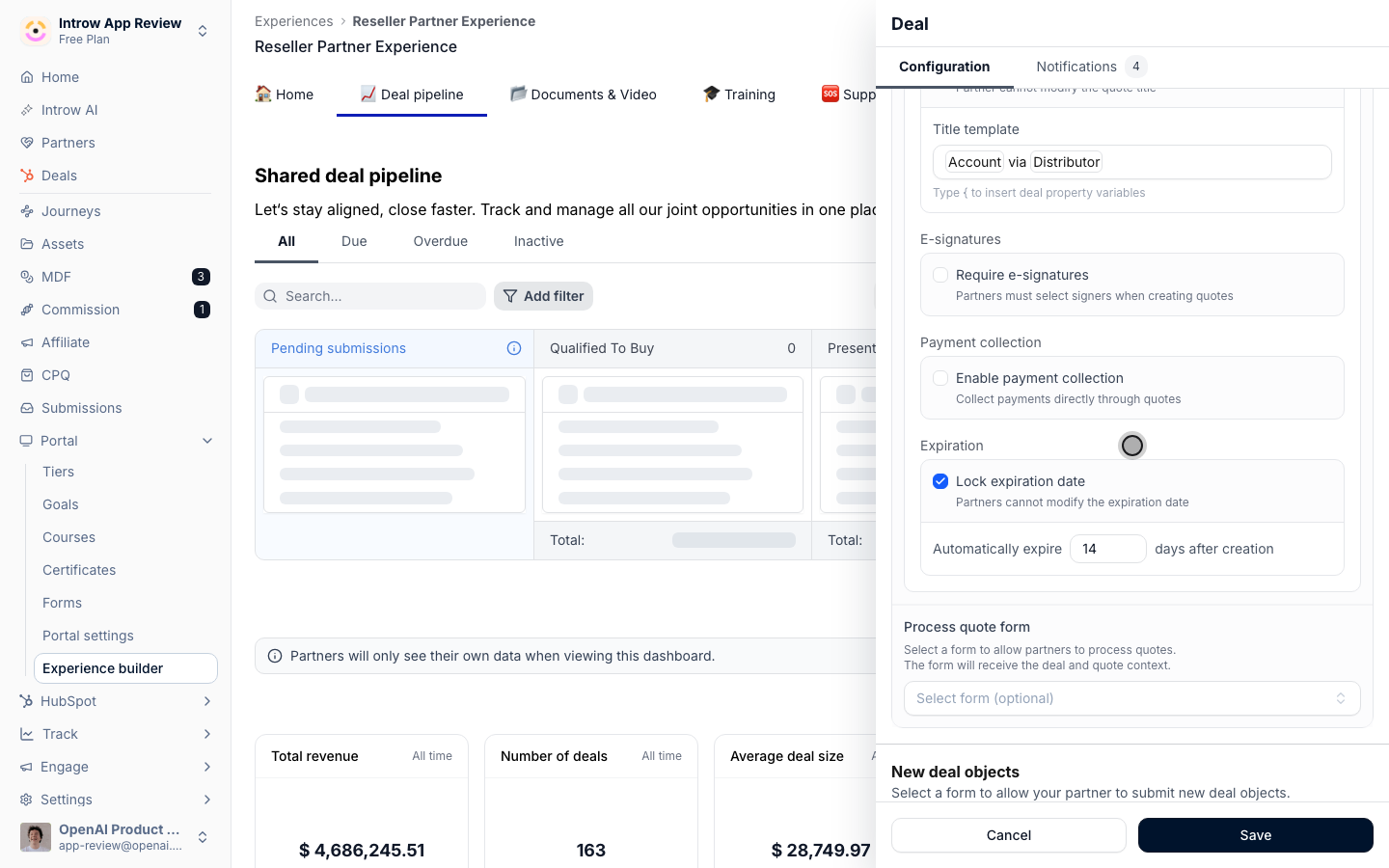
- Lock expiration date - stops partners from changing the expiration, so quotes expire on your schedule.
- Automatically expire … days after creation - the number of days (1 to 365) until a locked quote expires, for example 30. This keeps stale pricing from lingering.
Decide on approval, then publish
1
Choose self-serve or approval
Decide how quotes go out, using Allow quote publishing from the first phase together with the
review controls:
- For fully self-serve quoting, leave Allow quote publishing on. Partners create and publish quotes themselves.
- For reviewed quoting, turn Allow quote publishing off so partner quotes stay as drafts until someone on your side approves them.
2
Set up the approval form
If you want review, configure the approval route:
- Process quote form - the form partners submit to send a quote for processing; it receives the deal and quote context so your team can act on it. Leave it as None for pure self-serve.
- Who can process quotes - the segments allowed to process and publish quotes once a form is set, so only authorized reviewers can push a quote live.
3
Save and publish
Save the embed configuration, then publish the experience so the quoting setup goes live for
partners.
Verify it worked
Open the deal as a partner in an allowed segment and confirm the guided quote builder is available: they can add line items, create a quote on your template with the locked title, and see the signing, payment, and expiration behavior you configured. If you required approval, confirm the partner can only submit a draft and that an authorized reviewer is the one who publishes it. The published quote appears on the deal as a native HubSpot object.Related
Govern product visibility
Control which products partners can add to a quote.
Reward partner tiers with discounts
Apply governed pricing to quoted products.
Implementation reference
Full quoting configuration options.