

Where it lives
Product Catalog sits under CPQ, at CPQ.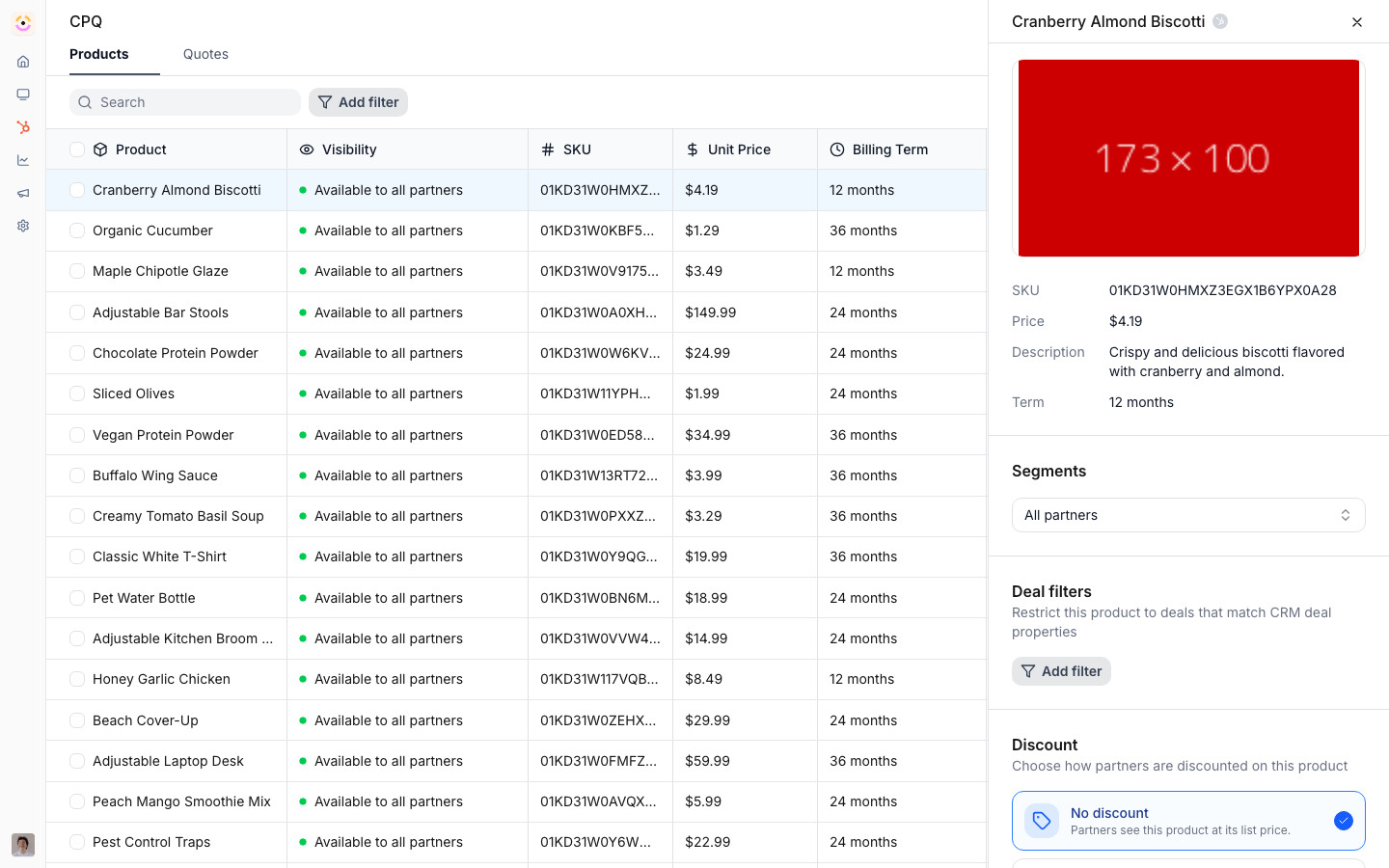
Before you start
How it works
The catalog lives under CPQ on the Products tab. Products are synced from your CRM, so you do not create or price them in Introw; you govern who can sell them and how they are discounted. Core fields like name, SKU, and price are maintained in the CRM and are read-only here.Browse the catalog
The Products tab lists every synced product so you can see what partners could quote and how each one is currently scoped. Scan the columns to get oriented:- Product - the product name from your CRM.
- Visibility - “Available to all partners” (a green dot) when unrestricted, or “Restricted by segments or deal filters” (an amber dot) once you scope it.
- SKU - the product code from your CRM.
- Unit Price - the list price from your CRM, in your organisation currency.
- Billing Term - the billing period, such as 1 month or 1 year.
- Description - the product description from your CRM.
Govern a product
Clicking a product opens its detail panel, which shows the read-only CRM details (image, SKU, price, term, description) with a link back to the product in your CRM, then the sections you control: Segments and Deal filters for visibility, and Discount for pricing. You can govern one product at a time in the panel, or select several rows and bulk edit visibility and discount across all of them at once.Settings & configuration
The catalog is managed under CPQ on the Products tab at CPQ.Segments
In a product’s detail panel, set the segments that can see and use the product. With no segments set, the product is available to all partners.Deal filters
Add deal filters to a product so it only appears on deals whose CRM properties match, for example a product limited to deals in a certain region or above a certain size.Bulk edit
Select multiple products and apply visibility or discount configuration to all of them at once.CRM link
Use the link in the detail panel to open the product in your CRM, where its core fields like name, SKU, and price are maintained.How-to guides
Troubleshooting
A product is missing
A product is missing
Confirm it is active in your CRM and has synced.
A partner cannot see a product
A partner cannot see a product
The product is restricted to segments they are not in, or a deal filter excludes the deal.
A price looks wrong
A price looks wrong
Core prices come from the CRM; check the product there.