

What you’ll achieve
A live deal coach: scoped to a pipeline, the right partner segments, and the right deals, with stage-by-stage objectives and guidance, objection responses, attached enablement assets, and your rules of engagement. When a partner works a deal that matches the scope, the coaching appears on the deal and the partner support agent can deliver the same guidance when asked.Before you start
1
Confirm Deal Coaching is available
Deal Coaching is on by default. If you do not see it under Engage, the module is not enabled on your plan.
2
Have the pipeline ready
Know which deal pipeline this coach covers; the coach pulls its open stages from that pipeline.
3
Line up segments and assets
Decide which partner segments the coach applies to, and have any enablement assets you want to attach already in your asset library.
Watch it
- Video
- Click through
Steps
Create the coach
1
Start a new coach
Go to Deal Coaching and select Create Deal Coach.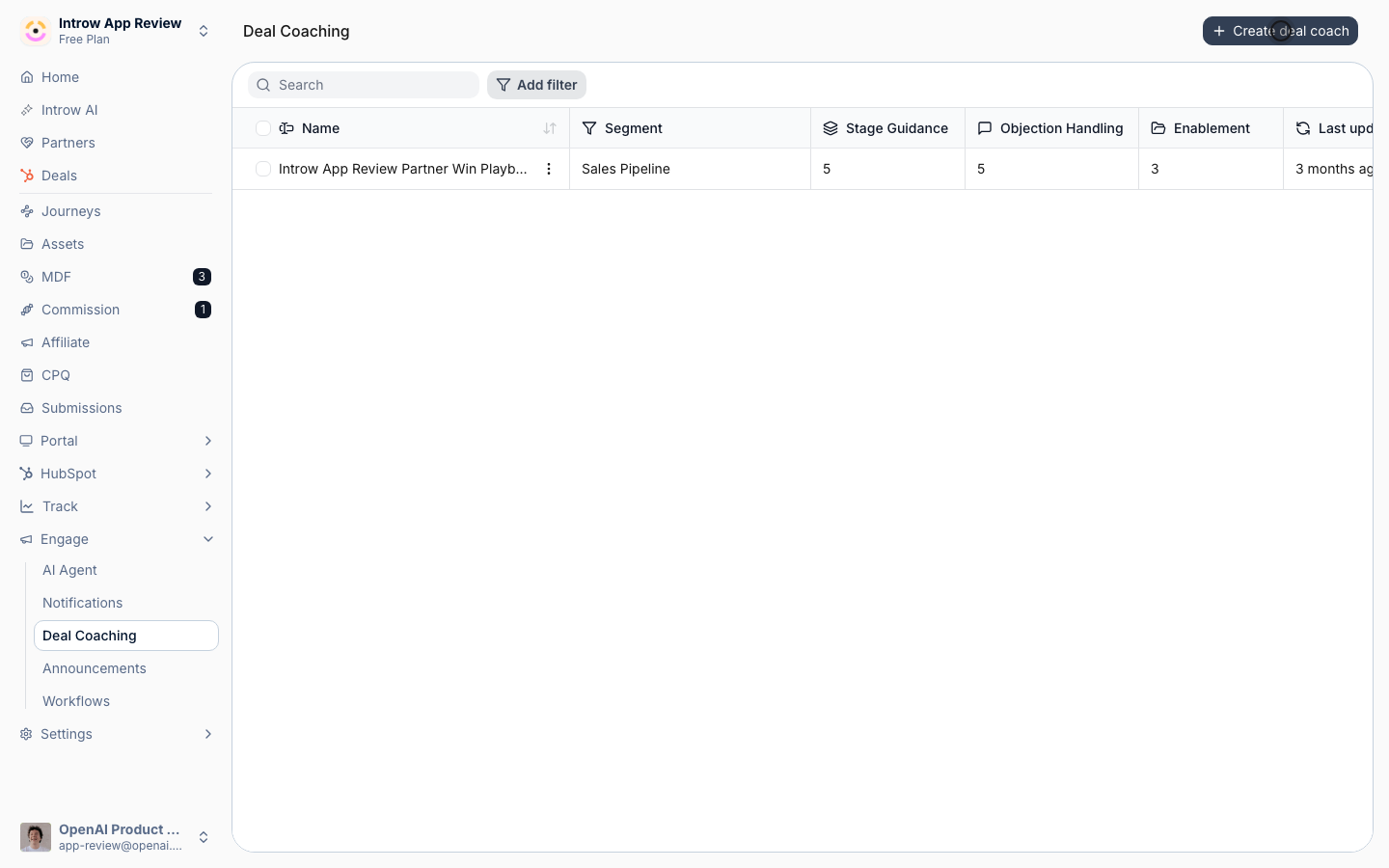
2
Pick the pipeline and motion template
In the Create Deal Coach dialog, set: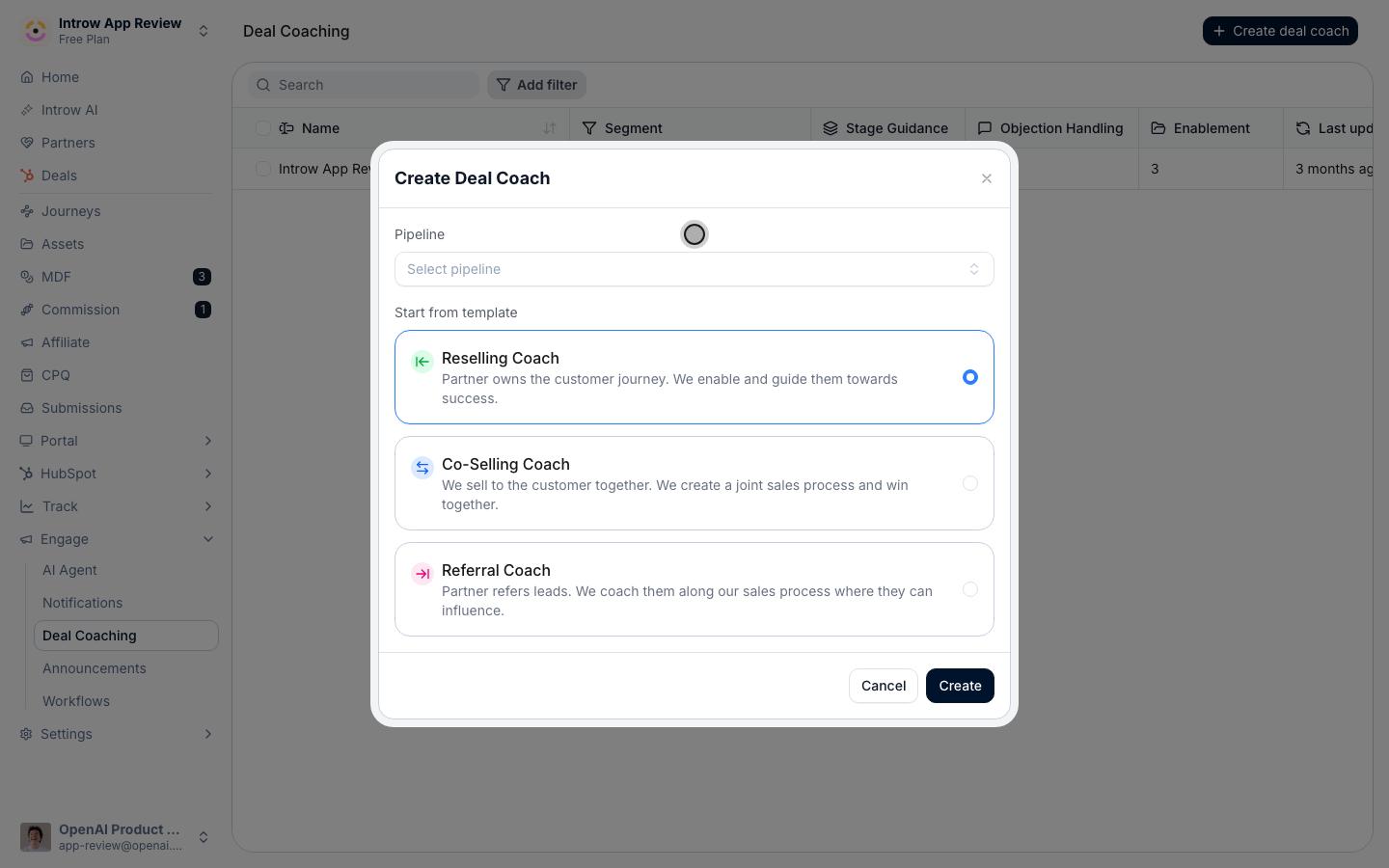
- Pipeline - the deal pipeline this coach covers. The coach builds its stage guidance from this pipeline’s open stages, so choose the one partners actually work these deals in.
- Start from template - the motion the coach is built for, which shapes the AI’s first draft. Choose Reselling Coach when the partner owns the customer journey and you enable them, Co-Selling Coach when you and the partner run a joint sales process, or Referral Coach when the partner refers leads and influences your process. The default is Reselling Coach.
3
Create and let AI draft it
Select Create. Introw generates a first-draft playbook from your company details and the chosen motion, then opens the coach. Generation takes a moment; the page updates itself when the draft is ready.
Scope who and which deals it covers
1
Open the configuration
On the coach, select Configure to open the Configure Deal Coach dialog. Scope decides which deals the coaching appears on.
- Name - a clear name so the coach is easy to find in the list (for example “EMEA Reselling - Enterprise”).
- Partner segment - limit the coaching to partners in the selected segments. Leave it empty to apply to all partners; set it when, say, only certified or tier-1 partners should get this playbook.
- Deal property segmentation - add filters on deal properties so the coach only applies to matching deals (for example a region, product line, or amount threshold). Leave it empty to cover every deal in the pipeline.
2
Save the scope
Select Save Changes. The coach now matches only the partners and deals you defined.
Refine the playbook
1
Edit the stage guidance
On the Stage Guidance tab, work through each pipeline stage. Per stage set:
- What must be achieved - the objective for that stage, the exit criteria before a deal should advance. This is what tells a partner whether they are really ready to move on.
- How to achieve it - the concrete guidance on what the partner should do to hit that objective, mirroring how your best reps work the stage.
- Email template (under Show email template) - an optional ready-to-send email for that stage, so partners are not drafting outreach from scratch. Leave it empty if you do not want a template for a stage.
2
Add objection handling
On the Objection Handling tab, select Add Objection for each common objection and fill in:
- Objection - what the prospect is likely to say.
- Response - how the partner should answer it.
3
Attach enablement
On the Enablement tab, select Add Assets and choose the materials partners should reach for during these deals (one-pagers, case studies, decks). They surface in the moment of need instead of partners hunting through a library.
4
Set the rules of engagement
On the Rules of Engagement tab, write the guardrails partners must respect, what they can promise, when to involve you, what to avoid, and stakeholder or escalation rules. This keeps partners empowered without going off-script.
5
Save the playbook
Select Save Changes to publish your edits. The AI draft is only a starting point, so review every tab before partners rely on it.
Verify it worked
Open a deal that matches the coach’s pipeline, segment, and deal filters. The coaching view appears on the deal with the current stage’s objective and guidance, the objections, the enablement assets, and the rules of engagement, and the partner support agent returns the same guidance when a partner asks about the deal. If nothing shows, the deal does not match the coach’s scope, so revisit the pipeline, partner segment, and deal filters.Related
Implementation reference
Settings, tabs, prerequisites, and limits for deal coaching.
Asset Library
Manage the enablement assets a coach surfaces.