

For anyone deciding what the portal’s navigation should be before filling it with content.Tabs are the only navigation a partner portal has, so they are the whole information architecture. Get them right and a partner finds what they came for without reading. Get them wrong and you end up with a home tab that is a wall, or nine tabs a partner scans every visit because none of them is obviously the one. This guide covers the structure decision, the three kinds of item you can put in the navigation (a tab, a tab group and a URL), and every control they carry.
What you’ll achieve
A navigation a partner can use on their first visit: a small set of tabs named for what a partner wants rather than how your program is organised, related pages folded under one tab group, outside links in the navigation where partners expect them, each item with the right visibility, and a home tab that leads with the next action.Before you start
1
Open an experience
Go to Experience builder and open one.
Tabs run across the top of the builder, followed by Add.
Hover a tab to reveal its drag handle and its … menu.
2
Know your sections
Structure is easier once you know what can go on a page.
See Every section you can add to a portal.
3
Have segments defined, if you plan to restrict tabs
Restricting a tab needs an audience to restrict it to.
See Create a dynamic segment.
Watch it
- Video
- Click through
Steps
Decide the structure
1
Start from four or five tabs, not nine
A partner visits with one of a handful of jobs: register something, find content, check what they have earned, learn something, see where a deal stands.
Most programs land on Home, Deals, Content, Training and Rewards or their equivalents, and that is enough.
Add the sixth tab only when a real job has nowhere to live.Tabs cost more than sections do.
A crowded section is skimmed; a wrong tab is a dead end a partner has to back out of.
2
Name tabs for the partner's job
Name them for what a partner is trying to do, not for the Introw feature behind them or your internal team structure.
Register a deal beats Forms. Get paid beats Commissions. Sell with us beats Enablement.
A partner has never read your org chart and will not guess which internal word maps to their task.
3
Make the home tab answer 'what now'
The home tab is the only page you can be sure a partner sees.
Lead with the single next action for the partner in front of you, then their status, then everything else.
In practice that means a hero or a call to action at the top, their tasks and goals under it, and announcements below that.
Everything else earns its way onto another tab.
4
Use one portal with restricted tabs before you build two portals
Two partner types rarely need two portals.
They usually need the same portal with one or two tabs each cannot see, which is one experience to maintain rather than two that drift.
Build a second experience only when the difference is most of the portal.
See Restrict a tab to segments.
Add tabs, tab groups and URL tabs
Add, at the end of the tab bar, opens one dialog with a Type picker. Pick what you are adding, fill in what that type needs, and confirm.1
Pick the type
Type offers three options.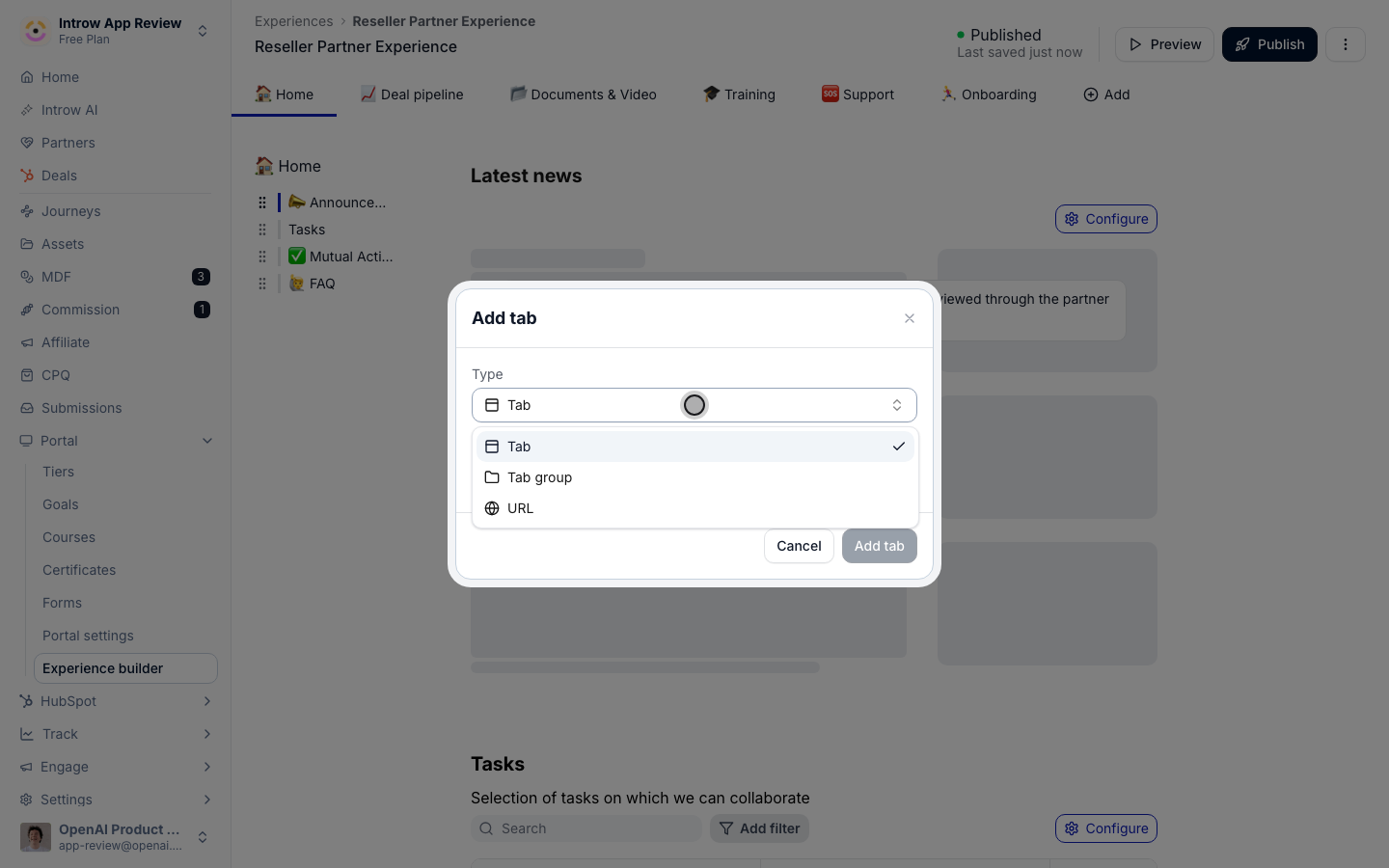
- Tab is a page you fill with sections. This is the default, and every portal needs at least one.
- Tab group is a dropdown in the portal navigation that holds other tabs. It has no page of its own.
- URL is a navigation item that opens a link instead of a page.
2
Add a tab or a tab group
Both need a Name, and Add tab or Add group stays greyed out until you type one.A new tab opens straight away so you can start adding sections.
A new group stays where you are, and it is empty until you add tabs to it.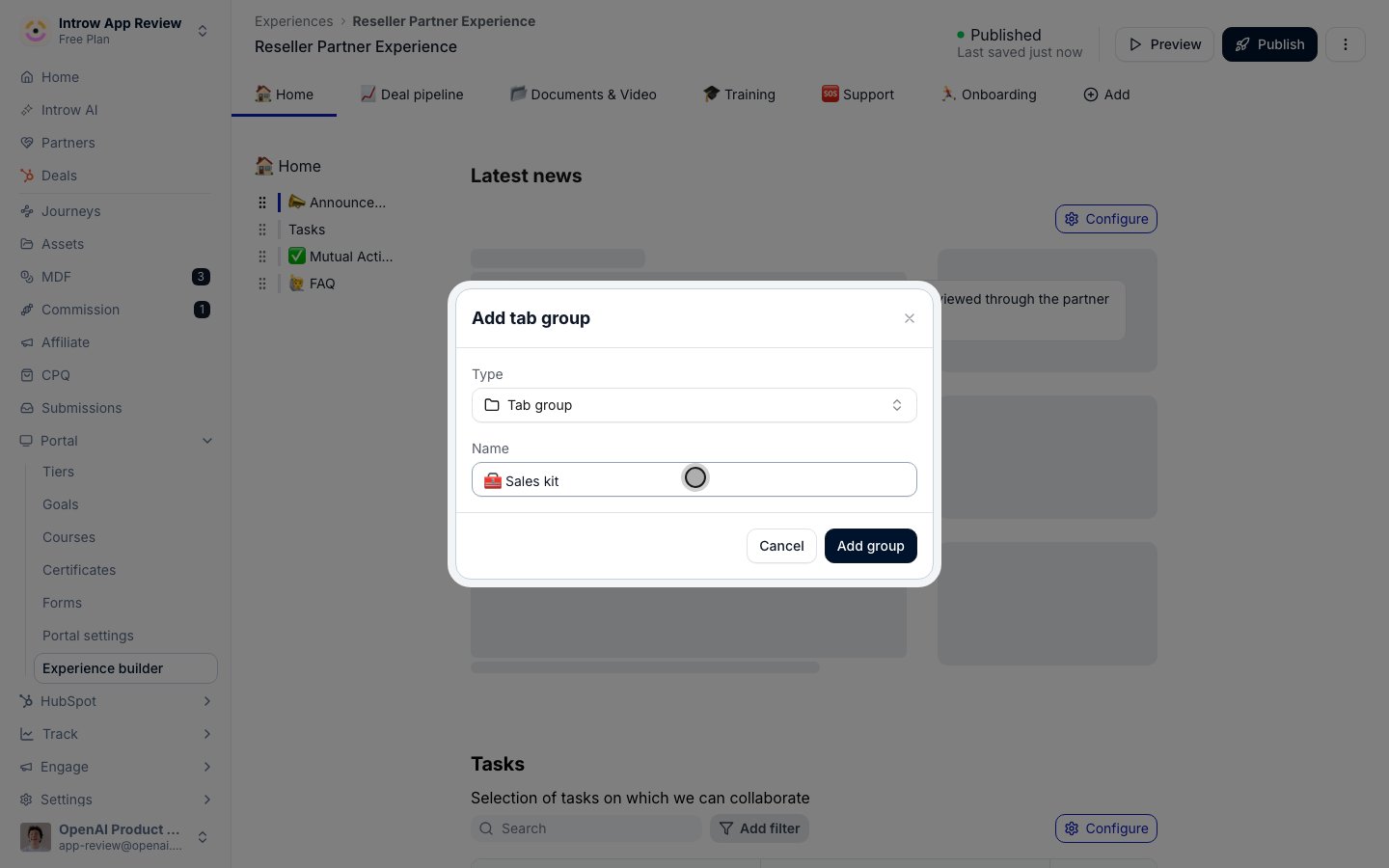
3
Add a URL tab
Choose URL and the dialog asks for the link instead of a name.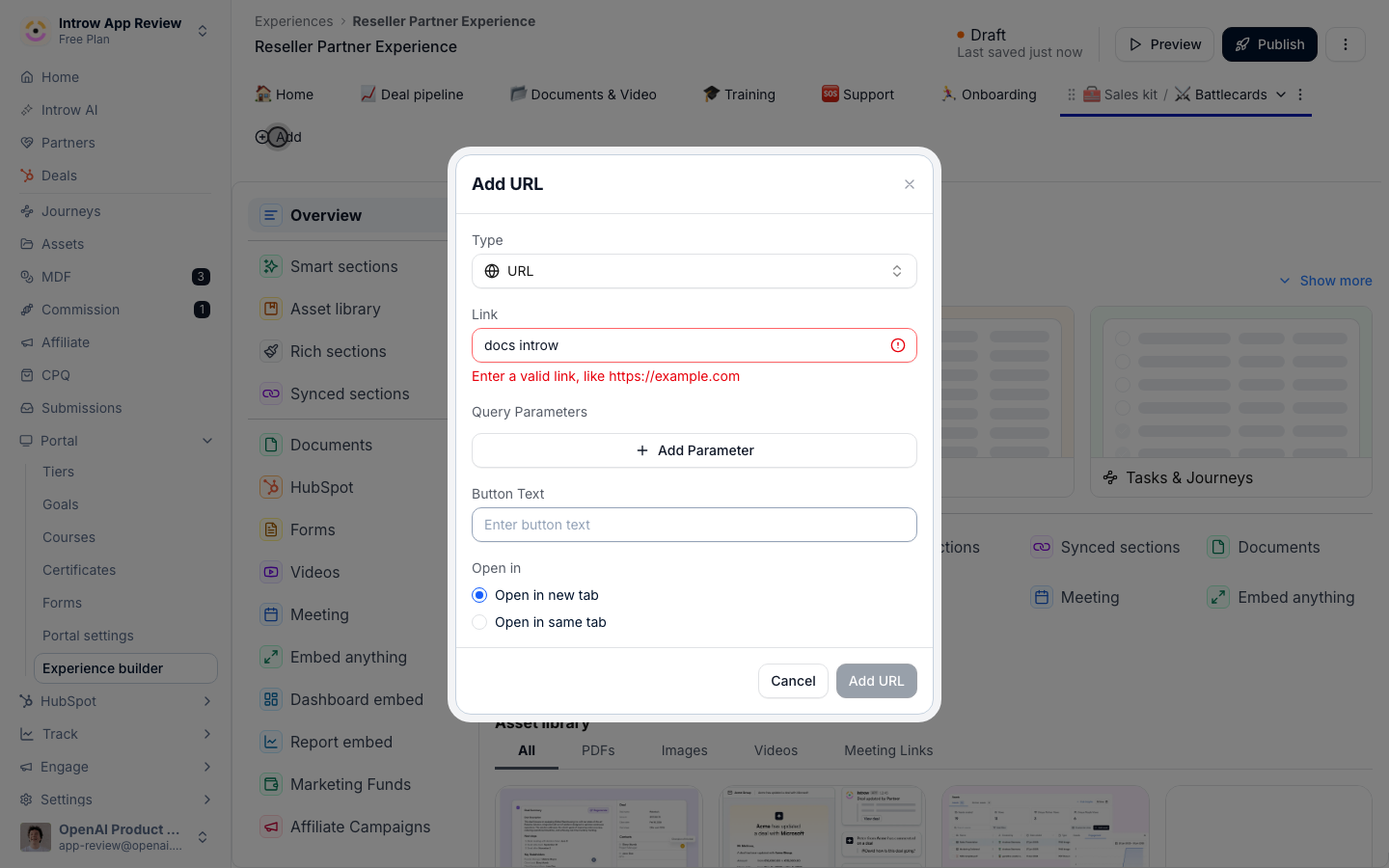
- Link is where the tab goes, like
https://community.yourcompany.com. A bare domain works: Introw addshttps://for you. A path that starts with/stays inside your portal. Introw checks the link when you leave the field, shows Enter a valid link, like https://example.com if it cannot open it, and keeps Add URL greyed out until the link is valid. - Query Parameters adds values to the end of the link. Choose Add Parameter, type a key, and either type a fixed value or switch to a dynamic variable (Partner ID, Partner CRM ID, Partner Name or Contact Email) so each partner lands on their own page in the other tool.
- Button Text is the label partners see in the navigation. Always set it: a URL tab without one reads Untitled.
- Open in is Open in new tab (the default) or Open in same tab. Keep the default for anything outside your portal, so partners do not lose their place. A portal embedded in your CRM always opens links in a new tab.
- Pass current portal query string appears only for a link inside your own portal. Switch it on to carry the partner’s current portal parameters over to the target page.
4
Put tabs in a group
Click a group to open its dropdown in the builder.
It lists Add first, then the tabs inside it. Add here opens the same dialog, titled Add tab to the group’s name, and offers Tab or URL.To move a tab you already have, open its … menu, choose Move to group and pick the group, or drag the tab onto the group.
No group (move to root) in the same menu takes it back out onto the bar.
Inside the dropdown, drag tabs to reorder them.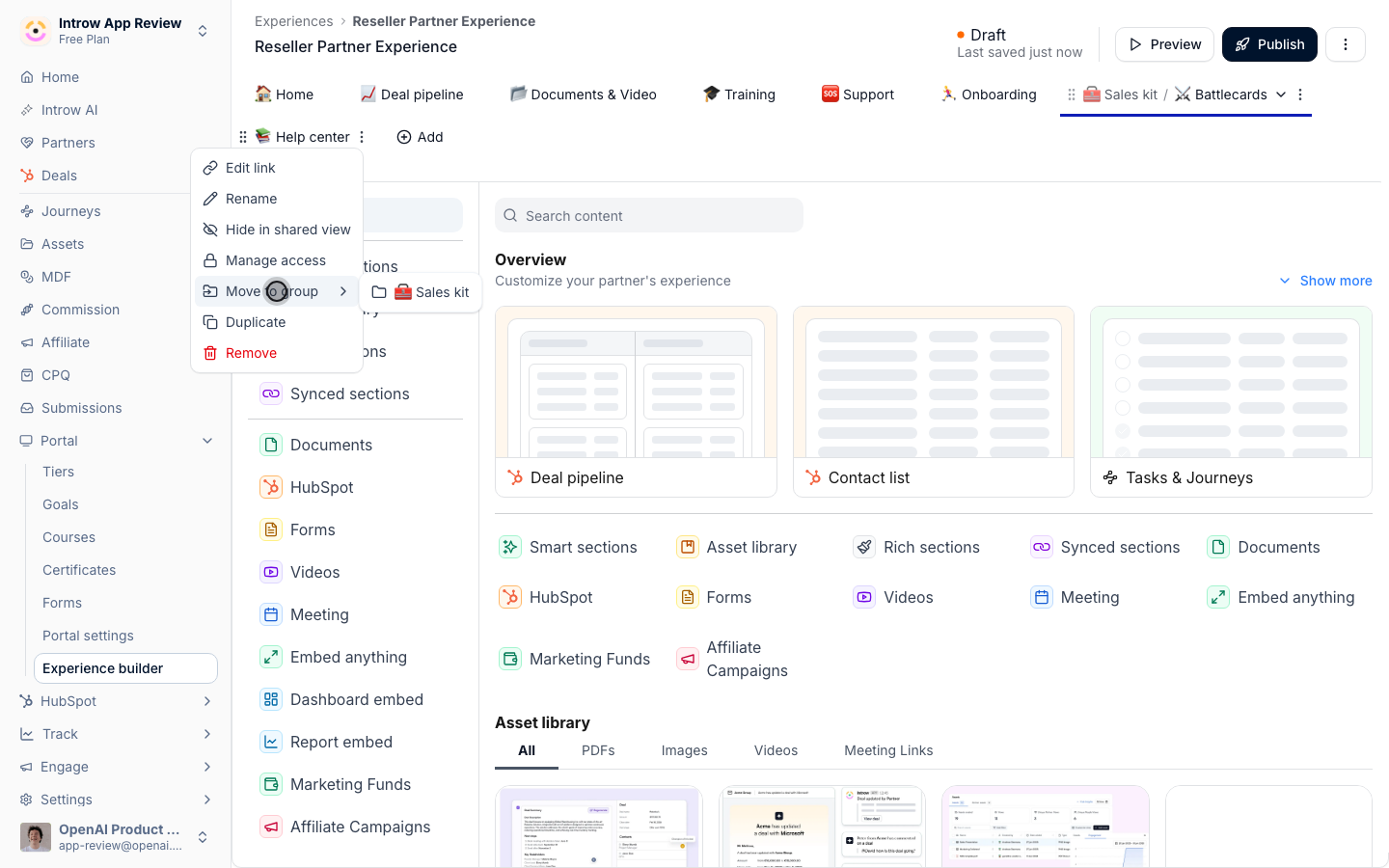
5
Know how a group reads for partners
In the portal a group is one item in the navigation with a dropdown arrow.
Partners click it to open the list of tabs inside, and a URL tab in that list carries an external-link icon.
While a partner is on one of those tabs, the group reads Group / Tab, for example Sales kit / Battlecards, so they always know where they are.Partners never see an empty group: a group only shows when at least one tab inside it is visible to that partner.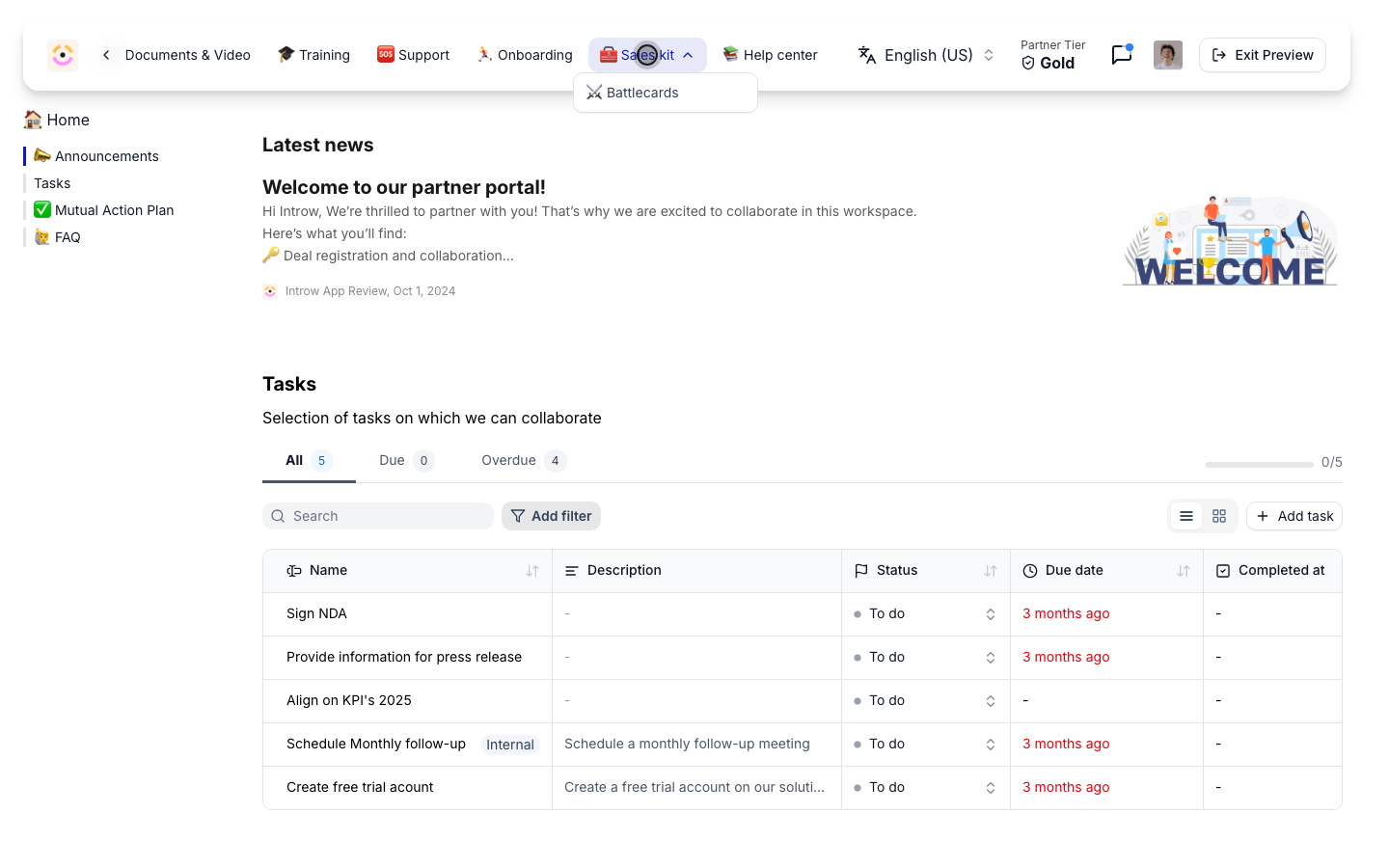
6
Ungroup, or remove a group
The group’s … menu leads with Add, then carries Rename, Hide in shared view, Manage access, Duplicate, Ungroup and Remove.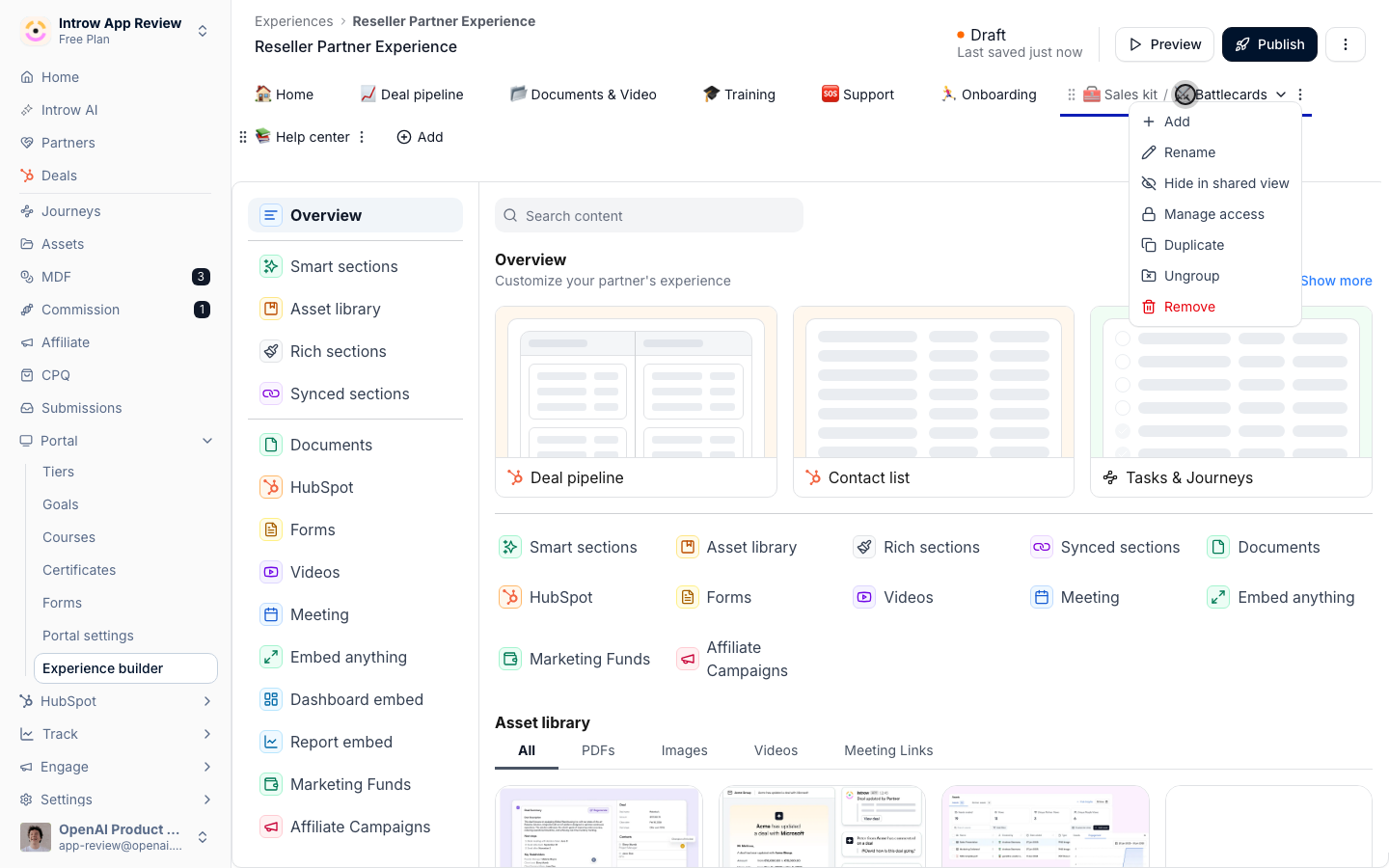
- Ungroup takes every tab out of the group, puts them on the bar where the group was, in the same order, and deletes the group. Nothing inside it is lost. It is greyed out on an empty group.
- Duplicate copies the group with every tab inside it.
- Remove deletes the group and every tab inside it, and it cannot be undone. Ungroup first if you want to keep the tabs.
Work the controls on a tab
1
Reorder by dragging
Drag a tab, a group or a URL tab along the bar to move it.
Order is the strongest signal in the whole portal, because partners read left to right and stop early, so put the tab you want used second from the left rather than last.
A group counts as one position, which is the main reason to use one: five related pages behind one dropdown leave the bar short enough to scan.
2
Rename, duplicate and remove
The tab’s … menu carries Rename, Duplicate and Remove, and Move to group once the experience has a group.Duplicate is the fast way to build a variant: copy the tab, then restrict each copy to a different segment.
Remove is greyed out on the last remaining tab, since an experience needs one.
At least one tab has to stay visible to everyone with portal access, so Introw also blocks hiding or moving the last one with Can’t hide the last public tab.Treat Remove carefully.
On the next publish, a removed tab disappears from every partner’s portal along with the documents on it.
See Draft, published and preview.
3
Choose between hiding and restricting
Both take a tab away from partners, and they are for different things.
- Hide in shared view hides it from every partner, while your team still sees it flagged in the builder. This is the one for a tab you are still building, or one you keep for internal reference.
- Manage access sets the tab’s access policy to Anyone or Restricted, and a restricted tab needs one or more Required segments. This is the one for a tab only some partners should see.
4
Set the layout to match the content
Page layout offers three widths, and the right one follows what is on the page. It is on content tabs only, since a group or a URL tab has no page.
- Centered for reading. Text, announcements, an introduction.
- Expanded for a mix of copy and data.
- Full width for tables and dashboards, where a centred column wastes half the screen. A pipeline or an embedded dashboard almost always wants this.
5
Link straight to a tab
A portal URL takes a tab in a
stage query parameter, so https://your-portal-domain/?stage={tabId} opens the portal on that tab.
Use it from a marketing email or an intranet page.
Tabs inside a group link the same way. A link to a group opens its first tab, and a link to a URL tab opens the portal’s default tab rather than the link.
A link with no stage opens the first tab in the tab bar, and a partner with a single portal lands on the right tab too.
Inside the portal, a call-to-action button does the same with Go to tab, and can also open a form or an asset directly, which is how the home tab hands a partner off without them hunting for the right tab.Verify it worked
Publish, then preview the experience as a real partner and check the navigation alone, before the content: are the tabs in the order you meant, does each group open to the tabs you put in it, does each URL tab open its link, does a restricted tab appear only for a partner in that segment, and is the tab you most want used within the first two positions. If a tab shows a broken-restriction warning, the segment it pointed at was deleted. Pick a live segment or set the tab back to Anyone, because a restriction pointing at nothing is not a safe default to leave in place.Related
Every section you can add to a portal
What goes on each tab.
Restrict a tab to segments
Segment-gated navigation in detail.
Layer segments to progressively unlock
How overlapping segments resolve.
Implementation reference
Full configuration options.