

What you’ll achieve
A portal section that displays embedded external content, a slide deck, a video, or a meeting scheduler, rendered inline in the experience so partners interact with it without leaving the portal.Before you start
1
Confirm write access
You need write access to experiences to edit a stage.
2
Have the source link ready
Copy the share link for the content you want to embed from a supported provider, and make sure the content is shared so partners are allowed to view it.
Watch it
- Video
- Click through
Steps
1
Open the experience builder
Go to Experiences and open the experience you want to add content to.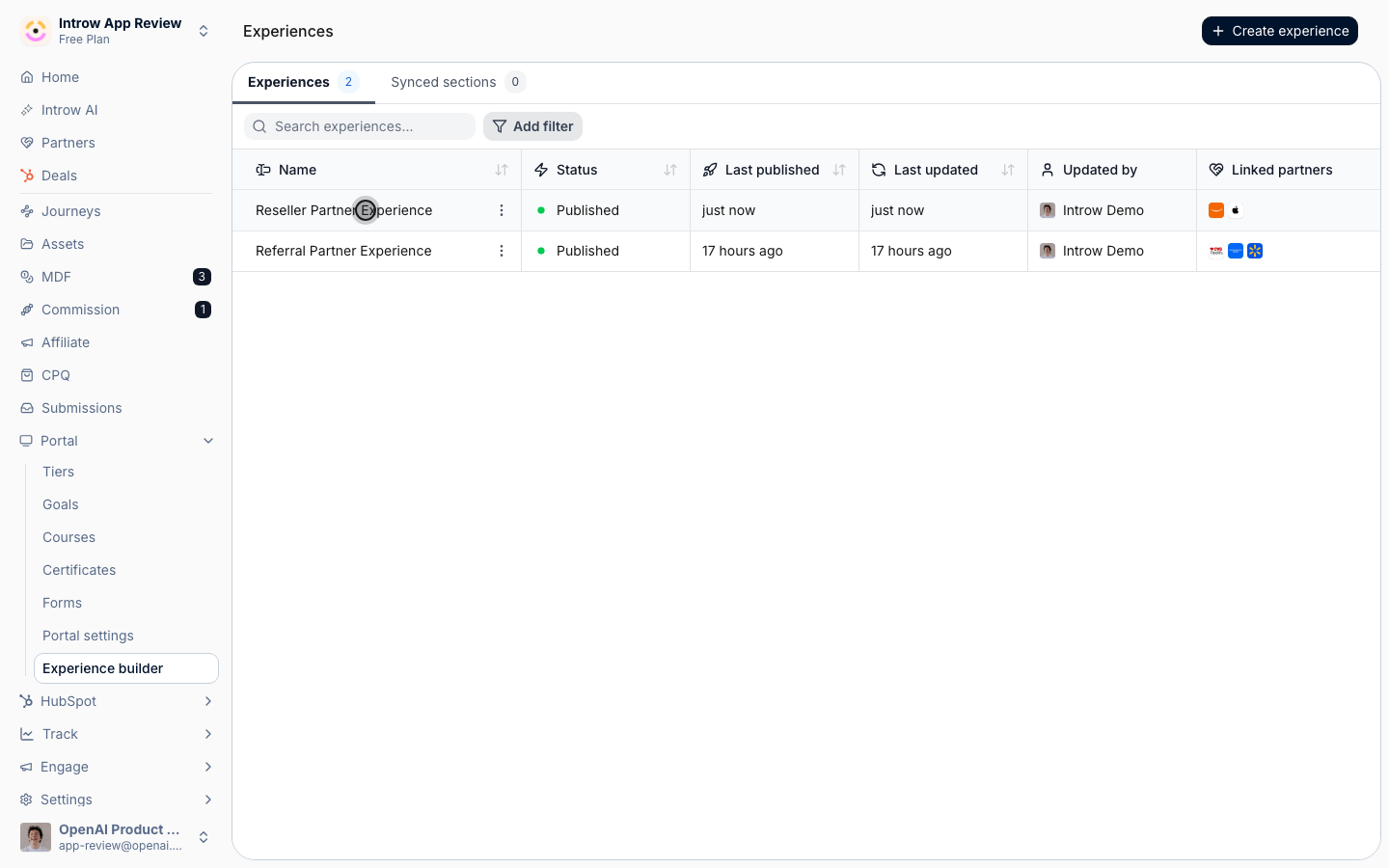
2
Add an embed section
On the stage you want, add a section from the picker and choose the block that matches your source. Introw embeds these providers inline rather than linking out: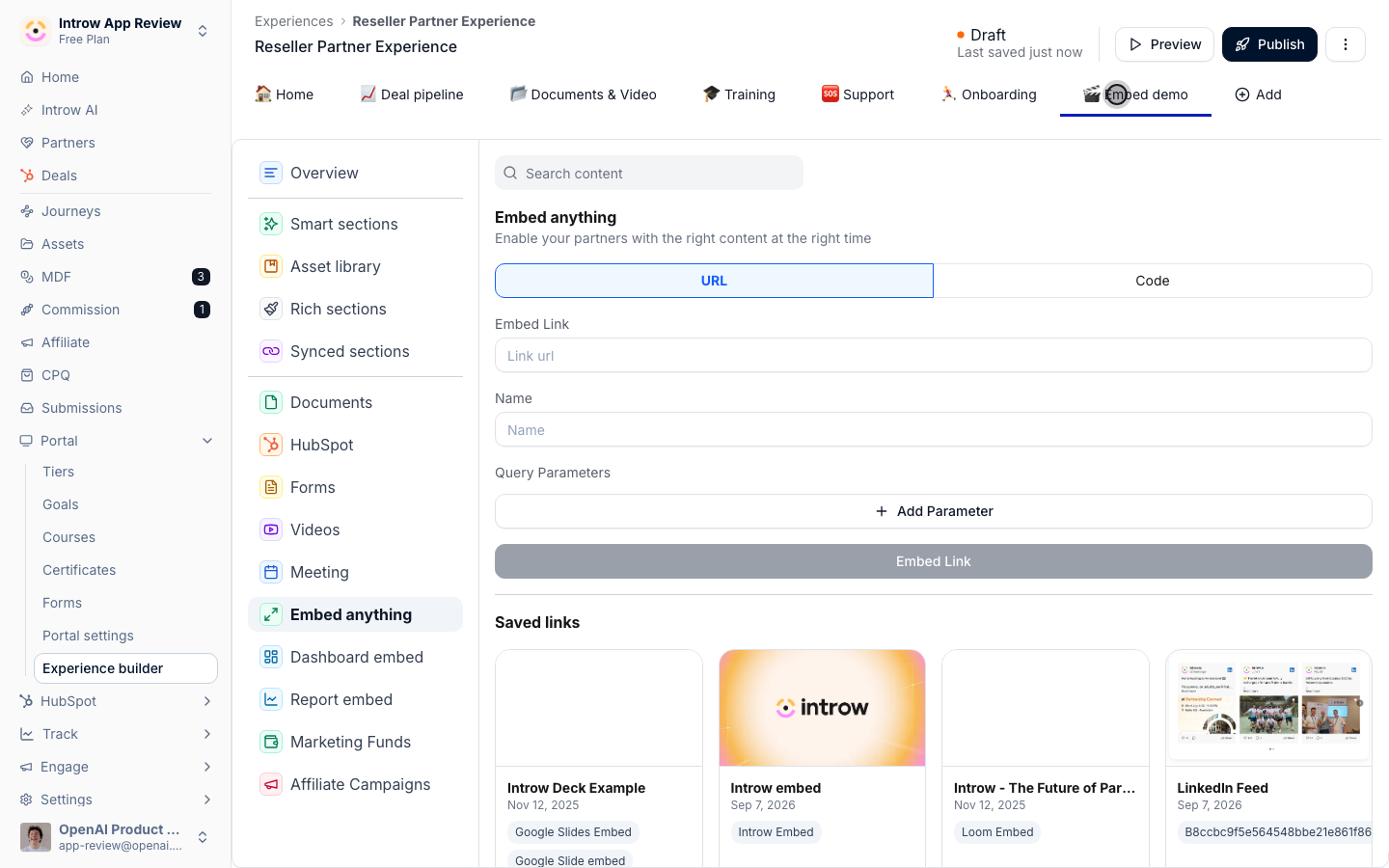
- Documents - Google Slides, Google Sheets, and Google Docs. Use these for decks, plans, and living documents.
- Videos - Loom, Vimeo, YouTube, and Vidyard. Use these for recorded walkthroughs and training.
- Meeting links - HubSpot, Calendly, and Cal.com schedulers. Use these so partners can book time with your team in-portal.
3
Paste the share link
Paste the share link from that provider into the section. Introw recognises the provider and renders the content inline. Use a link that is shared appropriately, since partners can only see content the source allows them to view.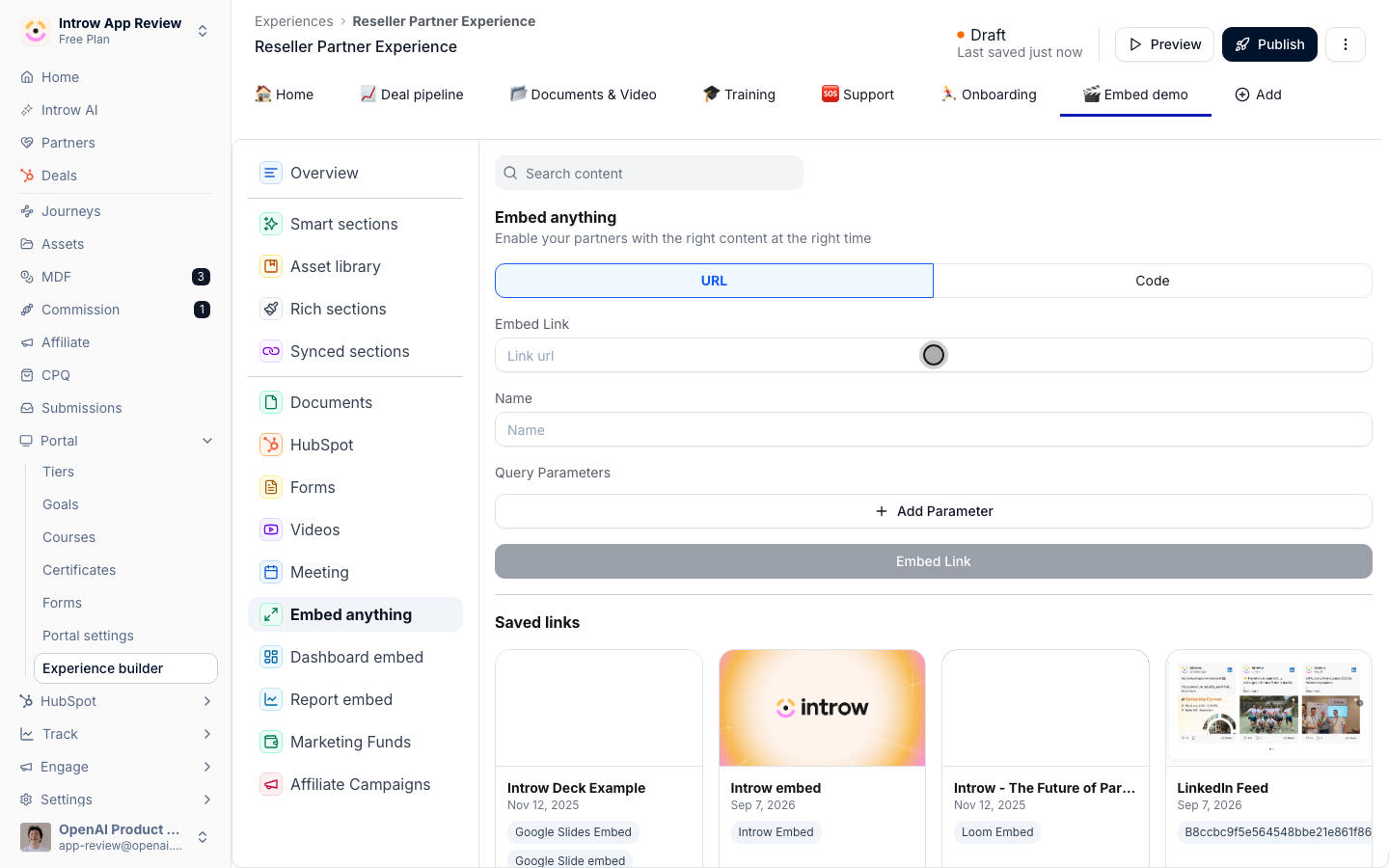
4
Publish the experience
Preview the stage to confirm the content renders, then publish the experience so partners see the embedded section.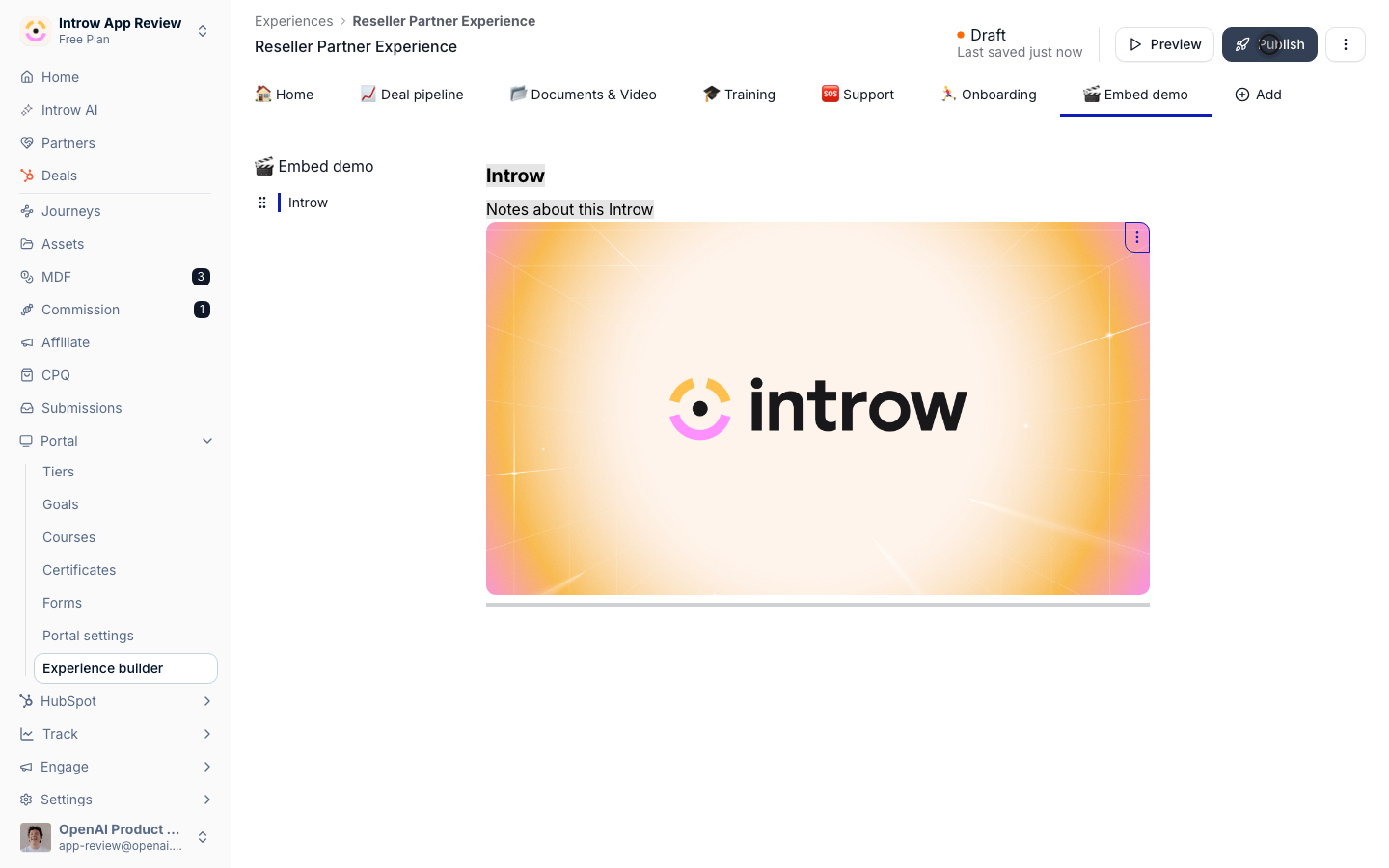
Verify it worked
The embedded deck, video, or scheduler renders inside the experience for a logged-in partner, and they can interact with it, scroll the deck, play the video, or book a slot, without leaving the portal.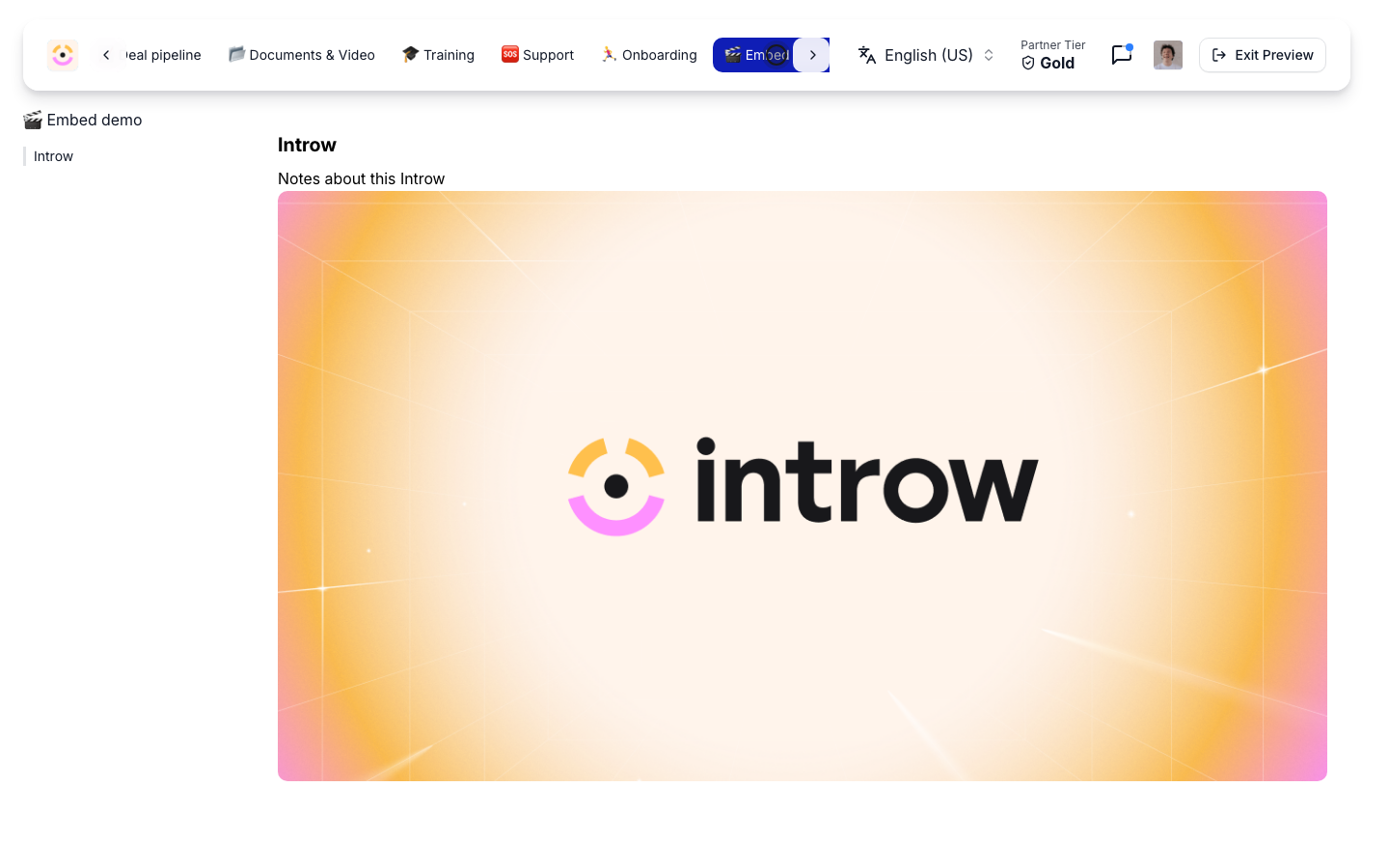
Related
Build and publish a portal experience
Build the layout around an embed.
Add a partner profile section
Personalize the experience with partner details.
Implementation reference
Full experience configuration options.