

For partner marketing and partner ops getting an important update in front of partners.An announcement is how you reach partners with news, launches, and reminders. This guide covers the whole job end to end: write the message, set who it comes from and who fields replies, target the segments who should get it, choose the channels that reach them, and publish, then nudge the partners who have not engaged. Done well, the update lands in the portal and the inbox and chat tools partners already use.
What you’ll achieve
A published announcement delivered to the partner segments you chose, across the portal feed and any other channels you picked, attributed to the right author with replies routed to the right person. You can then see who engaged and nudge the rest.Before you start
Define your audience segments
Targeting uses segments, so create the segments for the partners you want to reach before you send.
Watch it
- Video
- Click through
Steps
Compose the announcement
Start a new announcement
Go to Announcements and create one. You can start from scratch, or generate a draft with AI and refine it here.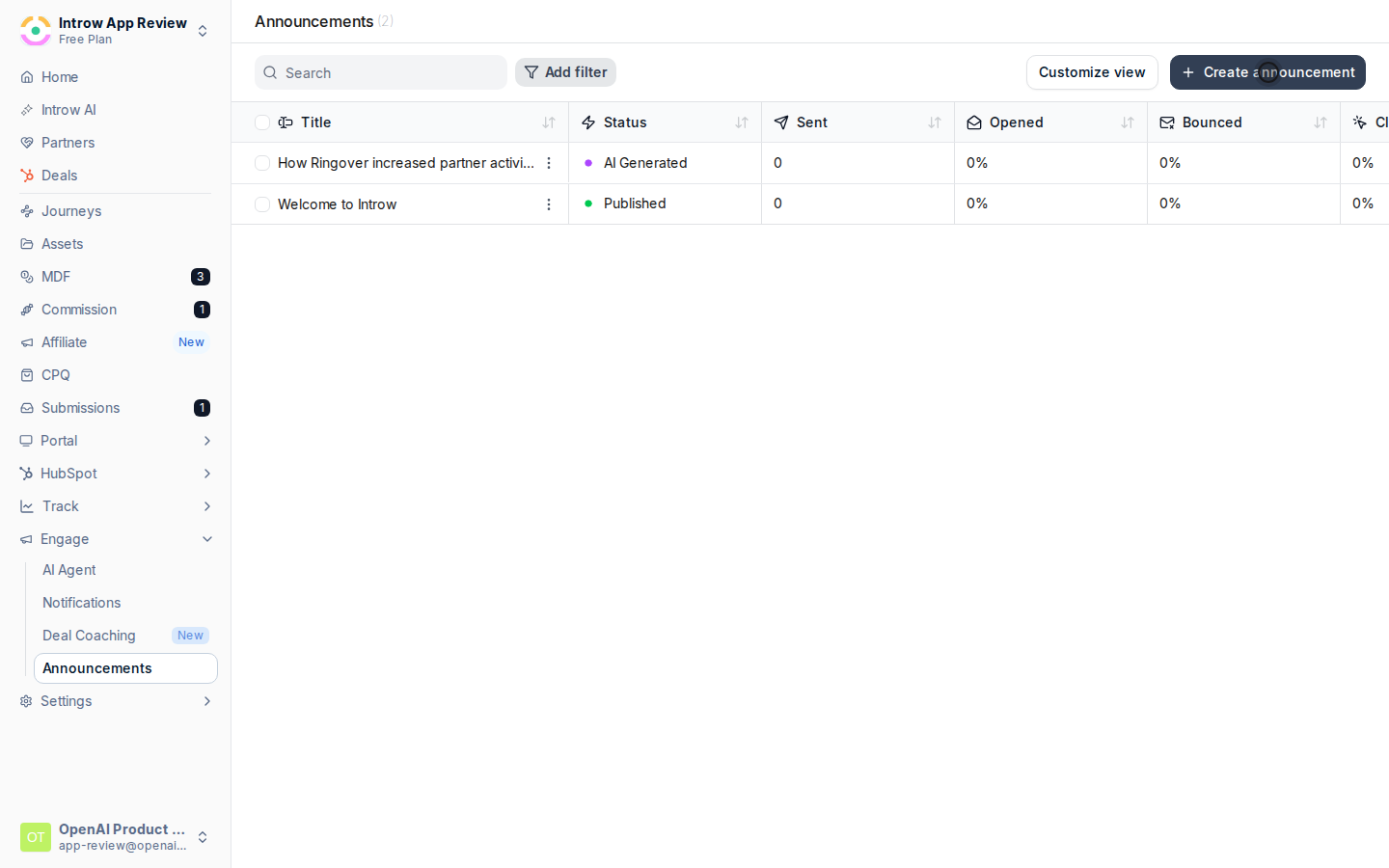
Write the message
Give the announcement a clear title and write the body in the editor. Add headings, links, and media so the update is scannable and the action is obvious. Edits save as you go.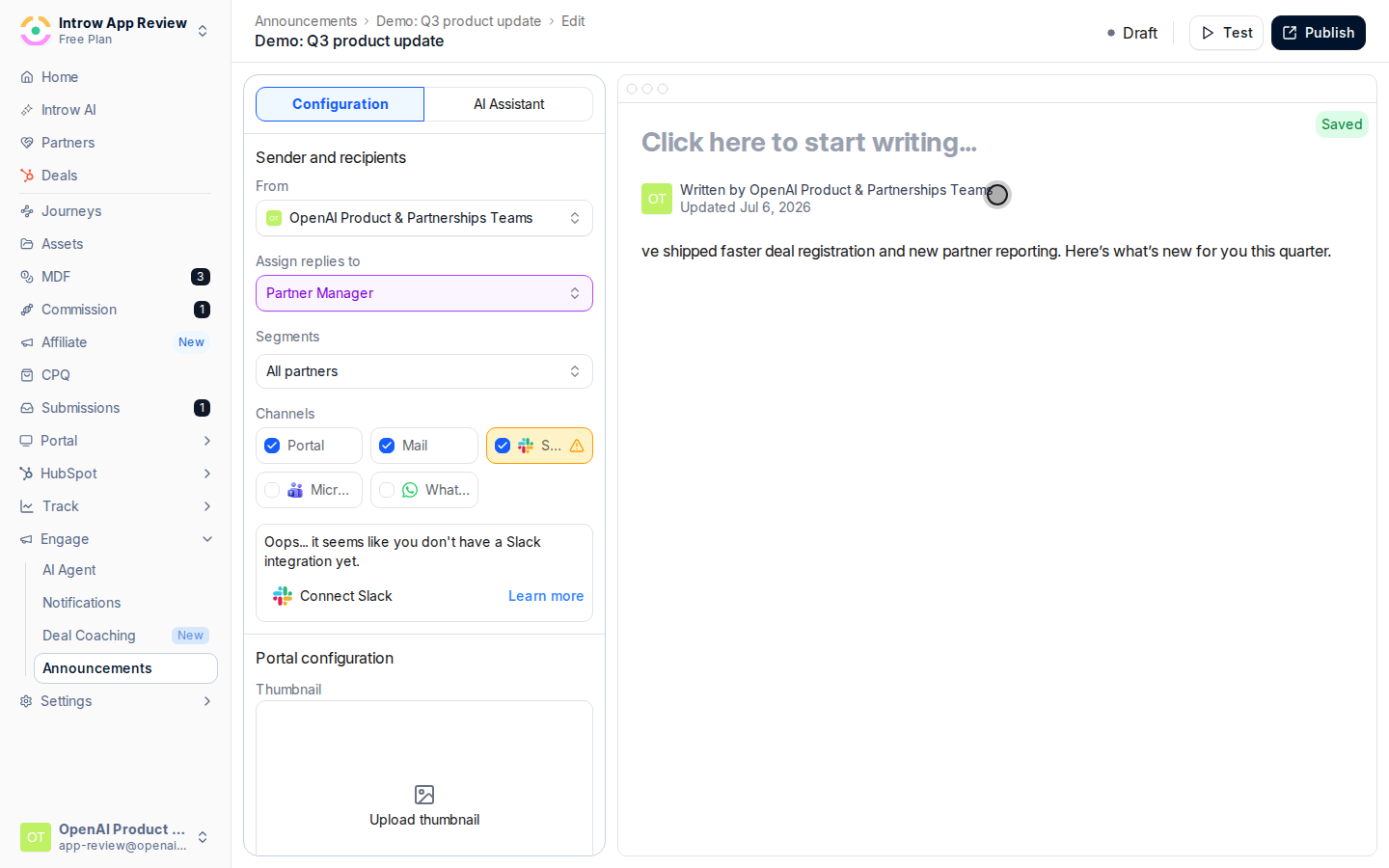
Set attribution and a banner
These details shape how the announcement feels to partners: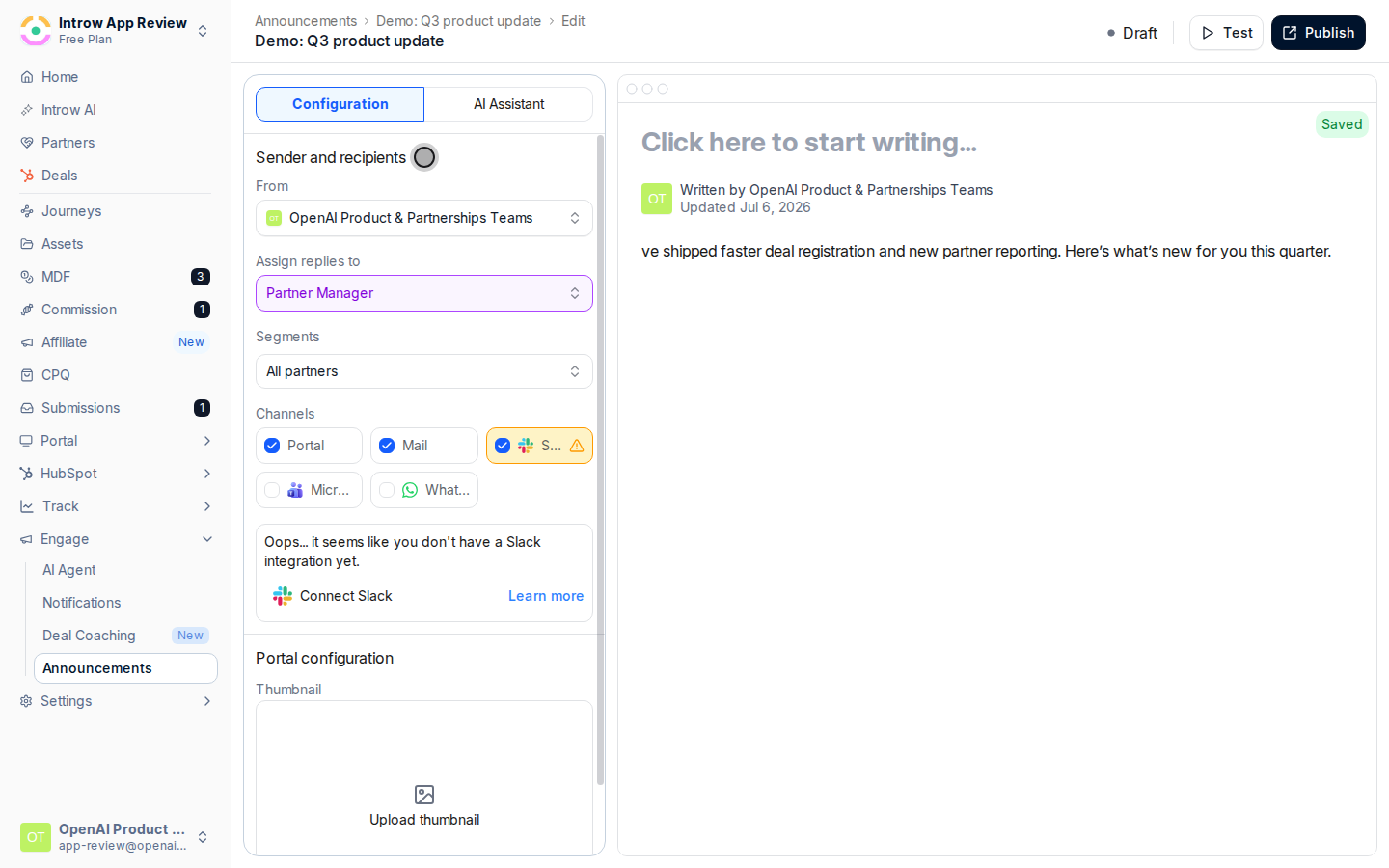
- Author - the team member the announcement appears to come from. Choose someone partners recognise so the message feels personal rather than system-generated.
- Assign replies to - the user who receives and handles partner replies. Set this to whoever owns follow-up so responses do not go unanswered.
- Banner image - an image shown at the top of the announcement and as its thumbnail in the feed. Add one to make the update stand out; it is optional.
Target and choose channels
Target recipients
Choose the partner Segments that should receive the announcement. Targeting keeps updates relevant rather than blasting every partner with everything, so pick the segments the news actually applies to.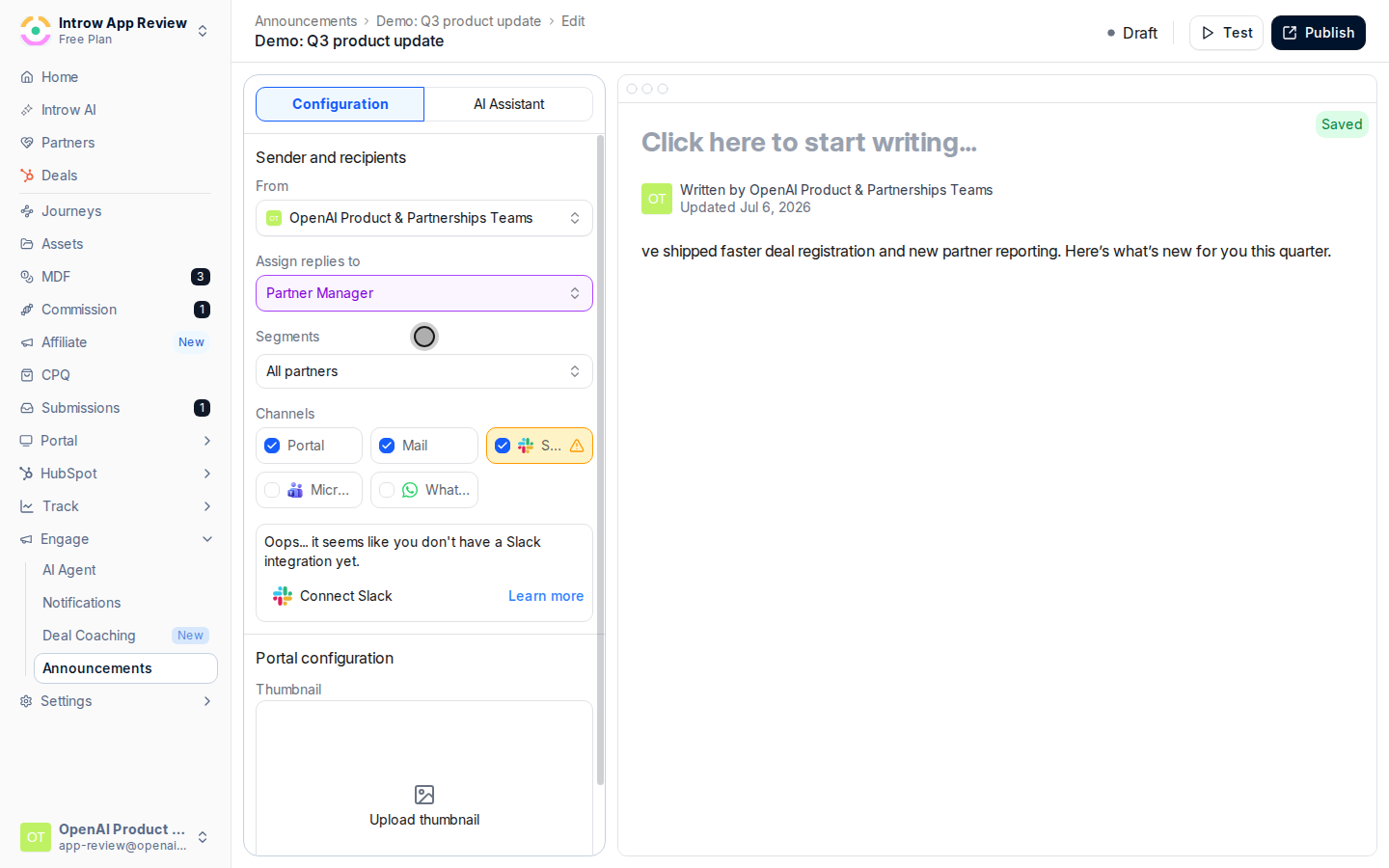
Pick delivery channels
Select where the announcement is delivered. Combining channels increases the chance partners see it: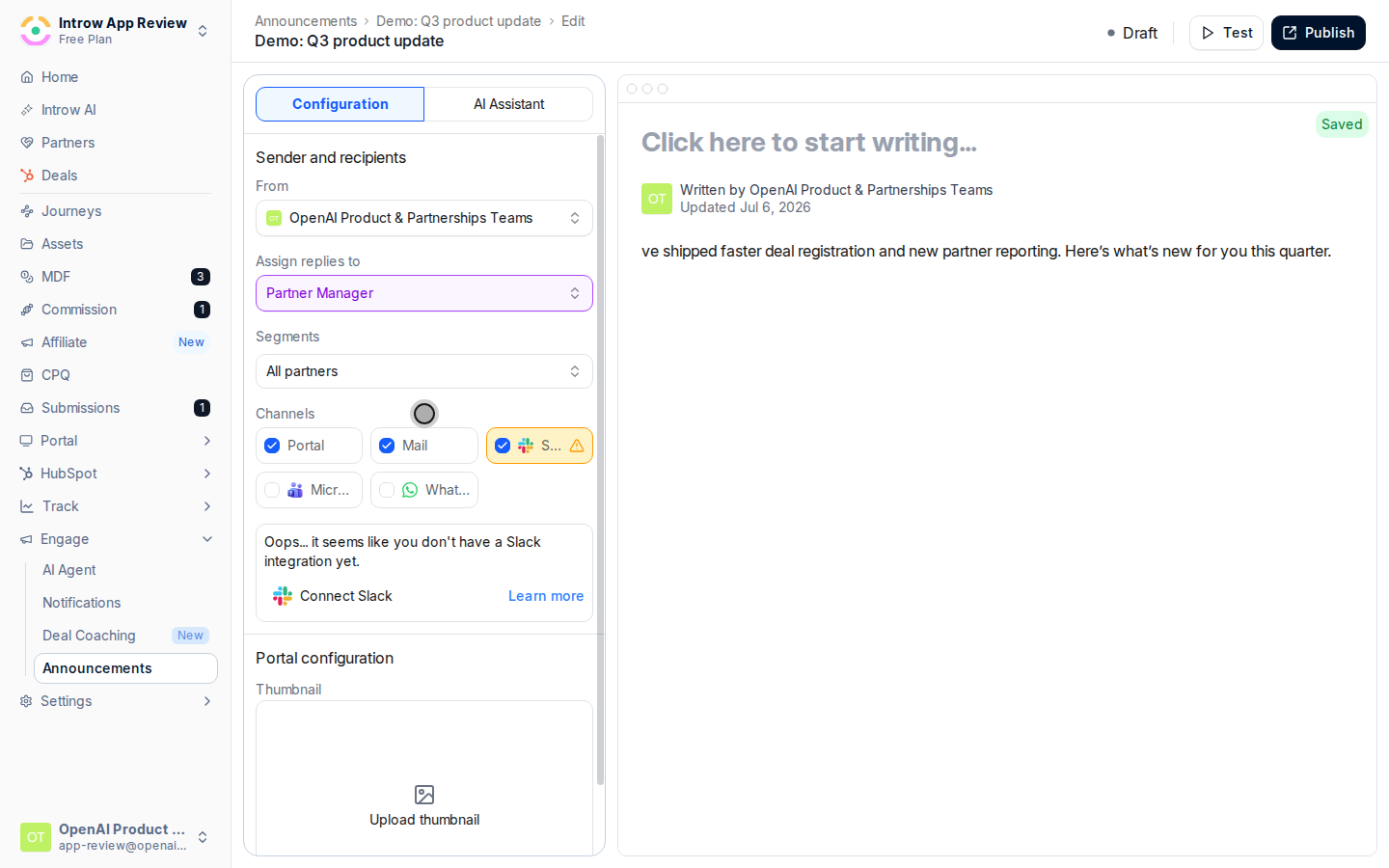
- Portal - posts the announcement to the partner portal feed. This is the always-available channel.
- Email - emails the announcement to targeted partners, reaching them off-portal where much of their attention is.
- Slack or Teams - delivers into chat when that integration is connected. If it is not connected, the channel is unavailable.
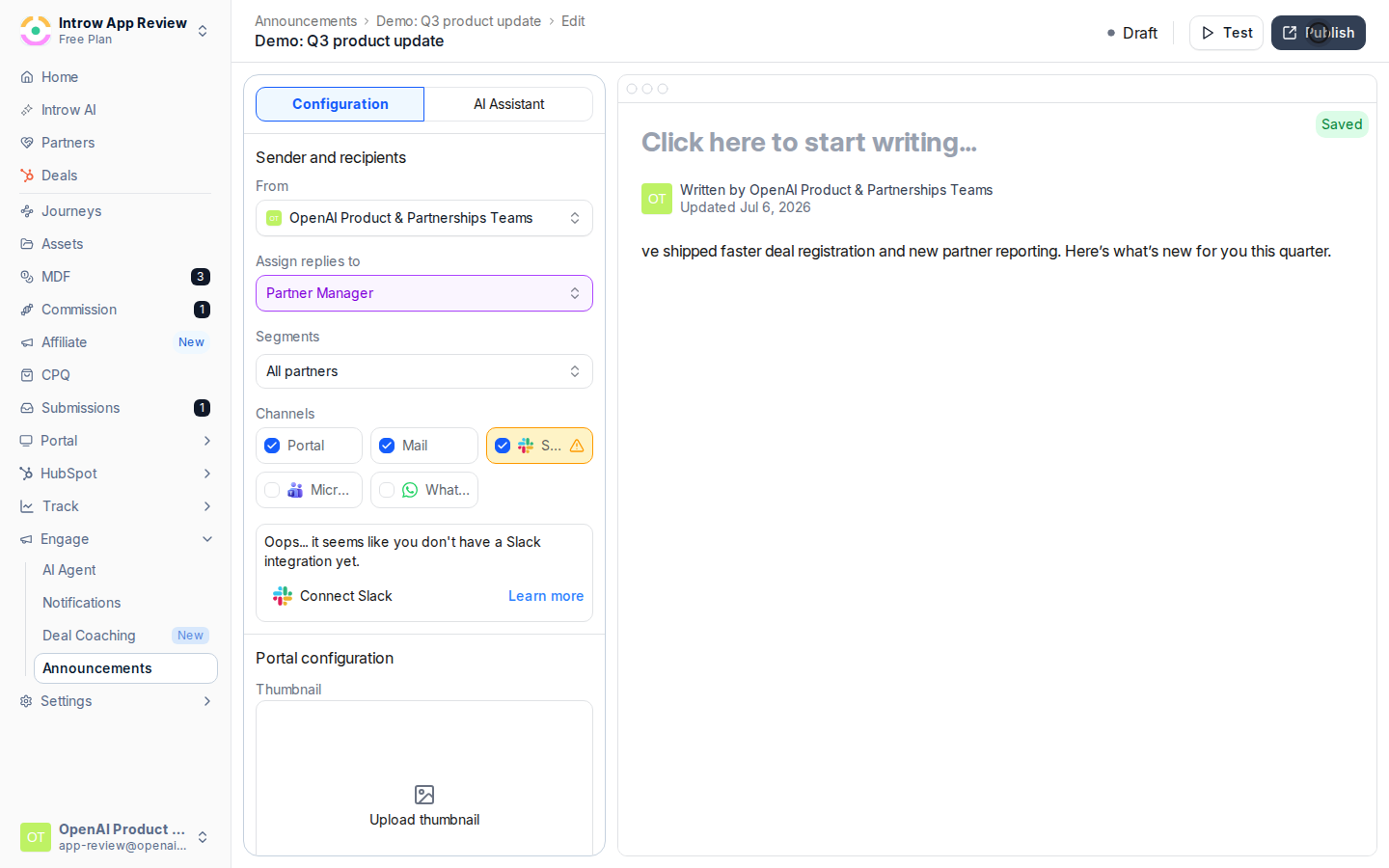
Publish and follow up
Publish
Publish the announcement to send it across the channels you selected to the targeted segments. Email and chat delivery reach partners off-portal and cannot be unsent, so proofread once more before publishing.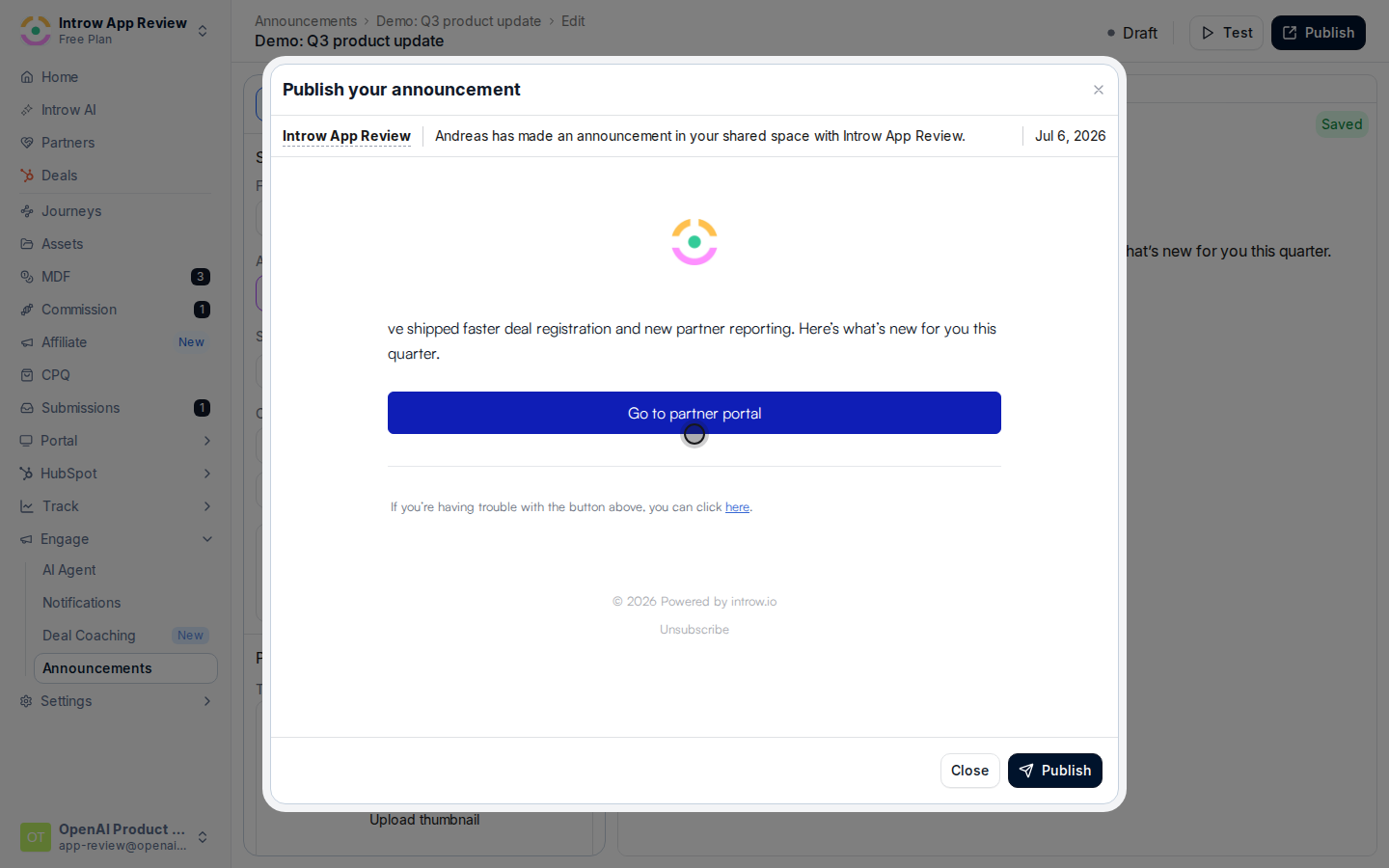
Verify it worked
The announcement shows as published and appears in the portal feed for targeted partners, with the author and banner you set. Partners on the chosen channels receive it by email or chat, replies route to the assigned user, and the announcement’s engagement view begins recording who was sent it, opened it, and clicked.Related
Generate an announcement with AI
Draft an announcement fast from a URL or prompt.
Review announcement engagement
See who was sent, opened, and clicked.
Brand email notifications
Make the emailed announcement on-brand.
Implementation reference
Full announcement configuration options.