

Where it lives
Multi-currency sits under Settings, at Currencies.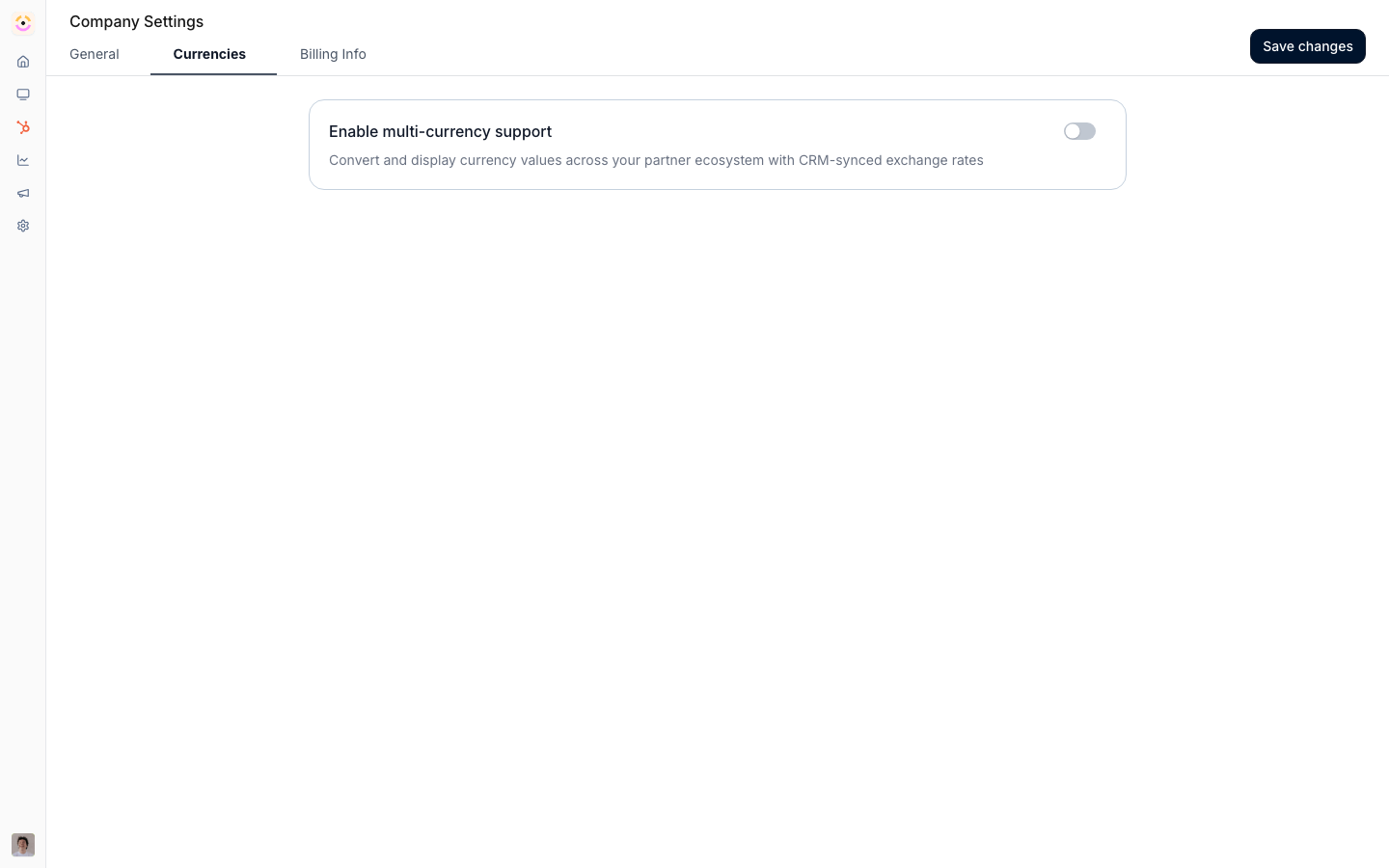
Before you start
How it works
You set your company’s base currency in Company settings, then enable multi-currency on the Currencies tab. Once on, you assign each partner a currency on their partner record. Across the program, monetary values display in your base currency and, where a partner’s currency differs, in the partner’s currency too. Conversion rates are synced from your connected CRM rather than entered by hand, so the rate behind any converted value matches what your CRM uses. The Currencies tab shows the rates that are available and when they were last updated. The partner currencies you can choose from are the ones that have a conversion rate from your base currency.How conversion rates work
Rates are read-only in Introw: you cannot type or override them here, because they are pulled from your connected CRM. That is deliberate, so converted commissions and pipeline always reconcile back to the same source your finance and sales teams already trust. To check a rate, open the Currencies tab and read the rate table: each row shows a currency, its conversion rate from your base, and when it last refreshed from the CRM. Hovering a rate expresses it as one unit of your base currency in the target currency, and the Last updated time tells you how current a converted figure is. A currency only becomes available, both in the table and for assigning to partners, once your CRM has a rate from your base currency to it; if a currency is missing, the CRM simply has no rate for it yet. To trace any converted value, match it to the rate shown for that currency on this table.Settings & configuration
Currency is managed on the Currencies tab of Company settings, with the base currency on the General tab.Company currency
On the General tab of Company settings, Company currency sets your default base currency. This is the currency your program reports in and the basis for every conversion. Changing it updates the base used across analytics and commissions.Enable multi-currency support
On the Currencies tab, Enable multi-currency support turns conversion and dual-currency display on. With it off, all values show in your base currency only. With it on, values also show in a partner’s currency wherever it differs from the base.Conversion rates
The Currencies tab lists currencies with their Conversion rate and Last updated time. These rates are synced from your connected CRM and are not edited here; the table is a read-only view so you can confirm which currencies are available and how current the rates are. The Default pill marks your base currency.Partner currency
Each partner’s currency is set on their record, on the partner detail page or the partners list, and can be updated in bulk. The currencies you can assign are those with a conversion rate from your base currency. When a partner’s currency matches the base, no separate partner-currency value is shown.How-to guides
Troubleshooting
A currency is not available to assign to a partner
A currency is not available to assign to a partner
It needs a conversion rate from your base currency, which is synced from the CRM.
Converted values look stale
Converted values look stale
Check the Last updated time on the rate table; rates refresh from the CRM.
Partner currency is not showing
Partner currency is not showing
Confirm multi-currency is enabled and the partner’s currency differs from the base.