

What you’ll achieve
Partner notifications delivered by email for the events you care about, scoped to the right partners, with reply-by-email turned on so partners can respond from their inbox. Partners stay engaged off-portal and their replies land back in Introw.Before you start
1
Confirm partner emails
Partners need valid email addresses on their contacts. See Troubleshoot partner email delivery if someone is missing messages.
Watch it
- Video
- Click through
Steps
1
Open your default settings
Go to Default settings and open the Notifications tab. Events are grouped by area, Pipeline, Portal activity, Submissions, Tasks, and Learning, so you can scan them by section.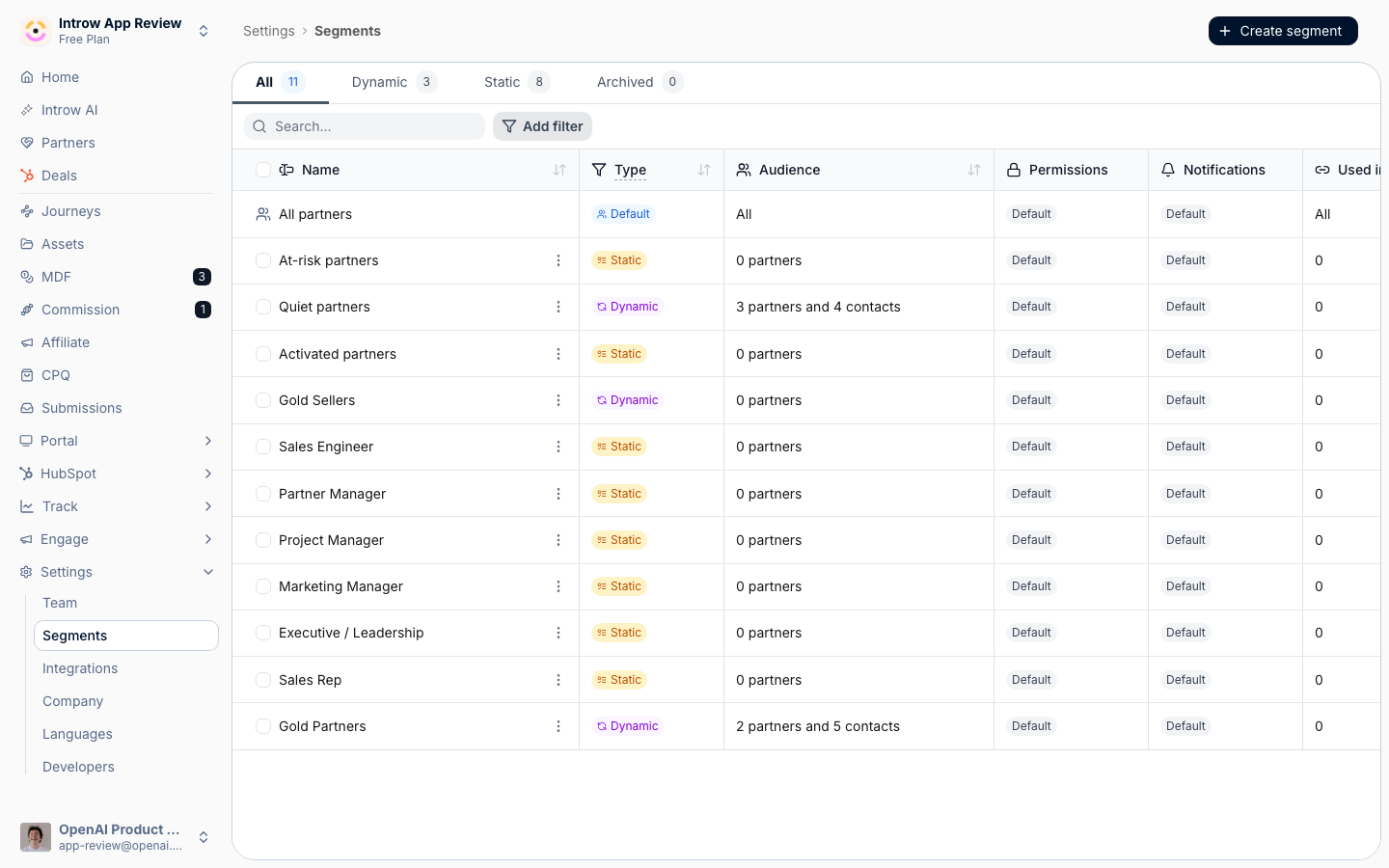
2
Set the recipients for each event
Give every event the audience it deserves: All partners, Collaborating only for events attached to a CRM record, or Disabled. Pipeline (deal and object updates), announcements, submission outcomes, and task assignments are common starting points. Leave lower-value events disabled until partners need them, since too many emails overwhelm rather than engage.This one value is the whole email decision for that event. There is no separate channel checkbox: email is available for every partner notification, so anything not disabled reaches every eligible partner with a valid address.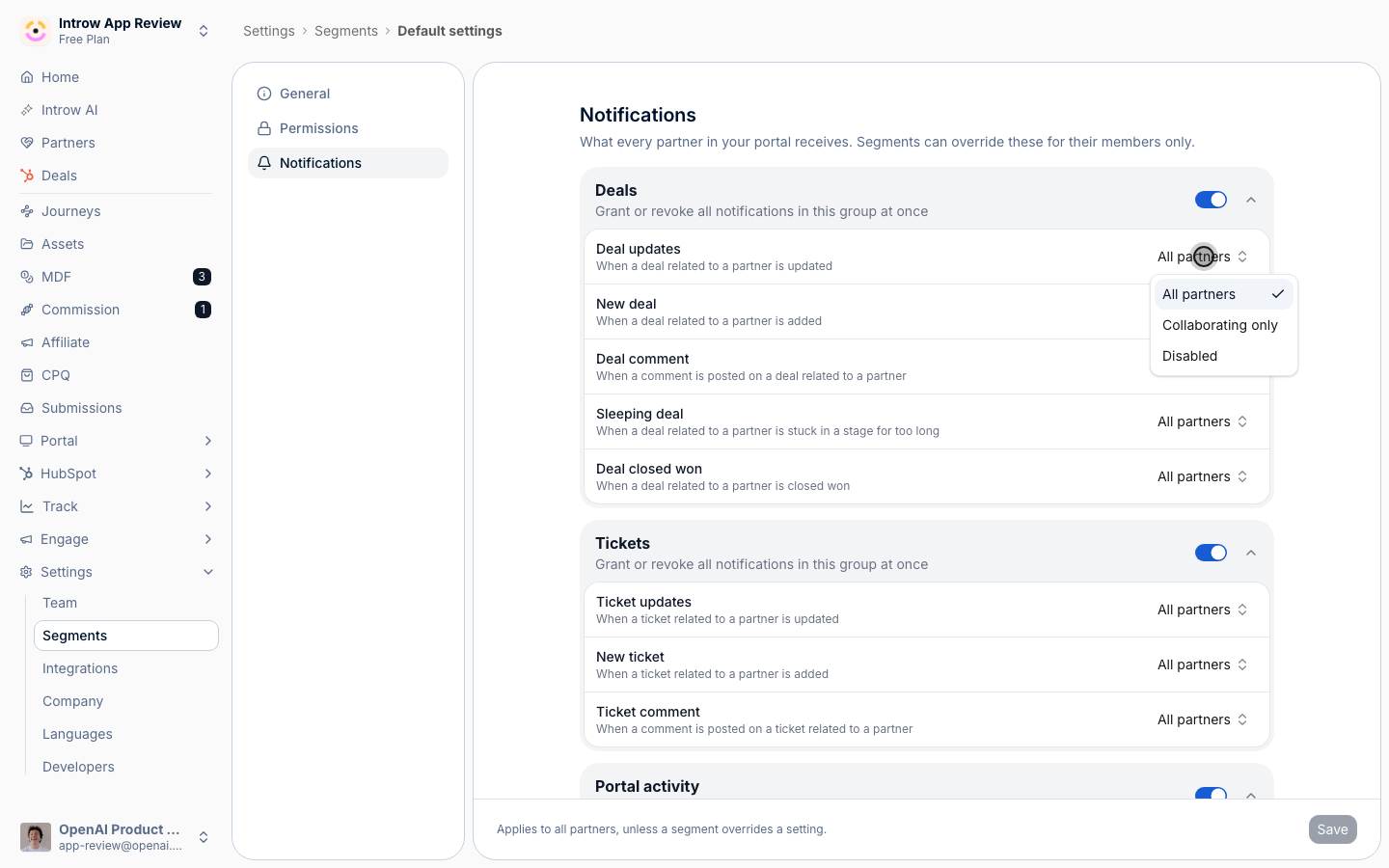
3
Narrow it for one audience
To send a program-specific email only to the partners it applies to, open that audience’s segment, go to its Notifications tab, and switch on Override the default for this segment. The override replaces the default for that segment’s members, so it can hold an event back as well as open it up.Each partner contact resolves against the same three-layer cascade (organisation default, then override segments they match, then the contact’s own opt-outs), so see Control who gets notified to check why a specific contact is or is not receiving an email.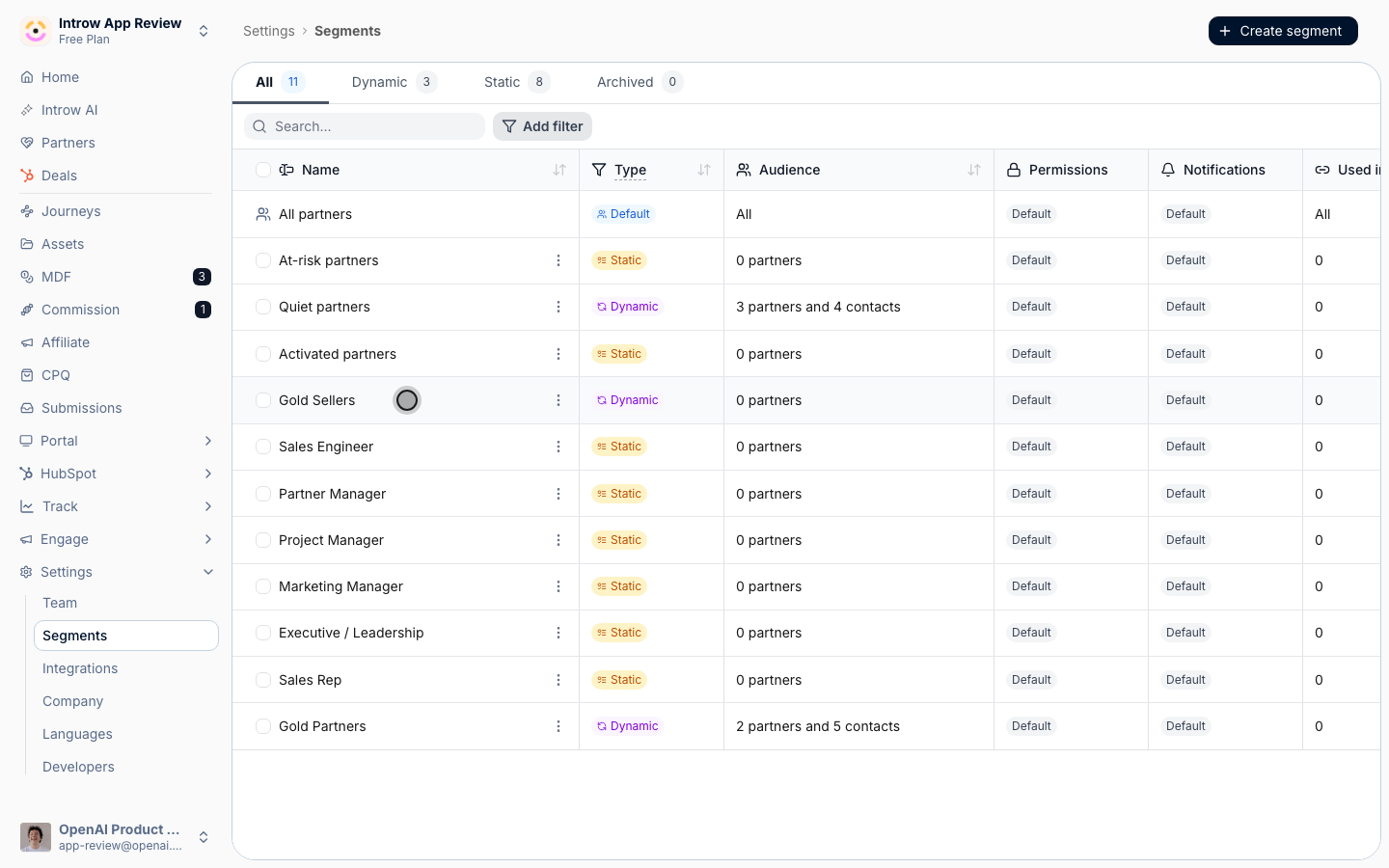
4
Use reply-by-email
Collaboration emails, comments, deal and object updates, and submission outcomes, include Respond via email. Partners can reply from their inbox and the response appears in Introw. For commission payouts, partners can reply with their invoice attached.
5
Set the sender
To route replies to a real person, send from each partner’s assigned manager, see Wire partner ownership.
6
Send from your own domain
By default these emails send from an Introw address. To have them send from your own authenticated domain, so they arrive as your brand and land in the inbox instead of spam, set up a custom sending domain. See Send notifications from your own domain.
7
Monitor delivery
Notification settings is the report on what your program sends. The Last sent column updates after the next real event, and Insights shows emails sent and opened, so you can confirm the channel is firing.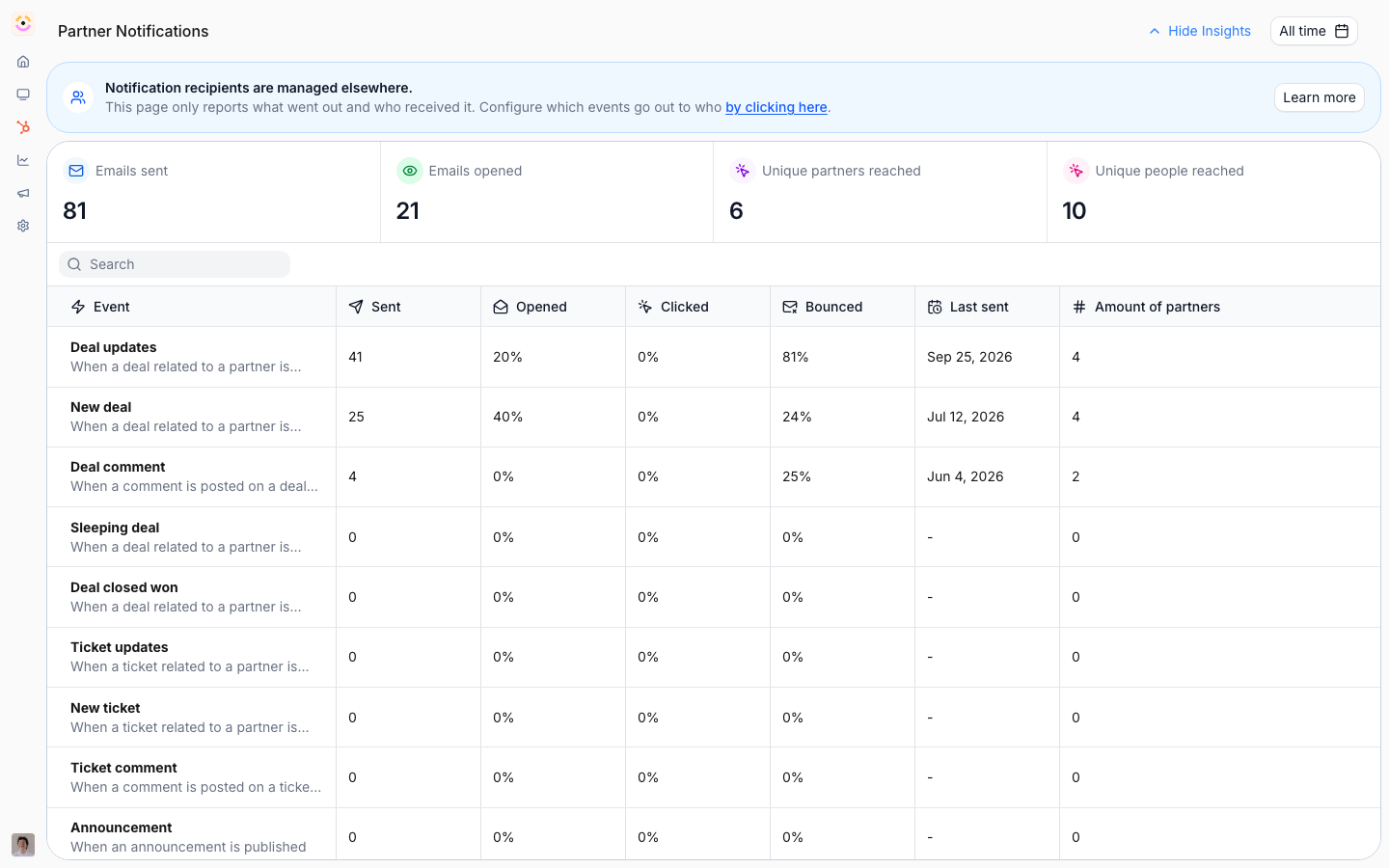
Verify it worked
Insights shows emails sent and opened, and Last sent updates on the row after the next event on any event you left enabled.Related
In Slack
Deliver notifications in Slack instead of or alongside email.
In Microsoft Teams
Deliver notifications in Teams.
Troubleshoot email delivery
Fix missing partner emails.
Send from your own domain
Authenticate a custom sending domain so notifications come from your brand.
Implementation reference
Full configuration options for partner notifications.