

What you’ll achieve
You know which of the five causes stopped the email, you have fixed it, and the partner receives Introw invites and notifications from now on.Before you start
1
Get the details
Note which email the partner expected, which address is on their record, and roughly when it should have arrived.
2
Know what they are looking for
Until you send from your own domain, Introw emails arrive with your organization’s name as the sender and
[email protected] as the address.
If you already send from your own domain, the partner looks for that address instead.
See Send notifications from your own domain.Watch it
- Video
- Click through
Steps
Check in Introw
1
Check the address and its status
In Partners, open the partner and go to the People tab.
Confirm the contact’s address is spelled correctly. A typo is the most common cause, and Introw only emails a valid address.Then read the Nudge status column for that contact:
- Nudged via … with a date means Introw sent the email. The problem is on the receiving side, so continue with the partner-side checks below.
- Email bounced, check receiver in red means the last email to this address bounced or the mailbox reported it as spam. Introw cannot deliver to the address until that clears. The Portal access column shows Inactive recipient for the same contact. Fix a wrong address by correcting it on the contact; for a correct address, jump to Check for a suppressed or unsubscribed address.
- Any other red message is the mailbox provider’s own reason, such as an invalid address. Correct the address and resend.
2
Confirm the event has recipients
Go to Default settings, open the Notifications tab, and find the event.
Each event carries a recipients value rather than an on/off switch, and two of the three values stop an email: Disabled sends nothing, and Collaborating only sends only to the contacts assigned as collaborators on that record.
Set it to All partners if everyone should hear about it.Then check whether a segment overrides it.
The Notifications column on Segments reads Default for every segment that follows your baseline and spells out the difference for every segment that does not, so one screen tells you whether an override is in play.Finally, open the contact’s own Notifications tab on the People tab.
The layer that owns each event is badged there, so you can tell your default from a segment override from the contact’s own choice.
A contact who switched an event off themselves has unsubscribed from that event.
Flip the row back on with their agreement, or leave it, since a bulk enable never re-subscribes a contact who opted out.
Notification settings is a report, not a switch. It shows what was sent, opened, clicked and bounced; it cannot turn an event on.
Check on the partner’s side
1
Ask them to look in Spam or Junk
Have the partner open their Spam or Junk folder and look for messages from
[email protected], or from your own sending address if you use one.
If they find one, they select Not spam or move it back to the inbox. That trains their filter for the next email.Gmail often shows a banner on these messages that reads “Why is this message in spam? Similar to messages that were identified as spam.” It means the filter guessed, not that the address is blocked.2
Ask them to check the Promotions or Other tab
Gmail files automated mail under Promotions and Outlook under Other.
Dragging one Introw email to Primary or Focused tells the mailbox where the rest belong.
3
Ask them to allowlist the sender
Allowlisting is what makes future emails arrive every time, so do it even after a single email was rescued from spam.Gmail. Open Settings, then See all settings, then Filters and Blocked Addresses. Select Create a new filter, enter
[email protected] in the From field, select Create filter, tick Never send it to Spam, and save.Outlook. Open Settings, then Mail, then Junk email. Add [email protected] under Safe senders and domains and save.Company mail. A partner on Google Workspace, Microsoft 365, or their own mail server may have a corporate filter or security gateway in front of the mailbox. Their IT team allowlists the domain introw.io together with its subdomains, at minimum mail.introw.io, and the sending address itself. That is what stops the gateway from quarantining Introw mail before the partner ever sees it.If you send from your own domain, give the partner your sending address instead. Your domain’s DNS records already authenticate the mail, so mailbox providers trust it more than a shared sender.Still nothing
1
Check for a suppressed or unsubscribed address
Introw notification emails carry an unsubscribe link.
When a partner uses it, when their mailbox reports an Introw email as spam, or when the address bounces, the address is suppressed and Introw can no longer deliver to it.
Introw shows this as Email bounced, check receiver on the People tab, and the Bounced column on Notification settings counts it.
A form email automation skips a suppressed recipient and still sends to everyone else on it, and to your other automations, so one suppressed address never holds back the rest.Ask the partner whether they unsubscribed at some point.
Then email [email protected] with the partner’s address.
Support checks why the address is suppressed and restores delivery where the mailbox provider’s rules allow it, and tells you when the partner has to opt back in themselves.
2
Resend
Once the address, the settings, and the partner’s filter are right, send the email again.
On the People tab, select the contact and choose Send invite to resend the invite; a notification goes out again at the next event on the record.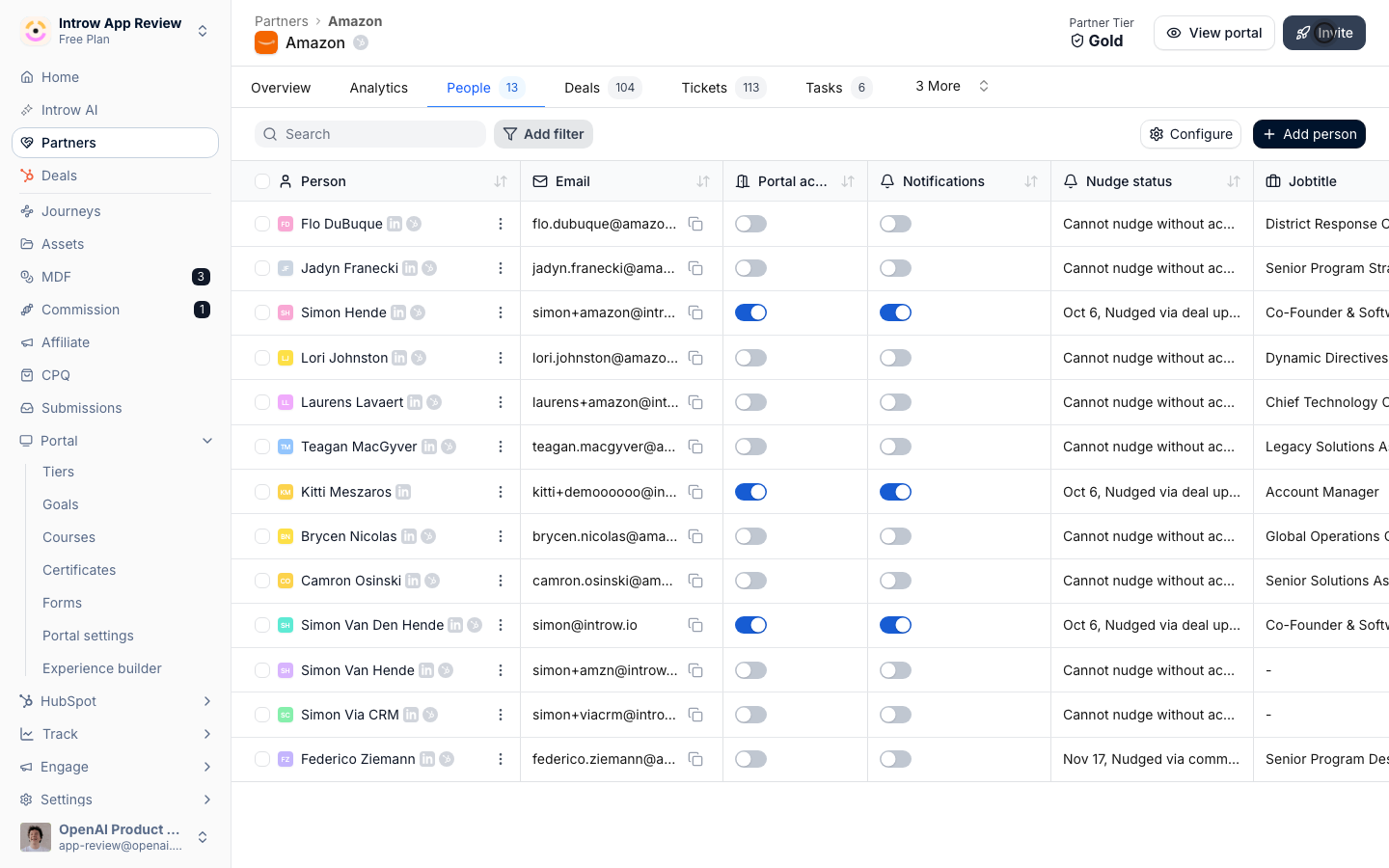
Verify it worked
The partner receives the resent email. On the People tab, the contact’s Nudge status reads Nudged via … with today’s date instead of a red message, and on Notification settings the event’s Last sent column updates while Bounced stays flat.Related
By email
Turn on Mail and reply-by-email.
Control who gets notified
The three-layer cascade that decides each recipient.
Send from your own domain
Authenticate a custom sending domain so notifications come from your brand.
Verify partner emails
Email verification for access.
Implementation reference
Full configuration options for partner notifications.