

Where it lives
Course Authoring sits under Portal, at Courses.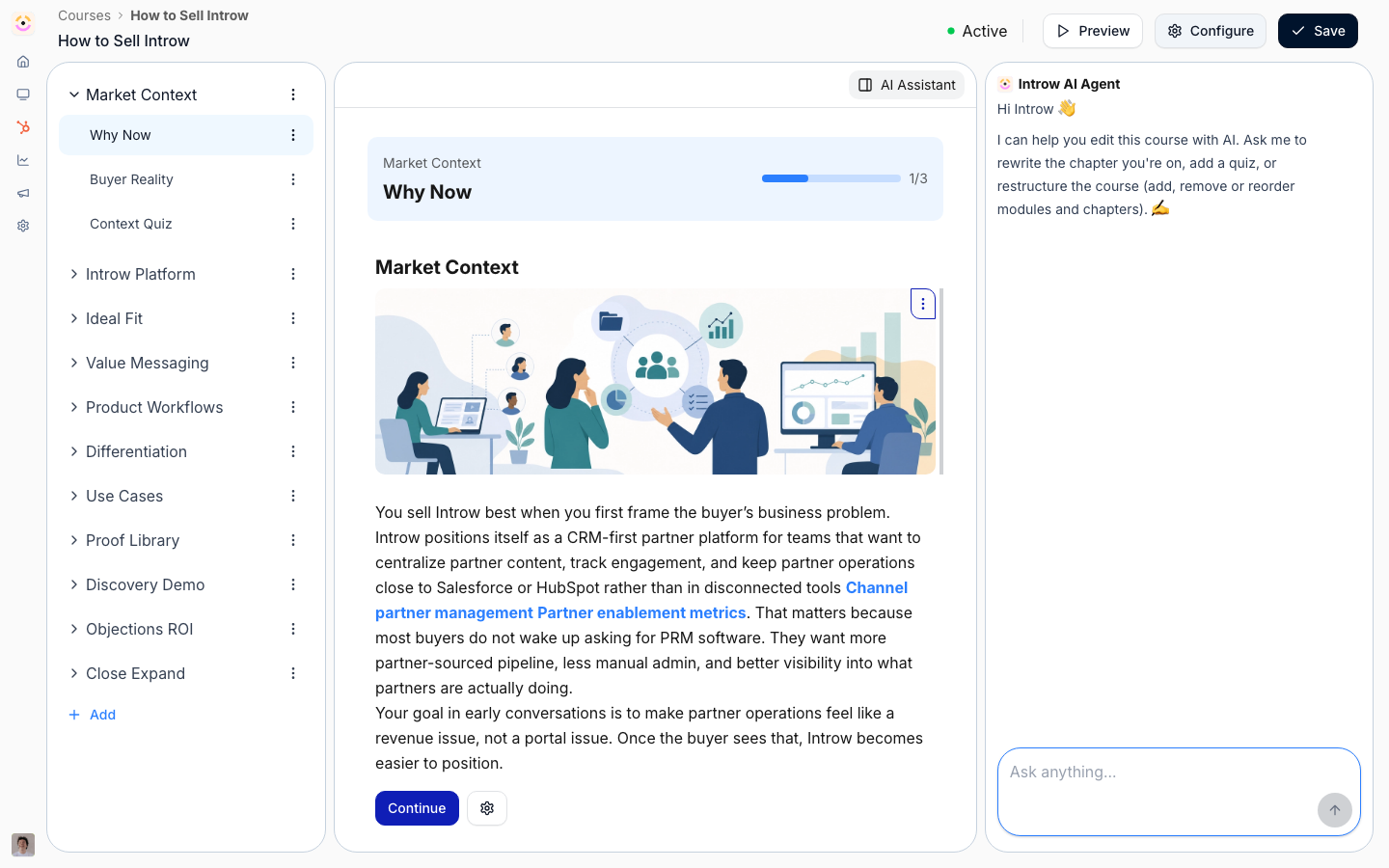
Before you start
How it works
A course is organized into modules (major topics), and each module holds ordered sections (individual lessons). Learners move through sections in order; finishing a module’s sections completes the module, and finishing all modules completes the course. On the Courses list, each course shows a status:- Draft - still being built; not yet available to partners.
- Generating - AI is drafting the course (you’ll see this briefly after an AI create).
- Active - published and available to enroll.
- Start from scratch - an empty course you fill in the builder.
- Generate with AI - describe the course (and optionally upload a deck or PDF); Introw drafts the outline, modules, sections, a banner, and a description for you.
- Upload SCORM - import an existing SCORM package (including Articulate Rise and Google Slides exports).
Settings & configuration
Most course settings live in the Update course dialog, organized into tabs.Basic tab
Name is the course title shown to learners; AI generation fills it in automatically when you create a course with AI. Description is the short summary shown on the course, and AI drafts it for you too. Thumbnail banner is the artwork on the course card and header - upload your own, or let AI set one.Image sizes
The thumbnail banner opens a crop-and-zoom step and is saved at exactly 3:1, so a
tall or square upload loses its top and bottom. Generate with AI next to it
creates a 3:1 banner at 1200×400 from the course name, description and modules plus
your brand colors, which is the quickest way to give an imported SCORM course a
proper card. Chapter images are rendered at the
ratio you upload, and the AI assistant generates them at the sizes above, so
hand-made and generated visuals stay consistent. Two exceptions worth knowing: a
course generated with AI takes its banner from the first illustration in the
generated content, which is square and therefore cropped in the 3:1 slot - replace
it with a wide image if the card matters. And over MCP,
upsert_course takes the
banner as a thumbnailUrl (a hosted 3:1 https image), stored as-is and never
cropped.
AI Agent tab
Enable AI Agent is on by default and turns the per-course AI tutor on or off. AI tutor welcome message is the first thing the tutor says to a learner when they start the course, so use it to set the tone and point them at what to do first.At import (SCORM)
SCORM playback runs an uploaded SCORM package in the built-in SCORM player, which preserves the original authored experience and reports progress back to Introw. A package can be up to 2 GB, needs itsimsmanifest.xml at the top level of the zip, and
can be SCORM 1.2 or SCORM 2004. The player launches the first item in the manifest that points at a
file. A package Introw cannot read keeps its course, named Course generation failed and marked
Couldn’t import this SCORM package, and Replace SCORM package on the course is how you retry.
A package is third-party code, so Introw serves it from its own host, scorm.introw.io, rather than
from the app or the portal. The player nests that host in the page and the package can never reach
the session of whoever is watching. It is invisible in normal use, but worth knowing in two places:
a strict network allowlist, yours or a partner’s, has to allow that host as well as your portal
address, and a package that loads everywhere except behind one customer’s firewall is almost always
this.
How-to guides
Troubleshooting
Course stuck on Generating
Course stuck on Generating
Generation is still running. A course that is still generating after two hours is renamed Course generation failed and the spinner stops. Generate it again, or for a SCORM course use Replace SCORM package with a corrected file.
SCORM content looks wrong after import
SCORM content looks wrong after import
Check the package is a valid SCORM export with its
imsmanifest.xml at the top level of the zip, then re-export from your authoring tool and use Replace SCORM package on the course.A SCORM course shows a blank player for one partner only
A SCORM course shows a blank player for one partner only
Their network blocks
scorm.introw.io, the separate host packages play from. Ask them to allow it alongside your portal address.No AI tutor in the course
No AI tutor in the course
Check Update course → AI Agent is enabled, and that AI features are on for your organisation.
FAQ
We already have an LMS. Do we have to rebuild our training in Introw?
We already have an LMS. Do we have to rebuild our training in Introw?
No, and there are three ways to keep what you have. Export the course as SCORM and import it, which keeps your authoring tool as the source and plays the original package here. Or leave the course where it is and link or embed it from a portal section, so partners reach it from the portal without you moving anything. Or, if the completions themselves are what matters, keep them where they are and bring the status in: a CRM property carrying “certified” drives segments, tier requirements and reporting exactly like a native enrollment. There is no native connector to third-party LMS platforms, so anything beyond SCORM runs through the API or your CRM.
Can courses be taken without a portal login?
Can courses be taken without a portal login?
No. A course lives in the portal because progress, quiz results and certificates are tied to the partner contact taking it, which is also what makes completion reportable and what a certificate attests to. Reaching partners off-portal is the notification’s job: the reminder arrives in their inbox or chat and links straight into the course.