

For enablement teams who want a complete first draft of a reseller or technical course without building it chapter by chapter.Building a course the traditional way takes weeks of outlining, writing, and sourcing artwork, and that is the single biggest reason partner education stalls. Generating with AI collapses that into roughly an hour: you describe the goal and audience (and optionally hand over a deck or PDF you already have), Introw drafts the whole course, and you refine and configure it. This guide takes you from a prompt to a course partners can take.
What you’ll achieve
A full course - outline, modules, chapters, banner image, and description - drafted by AI from a short prompt and an optional attachment, then refined in the builder, configured (AI tutor, passing score, certificate), and made available so partners can enroll.Before you start
1
Confirm Courses is on your plan
Courses are a plan feature. If the Courses area shows an upgrade prompt instead of the builder, it is not on your plan yet - check what yours includes at introw.io/pricing.
2
Confirm access
You need write access to Courses, and AI features must be enabled for your organisation.
3
Prepare your input
Write a one-paragraph prompt describing the course goal and audience. Optionally have a source file ready to upload (a deck, PDF, or document up to 10MB).
Watch it
- Video
- Click through
Steps
1
Open the AI course creator
Go to Courses and select Create course. The create screen opens with the AI course creator front and center.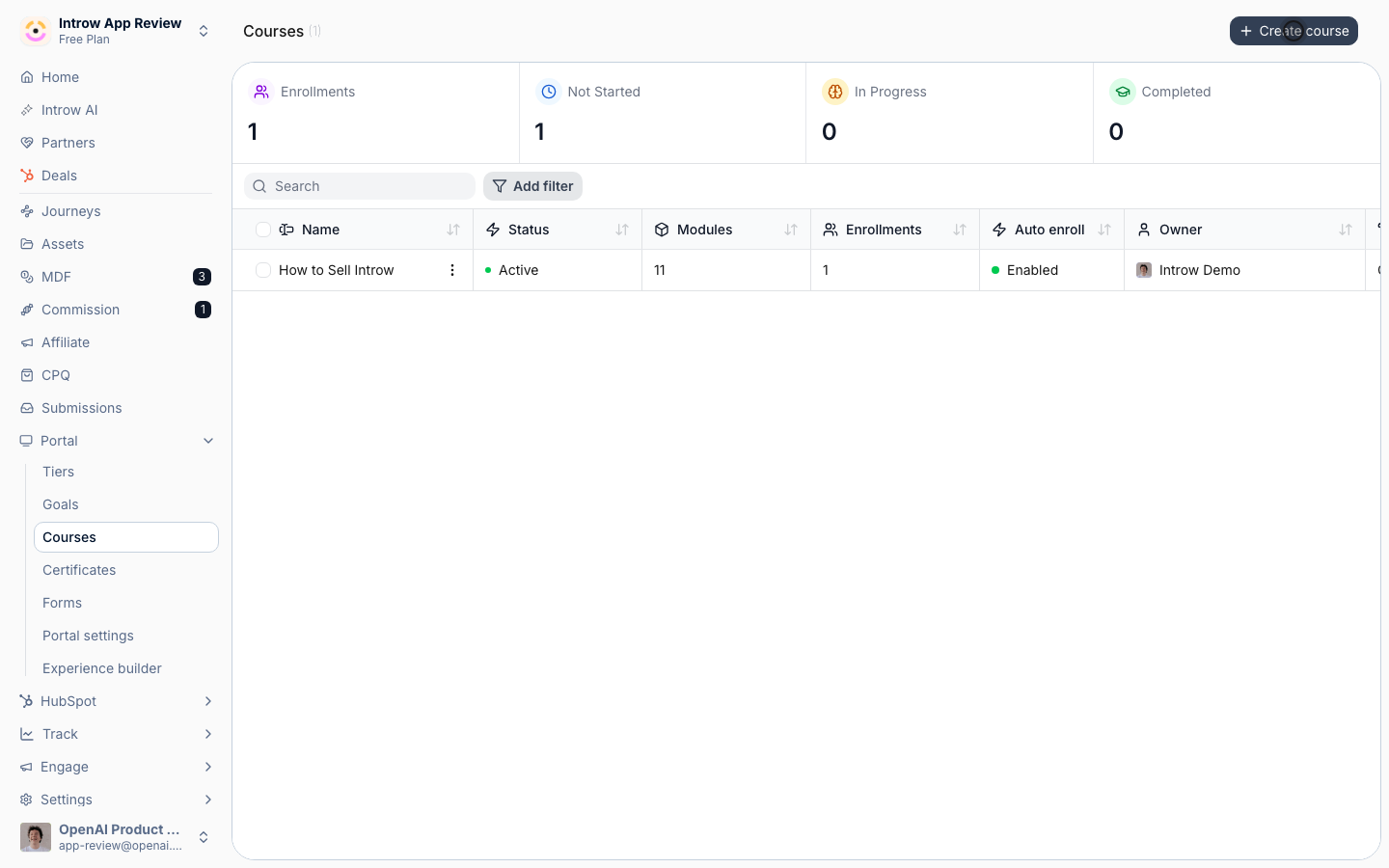
2
Describe the course
Tell the AI what to build. You have two ways to start, and you can combine them: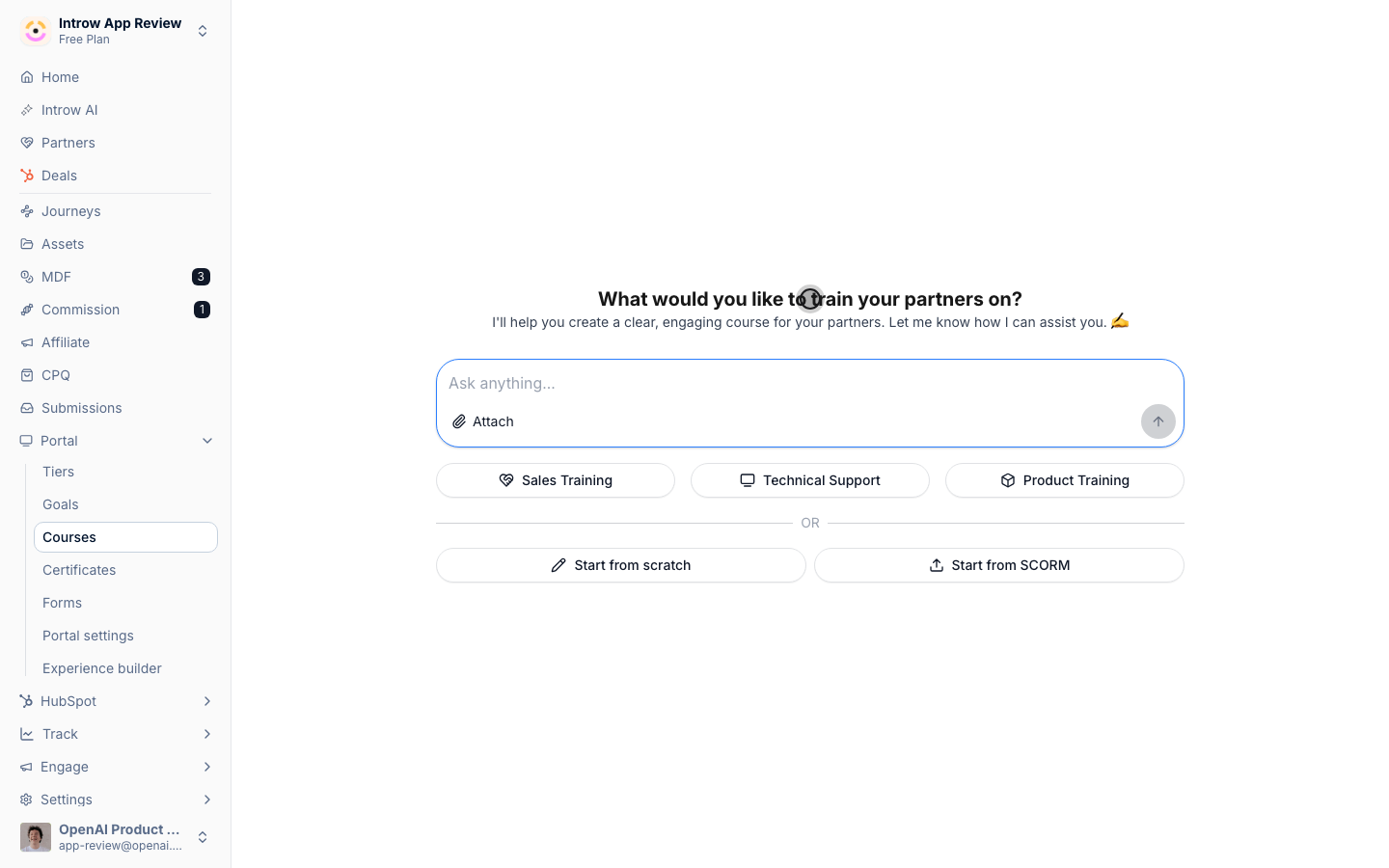
- Prompt - write what the course should teach, for whom, and what good looks like. For example: “A course that teaches resellers how to pitch our platform, handle the top three objections, and run a 10-minute demo.” The more specific the audience and outcomes, the better the draft.
- Preset - pick a starter like Sales Training, Technical Support, or Product Training to pre-fill a detailed prompt about your organisation that you can then edit.
- Attachment - optionally attach a deck or document (PDF, text, markdown, CSV, or JSON, up to 10MB) so the AI grounds the course in material you already have.
3
Start generation
Submit. Introw creates the course immediately and shows a Generating status while it drafts the outline, modules, chapters, banner image, and description in the background. Larger attachments take a little longer; the status updates on its own when it finishes.
4
Refine the draft in the builder
When generation finishes, the course opens in the builder. Select Edit in the course header to make changes, then review every module and chapter, edit the content, reorder or remove anything that does not fit, and add your own chapters, videos, or assessments. The draft is a starting point, not a finished course; treat it as one. See Build a partner course from scratch for the full builder reference.
5
Configure the course
With the course open in edit mode, select Configure to open the Update course dialog and set the course-wide options: the AI Agent tab (the in-course AI tutor and its welcome message, on by default), the Advanced tab (a due date and minimum passing score), the Certificate tab (auto-issue a credential on completion), and the Enrollment tab (auto-enroll segments). Select Save Changes.
6
Make it available to partners
Preview the course as a partner, then enroll a cohort by hand or turn on automatic enrollment to take it live. A course stays Draft until it has its first enrollment or auto-enrollment is on, at which point it automatically becomes Active - there is no separate publish step.
Verify it worked
The course leaves Generating and shows generated modules and chapters, a thumbnail banner, and a one-line description. The AI tutor can immediately answer learner questions about the new material, and once a partner is enrolled the course status flips to Active. One thing worth fixing by hand: the generated thumbnail banner reuses the first illustration from the course, which is square, and the course card and header show it in a 3:1 slot - so it is cropped top and bottom. Open Configure and upload a wide banner (1200×400) if the card matters to you. Chapter images are shown at the ratio they have, so keep full-width images wide (around 1536×512) and images beside text square (around 1024×1024).Related
Build a partner course from scratch
Refine the draft and configure every setting.
Create and auto-issue a certificate
Reward completion with a branded credential.
Implementation reference
Course statuses, generation flow, and settings.