

Ask Introw in Slack
Introw runs two AI agents inside Slack, so partners and your team get answers and take action without leaving chat. Both read live from your CRM source of truth and act only within each person’s own access - partners stay scoped to their portal, your team stays scoped to theirs.Partner support agent - shared channels
In a shared partner channel, partners just @-mention Introw to ask the same questions they could in the portal - deal status, commissions, tiers, content, or even registering a deal - and get an instant, scoped answer.
Internal agent - internal channels
In your internal channels, your team @-mentions Introw to get insight on the partner ecosystem and act on it - handle open form submissions, surface best-performing partners, check pipeline, and update partner records.
Partners self-serve in shared channels
@-mention Introw in a shared partner channel and the partner support agent answers from your knowledge base and live portal data, scoped to that partner. It is the same agent partners use in the portal, now in Slack: it can answer questions in any language and take action on the partner’s behalf - register a deal, update a record, or surface the right asset - without anyone on your team being pulled in.Your team gets ecosystem insight in internal channels
@-mention Introw in an internal channel and the internal agent answers questions about your whole program and acts on it, scoped to your access - no portal hunt and no RevOps ticket. For example:- Handle open work - “Show me open form submissions,” then approve, reject, or follow up on deal and lead registrations right from chat.
- Spot what’s working - “Who are my best-performing partners this quarter?” to pull ecosystem performance on demand.
- Update partners - “Move Acme to Gold” or “add a note to this partner” to change partner records on the fly.
- Check the numbers - “What’s this partner’s pipeline and commission status?” for a live readout.
Both agents depend on the partner support agent being
enabled. Each agent only ever sees and does what the person talking to it is allowed to -
partners are scoped to their own portal data, your team to your program.
What you’ll achieve
A connected Slack workspace shown as Connected in Introw, ready to map internal and partner channels and start posting partner activity to Slack.Before you start
1
Confirm your Introw permission
You need permission to connect integrations in Introw to authorize Slack and manage its settings.
2
Confirm Slack admin access
You need permission to install an app in the Slack workspace you are connecting.
Watch it
- Video
- Click through
Steps
1
Open the Communication integrations
Go to Integrations and stay on the Communication category, where the Slack, Microsoft Teams, and Zapier tiles live.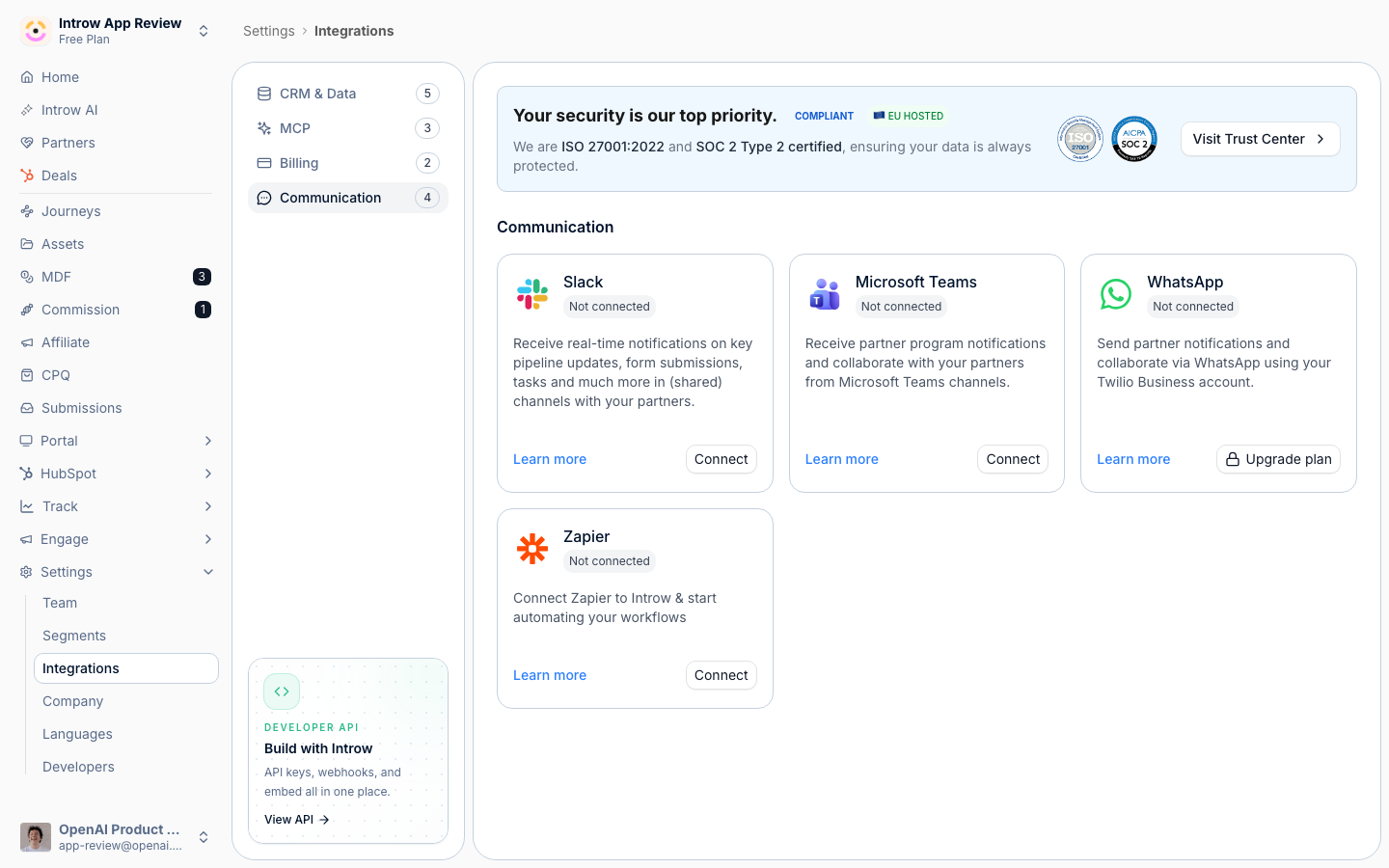
2
Start the Slack connection
On the Slack tile select Connect to open Slack’s authorization screen.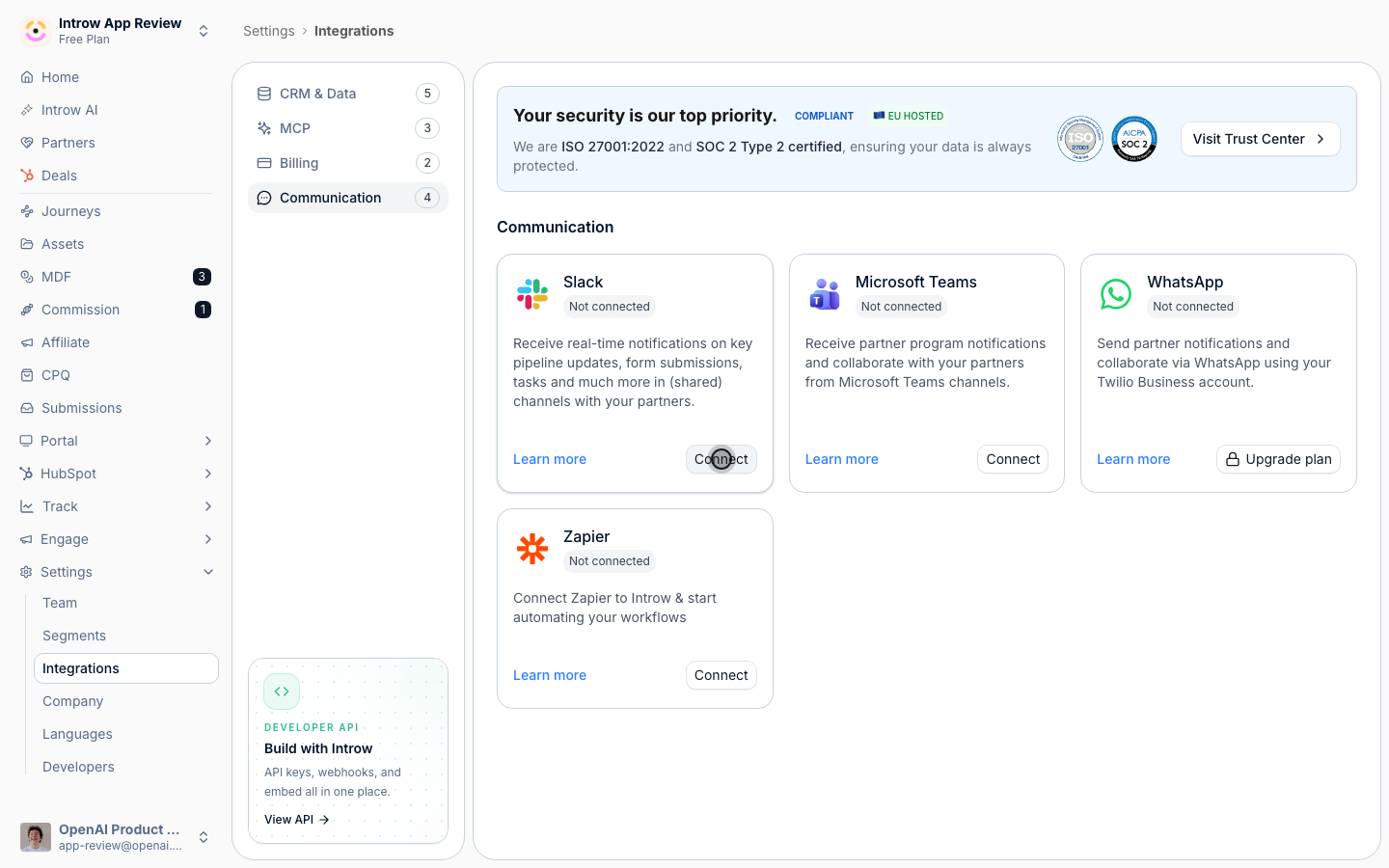
3
Authorize and pick the workspace
Sign in to Slack, choose the workspace to connect, and approve the requested access so Introw can list channels and post messages. Introw returns with Slack shown as Connected by you, with the connection date.
4
Configure channels and notifications
Connecting only links the workspace. Next, map your internal and partner channels and choose which events post by following Configure the chat integration.
Verify it worked
Slack shows as Connected on the Communication integrations page with a green status and Connected by your name. Opening the Slack integration shows the Internal channels and Partner channels sections, ready to map.Related
Configure the chat integration
Map channels and choose which events post.
Connect Microsoft Teams
Use Teams instead of Slack.
Implementation reference
Full configuration options.