

Where it lives
You build a campaign kit in Assets and publish it from the Experience builder.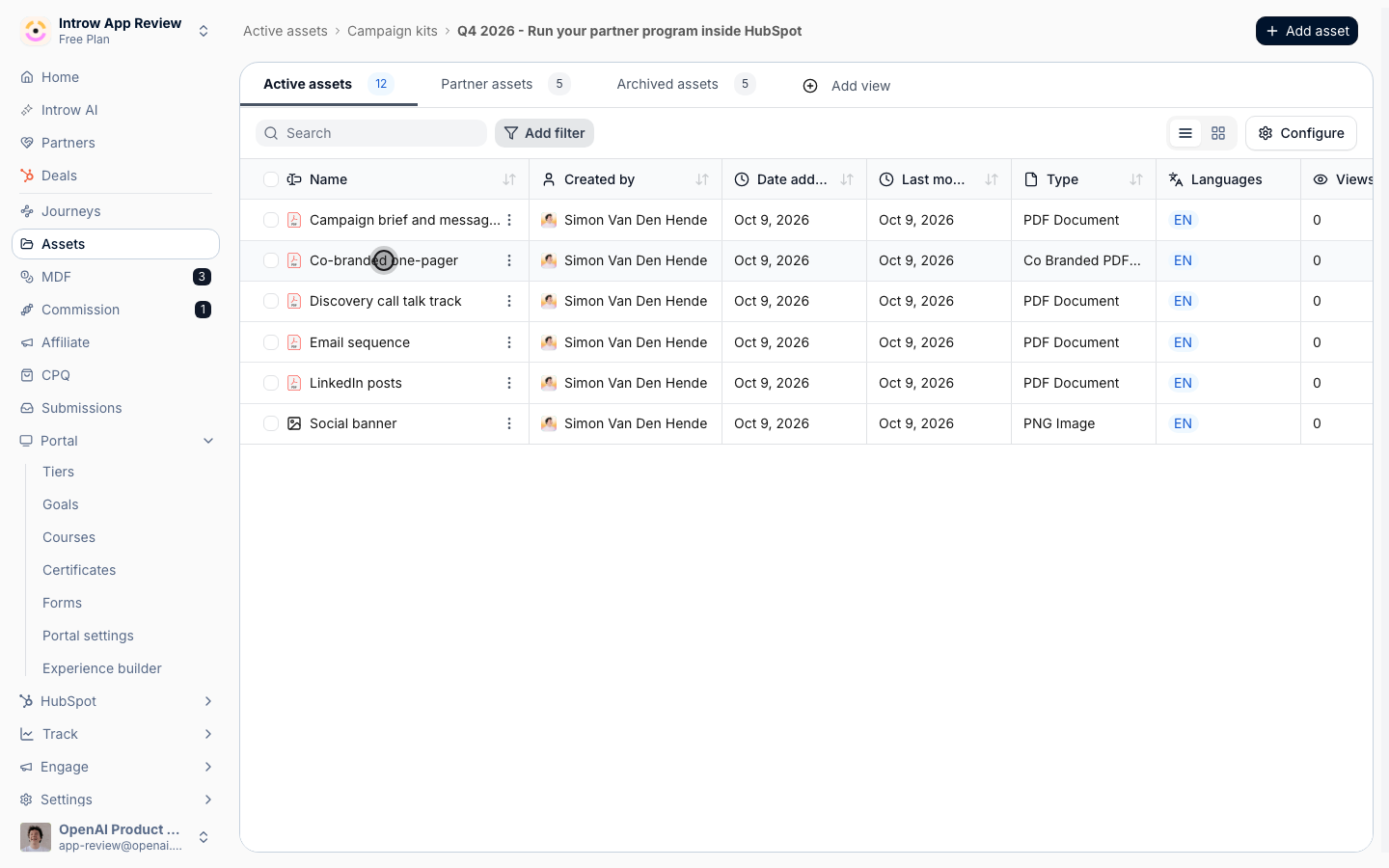
Before you start
How it works
A campaign kit is a folder in your asset library, published to partners through an Asset Hub. Keep one Campaign kits folder with a subfolder per campaign. An Asset Hub pointed at the parent folder picks up every new campaign you add, so the portal never needs editing when a campaign launches. Each asset in the kit is a normal library asset. It has a name, a short description, a thumbnail, access rules and engagement tracking. The description is what partners read on the card in the portal, and it is what a partner’s AI assistant matches against when it searches your content, so write it as one plain sentence about what the asset is for. The one-pager is a co-branded template. It is a PDF with form fields whose names containpartner.name and partner.logo.
Introw detects those fields on upload, and each partner gets a copy with their company name and logo filled in.
Co-branding fills the partner’s name and logo only, and only on PDF documents.
Settings & configuration
Building the kit in Assets
Add asset sits at the top right of Assets and offers Upload, Import folder, Web page URL and Create folder. Use Create folder for the Campaign kits parent folder and for each campaign subfolder. Use Upload for the PDFs and images in the kit, and Web page URL for a landing page or a hosted video. Import folder uploads a whole folder tree at once, which is the fastest way in when the kit already exists on a drive. When you upload a single file, Introw asks for its details before adding it:- Name - what partners see on the card. Drop the file extension and name the asset for what it is, such as Email sequence.
- Type - Regular for an asset every partner can see, or Partner Specific for an asset tied to one partner. Kit assets are Regular.
- Categories - optional tags partners can filter on in the hub.
- Language and Variants - the asset’s language, plus translated versions of the same asset.
The asset detail panel
Select an asset to open its detail panel.- Add a short description - one sentence that says what the asset is and when to use it. Partners and their AI assistant both read it.
- Thumbnail - generated from the first page of a PDF. Replace it, or select Generate with AI.
- Access - Public access (anyone with the link can view it), Portal access (only partner users with portal access can view it, the default) or Restricted access (only a subset of partner users can view it). Restricted access asks for the segments that can see the asset; with no segment picked it reads All partners.
- Languages, Engagement and History tabs - translations, who viewed the asset, and its version history.
- Share - a link to send one person the asset directly.
Co-branding the one-pager
Upload the one-pager as a PDF whose form fields are named for the partner’s name and logo. The detail panel then shows Co-Branding fields with Partner name and Partner logo, and a Generate for your partners button. Generate for your partners opens Generate co-branded assets, where you pick All Partners or specific partners. Each copy lands on the Partner assets tab of Assets, named after the template and the partner. A partner who opens the template in their portal also gets their own copy generated on the spot.Publishing the kit in the portal
In the Experience builder, open the experience, select Add in the tab bar and name the tab, for example Marketing. From the section picker, choose Smart sections, then Asset hub, then General Asset Hub. The configuration sheet opens:- Configure layout - Table or Thumbnails. Thumbnails suits a kit, because partners recognize the documents by their first page.
- Thumbnails per row, Show search bar and Show filters - how partners browse the hub.
- Configure properties - which properties show on each card. Turn on Description.
- Sort by and Configure views - the order of assets, and saved views partners can switch between.
- Configure asset visibility - the folders and assets the hub shows, each with an eye toggle. Turn the eye on for the Campaign kits folder.
How-to guides
Troubleshooting
The hub shows Start your configuration
The hub shows Start your configuration
No folder or asset is switched on yet. Open Configure on the hub and turn on the eye next to the Campaign kits folder under Configure asset visibility.
A new asset does not show in the hub
A new asset does not show in the hub
The hub took the folder’s contents when its eye was switched on. Open Configure on the hub, switch the folder off and back on under Configure asset visibility, and select Save.
Partners do not see the new tab
Partners do not see the new tab
The experience is still a draft. Select Publish and apply it to the partners who should get it.
The one-pager shows no Co-Branding fields
The one-pager shows no Co-Branding fields
The PDF has no form fields with partner name or partner logo in their names. Add the fields in your PDF editor and replace the asset.
A partner has two copies of the one-pager
A partner has two copies of the one-pager
Generating again creates new copies and leaves the earlier ones in place. Archive the older copies on the Partner assets tab.
The co-branded copy has no logo
The co-branded copy has no logo
Introw found no logo for the partner, on their profile or from their website domain. Add a logo to the partner and generate their copy again.
The co-branded copy says Invalid Logo
The co-branded copy says Invalid Logo
The partner’s logo file could not be read. Replace the logo on the partner and generate their copy again.
A partner cannot find an asset
A partner cannot find an asset
Check the asset’s Access. With Restricted access, the partner must be in one of the selected segments.