

What you’ll build
A CSV export of a report’s underlying data.Before you start
1
Confirm reporting is on your plan
Reporting is a plan feature, and plans cap how many saved reports and dashboards you get. If you hit the cap or see an upgrade prompt, check what your plan includes at introw.io/pricing.
2
Build the report
The report should already be configured with the data you want.
Watch it
- Video
- Click through
Steps
1
Open the report
Open the report from Reports.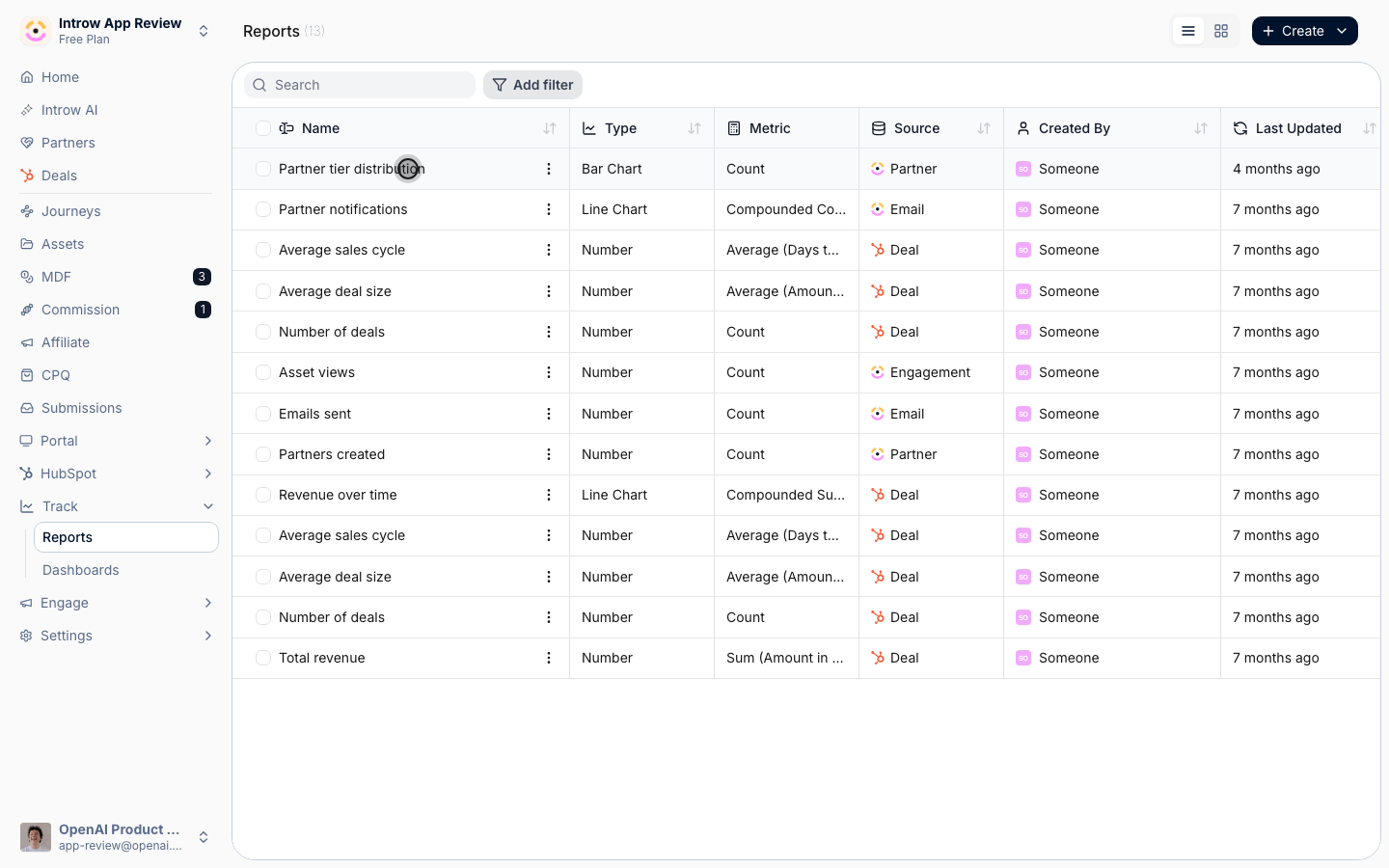
2
Open the Data tab
Switch to the Data tab.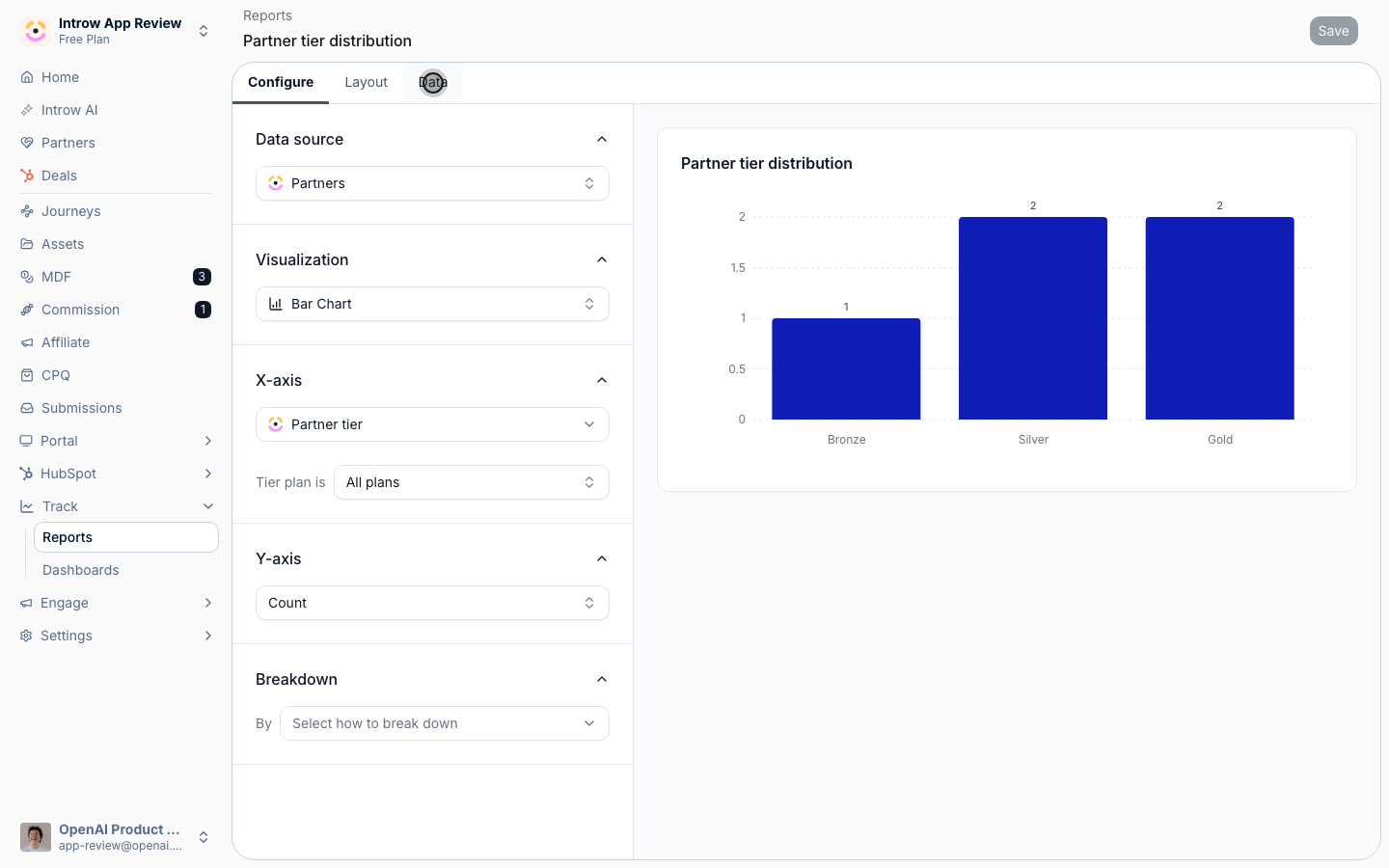
3
Export
Use the export action to download a CSV.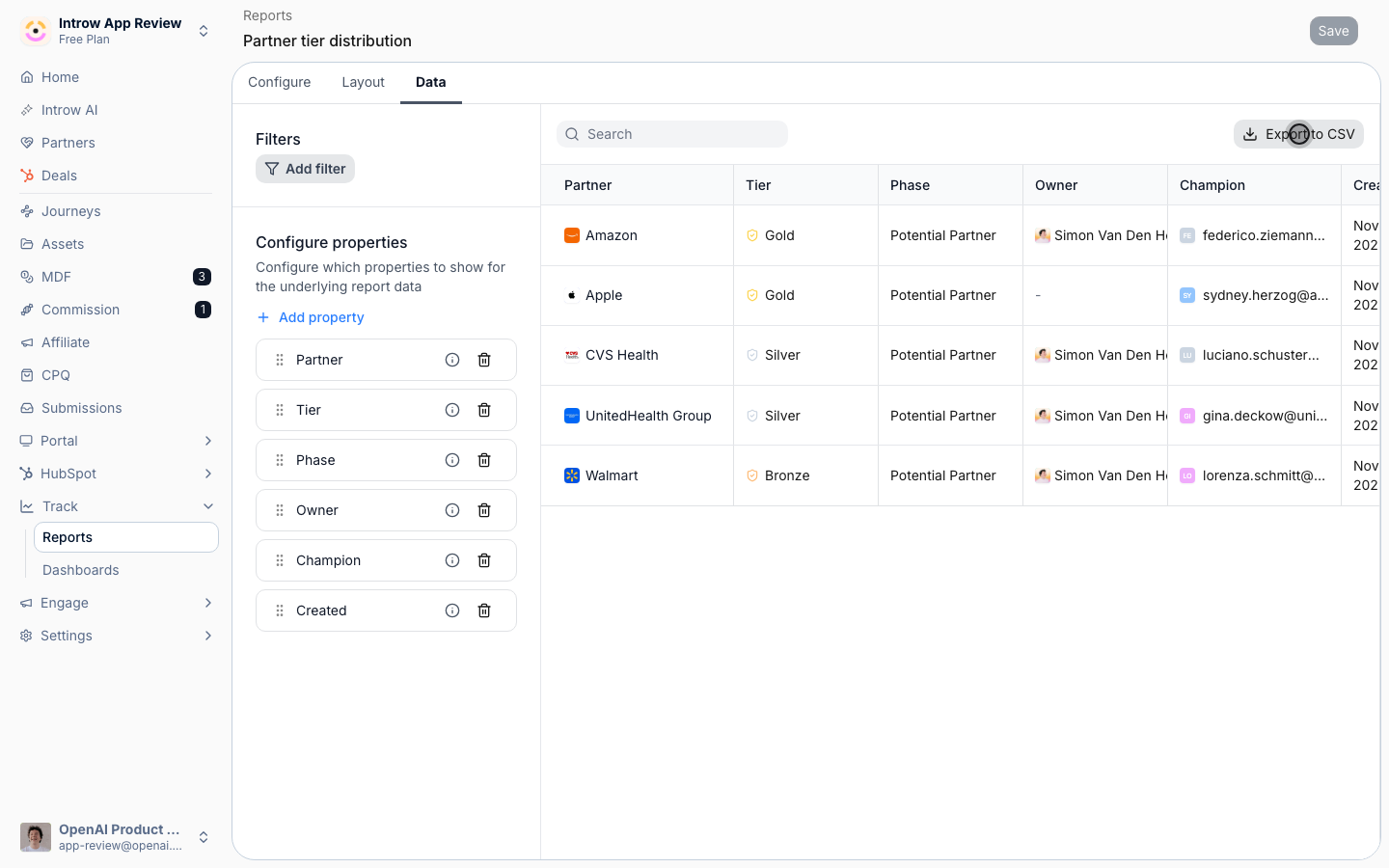
Verify it worked
A CSV file downloads with the report’s underlying rows.Related
Build a report
Build the report first.
Implementation reference
Full configuration options.