

What you’ll achieve
A connected Chargebee site importing billing data into Introw, ready to map and link to partners so commission plans can pay on actual recurring revenue.Before you start
1
Enable the billing module
Billing integrations are a paid add-on. If the Chargebee tile shows Upgrade plan, the billing integrations module is not enabled on your plan; contact Introw to add it.
2
Get your Chargebee credentials
Have your Chargebee site name (the subdomain in your-site-name.chargebee.com) and a Chargebee API key. You need permission to connect integrations in Introw; credentials are stored encrypted.
Steps
1
Open the Billing integrations
Go to Integrations and stay on the Billing category.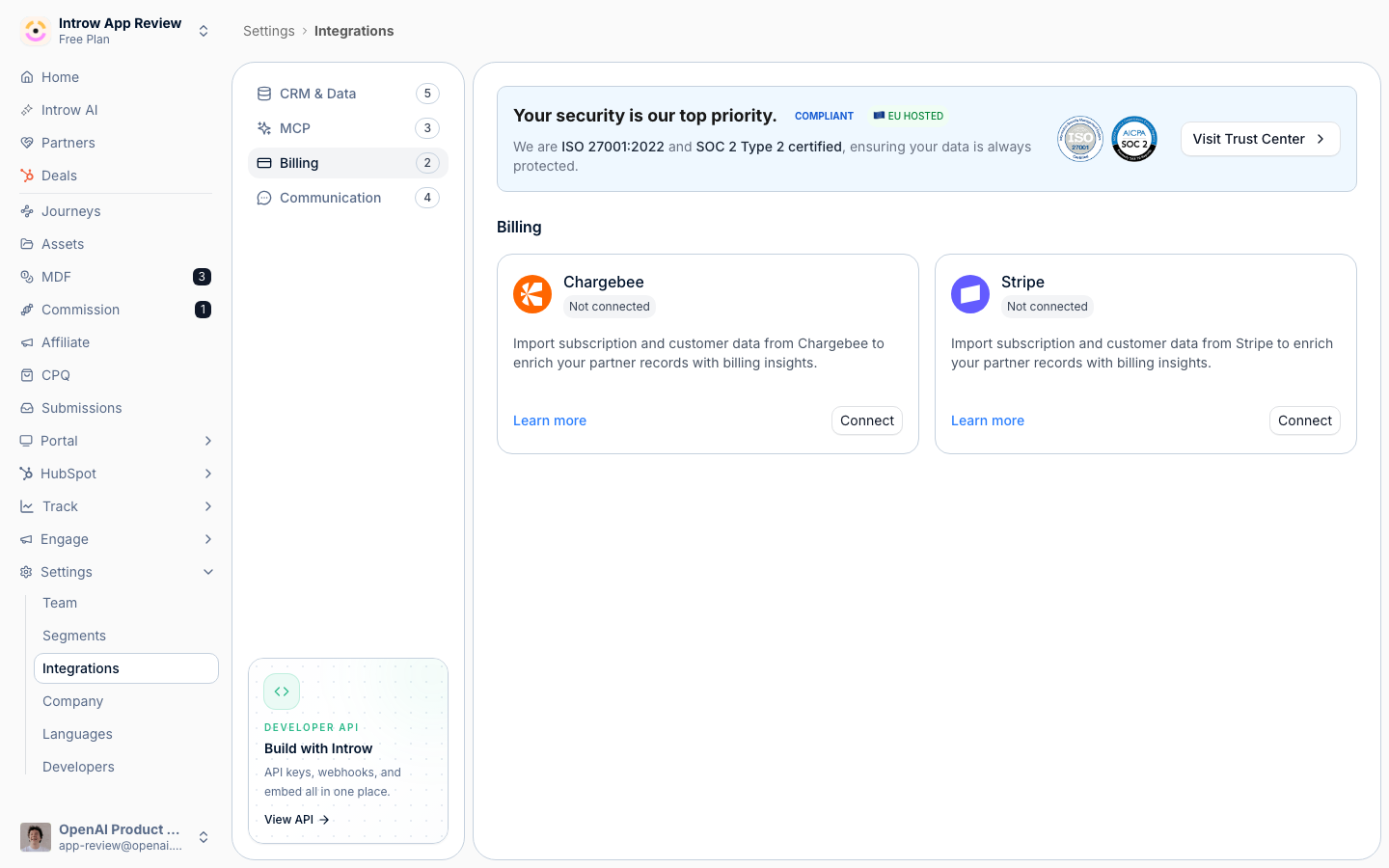
2
Enter your credentials
On the Chargebee tile select Connect to open the Chargebee Integration dialog, then fill in the Credentials:
- Chargebee Site - your Chargebee site name, entered between the shown https:// and .chargebee.com (for example “your-site-name”). This tells Introw which Chargebee account to read from.
- API Key - a Chargebee API key with read access. Introw uses it to import billing data; it is stored encrypted.
3
Connect
Select Connect. Introw validates the credentials against Chargebee and confirms the connection. If you see an invalid-key or site-not-found message, recheck the site name and API key; if the site is already linked to another organisation, it cannot be connected twice.
4
Map and link the data
The configuration page opens on an Object Linking panel that is empty, and that is the important part: validating credentials imports nothing on its own. Until you add at least one object and tell Introw which property identifies the partner, no subscriptions, customers, or invoices come in, no partner is attributed, and Chargebee cannot be used by a commission plan.Follow Connect your billing data for that step. Note that Introw reads your product catalog version and offers the matching objects: Plan on catalog v1, Item and Item Price on v2, with Subscription, Customer, and Invoice on both.
Verify it worked
Chargebee shows as Connected on the Billing integrations page, and its configuration page opens with Connected by you in the header and an empty Object Linking panel ready for mapping. Treat that empty panel as “connected, not finished”: the Chargebee source only becomes selectable when building a commission plan after you have mapped an object and linked partners to it.Related
Connect your billing data
Map billing objects and link records to partners.
Connect Stripe billing
Use Stripe instead of Chargebee.
Build and launch a commission plan
Pay partners on the imported billing data.
Implementation reference
Full configuration options.