

What you’ll achieve
A single co-branded PDF in your library that every partner opens as their own personalized, on-brand copy, with no per-partner work from your team. Your branding stays fixed; only the partner name and logo change per copy.Before you start
1
Prepare a PDF with co-branding form fields
Build your PDF as a form whose fields are named for the partner details to merge, a partner name field and a partner logo field. Introw recognises these field names and fills them per partner; everything else in the PDF stays fixed as your branding.
2
Confirm partner branding is captured
The merge pulls each partner’s name and logo from their record. If a partner has no logo, Introw falls back to a logo resolved from their domain, and to a lettermark if none exists there. Capture real logos first for a fully co-branded result: upload a square image around 200×200 on the partner record. The logo is scaled to fit inside your PDF’s logo field and keeps its shape, so size that field for a square mark unless your partners’ logos are all wide.
3
Confirm permission to manage content
You need write access to assets to upload the template.
Steps
Create the co-branded asset
1
Upload the PDF to the library
Go to Assets and upload your co-branding PDF as a file. It lives in the Asset Library alongside the rest of your content, with the same access controls.Upload it as a new asset rather than replacing the file on an existing one. Introw reads the form fields on first upload, so a replaced file is never picked up as a co-branded template.
2
Confirm the co-branding fields
Open the asset and check its detail panel. Introw reads the PDF form fields and lists what it will personalize under Co-Branding fields: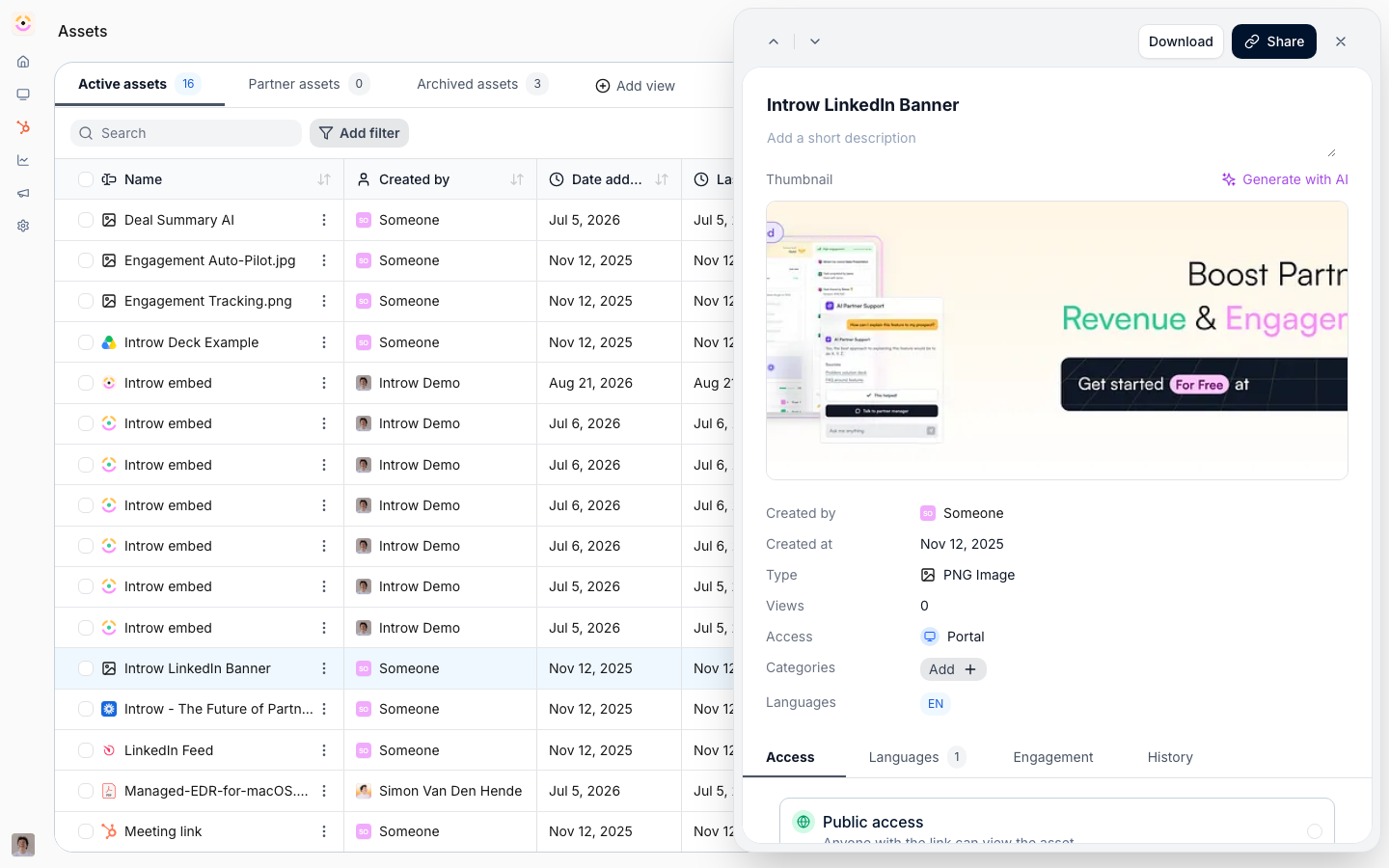
- Partner name - the text field that will be filled with each partner’s name.
- Partner logo - the image field that will be filled with each partner’s logo.
Publish it to partners
This is all it takes. Partners get their co-branded copy on open, so the template goes out like any other asset.1
Add it to an Asset Hub
Add the asset to a regular Asset Hub in a portal experience, in whatever folder fits your enablement structure. You do not need a partner-specific hub.
2
Publish the experience
Publish so partners see the hub. Set the asset’s visibility first if only some segments should get it.
This works on any path that opens the asset in a partner context, not only the Asset Hub: an asset link you share, an asset attached to a task, or an asset embedded elsewhere in the portal.
Optional: generate copies upfront
Pre-generate copies when they need to exist before a partner opens the template, for example to attach them to a task, mail them out, or list them in a partner-specific Asset Hub.1
Open the generate dialog
With the asset open, use the Generate for your partners action to open the Generate co-branded assets dialog.
2
Choose the partners
Decide the audience for this run:
- All partners - generate a copy for every partner at once. Use this for broadly relevant collateral.
- Selected partners - pick specific partners from the selector when only some should receive it, for example a campaign aimed at one tier or region.
3
Generate
Introw creates one personalized PDF per partner. Each copy is saved as a partner-specific asset under Partner Assets in the library and on that partner’s assets page, so it belongs to that partner and no one else. Any partner whose PDF could not be produced is reported back so you can fix the source and retry.
Verify it worked
Open the portal as a partner and click the asset in the hub: it shows your fixed branding with that partner’s name and logo merged in, ready to download. Back in the library, the same copy now appears under Partner Assets and on that partner’s assets page, and no other partner can see it.What your partners experience
Partners browse the hub and open what looks like a normal asset. What they get is their own version, with their logo and details already merged into the template you control, ready to download and use. There is no request, no waiting, and nothing to configure, so the template you set up here becomes on-brand collateral the whole program self-serves on demand.Let partners’ AI assistants rework the kit
The portal is where the co-branded PDF comes from. Introw fills the partner name and partner logo fields, and only on PDF templates. It does not produce DOCX, JPEG or PPTX versions, and no MCP tool co-brands or downloads a file. What a partner’s AI assistant adds is the words around it. Connected through Introw Partner Connect, the assistant finds your campaign material, reads it, and writes the partner’s own version of the emails and posts in their voice. That rewrite is the assistant’s work, in whatever format its own tools produce, not an Introw export. The drop-in skills below package both sides of that motion.Co-branded Collateral Generator
Vendor skill: generate every partner’s co-branded PDF in one go.
Co-brand My Collateral
Partner skill: find co-branded PDFs across every vendor portal.
Related
Add and configure an Asset Hub
Surface the co-branded template in the portal.
Build the asset library
Manage access on the source asset and its copies.
Through-Channel Marketing
Distribute co-branded assets in attributed partner campaigns.
Implementation reference
Full co-branded asset configuration options.