

What you’ll achieve
Claude connected to your Introw partner data over MCP, authenticated as you. Claude can read your accessible portal data - deals, tasks, commissions, submissions - and take the actions your permissions allow, and the connector page shows the connection as active.Before you start
1
Have a Claude plan that supports connectors
Use a Claude client that supports custom MCP connectors.
2
Have a partner account at partners.introw.io
The connector lives in your own Introw account at partners.introw.io, not in your vendor’s portal. If you do not have one yet, sign up there with Google, Microsoft, or an emailed verification code - it takes a minute and costs nothing. See Get started as a partner.
3
Have partner portal access
The partner Claude connector is available by default - no vendor toggle is needed, and you do not need to be an admin on your side. Complete the OAuth step while signed in so Claude connects as you, scoped to your partner account.
Steps
1
Open the Claude connector
Sign in at partners.introw.io and go to Settings, then Integrations, and open the MCP category. Find the Claude card and select Configure to open the connector. The page shows the connection status and the quick-setup steps.This partner connector is separate from the vendor’s admin connector, and it covers all the vendor portals your account can reach - not one vendor at a time. Connect once and every vendor you work with is in scope.
2
Copy the MCP Server URL
Select Copy MCP Server URL. This is the address Claude connects to; copy it from the page rather than typing it, so you do not introduce a typo. Use the URL shown here, not one from anywhere else.
3
Add Introw in Claude
In Claude, open Customize, then Connectors, and add an Introw custom connector using the MCP Server URL you copied, then select Connect. Adding it here is what tells Claude where to reach your partner data.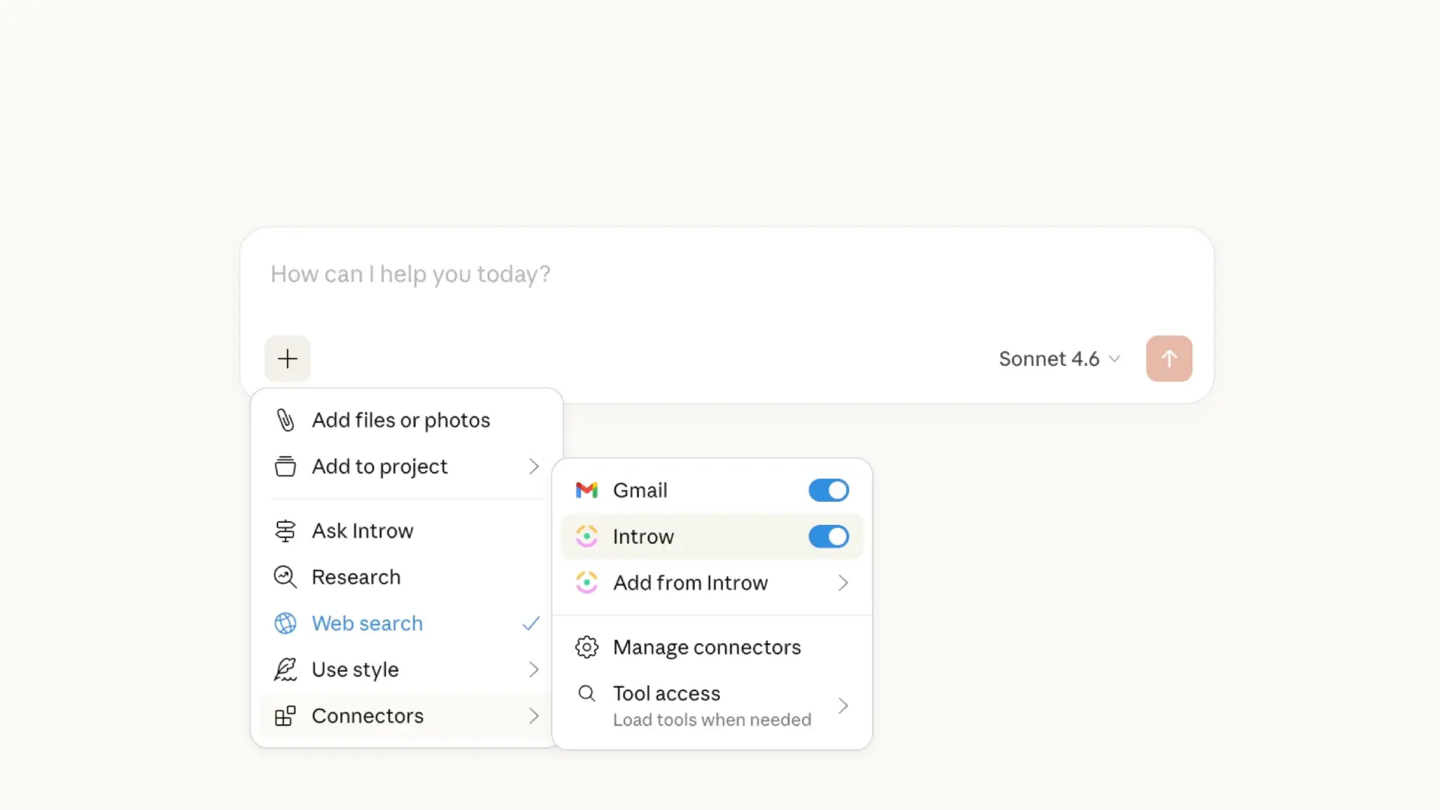
4
Complete the OAuth sign-in
Claude opens an Introw sign-in to authorize the connection. Complete it so Claude connects as you, scoped to your partner account. This is the step that links your account - there is no API key or secret to paste.
Verify it worked
The Claude connector page shows Connection is active, and asking Claude a question about your program (for example “What deals do I have open and what stage are they in?”) returns live data scoped to your account. To revoke access later, select Disconnect on the connector page; Claude loses access immediately and must reconnect.Once connected, try
Put Claude to work in a sentence:- Register or share a deal - “Register this deal with the vendor and attach my notes,” or “Share this lead with the vendor.”
- Check what you’ll earn - “What commission is pending for me?”
- Track your standing - “What do I still need to close to reach the next tier, and which certifications am I missing?”
- Stay on top of work - “What partner tasks are open for me?”
- Pull enablement and get coached - “Find the vendor’s latest battle card,” or “Coach me on this deal.”
- Self-serve support - “How do I submit an MDF request?”
Related
Connect ChatGPT
Do the same for ChatGPT.
Connect an MCP client
Connect Cursor, Gemini, and other clients.
Partner MCP use cases
What you can do from your assistant once connected.
Implementation reference
Partner AI setup, scoping, and troubleshooting.