

A claim is how a partner turns money they already spent into money you reimburse. After the activity runs, the partner submits proof of spend - receipts, invoices, creative - against their approved project. Every claim carries the project it belongs to, so it files against the right budget wherever the partner submits it, and only draws down the fund once it is approved.Unlike a proposal, a claim is always tied to an approved project: the claim form carries that project, so the submission lands on it automatically and counts against its approved amount. Claims are accepted only while the fund’s claim window is open.
Before you start
1
Configure the claim step
The claim form, its proof-of-spend upload, approval, and the claim window are set up in Configure the claim step. The claim step must be enabled on the fund’s timeline.
2
Have an approved project to claim against
A partner can only claim against a project that has been approved. See Submit a proposal and Run the MDF lifecycle.
Ways to submit
The claim link carries the project it belongs to, so the claim files against the right project whichever way the partner sends it. Pick the channels your partners already use.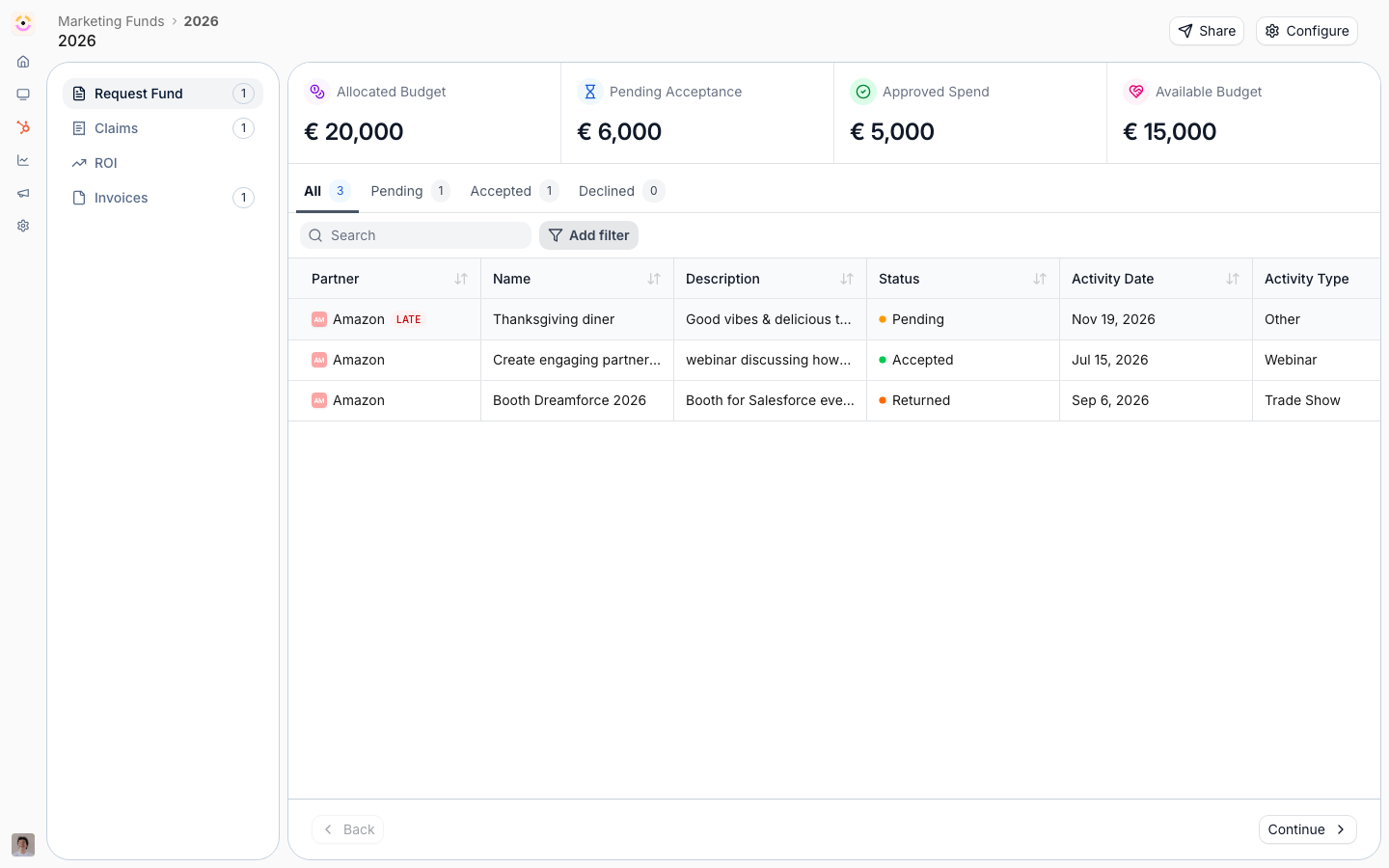
From the project in the portal
From the project in the portal
The partner opens their approved project and submits the claim form there - the most direct path when they are already working the project. They attach receipts and invoices in the proof-of-spend upload field and submit.
From a claim link
From a claim link
Send the claim link - in a reminder, an email, or a portal message - and the partner fills it in from anywhere. The link carries the project, so the claim files against it and its budget without the partner hunting for the record.
By email
By email
The partner forwards the receipts and details to your partner support address, and the AI agent reads the message and files the claim against the project for them. The AI agent must be enabled for your program.
With an AI assistant (MCP)
With an AI assistant (MCP)
A partner working in an assistant connected to Introw over MCP can submit the claim from there, without switching tools. See Connect an MCP client and Partner Connect.
Verify it worked
Submit a test claim against an approved project and confirm it appears in Submissions on the right project with its proof uploads attached. Once approved (or auto-approved by AI review), confirm the project’s available budget draws down by the claim amount.Related
Configure the claim step
Set up the claim form, proof uploads, approval, and the claim window.
Run the MDF lifecycle
Review claims and process the full request-to-payout flow.
Implementation reference
Full claim and proof-of-spend configuration options.