

What you’ll achieve
A task assigned to the right person with a due date and visibility set, optionally completing itself when the partner takes an action, and showing up in the partner portal so the partner sees exactly what to do and can check it off without leaving the portal.Before you start
1
Pick the partner
Know which partner the task is for. You need permission to manage partners and tasks.
2
Have an experience to show it in
To surface tasks in the portal, you need a published experience the partner can access.
Watch it
- Video
- Click through
Steps
Create the task
1
Open the partner's tasks
Go to Partners, open the partner, and go to their Tasks tab. Add a task and give it a clear name that states the action.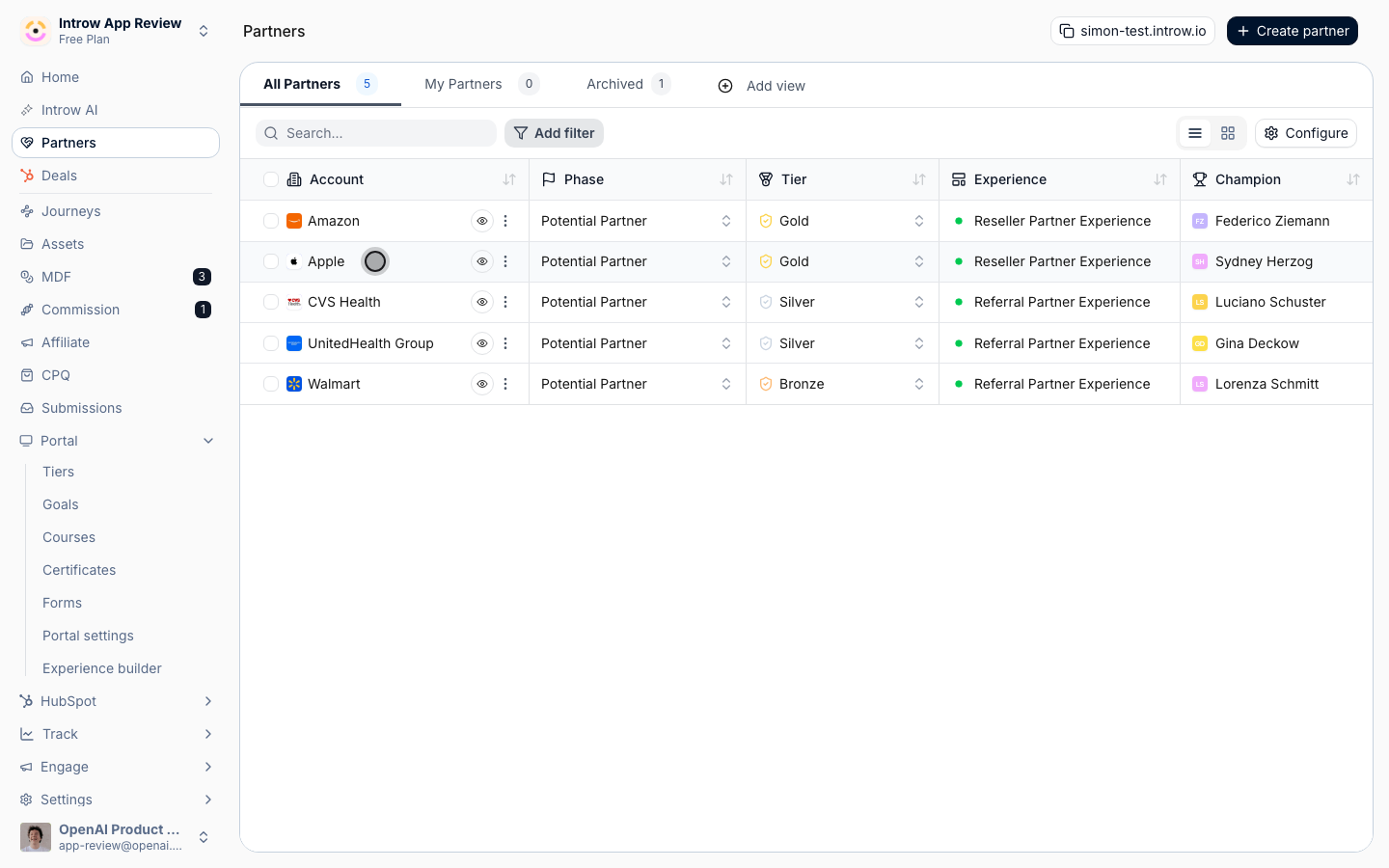
2
Set the task details
Fill in the task so it lands on the right person with a clear deadline: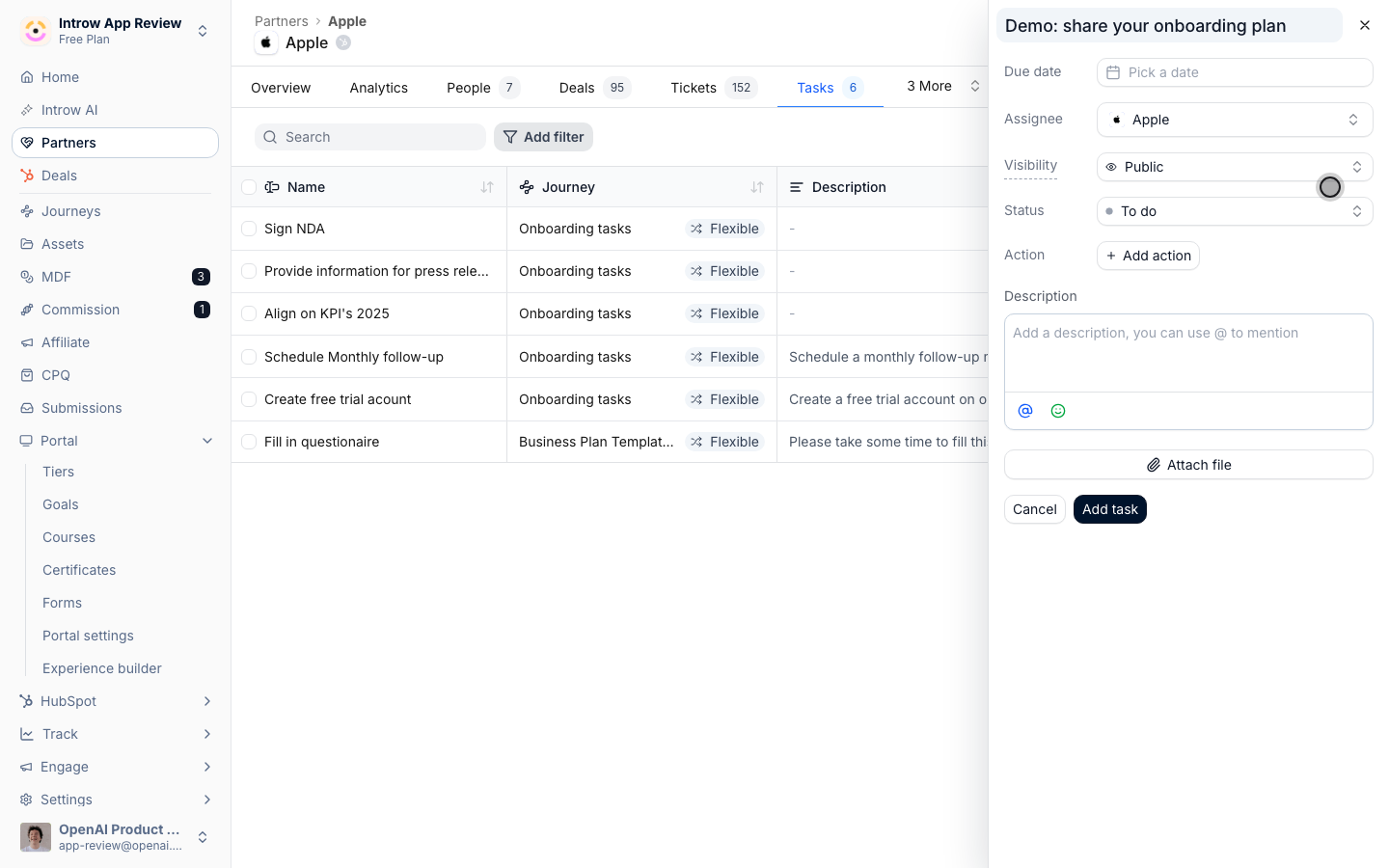
- Due date - the date the task is due. Set it so the partner knows the deadline; leave it empty for no due date.
- Assignee - who is responsible, picked from five groups: Teams (your company or the partner as a whole), Partner segments, Internal partner teams (a role on your side, such as the partner’s assigned partner manager), Your team (a named colleague), or Partner contacts (a named person at the partner). Choose the level of accountability the step needs.
- Visibility - who can see the task: Public (your team and the partner), Internal (your team only), or Assignee (your team plus the assignee). A task assigned to the partner must stay visible to them, so it cannot be Internal.
- Status - To do, In progress, or Done. New tasks start in To do.
- Description - the instructions the partner reads. Be specific so they can act without asking.
- Attachment - an optional file to attach for reference.
Automate completion (optional)
1
Add an action
To let the task complete itself when the partner does something in the portal, use Add action and pick the Action type: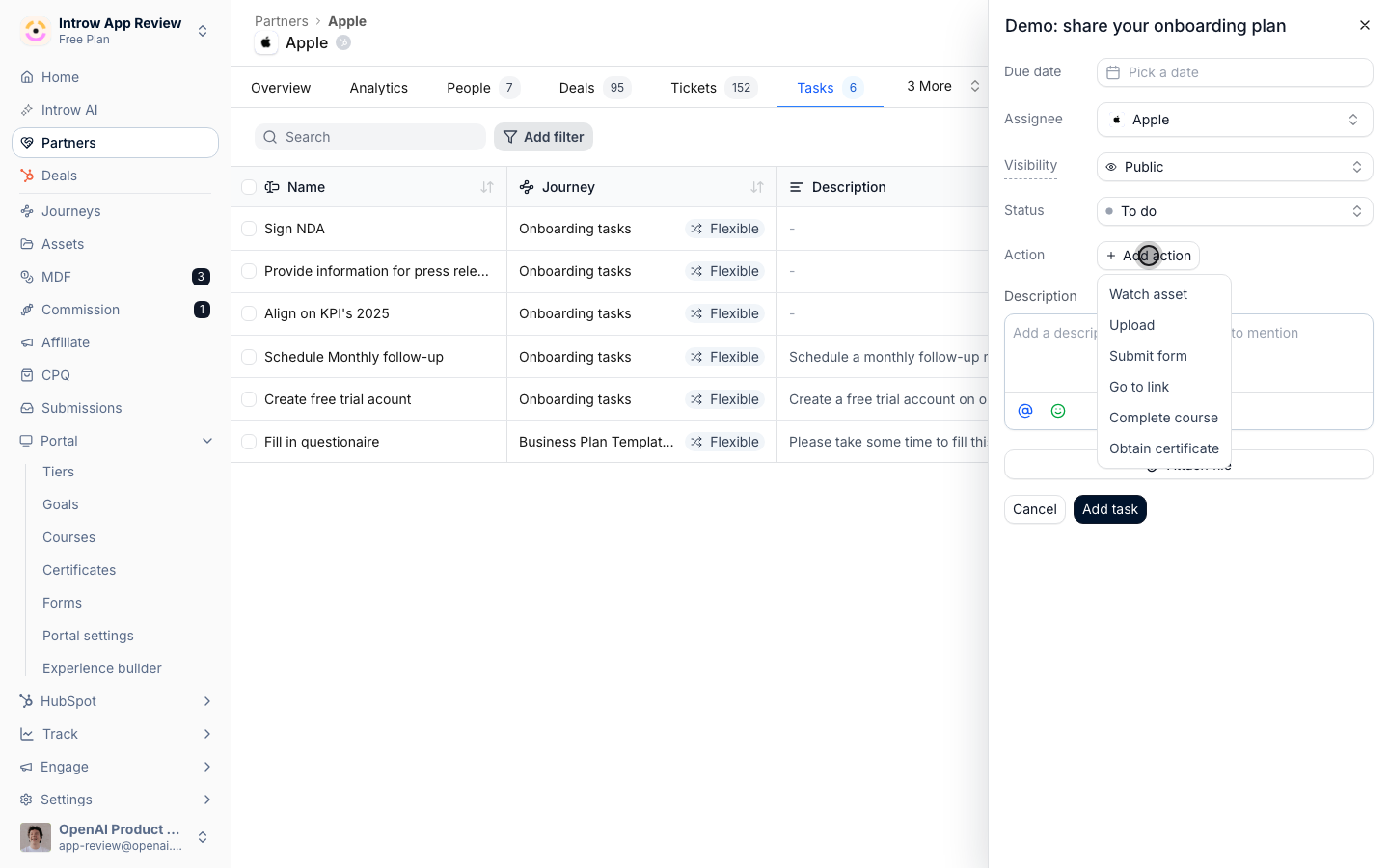
- Watch asset - completes when the partner views a chosen asset. Select the asset.
- Upload - completes when the partner uploads a file.
- Submit form - completes when the partner submits a chosen form. Select the form.
- Go to link - completes when the partner opens a link. Enter the URL.
- Complete course - completes when the partner finishes a chosen course. Select the course.
- Obtain certificate - completes when the partner earns a chosen certificate. Select the certificate.
Show the tasks in the portal
1
Open the experience builder
Go to Portal and edit the experience the partner receives. If tasks don’t have an obvious home, add a dedicated Tasks tab so partners find them instantly.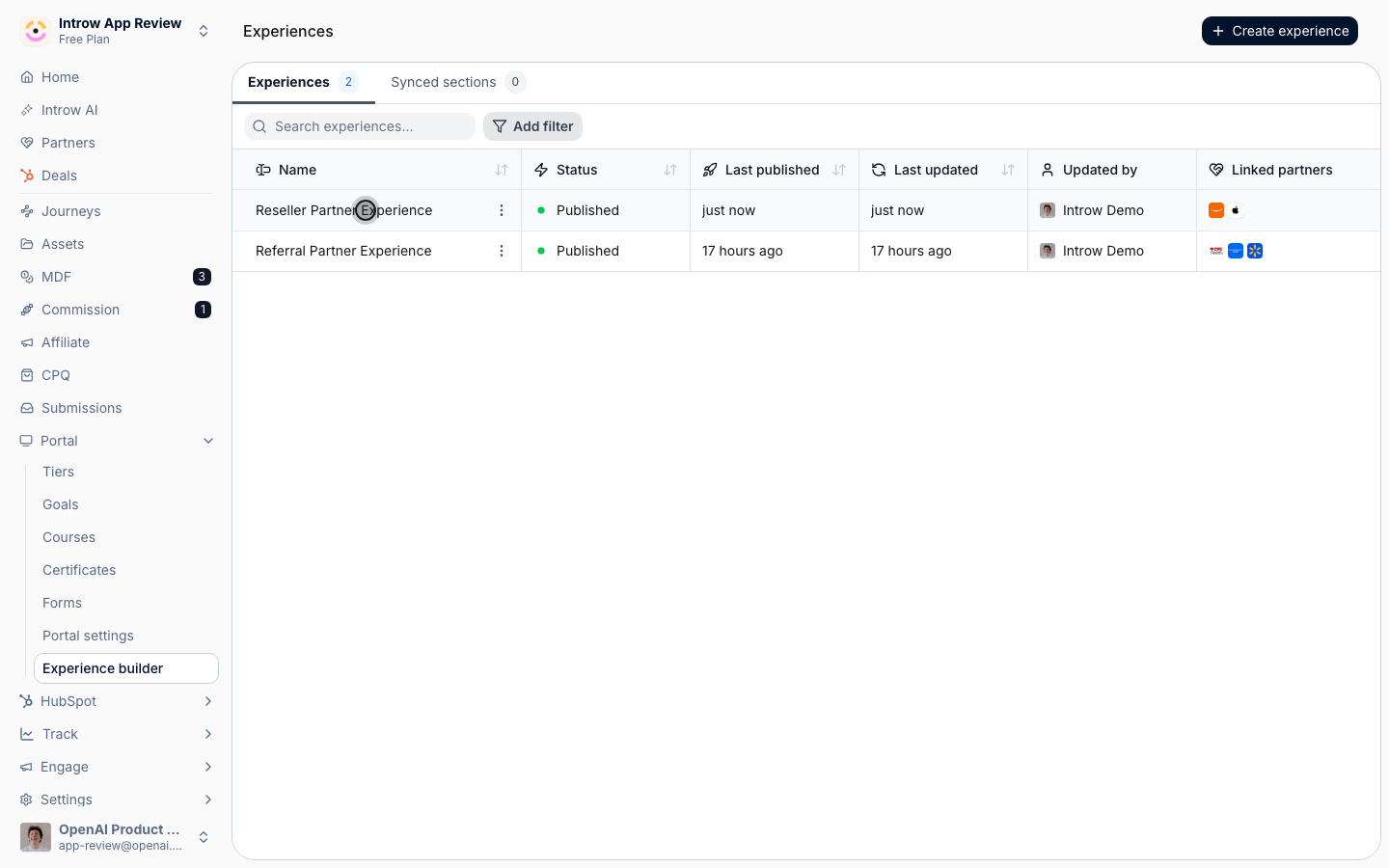
2
Add a Tasks block
Add the Tasks block to a section of the experience, then open its settings to reach the Configure Tasks panel.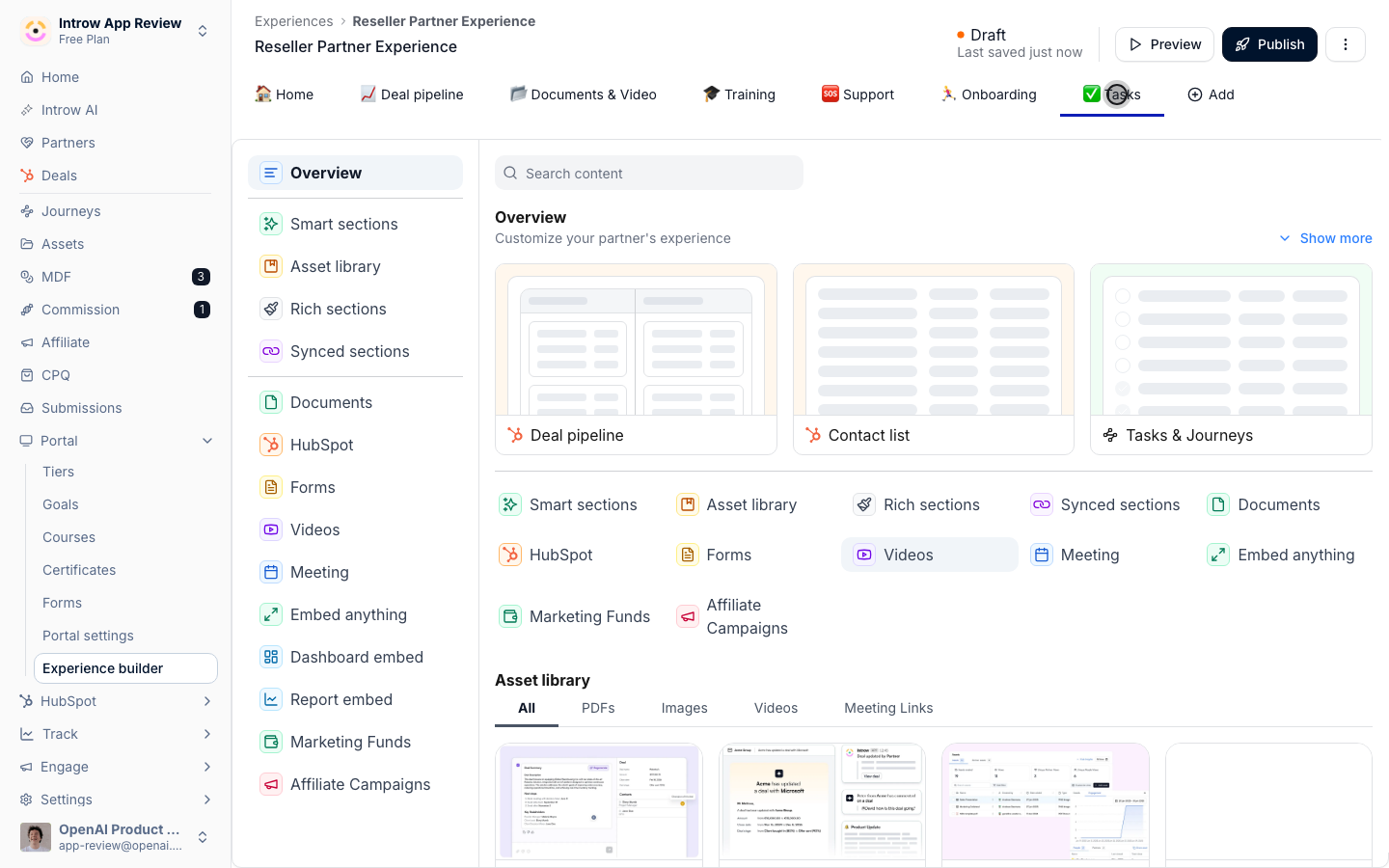
3
Choose what the block shows
In the panel, decide which tasks appear: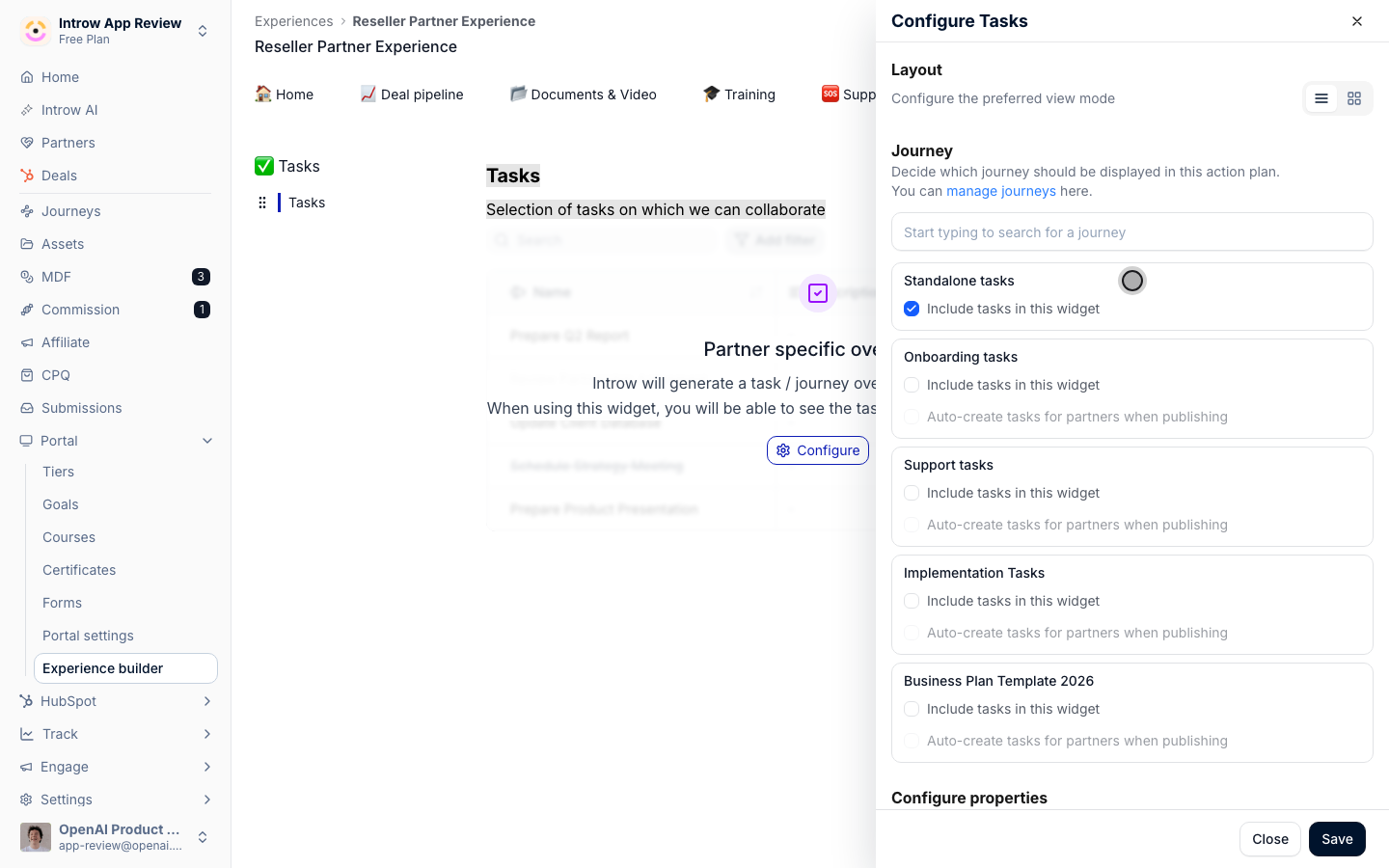
- Layout - show tasks as a list or a grid.
- Standalone tasks - turn this on to show the ad-hoc tasks you create directly on a partner (the ones from this guide), not just journey tasks.
- Journey - additionally include a journey’s tasks in the same block by selecting it and turning on Include tasks in this widget.
- Properties - drag to control which task properties partners see, and in what order.
- Collaboration - optionally let partners add their own tasks, and hide completed tasks after a set number of days.
4
Save and publish
Save the configuration and publish the experience to the partner so their live portal updates and they see their tasks.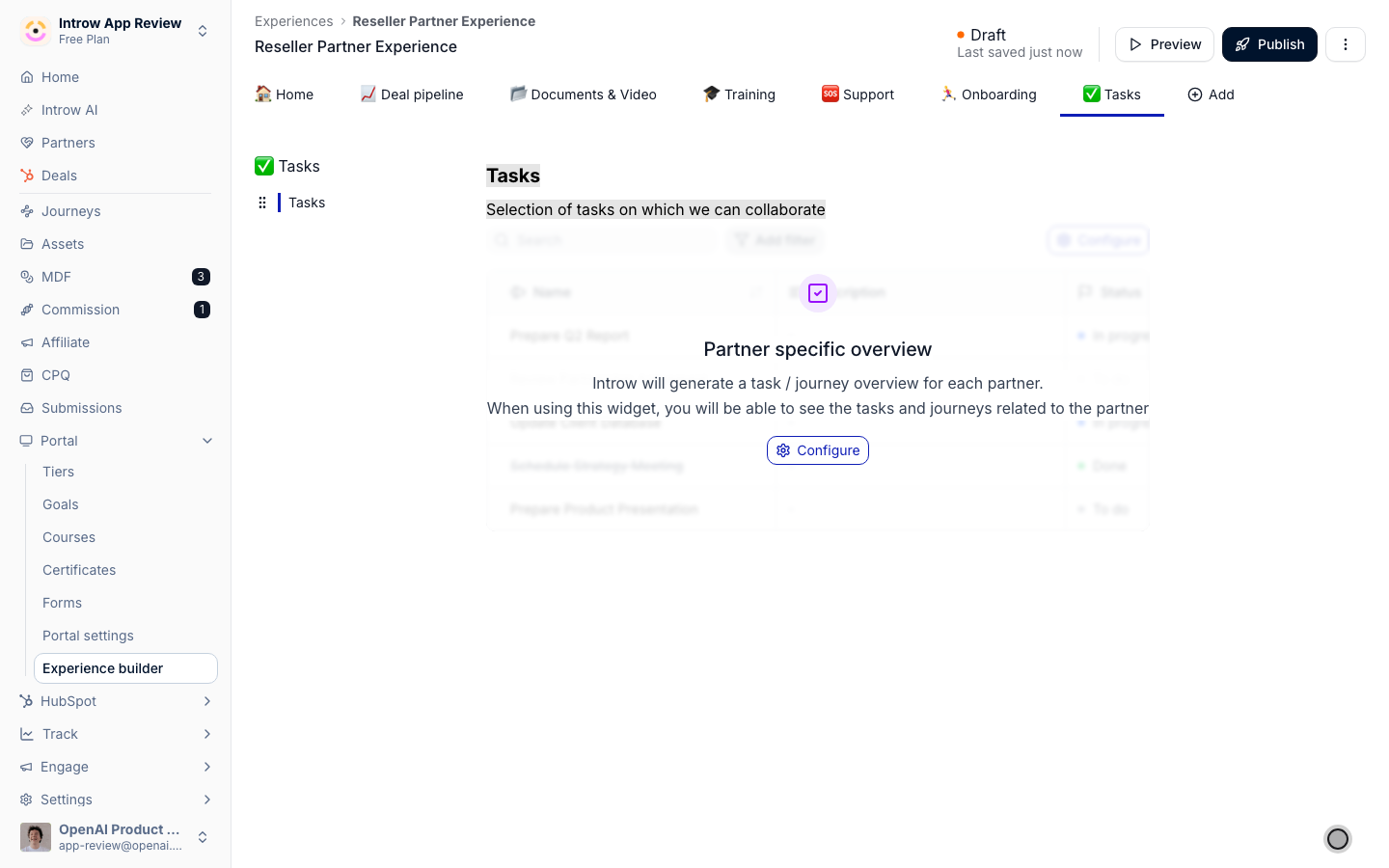
Verify it worked
The task appears on the partner’s Tasks tab with the owner, due date, and visibility you set. A logged-in partner sees their assigned tasks in the experience and can complete them there, and an automated task moves to Done on its own once the partner takes the action.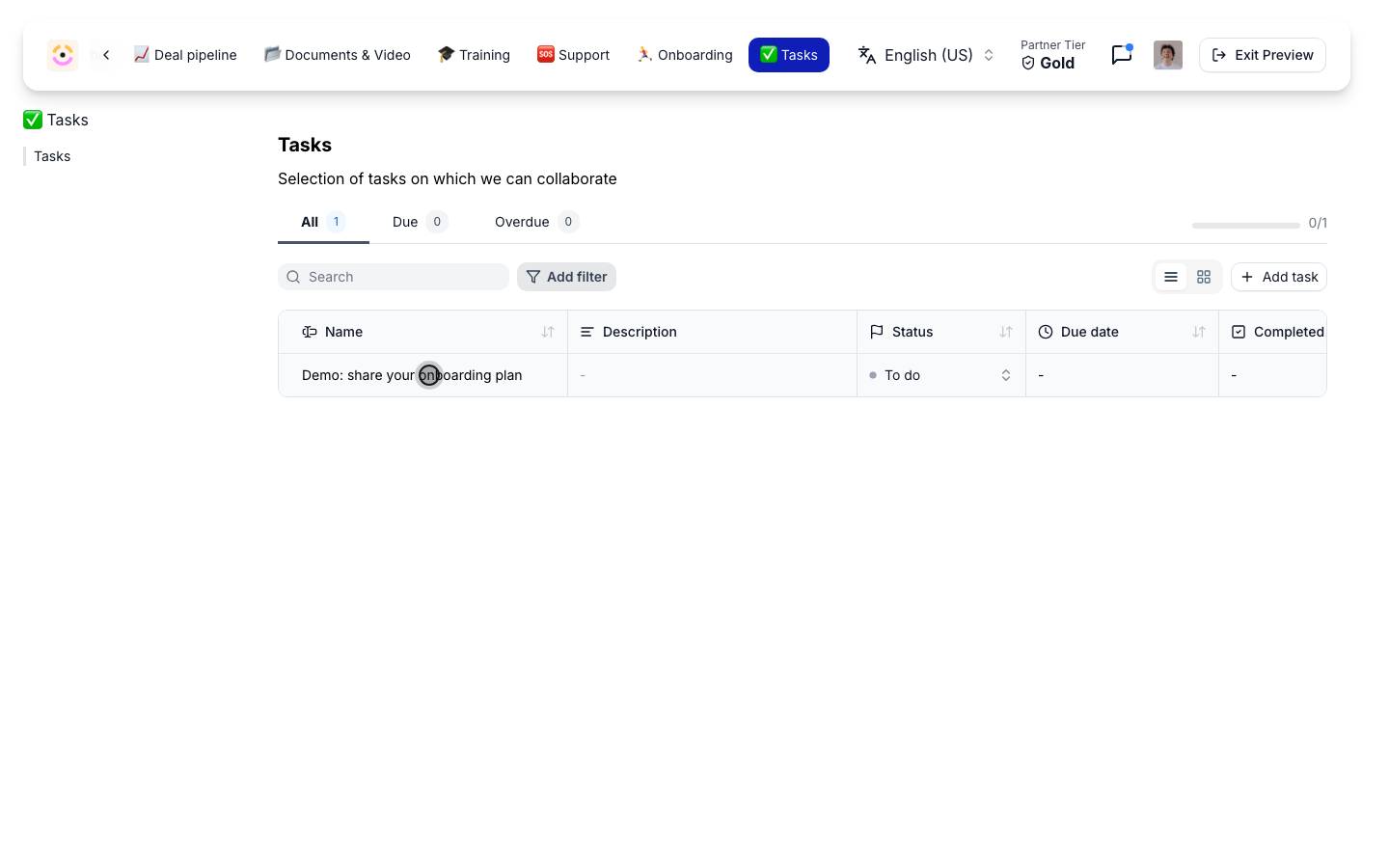
Related
Build a journey from scratch
Reuse a checklist across many partners instead of a one-off task.
Auto-apply a journey from the experience
Enroll partners in a journey from the portal automatically.
Implementation reference
Full configuration options for tasks.