

Where it lives
Funds & Allocation sits under MDF, at Marketing Funds.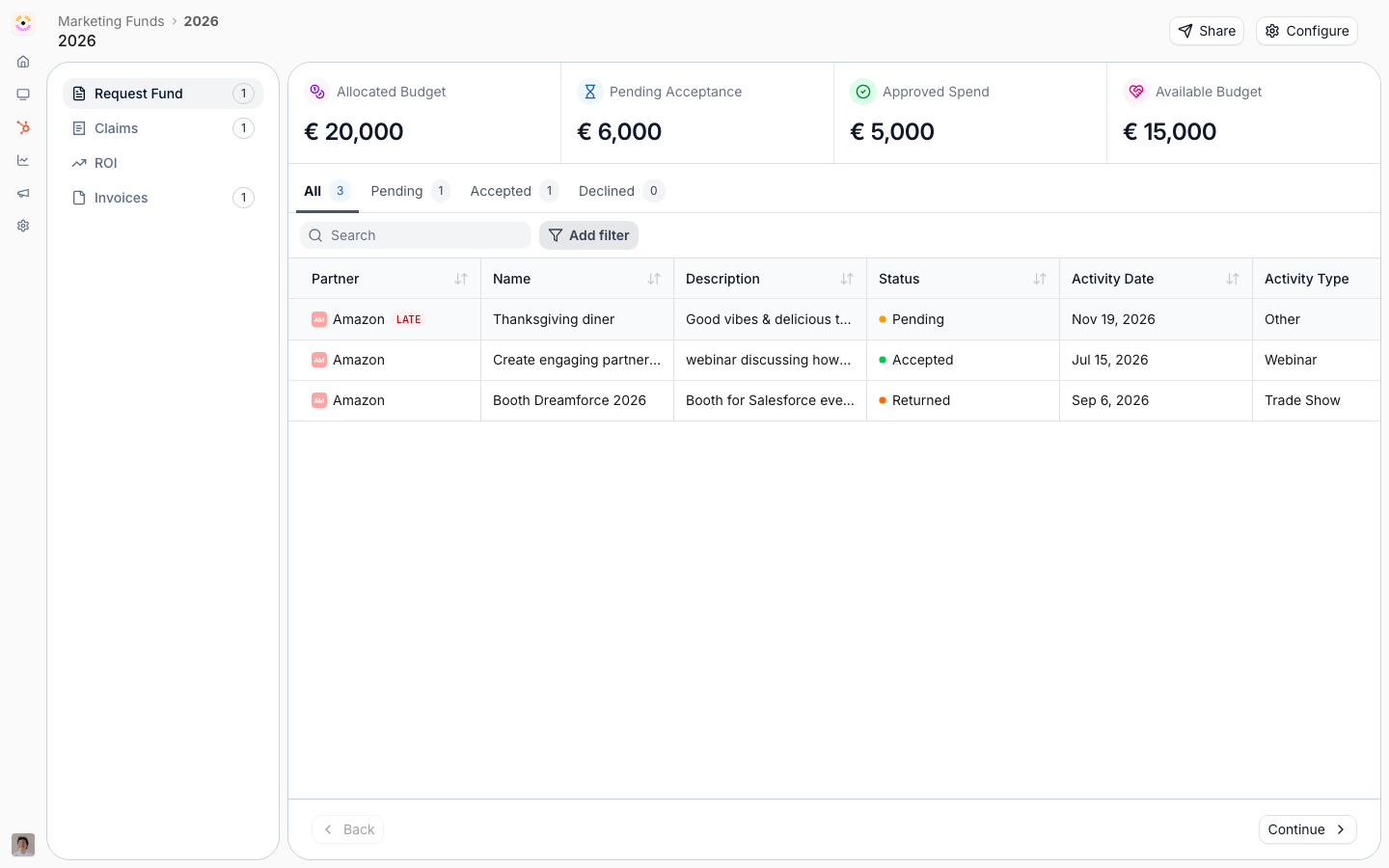
Before you start
How it works
Marketing funds live under MDF, shown as Marketing Funds. You create a fund, then configure it in edit mode across a general tab and a budget tab. The general tab sets the name, currency, and period; the budget tab allocates budget to partners by segment, choosing fixed-per-partner or pooled allocation. When you create a fund, Introw provisions the request, claim, ROI, and invoice forms it needs. Allocation is segment-based, so the partners in each segment determine who can draw on the fund. A fund has a status of active, expired, or archived, and funds expire automatically after their period ends.Settings & configuration
Funds are managed at Marketing Funds.Creating a fund
Use Create fund to make a new fund; it opens in edit mode. There is no separate new-fund page.General
On the general tab, set the fund name, an optional description, the currency, and the period. Only spend within the period qualifies.Budget and allocation
On the budget tab, add allocation rows by segment. Choose fixed allocation to give each partner in a segment a set amount, or pooled allocation to let a segment share a single pool. Total allocated budget is computed from these rows.Lifecycle forms
Each fund binds a request, claim, ROI, and invoice form. These are provisioned from templates and edited in the form editor; see Requests, Claims & ROI for the lifecycle.Where requests and claims are stored
MDF requests and claims are Introw’s own objects by default. Once a CRM is connected, a HubSpot mapping (or Salesforce mapping) item appears in the left navigation, where you can back either object type with one of your own CRM objects instead. A CRM-backed object type then owns its own schema, properties, record creation, and label, and needs two extra pieces of configuration: object linking for partner attribution, and a field mapping so Introw knows which properties carry the amounts, status, and dates it calculates budgets and ROI from. See Store MDF requests and claims in your CRM. New lists for Salesforce’s standard fund request and fund claim objects watch Status by default, so an approval shows in the activity feed and goes out as a notification. A list you built earlier keeps its own watched properties: switch Status on there and republish.Partner visibility
Add an MDF overview section to a portal experience so partners see their allocation, pending, approved, and available budget. The MDF Budget panel on a partner’s request counts the partner’s approved requests the same way the fund page does, so approved spend and available budget agree between the two.How-to guides
Troubleshooting
A partner has no budget
A partner has no budget
They are not in a segment with an allocation.
The fund shows expired
The fund shows expired
Its period has ended; update the period to reactivate the window.
The MDF area is locked
The MDF area is locked
The MDF module is not enabled on your plan.
A fund's spent budget or ROI bar reads 0 on a CRM-backed object
A fund's spent budget or ROI bar reads 0 on a CRM-backed object
The object’s Approved amount is not mapped. Map it under Field mapping on the CRM mapping screen.