

What you’ll achieve
One reusable content block that appears across multiple partner experiences and stays consistent: a single edit to the saved section propagates to every linked instance, so all portals show current content without you touching each one. When a single portal needs a different version, you can detach just that instance.Before you start
1
Confirm write access
You need write access to experiences and sections to create, insert, and edit synced sections.
2
Know where the content should appear
Have a sense of which experiences will use the block, since editing the saved section later affects all of them.
Watch it
- Video
- Click through
Steps
Create the synced section
1
Open Synced sections
Go to Synced sections, the central home for reusable blocks. You can build one here from scratch, or save an existing section from an experience (covered in the next step).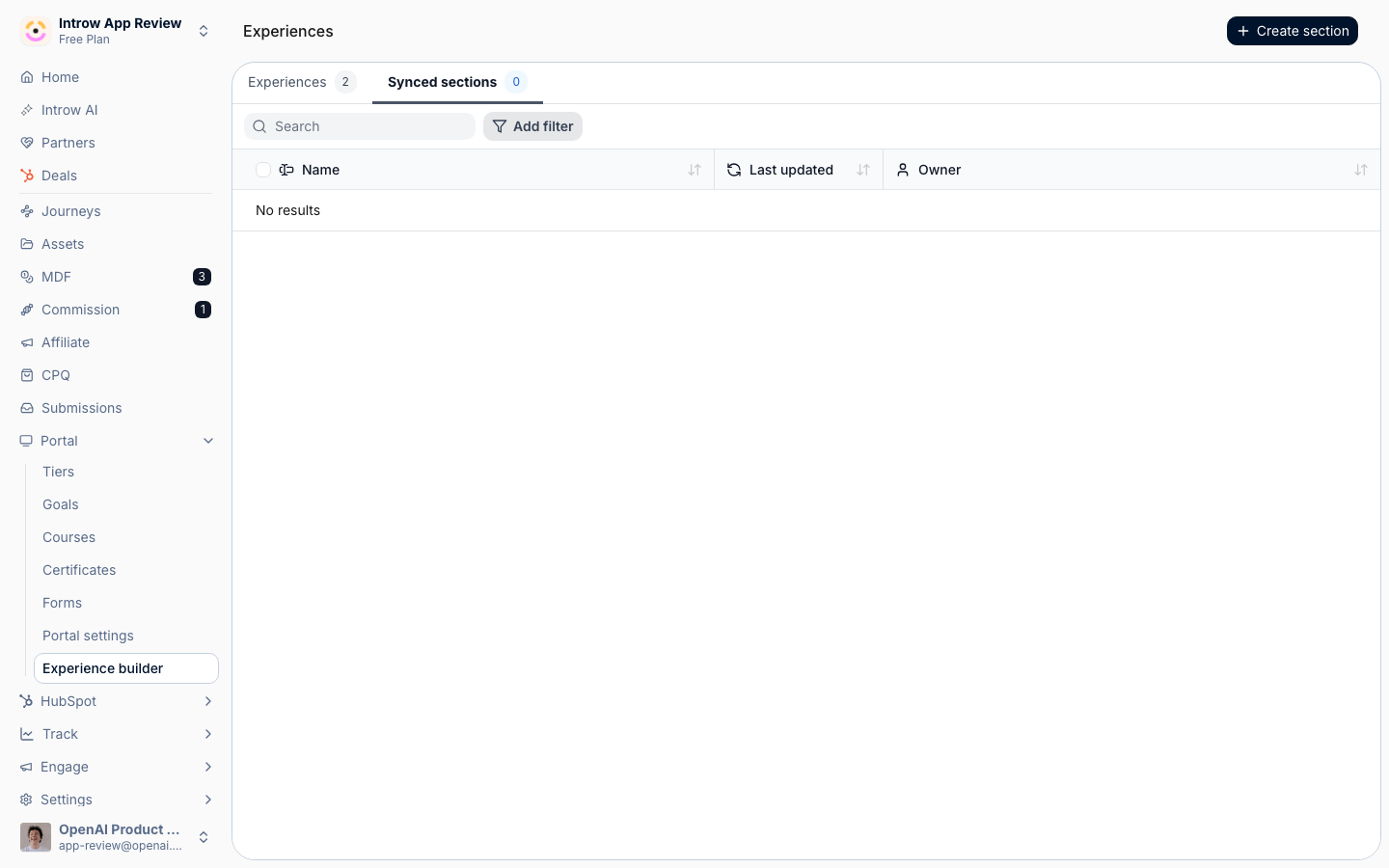
2
Build it from scratch, or save one from an experience
Choose the path that fits where the content already lives:
- Create synced section - start an empty section here and build its content, adding the rich text, documents, CRM views, or other blocks it should hold. Use this when the content does not exist yet.
- Sync an existing section - in an experience, hover the section you want to reuse, choose Sync, give it a clear Saved section name, and choose Save synced section. Use this when you have already built the block in one portal and want to reuse it.
3
Name it clearly
Give the saved section a name that describes its purpose, since that is how you and your team will find it in the picker later. A vague name makes it hard to reuse the right block.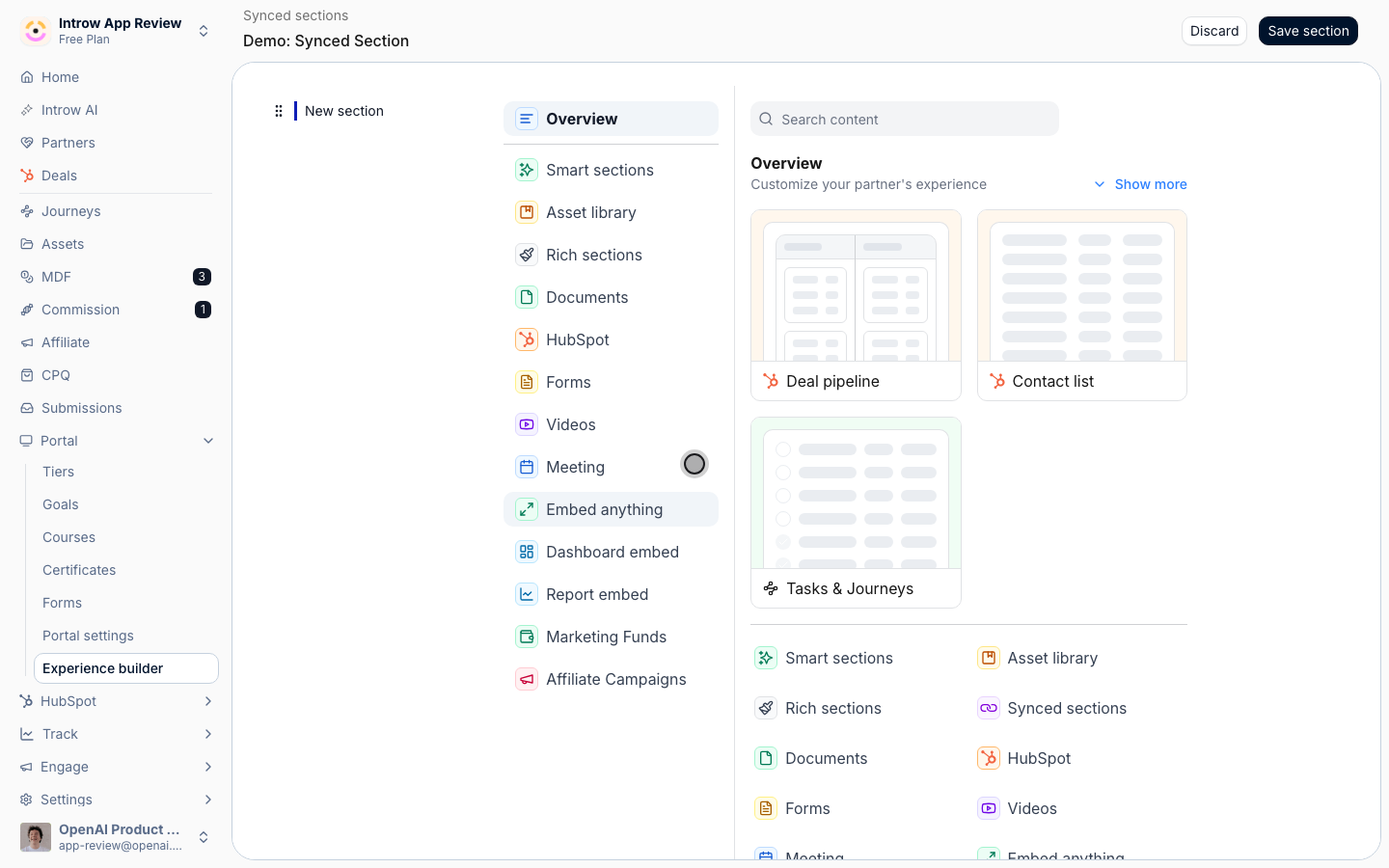
Insert it into experiences
1
Add it from the section picker
In an experience, open the section picker, choose Synced sections, and add the saved section into a stage. The inserted instance stays linked to the saved section, which is what lets a central edit reach it later.
2
Repeat across the portals that need it
Add the same synced section to every other experience that should show it. Each instance carries a Synced badge so you can tell at a glance it is shared rather than a local copy.
Update it everywhere
1
Open the saved section
Edit the source, not a copy: open the saved section from Synced sections, or from any instance choose Click here to edit synced section to jump to it. Editing the source is what propagates the change to every linked instance.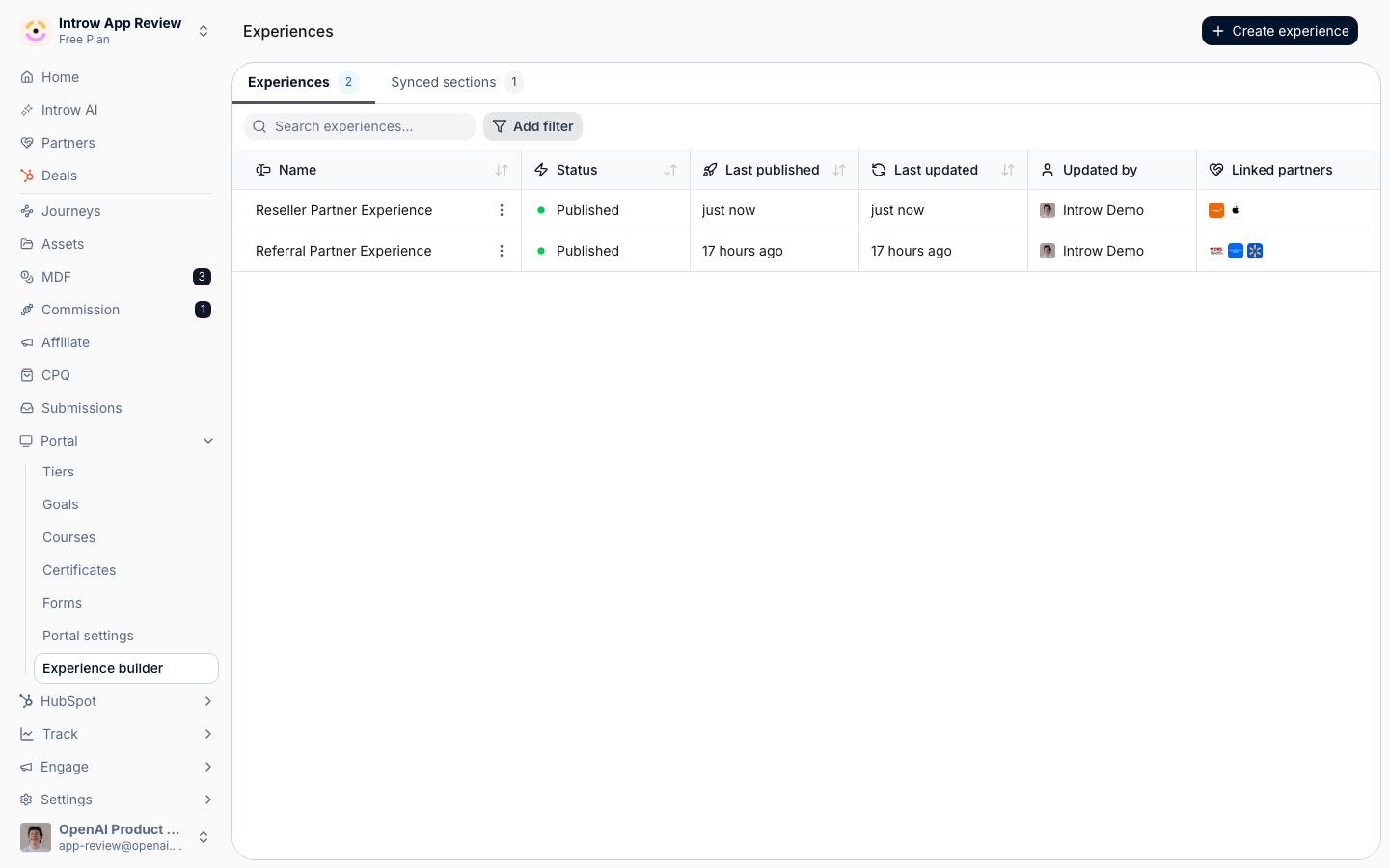
2
Make and save your edit
Update the content and save. Because every instance is linked, review where the section is used before changing it, so you do not surprise a portal you forgot about. The edit reaches all linked instances.
3
Publish the affected experiences
Saving propagates the content, but partners only see it once each experience is published. Publish every experience that uses the section so the update goes live. See Publish an experience.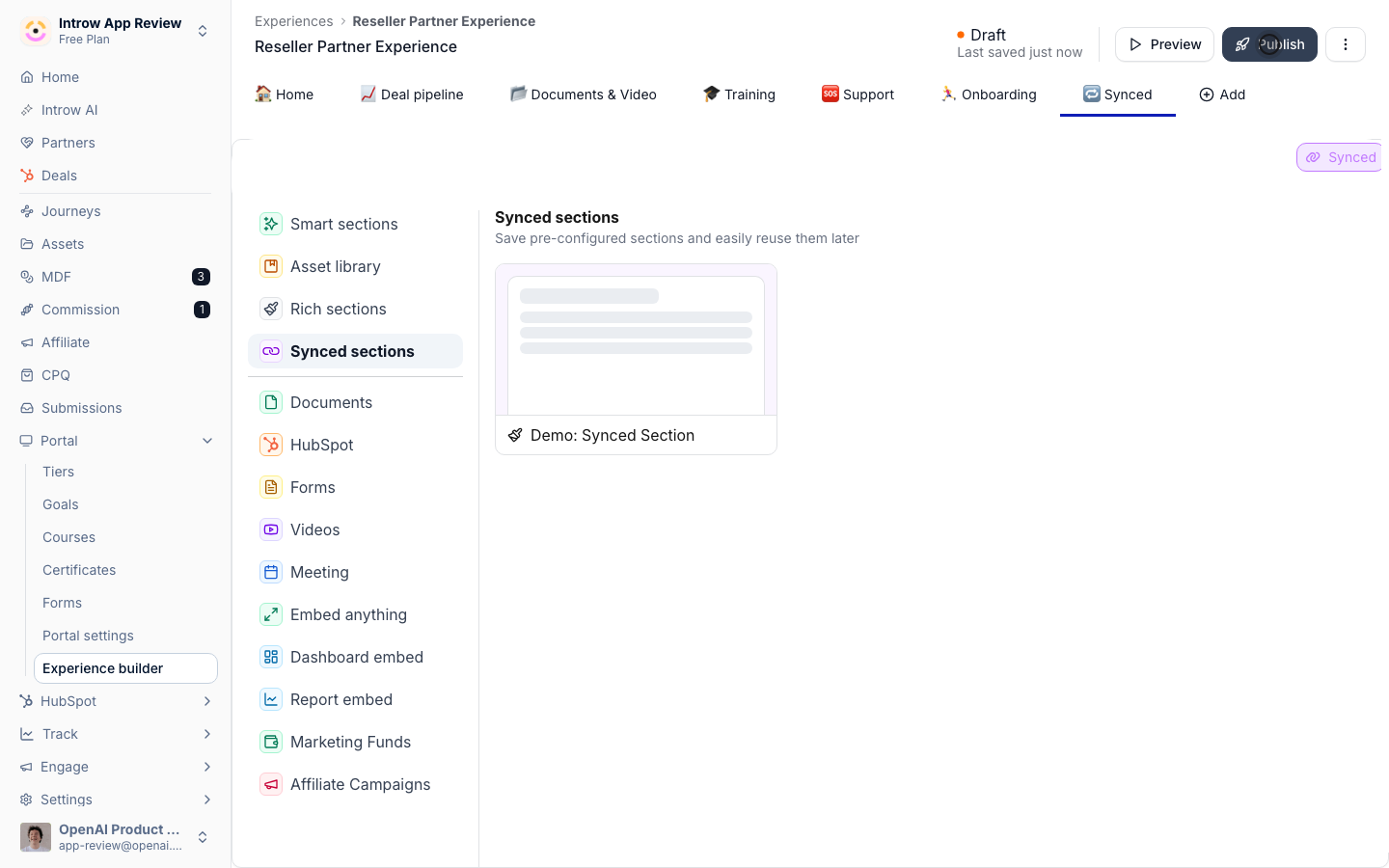
Detach a one-off exception
1
Detach the instance
When a single portal needs a version the others should not get, open that experience, find the instance, and choose Detach instance. This keeps a local copy in that experience and breaks its link to the saved section.
2
Edit and publish the local copy
Edit the now-local section for that portal and publish the experience. Detaching is one-way for that instance: it no longer receives updates from the saved section, while every other instance stays synced. If you later duplicate a section that embeds CRM views, those references are remapped so the copy works on its own.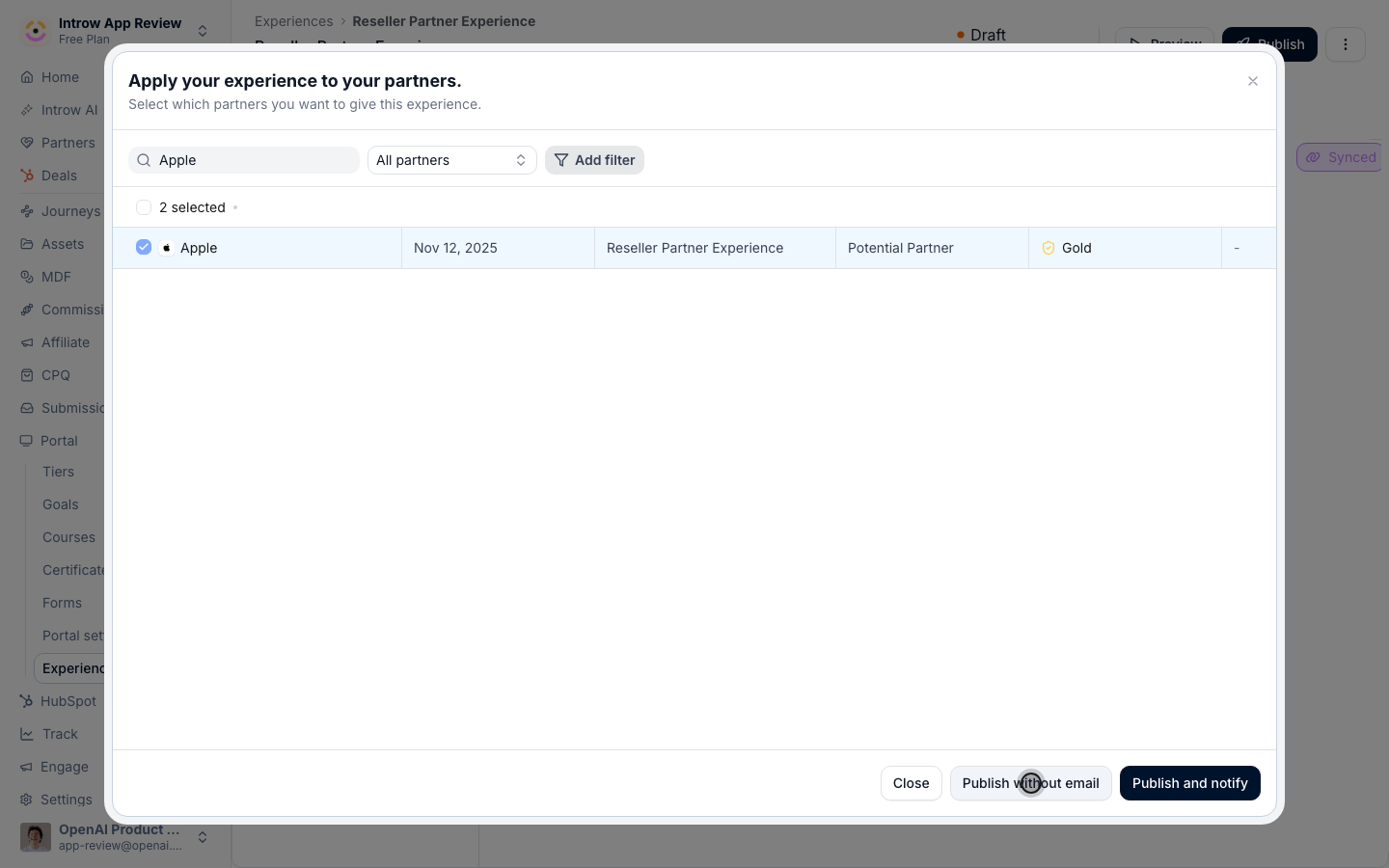
Verify it worked
The same synced section appears in each experience you added it to, each marked Synced. After you edit the saved section and publish, the change shows in every linked portal. A detached instance keeps its own content and stops changing when the saved section is edited.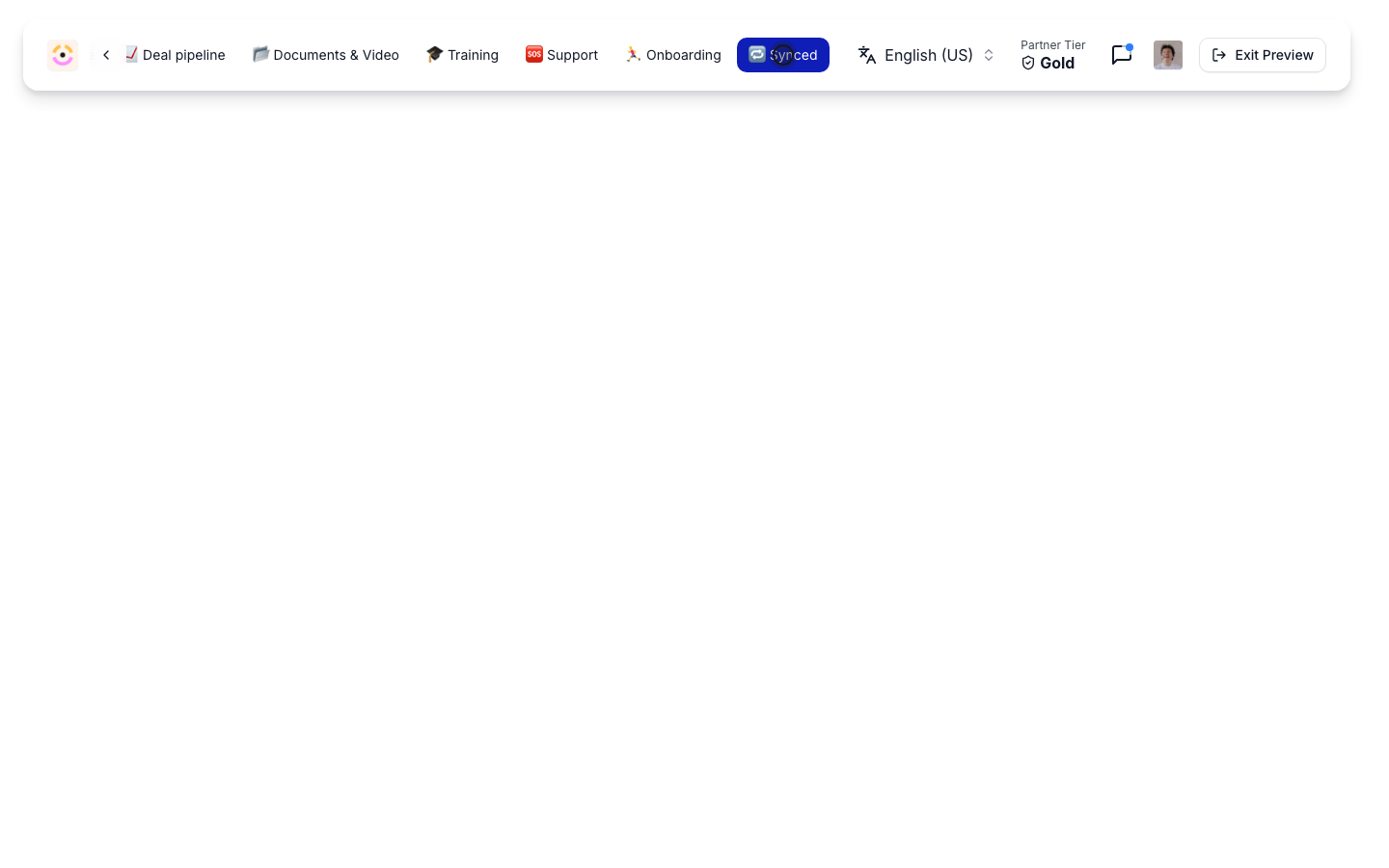
Related
Add sections and blocks
Build the content a synced section can hold.
Publish an experience
Push synced updates live to partners.
Implementation reference
Full synced section configuration options.