

The invoice step is the last one: how a partner bills for reimbursement, who approves it, and by when. Configuring it sets the invoice form, the approval gates, and the deadline, and it feeds the reimbursement statement your finance team pays against. This guide sets it up from the fund’s edit mode.The invoice step closes the lifecycle. A partner submits an invoice, it runs through approval, and the approved amounts roll into a reimbursement statement (with a PO number and PDF) that finance reimburses against, after which you mark the project paid. All of it is no-code, and the step can be switched off if your program reimburses another way.
What you’ll achieve
An invoice step where partners submit an invoice, an AI review plus your approvers accept it, a reimbursement deadline bounds it, and the approved amounts feed a statement you can reconcile and mark paid.Before you start
1
Have approved claims or budget to reimburse
The statement draws from approved budget or approved claims. See Configure the claim step.
2
Confirm write access to MDF and forms
You need write access to configure the step and its form.
Watch it
- Video
- Click through
Steps
Open the invoice step
1
Open the fund in edit mode
Go to Marketing Funds, open the fund, and use Configure. Open the Invoices step. A switch at the top turns it off if you reimburse another way.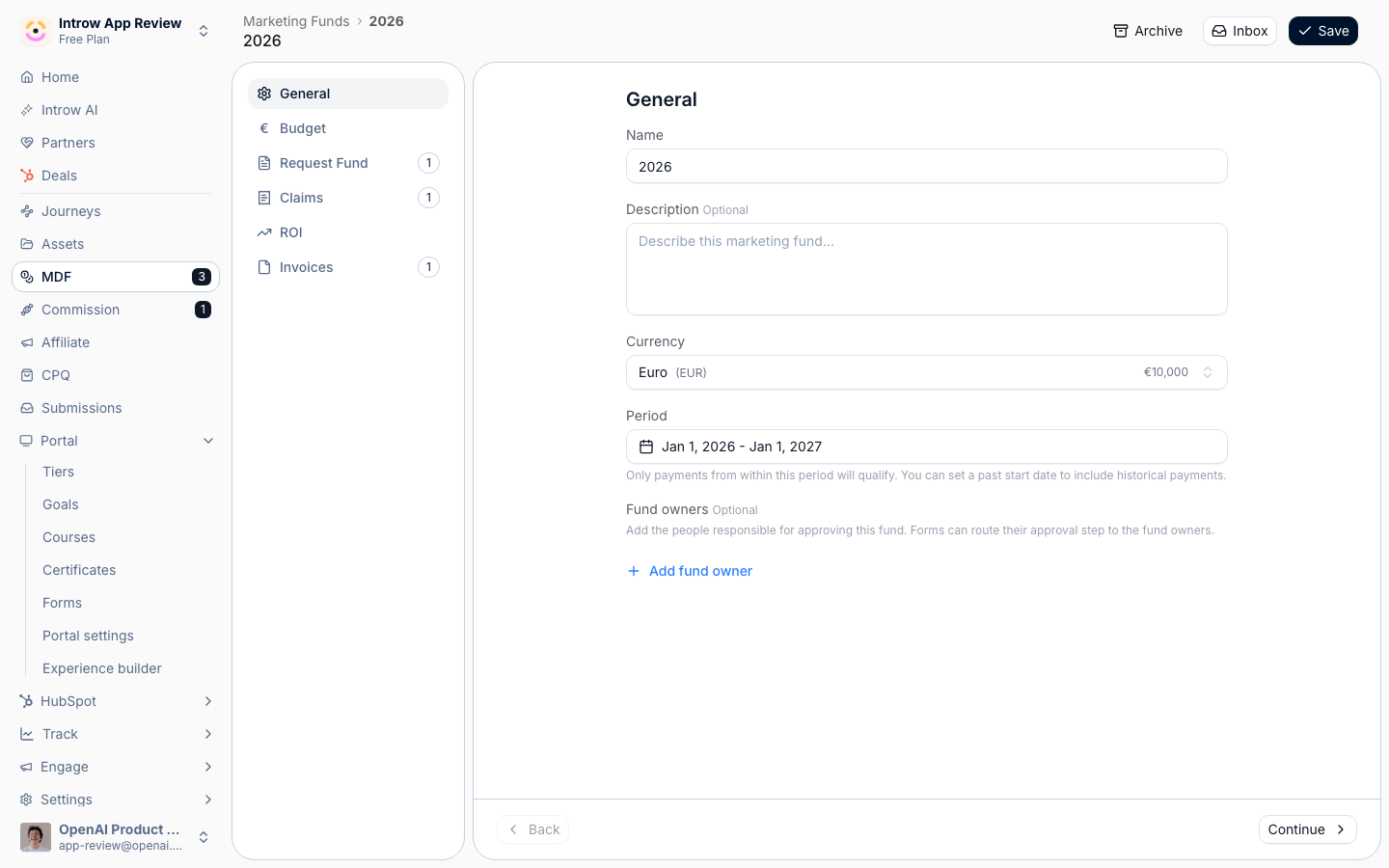
Build the invoice form
1
Confirm the intake form
The Intake form section shows the invoice form bound to the step. Select Go to form to open it in the no-code builder.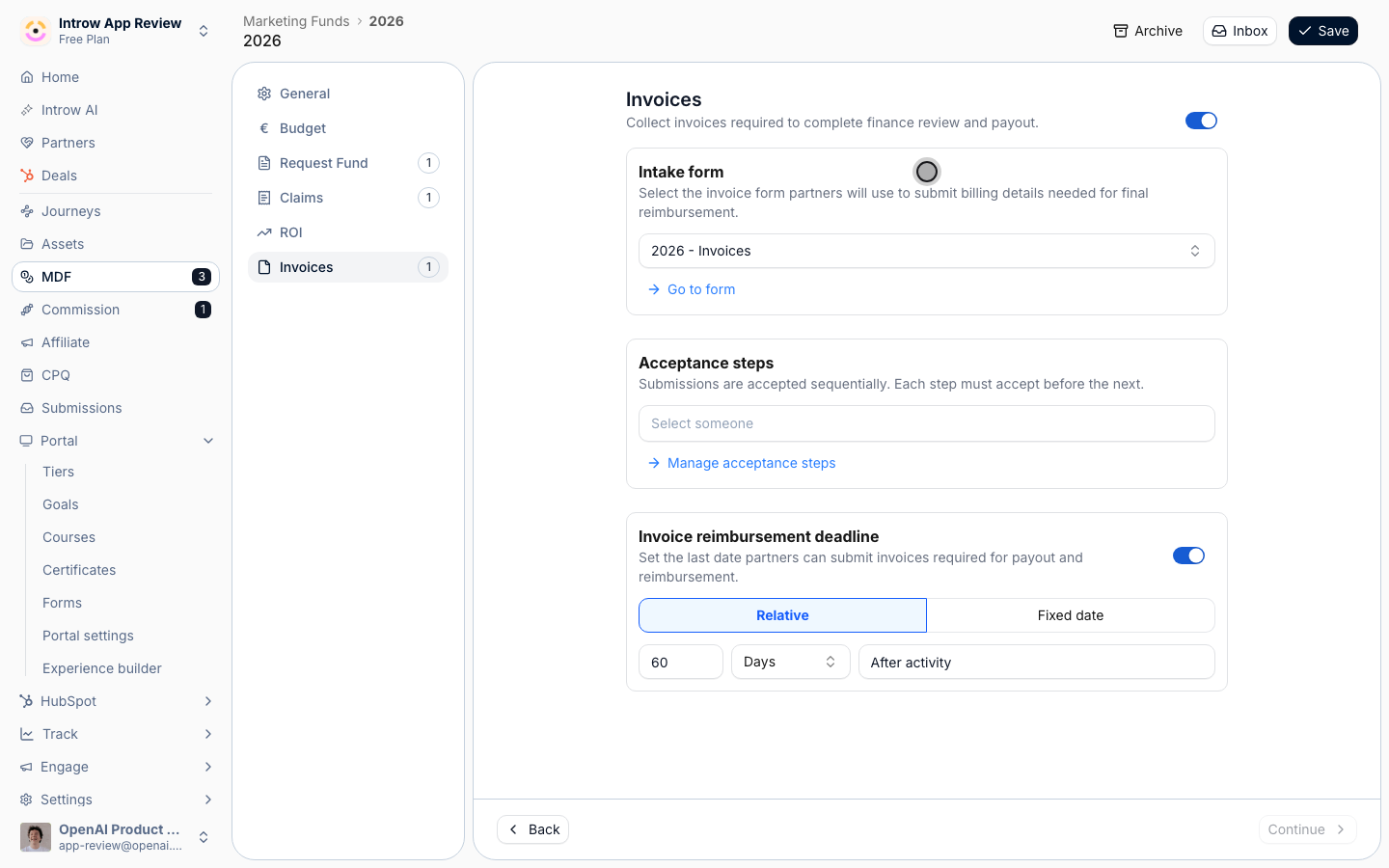
2
Capture the billing details
On the Form builder tab, shape the fields the invoice needs - billing details and any document upload your finance team requires. Fields are drag-in, no code, and its Automation tab is where you map anything that should write to the CRM.
Set the approval gates
1
Turn on the AI review
Enable the agentic review so a clean invoice clears automatically above a certainty threshold, and the rest escalate.
2
Add sequential human acceptance steps
Under Acceptance steps, use Manage acceptance steps to set who signs off, in order - typically finance last. Each approver can be a person, a partner-team role, or anyone; each step must accept before the next.
Set the reimbursement deadline
1
Set the deadline
Set the Invoice reimbursement deadline - the last date to submit an invoice for payout, relative to the activity date or as a fixed date - then Save.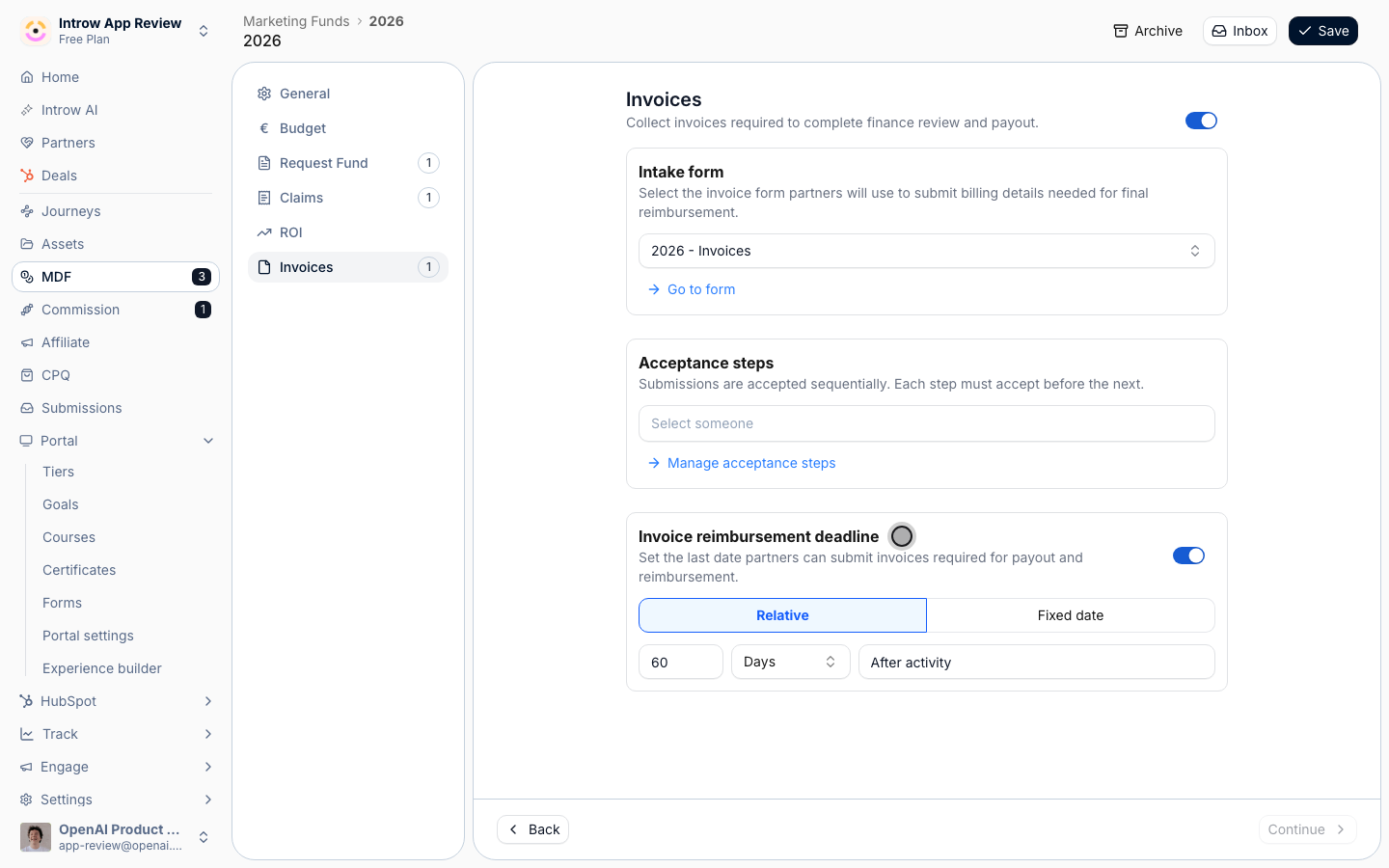
Reimburse against the statement
1
Generate the statement and mark paid
Approved amounts roll into a reimbursement statement, sourced from the approved budget or the sum of approved claims, with a PO number and a downloadable PDF. Once reimbursed, mark the project paid so its status syncs to the CRM. See Invoices for the statement in depth.
Verify it worked
Open the Invoices step and confirm its form, acceptance steps, and reimbursement deadline are set. A test invoice runs the AI review and routes to your approvers, and the approved amounts are available to build the reimbursement statement.Related
Invoices
The reimbursement statement, PO, and marking paid in depth.
Run the MDF lifecycle
Operate the whole flow, from proposal through reimbursement.
Configure the claim step
Approve the claims the statement reimburses.