> ## Documentation Index
> Fetch the complete documentation index at: https://docs.introw.io/llms.txt
> Use this file to discover all available pages before exploring further.
# Segment defaults and overrides
> Partner permissions and notifications now start from one organisation-wide default, and a segment changes them only when you turn on an override. What changed, what we migrated for you, and what to check.
> Partner **permissions** and **notifications** now start from one organisation-wide **default**, and a segment changes that default only when you deliberately turn on an override.
> This page explains what changed, why, what we migrated for you, and the handful of things worth checking in your own setup.
*Shipped in the August 2026 release.*
In June, [roles became segments](/release-notes/roles-are-now-segments), and segments became the one audience model across the product.
This release doubles down on that: it gives segments a real baseline to sit on top of, makes every override explicit and visible, and explains each setting where you set it.
The result is a program you can reason about at a glance, which is the [enterprise-grade](/why/enterprise-grade) bet applied to governance: as your segment count grows, the number of things you have to hold in your head does not.
## What changed, in one table
| | Before | Now |
| -------------------------- | -------------------------------------------------------------------------------------------------- | -------------------------------------------------------------------------------------------------------------------------------------------------------------------- |
| The baseline | Permissions had no real home. You created a segment with no conditions to stand in for "everyone". | **All partners · Default** is a first-class layer with its own editor. No fake segment needed. |
| A new segment | Silently carried permission and notification opinions, and won the merge. | Carries nothing. It changes the default only when you switch on **Override the default for this segment**. |
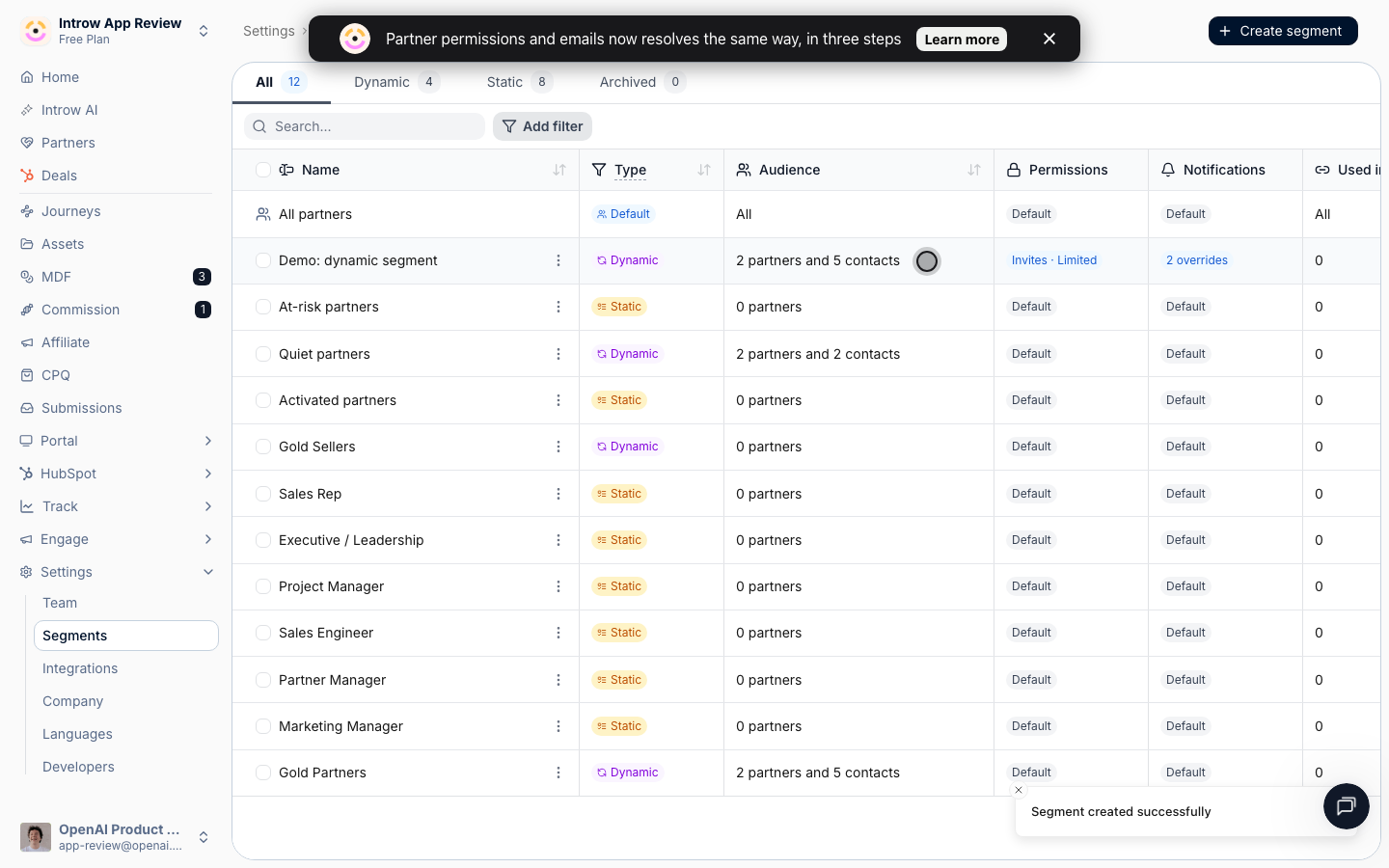
| Reading your setup | You opened every segment to find out what it did. | The segments table shows **Permissions** and **Notifications** per segment: **Default**, or exactly what differs. |
| Notification config | Per event, an **email** checkbox and a **chat** checkbox. | Per event, one **Recipients** choice: **All partners**, **Collaborating only**, or **Disabled**. |
| Partner chat notifications | Rode along on the same checkbox, per event. | Configured on the chat integration itself, per platform. |
| Permission settings | Two bare switches with short labels. | Feature cards that explain the rule and preview what the partner will see, both renamed and phrased as grants: **Invite colleagues** and **See all shared records**. |
| Contact level | A list of toggles, with no way to tell what decided them. | The full cascade, with a badge on every event naming the layer that decided it. |
## The one rule
Every partner permission and every partner email notification now resolves the same way, in three steps:
```
1 All partners · Default applies to everyone, always
2 Segment overrides only segments that opted in, and only for their members
3 The contact themselves their own opt-outs, and only ever to switch something off
```
Read it as a cascade: the default is the baseline, a segment override changes it for that segment's members, and a contact can silence what is left on for them.
Three things follow from that, and they are the parts worth remembering.
**A segment override can turn something off, not only on.**
This is the real capability change. Previously a segment could only ever grant more than the baseline, so "hold this group back" was impossible to express.
Now, where an override segment has an opinion, that opinion changes the default for its members in both directions.
Both permissions behave this way, including **See all shared records**: a segment can restrict a group the default leaves open, and can open up a group the default restricts. What keeps that from happening by accident is that a segment now states a setting only when you move it off the default value. A segment that only meant to grant invites says nothing about record visibility, so it cannot cancel an organisation-wide restriction the way it used to.
**Within the segment layer, the most permissive setting still wins.**
If a contact matches two override segments and they disagree on the same setting, the more permissive one applies, and that holds for every setting: an invite grant beats a deny, **See all shared records** on beats off, and a wider notification audience beats a narrower one.
Qualifying for more groups never takes a capability away. If your default withholds full record visibility, a **Sales manager** segment grants it, and a **Gold partner** segment withholds it, a contact who matches both sees all shared records.
Anything no override segment mentions falls through to the default.
The flip side is worth stating: a segment cannot hold a group back from something another of their segments grants. To keep a capability away from a group, withhold it on the default and grant it only on the segments that should have it.
**A contact can only ever opt out.**
When your policy leaves an event on, the contact can switch off their own copy.
When your policy has it off, the row is locked for them and they cannot switch it on.
That is enforced when the change is saved, not just hidden in the interface, so no screen can record an opinion on an event the default or a segment owns.
The old rule was "to restrict a contact, the restriction has to hold in **every** segment they are in".
That rule is gone. You set restrictions once, on the default, and only opted-in override segments change them.
## See the whole cascade in one pass
This is the release end to end: a restricted baseline set on **All partners · Default**, a stage segment that overrides it to grant more, a portal tab gated to that stage, and finally the same partner contact resolving to the granted behavior with each layer named.
For the step-by-step version, see [Layer segments to progressively unlock capabilities](/features/partners/segments/guides/layer-segments-to-progressively-unlock).
## Where you configure it now
### All partners · Default
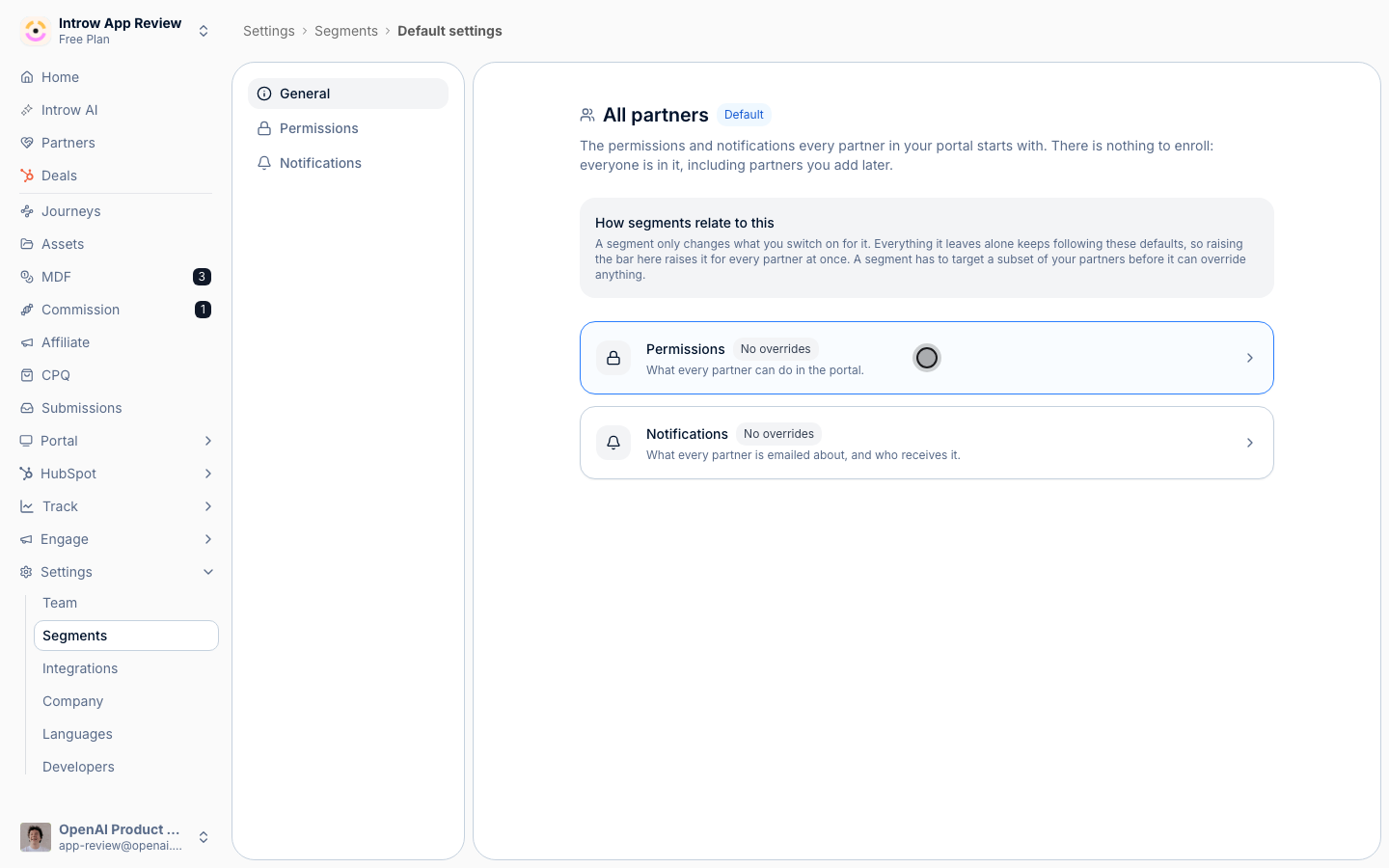
[Segments](https://app.introw.io/settings/segments) now opens with **All partners** pinned as the first row of the segments table, tagged **Default** and sharing the same **Permissions** and **Notifications** columns your segments are compared in. It is pinned on the unfiltered **All** tab only, since it is not a segment and cannot match a filter.
Opening it takes you to **Default settings**, which has three tabs: **General**, which summarises what the default holds and how many segments override each half of it, plus the same **Permissions** and **Notifications** panels a segment has, minus the audience. There is nothing to target, because the default applies to everyone.
This is the one place your baseline lives, so a brand-new partner and a partner who matches no segment get exactly what you set here.
The **General** tab also tells you how much of your program has opted out of the baseline before you change it.
Each half carries a count, either **No overrides** or **N segments override this**, so you know how many groups will not follow a change you are about to make. The segments list names them, one row each.
 ### Each segment, opt-in
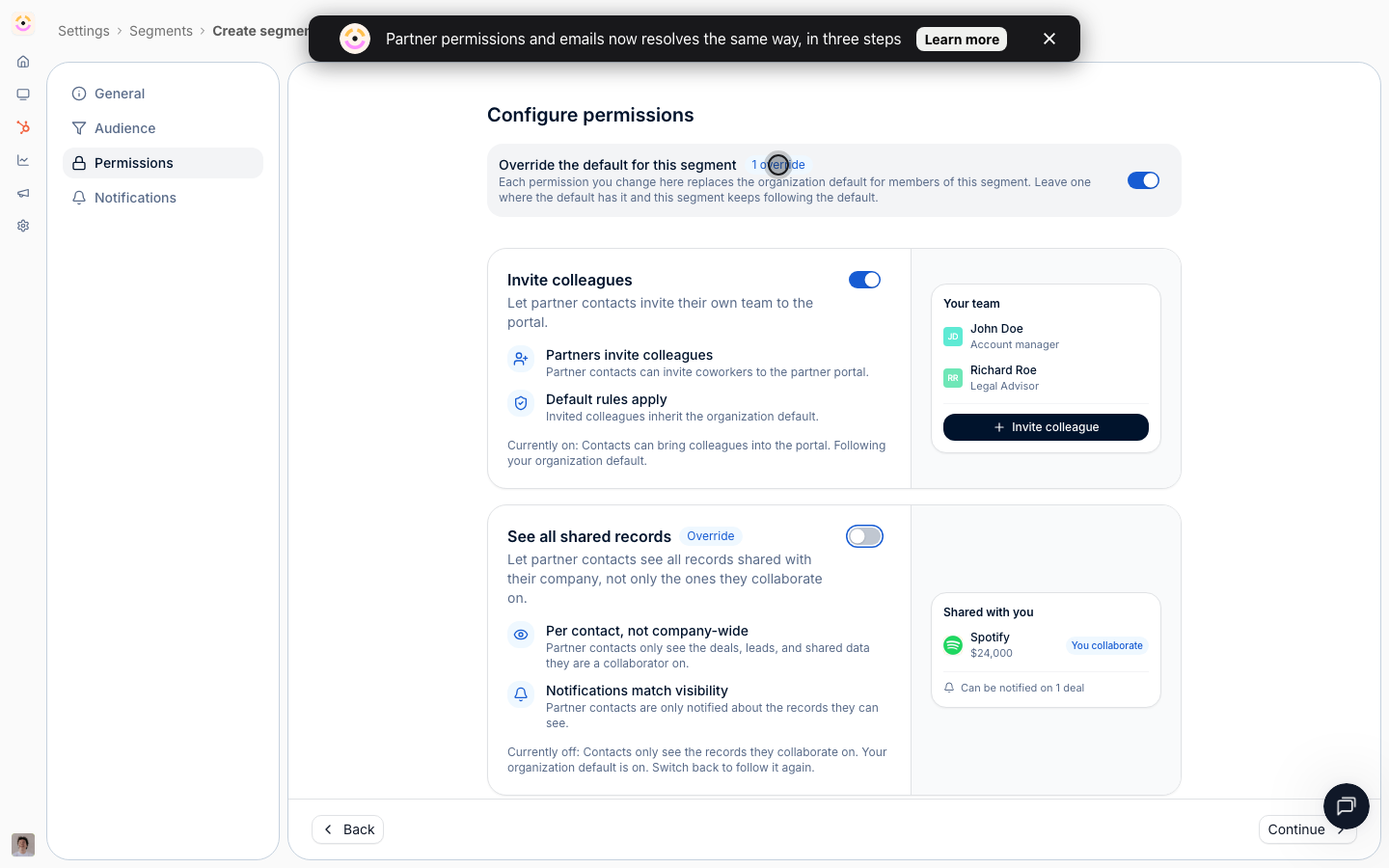
Open any segment and its **Permissions** and **Notifications** tabs each start with one switch: **Override the default for this segment**.
* Leave it off and the panel below shows your organisation defaults, read-only, so you can see what the segment's members actually get without leaving the page.
* Switch it on and the panel becomes editable. A count pill next to the switch tells you how many settings now differ from the default, and every setting that diverges is marked with an **Override** pill.
Creating a segment to target an announcement no longer has notification or permission side effects, because the override switch starts off.
That removes the single biggest footgun in the old model, where a segment made for targeting could switch notifications back on for the whole program.
### Each segment, opt-in
Open any segment and its **Permissions** and **Notifications** tabs each start with one switch: **Override the default for this segment**.
* Leave it off and the panel below shows your organisation defaults, read-only, so you can see what the segment's members actually get without leaving the page.
* Switch it on and the panel becomes editable. A count pill next to the switch tells you how many settings now differ from the default, and every setting that diverges is marked with an **Override** pill.
Creating a segment to target an announcement no longer has notification or permission side effects, because the override switch starts off.
That removes the single biggest footgun in the old model, where a segment made for targeting could switch notifications back on for the whole program.
 ### Partner notifications became a report
[Partner Notifications](https://app.introw.io/settings/notifications) is now read-only, and reshaped to look like the Forms page: metrics, filters, table.
It still does what it was best at, reporting per event how many partners are reached, how many opened, clicked, bounced, and when it last sent.
It no longer writes. A banner at the top says so in as many words, **"Notification recipients are managed elsewhere"**, and links straight to the default's Notifications tab, which is where the recipients value is set.
One thing people notice immediately: the per-event **email** and **chat** checkboxes are gone from this page.
They were replaced, not removed. Email moved into the cascade as a **Recipients** value, and chat moved to the chat integration.
Opening an individual notification is now one tab bar rather than two rows of chrome: **Email** for the preview, then **Sent**, **Opened**, **Clicked**, and **Issues** carrying their counts on the tabs themselves, with the date range in the page header so it applies to all of them. The preview renders full width, at the size partners actually receive it.
There is nothing to configure there: the recipients dropdown that used to live on this page was a second way to write the same value, so it moved to the default editor with everything else.
**If you ever restricted a single notification to specific segments, check with us.**
That per-notification **Segments** restriction was a separate mechanism from segment overrides, and its control has been removed from the notification's detail page.
Restrictions already stored keep being applied when the notification sends, so they can still be the reason a partner does not receive one, and you can no longer see or change them yourself.
Recipients are now set in one place, on the default and per segment.
### Partner chat notifications moved to the integration
Which partner events reach a partner's Slack, Teams, or WhatsApp channel is now configured on that integration, under **Settings → Integrations →** your platform, on the **Partner channels** tab next to the internal channel toggles you already had.
Email and chat are deliberately two systems now.
An email is addressed to a person, so it takes the full cascade, including a contact's own preference.
A chat channel belongs to a whole partner organisation, so it has no per-person layer, and its config sits with the integration that owns the channel.
Both read the same event catalog, so nothing is named differently between them.
**Chat can no longer be targeted per segment.**
A segment's notification override is email-only.
If you previously switched chat off for one segment, replace it with the per-platform switches on the chat integration.
The upside: an organisation running both Slack and Teams can now configure them separately, which the single shared checkbox could never express.
## Notifications: one choice per event
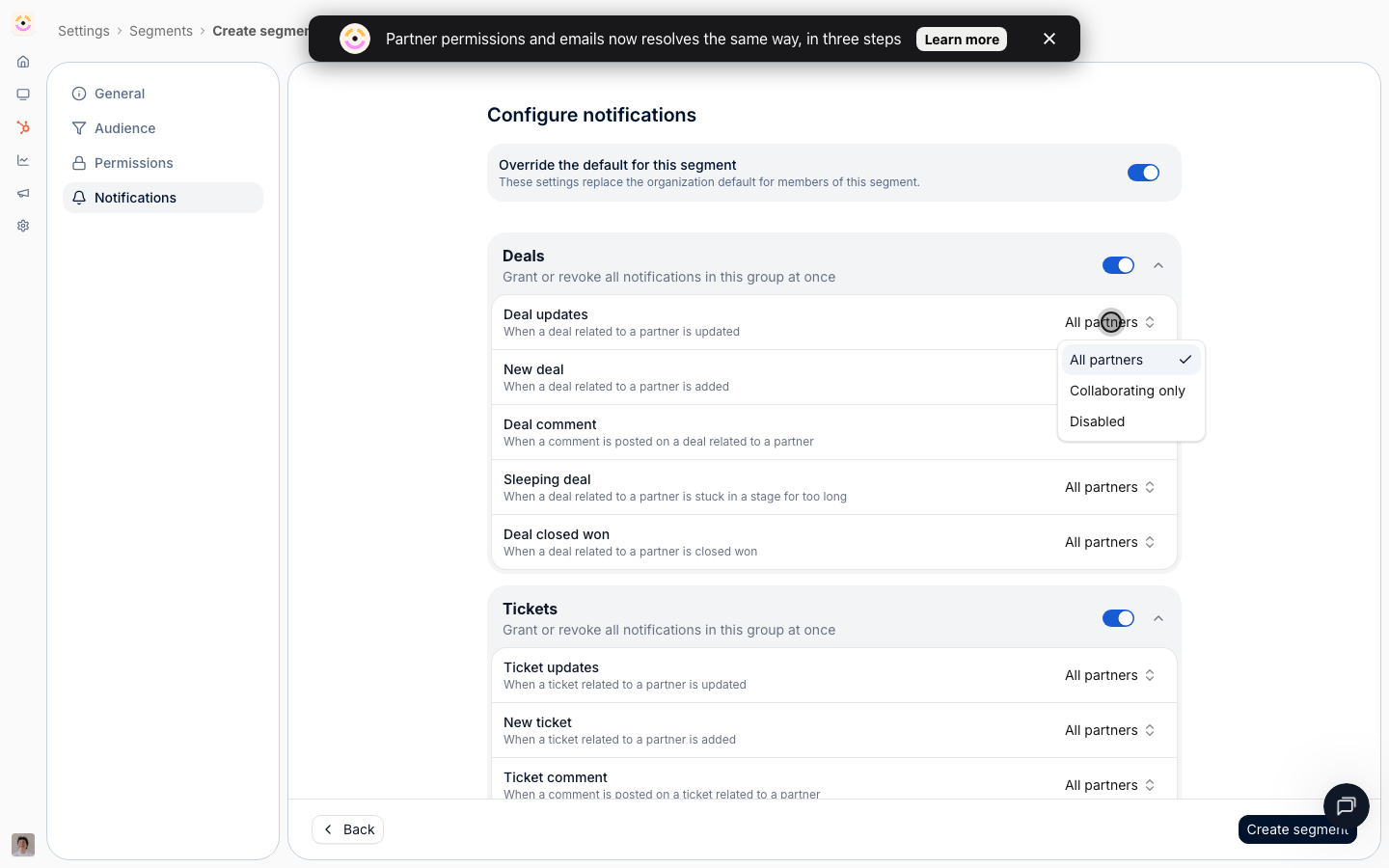
A partner notification is now a single **Recipients** value per event, instead of a channel checkbox plus a separate scope:
* **All partners** sends to every partner the event applies to.
* **Collaborating only** sends only to contacts assigned as collaborators on the record, and is offered only for events attached to a CRM record where collaboration means something.
* **Disabled** switches the event off.
Because the value is the same shape at every layer, "collaborating only" is now something you can set as your program-wide default, which was not expressible before.
Set it once on the default and every event of that type narrows for your whole program, no segment required.
### Partner notifications became a report
[Partner Notifications](https://app.introw.io/settings/notifications) is now read-only, and reshaped to look like the Forms page: metrics, filters, table.
It still does what it was best at, reporting per event how many partners are reached, how many opened, clicked, bounced, and when it last sent.
It no longer writes. A banner at the top says so in as many words, **"Notification recipients are managed elsewhere"**, and links straight to the default's Notifications tab, which is where the recipients value is set.
One thing people notice immediately: the per-event **email** and **chat** checkboxes are gone from this page.
They were replaced, not removed. Email moved into the cascade as a **Recipients** value, and chat moved to the chat integration.
Opening an individual notification is now one tab bar rather than two rows of chrome: **Email** for the preview, then **Sent**, **Opened**, **Clicked**, and **Issues** carrying their counts on the tabs themselves, with the date range in the page header so it applies to all of them. The preview renders full width, at the size partners actually receive it.
There is nothing to configure there: the recipients dropdown that used to live on this page was a second way to write the same value, so it moved to the default editor with everything else.
**If you ever restricted a single notification to specific segments, check with us.**
That per-notification **Segments** restriction was a separate mechanism from segment overrides, and its control has been removed from the notification's detail page.
Restrictions already stored keep being applied when the notification sends, so they can still be the reason a partner does not receive one, and you can no longer see or change them yourself.
Recipients are now set in one place, on the default and per segment.
### Partner chat notifications moved to the integration
Which partner events reach a partner's Slack, Teams, or WhatsApp channel is now configured on that integration, under **Settings → Integrations →** your platform, on the **Partner channels** tab next to the internal channel toggles you already had.
Email and chat are deliberately two systems now.
An email is addressed to a person, so it takes the full cascade, including a contact's own preference.
A chat channel belongs to a whole partner organisation, so it has no per-person layer, and its config sits with the integration that owns the channel.
Both read the same event catalog, so nothing is named differently between them.
**Chat can no longer be targeted per segment.**
A segment's notification override is email-only.
If you previously switched chat off for one segment, replace it with the per-platform switches on the chat integration.
The upside: an organisation running both Slack and Teams can now configure them separately, which the single shared checkbox could never express.
## Notifications: one choice per event
A partner notification is now a single **Recipients** value per event, instead of a channel checkbox plus a separate scope:
* **All partners** sends to every partner the event applies to.
* **Collaborating only** sends only to contacts assigned as collaborators on the record, and is offered only for events attached to a CRM record where collaboration means something.
* **Disabled** switches the event off.
Because the value is the same shape at every layer, "collaborating only" is now something you can set as your program-wide default, which was not expressible before.
Set it once on the default and every event of that type narrows for your whole program, no segment required.
 ## Permissions now explain themselves
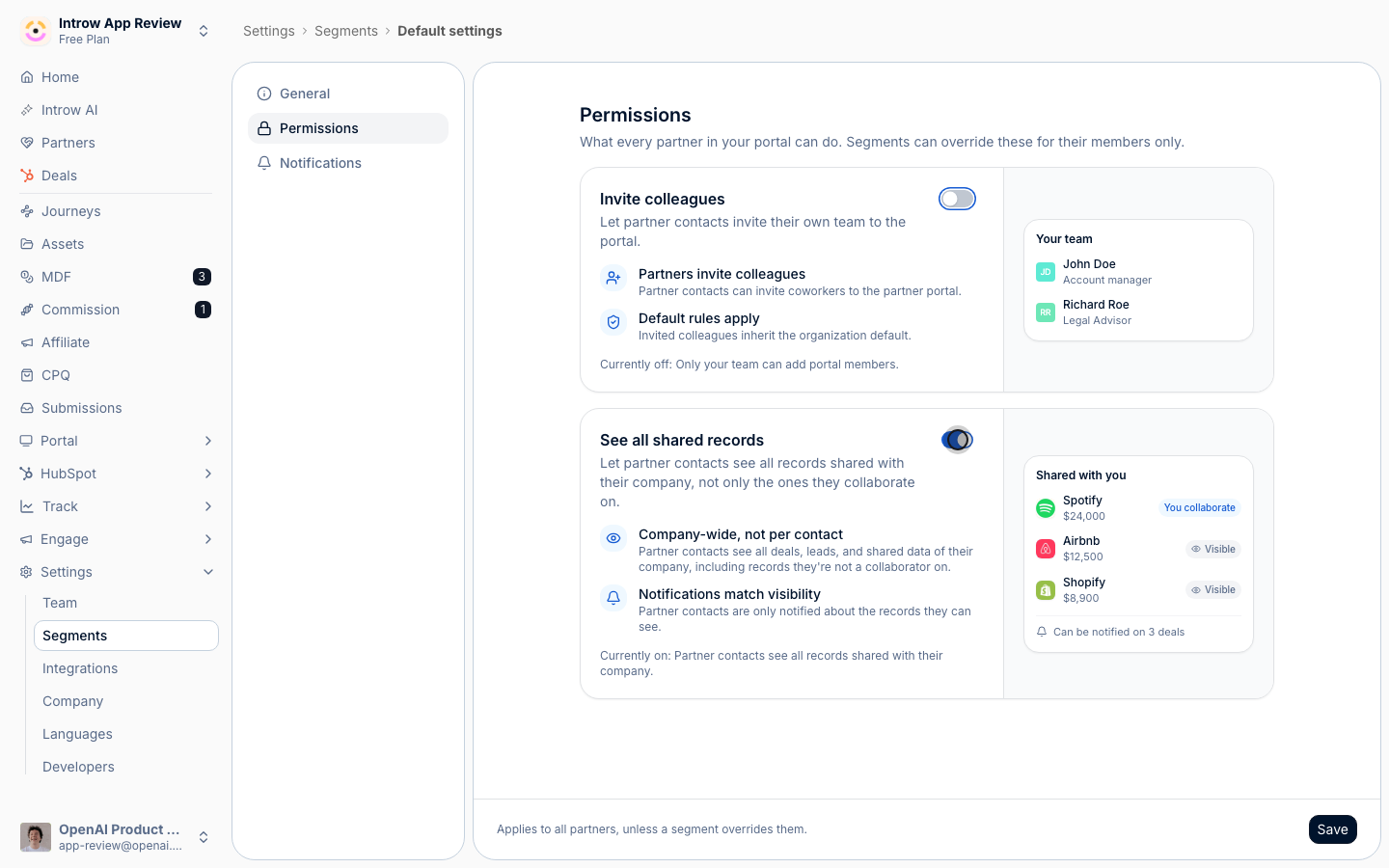
The two partner permissions are unchanged in what they do, and completely changed in how they read.
Each is a card that states the rule, lists what it means in practice, and shows a live miniature of the partner portal that reacts as you toggle it.
Both are now phrased as grants, so more permission always reads as on, and both were renamed to say what they do rather than what they restrict.
**Invite colleagues.** Whether partner contacts can invite their own coworkers into the portal, and a note that invited colleagues inherit the organisation default. The preview shows the partner's **Your team** panel with either an **Invite teammate** button or a locked **Invites turned off** state.
**See all shared records** (previously "Collaboration restricted", inverted). On, a contact sees everything shared with their company; off, only the records they are assigned as a collaborator on. The preview shows a **Shared with you** list dimming the records that would be hidden, and, importantly, that notifications follow access: a partner is never notified about a record they cannot see.
Toggling a permission and seeing the partner-side result move is the point.
It removes the round trip of changing a setting, publishing, impersonating a partner, and checking, which is the [low total cost of ownership](/why/low-tco) bet applied to configuration: the fewer times you have to verify a setting by going and looking, the cheaper the program is to run.
## Permissions now explain themselves
The two partner permissions are unchanged in what they do, and completely changed in how they read.
Each is a card that states the rule, lists what it means in practice, and shows a live miniature of the partner portal that reacts as you toggle it.
Both are now phrased as grants, so more permission always reads as on, and both were renamed to say what they do rather than what they restrict.
**Invite colleagues.** Whether partner contacts can invite their own coworkers into the portal, and a note that invited colleagues inherit the organisation default. The preview shows the partner's **Your team** panel with either an **Invite teammate** button or a locked **Invites turned off** state.
**See all shared records** (previously "Collaboration restricted", inverted). On, a contact sees everything shared with their company; off, only the records they are assigned as a collaborator on. The preview shows a **Shared with you** list dimming the records that would be hidden, and, importantly, that notifications follow access: a partner is never notified about a record they cannot see.
Toggling a permission and seeing the partner-side result move is the point.
It removes the round trip of changing a setting, publishing, impersonating a partner, and checking, which is the [low total cost of ownership](/why/low-tco) bet applied to configuration: the fewer times you have to verify a setting by going and looking, the cheaper the program is to run.
 **The invite permission changed shape.** It used to behave as an allowlist: granting invite to one segment implicitly revoked it for everyone else.
It now follows the same cascade as everything else. Invite comes from the default, and a segment override can widen or narrow it for its members.
If you relied on "grant to one segment, and nobody else can invite", set **Invite colleagues** off on the default and on in that segment.
## Read your whole setup from the list
The segments table now carries a **Permissions** column and a **Notifications** column, and each cell is a live diff against your current default.
* A segment that changes nothing reads **Default**.
* A segment that changes something shows what it resolves to, or **N overrides** when several settings differ, with a tooltip listing each difference, for example `Object updates → Collaborating only`.
* Clicking either cell opens that segment straight on the matching tab.
Because the cells compare against the live default rather than against stored flags, editing the default updates every row.
A segment whose settings happen to match your default reads **Default**, not "override", which is what you want when you audit a program with dozens of segments.
**The invite permission changed shape.** It used to behave as an allowlist: granting invite to one segment implicitly revoked it for everyone else.
It now follows the same cascade as everything else. Invite comes from the default, and a segment override can widen or narrow it for its members.
If you relied on "grant to one segment, and nobody else can invite", set **Invite colleagues** off on the default and on in that segment.
## Read your whole setup from the list
The segments table now carries a **Permissions** column and a **Notifications** column, and each cell is a live diff against your current default.
* A segment that changes nothing reads **Default**.
* A segment that changes something shows what it resolves to, or **N overrides** when several settings differ, with a tooltip listing each difference, for example `Object updates → Collaborating only`.
* Clicking either cell opens that segment straight on the matching tab.
Because the cells compare against the live default rather than against stored flags, editing the default updates every row.
A segment whose settings happen to match your default reads **Default**, not "override", which is what you want when you audit a program with dozens of segments.
 The segment editor changed alongside it: the read-only detail drawer is gone, so a row opens the editor directly, and **Used in** now sits on the segment's **General** tab, where the rest of its metadata lives.
**Duplicate** carries the override switches with it, so a copy behaves like the segment you copied.
## An override segment has to target a subset
A dynamic segment with no conditions matches every partner.
That is fine for targeting an announcement, and it is exactly wrong as an override, because it would be a second baseline competing with the default.
So Introw now blocks it: switching on an override for a conditionless dynamic segment is rejected with **"An override segment must target a subset. Add at least one condition."**
The block shows up in the editor next to the override switch, before you can save into it, and it is enforced on the server too, so an API call cannot get around it.
Static segments are never blocked, because their members are an explicit list rather than a matched audience.
Segments with no conditions keep working for everything else: announcements, tabs, assets, courses, forms, and reports.
They just no longer set policy for your whole program.
## What we migrated for you
Nothing was lost, and your partners' effective settings did not change on the day this shipped.
Every organisation got a permission default. If you had a conditionless segment carrying permissions, its values were folded into that default, because that segment was already acting as your baseline.
Per-event email and chat checkboxes became a **Recipients** value on the email side, and the chat side was copied onto your chat integrations first, so both channels kept behaving as they did.
Any segment already carrying notification or permission settings had its override switched on, so it keeps applying exactly as before.
Segments with no conditions had their override capability removed, after their opinions were folded into the default. They were not deleted, and they still target everything they targeted before.
## What to check in your setup
Open [Segments](https://app.introw.io/settings/segments) and select the pinned **All partners** row at the top of the table. This is now the setting every partner starts from, so it is worth reading once even if you never touched it.
Anything that reads **Default** is following your baseline. Anything showing a diff is deliberate policy. If a segment you only use for targeting shows a diff, switch its override off.
If you used to switch chat off for a segment, set it per platform on the chat integration instead.
Set **Invite colleagues** off on the default and on in the segments that should have it.
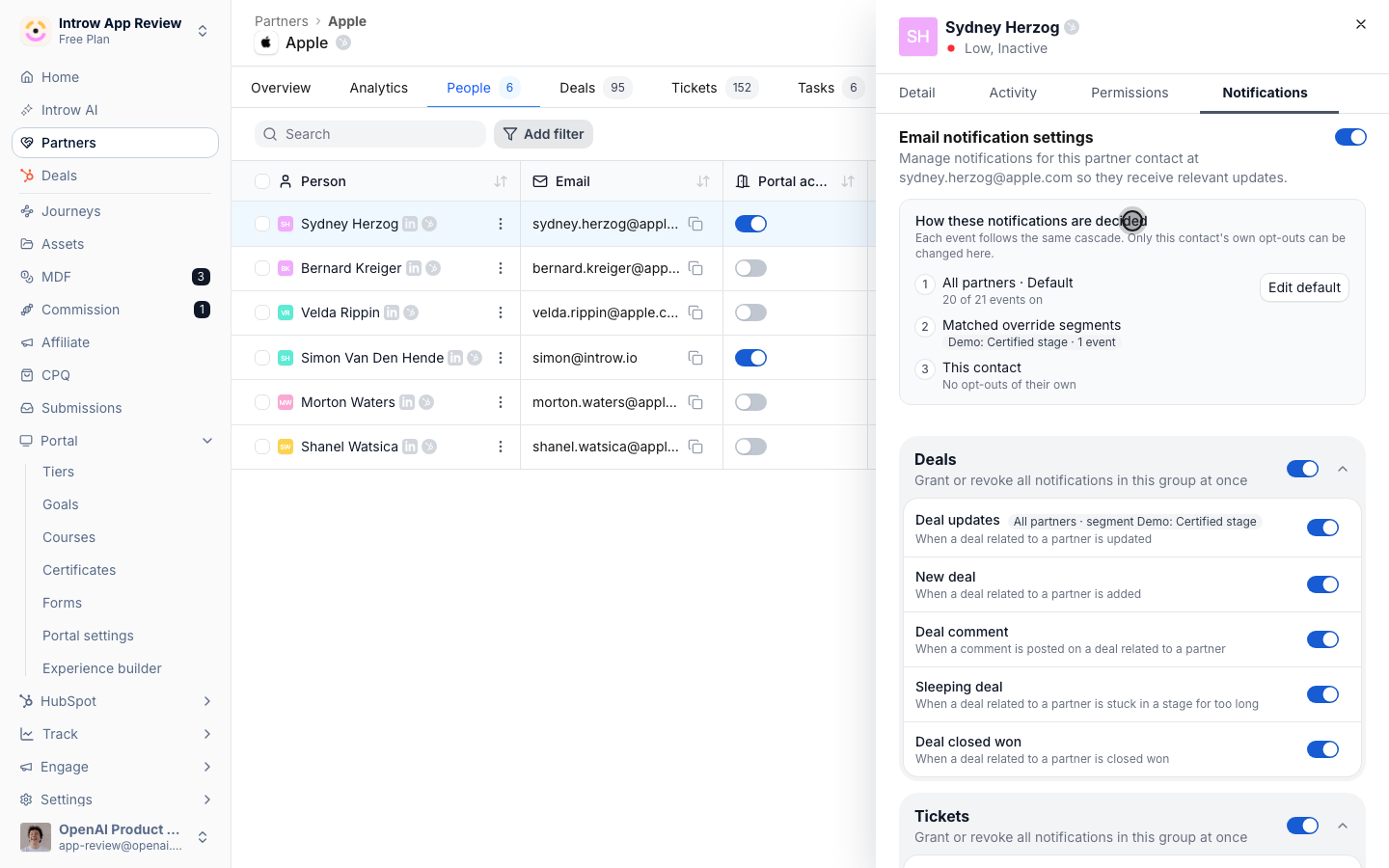
Open a partner, go to **People**, pick a contact, and open their **Notifications** tab. The cascade card and the per-event badges tell you which layer decided each value, and link to where to change it.
## Seeing why a contact gets what they get
A contact's **Notifications** tab is now a derived view with its reasoning shown.
At the top, a card walks the three layers for that contact: how many events the default leaves on, which override segments they matched and how many events each one decides, and how many events they opted out of themselves.
Each segment is a link straight to that segment.
Below it, every event row carries a badge naming the layer that decided it, for example `All partners · default settings`, `Disabled · segment Tier 1`, or `Off · contact opted out`.
Rows your policy switched off are locked with a tooltip saying which layer locked them, so nobody is offered a control that a higher layer owns.
Only the contact's own opt-outs are editable here, which is the honest version of that screen: it used to present toggles that could not actually grant anything.
The segment editor changed alongside it: the read-only detail drawer is gone, so a row opens the editor directly, and **Used in** now sits on the segment's **General** tab, where the rest of its metadata lives.
**Duplicate** carries the override switches with it, so a copy behaves like the segment you copied.
## An override segment has to target a subset
A dynamic segment with no conditions matches every partner.
That is fine for targeting an announcement, and it is exactly wrong as an override, because it would be a second baseline competing with the default.
So Introw now blocks it: switching on an override for a conditionless dynamic segment is rejected with **"An override segment must target a subset. Add at least one condition."**
The block shows up in the editor next to the override switch, before you can save into it, and it is enforced on the server too, so an API call cannot get around it.
Static segments are never blocked, because their members are an explicit list rather than a matched audience.
Segments with no conditions keep working for everything else: announcements, tabs, assets, courses, forms, and reports.
They just no longer set policy for your whole program.
## What we migrated for you
Nothing was lost, and your partners' effective settings did not change on the day this shipped.
Every organisation got a permission default. If you had a conditionless segment carrying permissions, its values were folded into that default, because that segment was already acting as your baseline.
Per-event email and chat checkboxes became a **Recipients** value on the email side, and the chat side was copied onto your chat integrations first, so both channels kept behaving as they did.
Any segment already carrying notification or permission settings had its override switched on, so it keeps applying exactly as before.
Segments with no conditions had their override capability removed, after their opinions were folded into the default. They were not deleted, and they still target everything they targeted before.
## What to check in your setup
Open [Segments](https://app.introw.io/settings/segments) and select the pinned **All partners** row at the top of the table. This is now the setting every partner starts from, so it is worth reading once even if you never touched it.
Anything that reads **Default** is following your baseline. Anything showing a diff is deliberate policy. If a segment you only use for targeting shows a diff, switch its override off.
If you used to switch chat off for a segment, set it per platform on the chat integration instead.
Set **Invite colleagues** off on the default and on in the segments that should have it.
Open a partner, go to **People**, pick a contact, and open their **Notifications** tab. The cascade card and the per-event badges tell you which layer decided each value, and link to where to change it.
## Seeing why a contact gets what they get
A contact's **Notifications** tab is now a derived view with its reasoning shown.
At the top, a card walks the three layers for that contact: how many events the default leaves on, which override segments they matched and how many events each one decides, and how many events they opted out of themselves.
Each segment is a link straight to that segment.
Below it, every event row carries a badge naming the layer that decided it, for example `All partners · default settings`, `Disabled · segment Tier 1`, or `Off · contact opted out`.
Rows your policy switched off are locked with a tooltip saying which layer locked them, so nobody is offered a control that a higher layer owns.
Only the contact's own opt-outs are editable here, which is the honest version of that screen: it used to present toggles that could not actually grant anything.
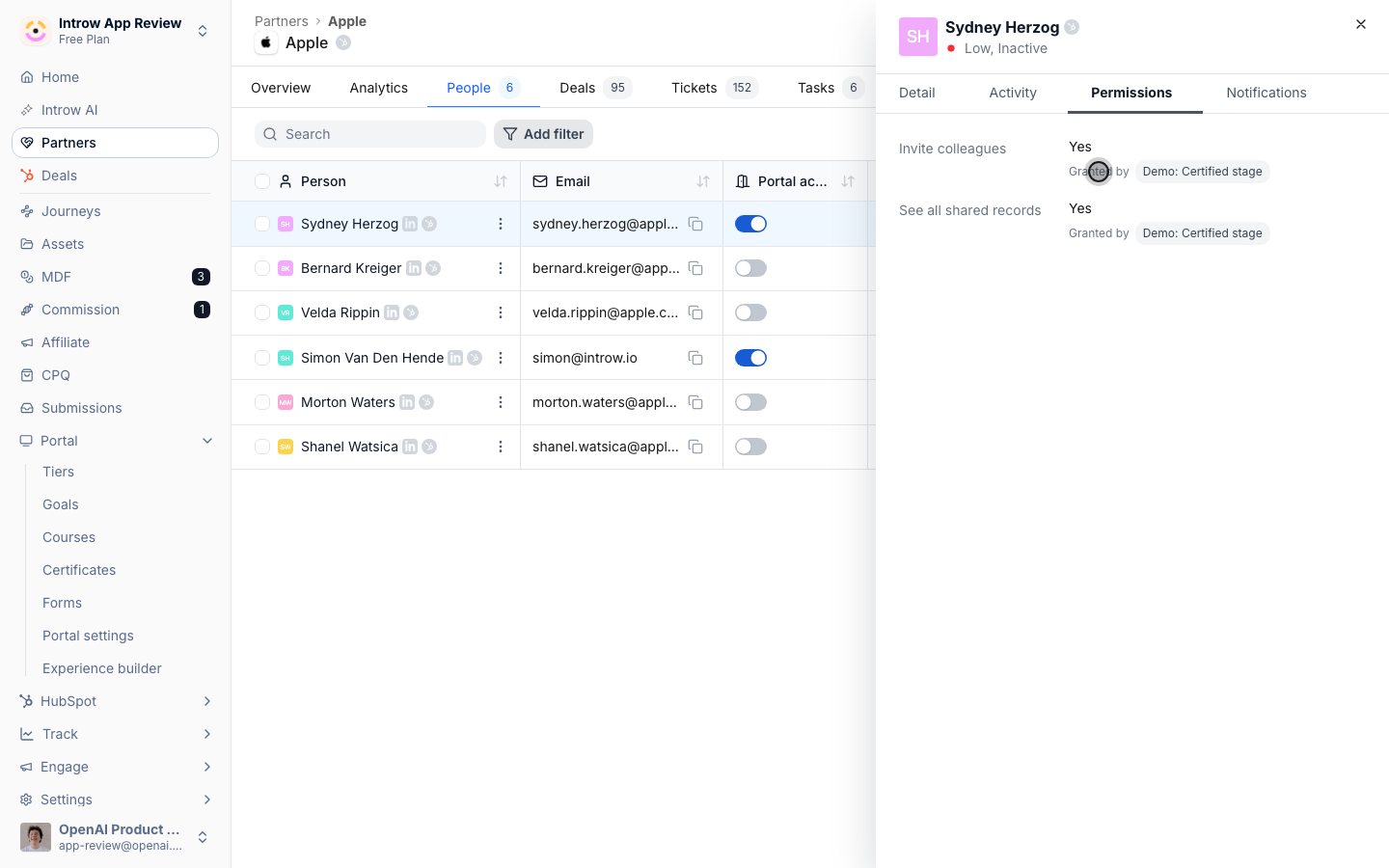
 The contact's **Permissions** tab is the same idea for the two permissions: the resolved yes or no, and the segment that granted it, or **Following the organization default** when no override applies. It is read-only by design, because a disabled toggle reads as broken.
 Archiving a segment stops it applying straight away, its grants and its restrictions alike, so the default decides for its members again. Restoring it brings its policy back with its targeting.
## Learn more
What segments are and everything they drive.
Audience, permissions, notifications, and usage.
How the default and overlapping overrides resolve.
Scope each notification to the right partners.
Gate portal content to a segment, and check who that reaches before saving.
Email, Slack, Teams, and WhatsApp delivery.
The move that made segments the audience model.
Archiving a segment stops it applying straight away, its grants and its restrictions alike, so the default decides for its members again. Restoring it brings its policy back with its targeting.
## Learn more
What segments are and everything they drive.
Audience, permissions, notifications, and usage.
How the default and overlapping overrides resolve.
Scope each notification to the right partners.
Gate portal content to a segment, and check who that reaches before saving.
Email, Slack, Teams, and WhatsApp delivery.
The move that made segments the audience model.