> ## Documentation Index
> Fetch the complete documentation index at: https://docs.introw.io/llms.txt
> Use this file to discover all available pages before exploring further.
# Register partner campaigns on a marketing fund
> Turn a marketing fund into the place partners register every campaign they launch from a kit, with your approval, their budget and the campaign's status in one record.
Partners launch campaigns from your kits in their own tools, so you do not see them go out.
Registration closes that gap.
The partner registers each campaign when it goes out, you approve it, and the campaign becomes a record with its dates, channel, audience and budget.
This guide sets that up on a marketing fund, with or without money attached.
## What you'll achieve
A fund partners use to register their campaigns from the portal.
Each registration lands as a request you approve, shows in the partner's portal with its status, and is ready to collect the deals the campaign produces.
## Before you start
Funds are part of MDF. Check your plan at [introw.io/pricing](https://introw.io/pricing).
A campaign fund can reimburse spend, or only register campaigns. Decide now: it sets which steps you switch off below.
A fund allocates budget to segments. Use the segment of partners who run the campaign kit, for example your reseller tier.
## Watch it
## Steps
### Create the campaign fund
Go to [Marketing Funds](https://app.introw.io/marketing-funds) and use **Create fund**.
Introw creates the request, claim, ROI and invoice forms and opens the fund on the **General** tab.
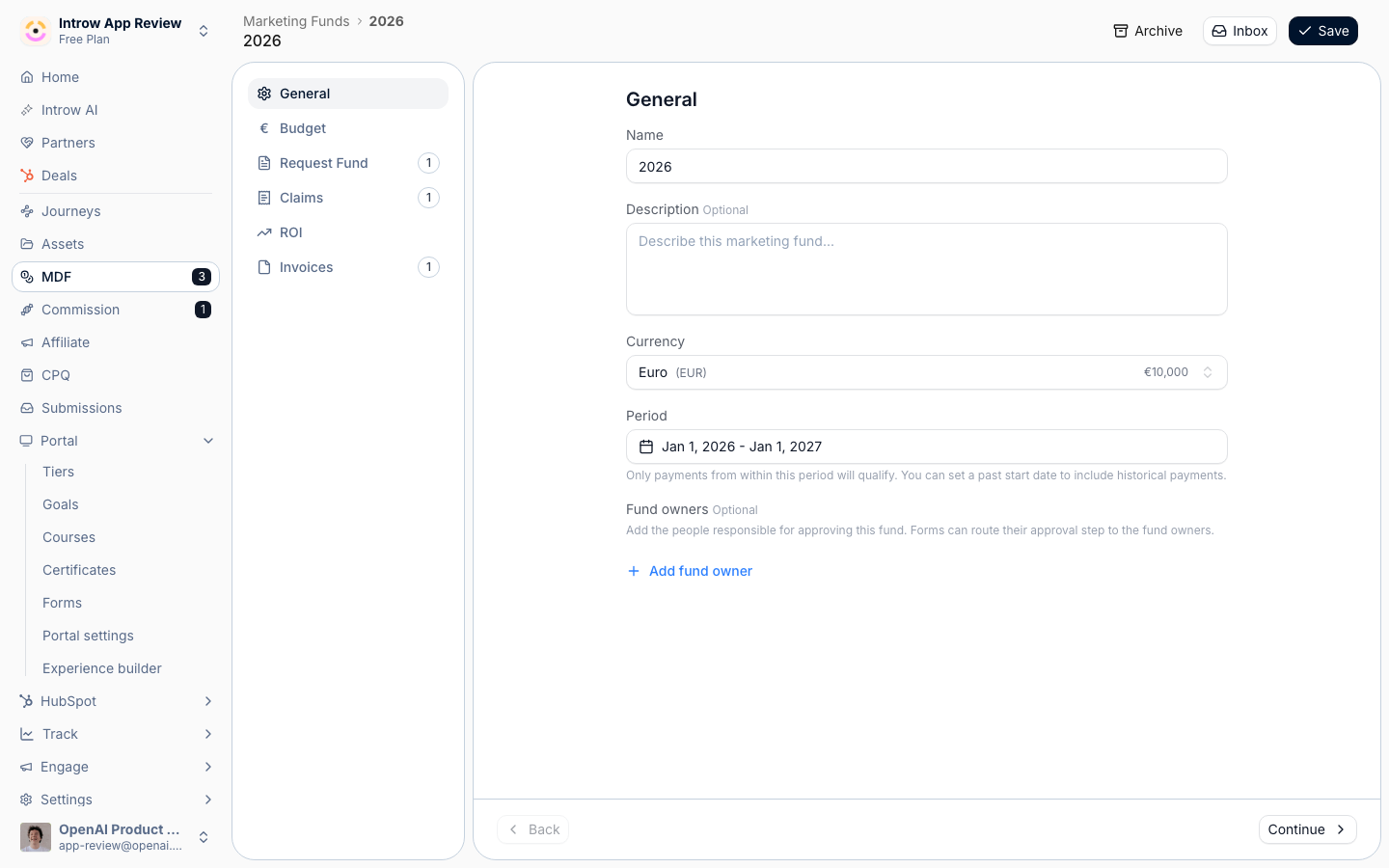 On the **General** tab, set:
* **Name** - what partners see on the portal, such as "Q4 2026 partner campaigns". It also names the four forms.
* **Currency** - the currency budgets and ROI are counted in. Keep your organization currency unless the program runs in another one.
* **Period** - the dates campaigns can run in. Match it to the campaign window, for example the quarter.
On the **Budget** tab, choose **Fixed allocation** to give each partner the same budget, or **Pooled** to let a segment share one pool.
Add the segment with **Add segment** and enter the amount.
For a fund that only registers campaigns, enter a small or zero amount: the budget then works as an approval limit, not a payment.
### Shape the registration form
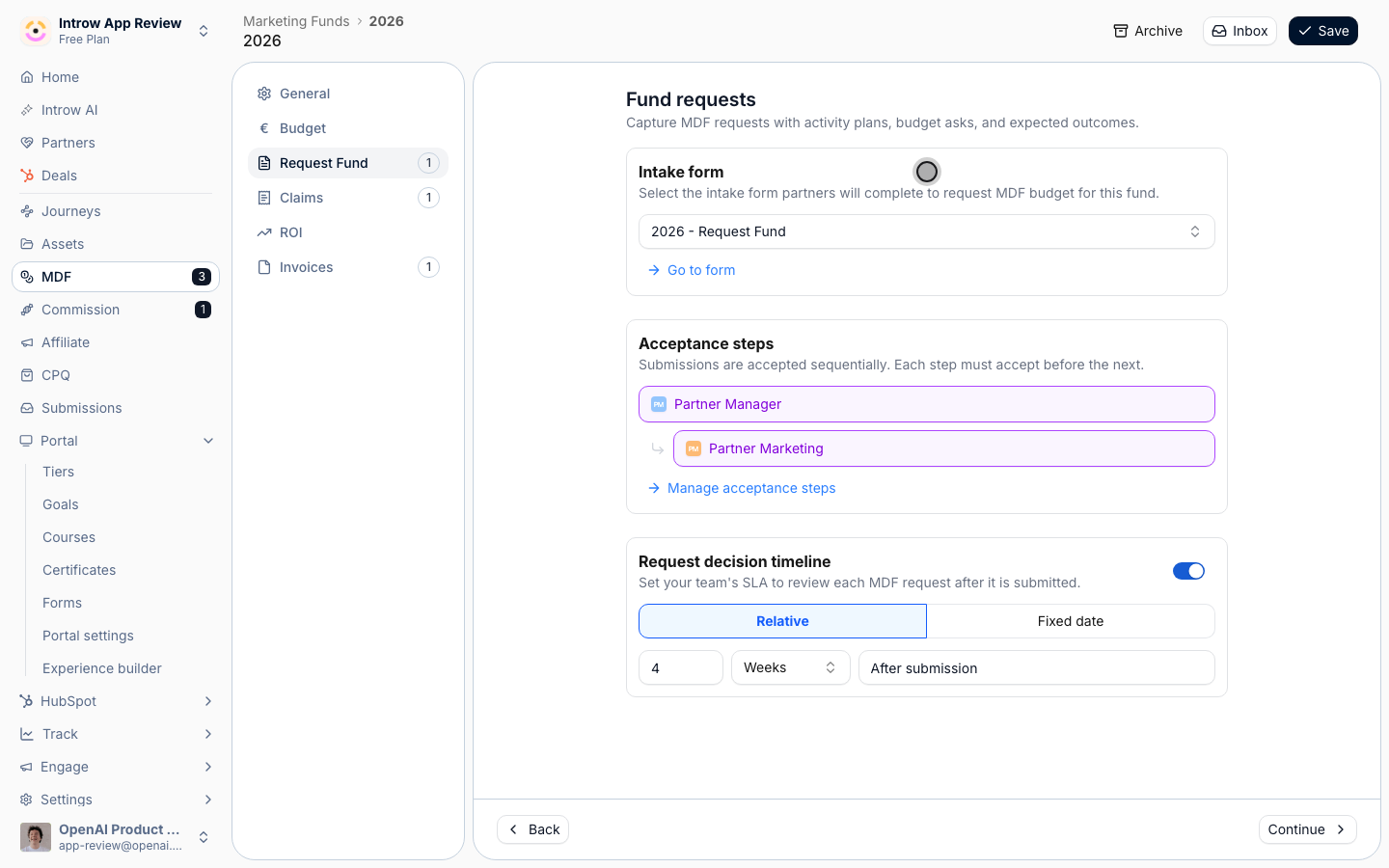
On the **Request Fund** tab, the **Intake form** is the form partners fill in to register a campaign.
Use **Go to form** to open it in the form builder.
On the **General** tab, set:
* **Name** - what partners see on the portal, such as "Q4 2026 partner campaigns". It also names the four forms.
* **Currency** - the currency budgets and ROI are counted in. Keep your organization currency unless the program runs in another one.
* **Period** - the dates campaigns can run in. Match it to the campaign window, for example the quarter.
On the **Budget** tab, choose **Fixed allocation** to give each partner the same budget, or **Pooled** to let a segment share one pool.
Add the segment with **Add segment** and enter the amount.
For a fund that only registers campaigns, enter a small or zero amount: the budget then works as an approval limit, not a payment.
### Shape the registration form
On the **Request Fund** tab, the **Intake form** is the form partners fill in to register a campaign.
Use **Go to form** to open it in the form builder.
 Add the fields that tell you what is live. A useful set:
* **Campaign name** and **Campaign kit** - which kit it comes from, as a dropdown of your kits.
* **Channel** - email, LinkedIn, webinar, event.
* **Start date** and **End date** - how long it runs.
* **Audience size** - how many contacts it goes to.
* **Requested amount** - only when the fund pays.
Map each field to a property on the request in your CRM, so the campaign's details live in your CRM.
See [Configure the proposal form](/features/mdf/projects/guides/configure-the-proposal-form).
Back on the fund, the **Acceptance steps** section shows who approves a registration.
Use **Manage acceptance steps** to change approvers, and set the **Request decision timeline** to how fast your team answers.
### Switch off what the campaign does not need
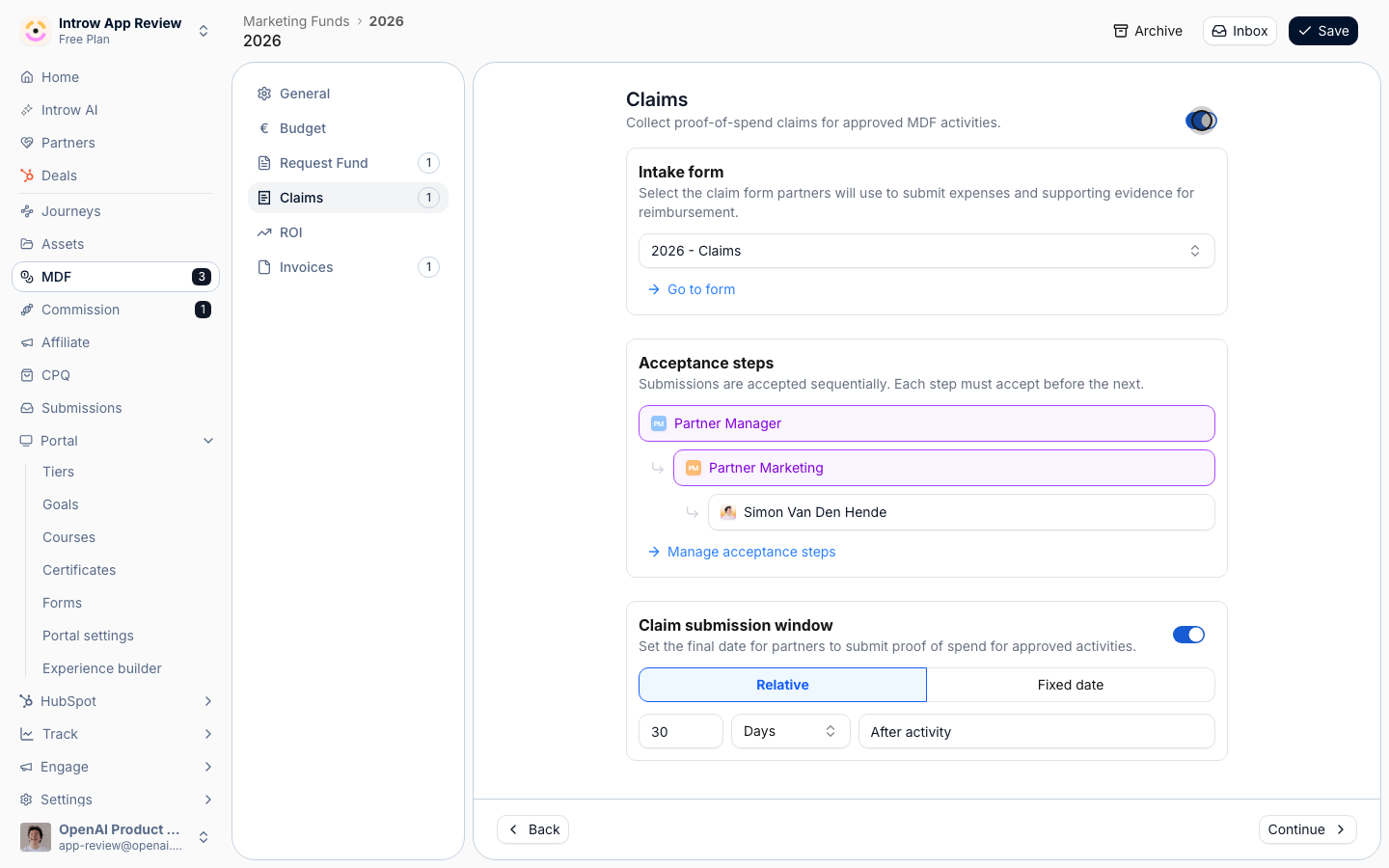
Open the **Claims** tab and use the switch at the top right of the tab to turn the step off.
Do the same on the **Invoices** tab.
Partners then register and report on campaigns without ever filing proof of spend.
Leave both on when the fund reimburses spend.
Add the fields that tell you what is live. A useful set:
* **Campaign name** and **Campaign kit** - which kit it comes from, as a dropdown of your kits.
* **Channel** - email, LinkedIn, webinar, event.
* **Start date** and **End date** - how long it runs.
* **Audience size** - how many contacts it goes to.
* **Requested amount** - only when the fund pays.
Map each field to a property on the request in your CRM, so the campaign's details live in your CRM.
See [Configure the proposal form](/features/mdf/projects/guides/configure-the-proposal-form).
Back on the fund, the **Acceptance steps** section shows who approves a registration.
Use **Manage acceptance steps** to change approvers, and set the **Request decision timeline** to how fast your team answers.
### Switch off what the campaign does not need
Open the **Claims** tab and use the switch at the top right of the tab to turn the step off.
Do the same on the **Invoices** tab.
Partners then register and report on campaigns without ever filing proof of spend.
Leave both on when the fund reimburses spend.
 The **ROI** step is where partners log the deals each campaign produces.
Leave it on, and set it up with [Log the deals a campaign produces](./log-campaign-deals-as-roi).
Use **Save**.
### Put registration in the portal
Go to the [Experience builder](https://app.introw.io/templates), open the experience your campaign partners use, and open the tab that holds your campaign kits.
Open the section picker, choose **Marketing Funds**, and pick the fund.
Put it under the kit, so registering is the next thing a partner sees after picking up the material.
The **ROI** step is where partners log the deals each campaign produces.
Leave it on, and set it up with [Log the deals a campaign produces](./log-campaign-deals-as-roi).
Use **Save**.
### Put registration in the portal
Go to the [Experience builder](https://app.introw.io/templates), open the experience your campaign partners use, and open the tab that holds your campaign kits.
Open the section picker, choose **Marketing Funds**, and pick the fund.
Put it under the kit, so registering is the next thing a partner sees after picking up the material.
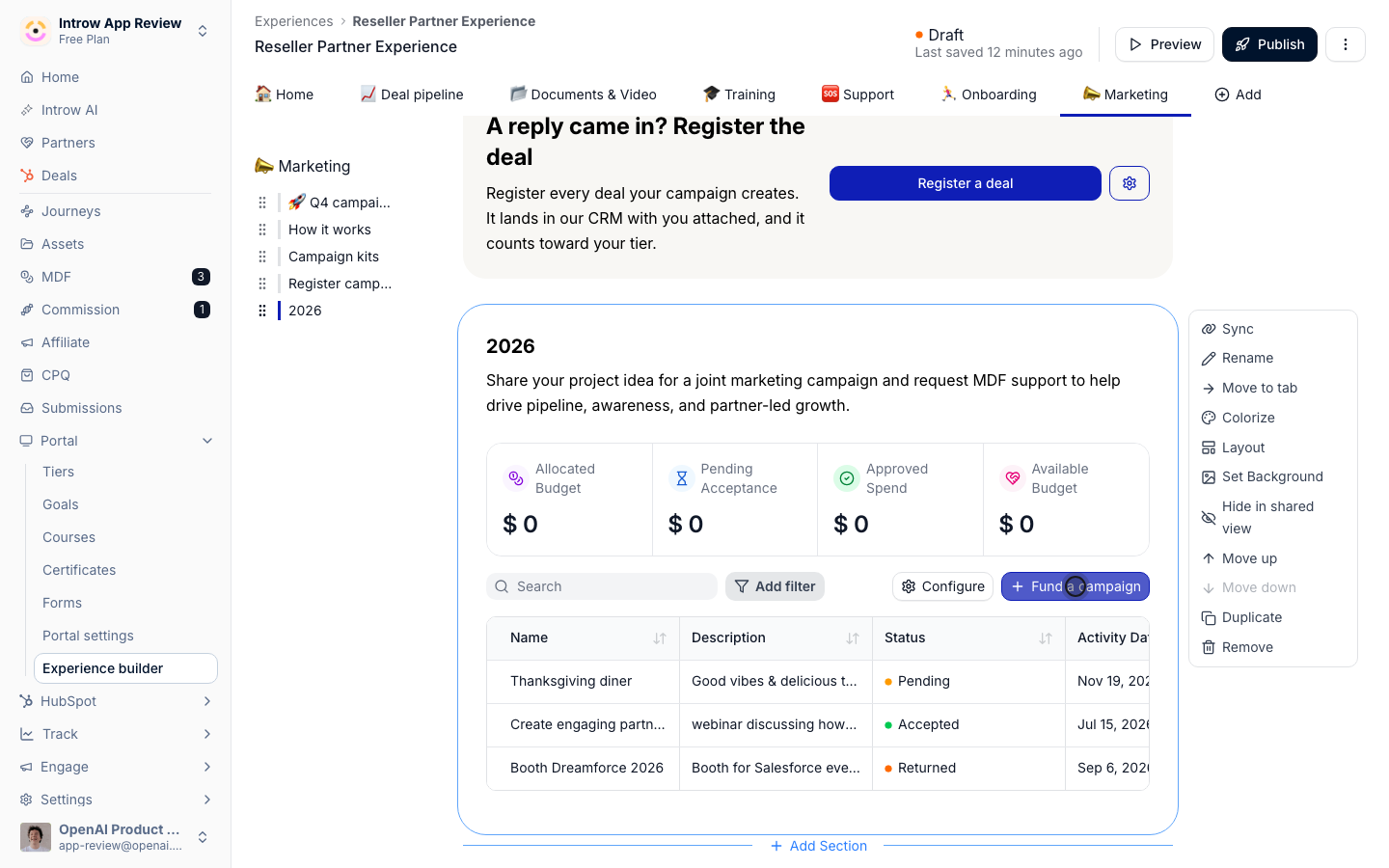 In the section's configuration, rename the button to what the partner is doing, such as "Register a campaign" or "Fund a campaign".
Choose the columns partners see in their request list, such as status, activity date and approved amount.
Publish to the partners who run the campaign. They see their budget, the button and their own requests.
## Verify it worked
Open the portal as a partner in the funded segment and register a test campaign.
It shows in the partner's list as **Pending**, and in the fund's inbox in Introw.
Approve it, and the partner sees it move to **Accepted** with the approved amount.
## What your partners experience
The partner launches the campaign from your kit in their own tool, then opens the portal and registers it in one form.
They see their budget before they commit, follow the approval, and come back to the same request to log the deals it produces.
## Related
Count the deals each registered campaign creates.
Every fund setting, in depth.
Campaign registration and ROI settings.
This documentation is built and hosted on [Mintlify](https://mintlify.com), a developer documentation platform.
In the section's configuration, rename the button to what the partner is doing, such as "Register a campaign" or "Fund a campaign".
Choose the columns partners see in their request list, such as status, activity date and approved amount.
Publish to the partners who run the campaign. They see their budget, the button and their own requests.
## Verify it worked
Open the portal as a partner in the funded segment and register a test campaign.
It shows in the partner's list as **Pending**, and in the fund's inbox in Introw.
Approve it, and the partner sees it move to **Accepted** with the approved amount.
## What your partners experience
The partner launches the campaign from your kit in their own tool, then opens the portal and registers it in one form.
They see their budget before they commit, follow the approval, and come back to the same request to log the deals it produces.
## Related
Count the deals each registered campaign creates.
Every fund setting, in depth.
Campaign registration and ROI settings.
This documentation is built and hosted on [Mintlify](https://mintlify.com), a developer documentation platform.