> ## Documentation Index
> Fetch the complete documentation index at: https://docs.introw.io/llms.txt
> Use this file to discover all available pages before exploring further.
# Launch a campaign to your partners
> Announce a campaign kit to the right segments, restrict tier-only kits, point the Marketing tab's buttons at the next step, and read who picked it up in the first week.
A kit nobody opens is a folder.
Launch day is when you tell the right partners the campaign exists, make sure only they can see it, and give them one obvious next step.
This guide covers that day and the week after it: the announcement, the access rules, the buttons on the Marketing tab, and reading who picked the kit up.
## What you'll achieve
The partners a campaign is for get an announcement in their portal and inbox that links to the kit.
Partners outside the campaign do not see it.
The Marketing tab's buttons lead to the form you want filled next.
A week later, you know which partners and which people opened which assets, and who to chase.
## Before you start
The kit and the Marketing tab must already be live.
See [Enable partners with a campaign kit](./enable-partners-with-a-campaign-kit).
Targeting and restricted access both use segments.
Create the segment for this campaign first, such as Gold partners or HubSpot solution partners.
See [Segments](/features/partners/segments).
## Watch it
## Steps
### Decide who sees the kit
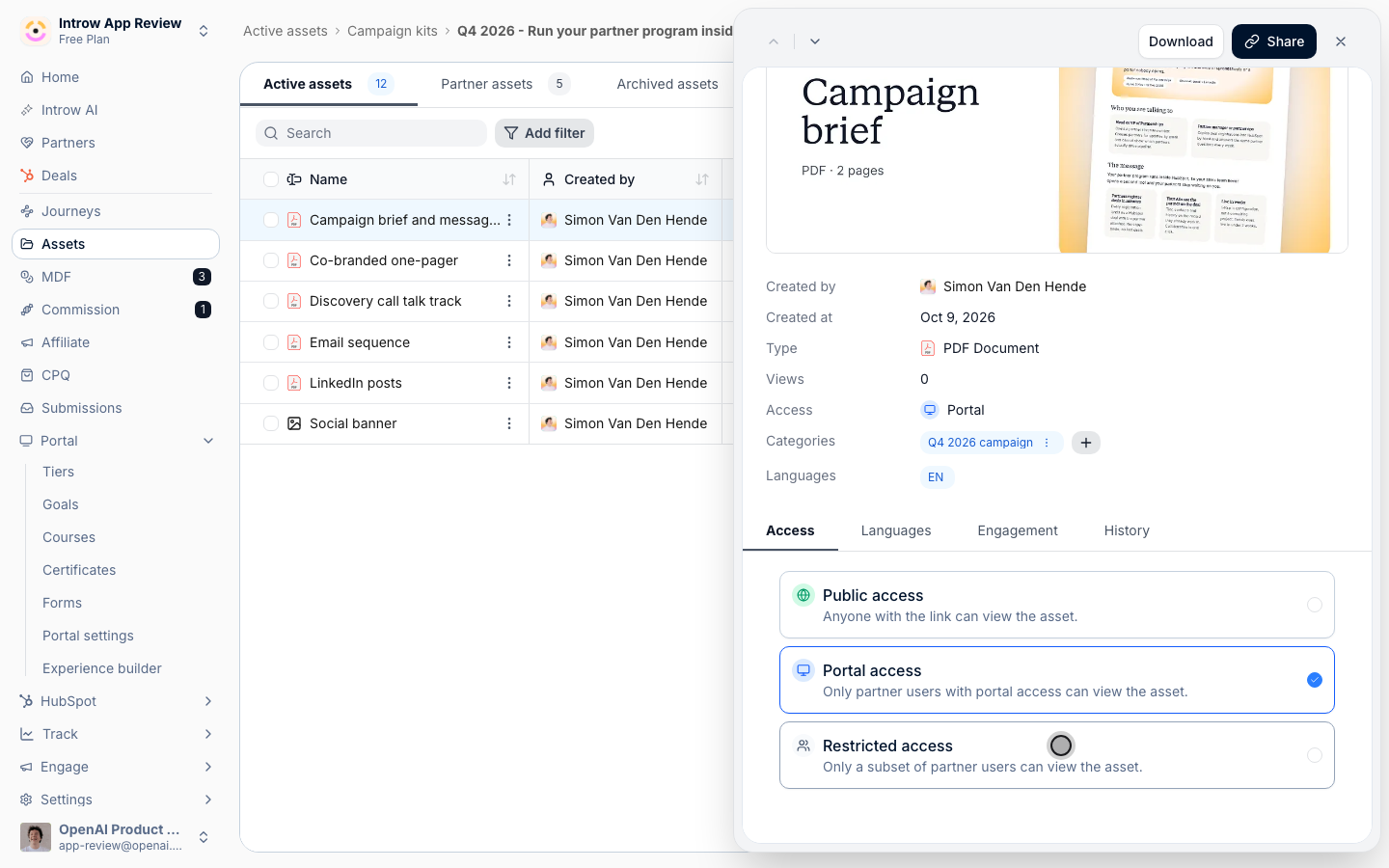
Go to [Assets](https://app.introw.io/assets/library), open the campaign folder and select an asset to open its detail panel.
On the **Access** tab:
* **Portal access** - every partner user with portal access sees it. Keep this for a campaign open to the whole program.
* **Restricted access** - only a subset of partner users can view it. Pick the segments that should see it. With no segment picked, the list reads **All partners**.
Set the same access on every asset in the kit, so no partner sees half a campaign.
 ### Announce it
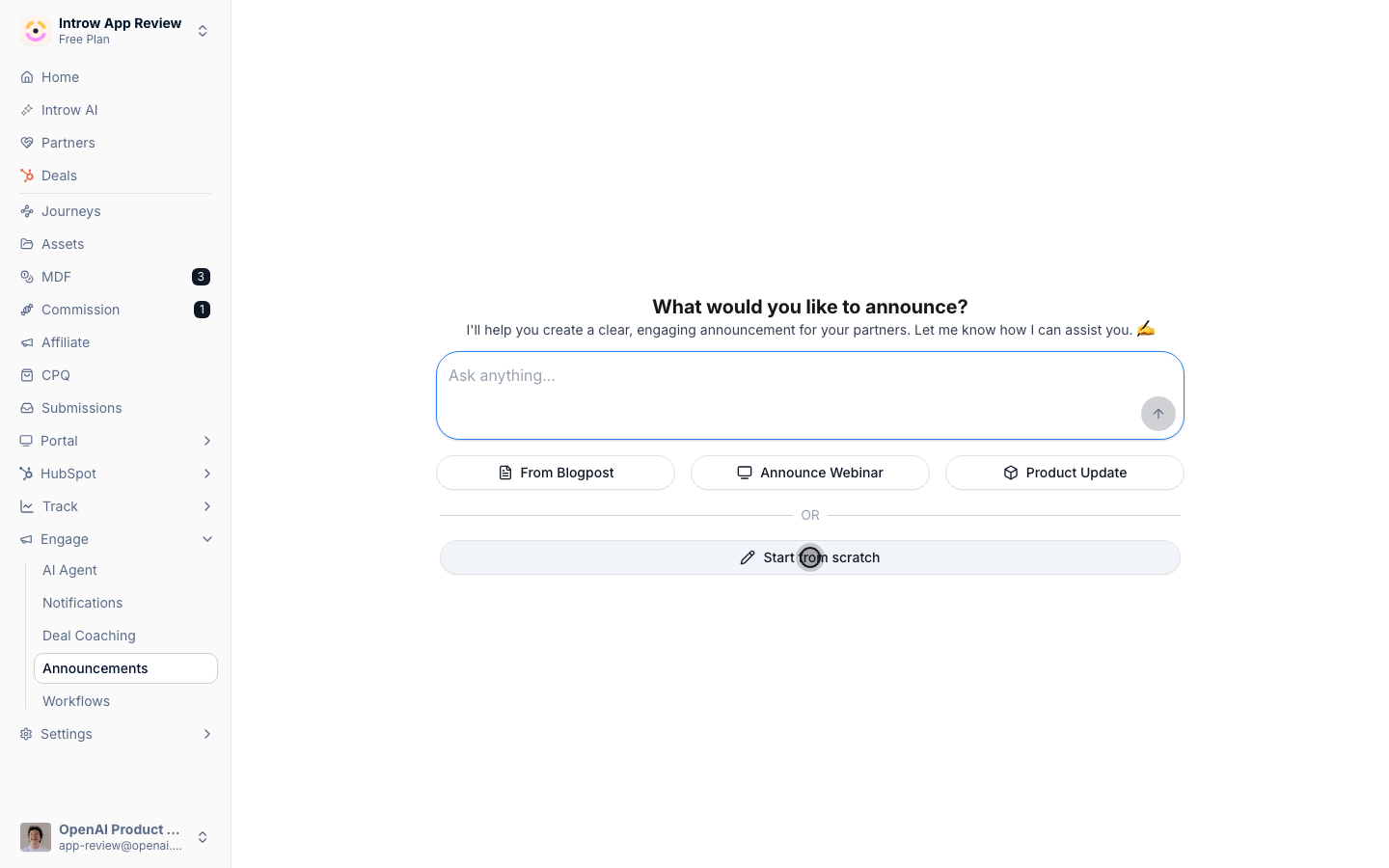
Go to [Announcements](https://app.introw.io/announcements) and create one.
Lead with what the partner gets and what they do: the campaign, who it is for, and that the kit is on their Marketing tab.
Add a link to the tab, and attach the banner from the kit as the image.
Set **From** to the person partners know, usually their partner manager or your partner marketing lead, and **Assign replies to** to whoever answers campaign questions.
### Announce it
Go to [Announcements](https://app.introw.io/announcements) and create one.
Lead with what the partner gets and what they do: the campaign, who it is for, and that the kit is on their Marketing tab.
Add a link to the tab, and attach the banner from the kit as the image.
Set **From** to the person partners know, usually their partner manager or your partner marketing lead, and **Assign replies to** to whoever answers campaign questions.
 Under **Segments**, pick the same segments you used for **Restricted access**.
An announcement about a kit a partner cannot open is worse than no announcement.
Tag it with a **Categories** value such as Campaigns, so partners find it again next to past campaigns.
Choose **Portal** and **Email** at least, and **Slack** or **Microsoft Teams** where you share channels with partners.
Publish.
For every option on this screen, see [Send an announcement](/features/engagement/announcements/guides/send-an-announcement).
### Give the tab one next step
Go to the [Experience builder](https://app.introw.io/templates), open the experience and its Marketing tab.
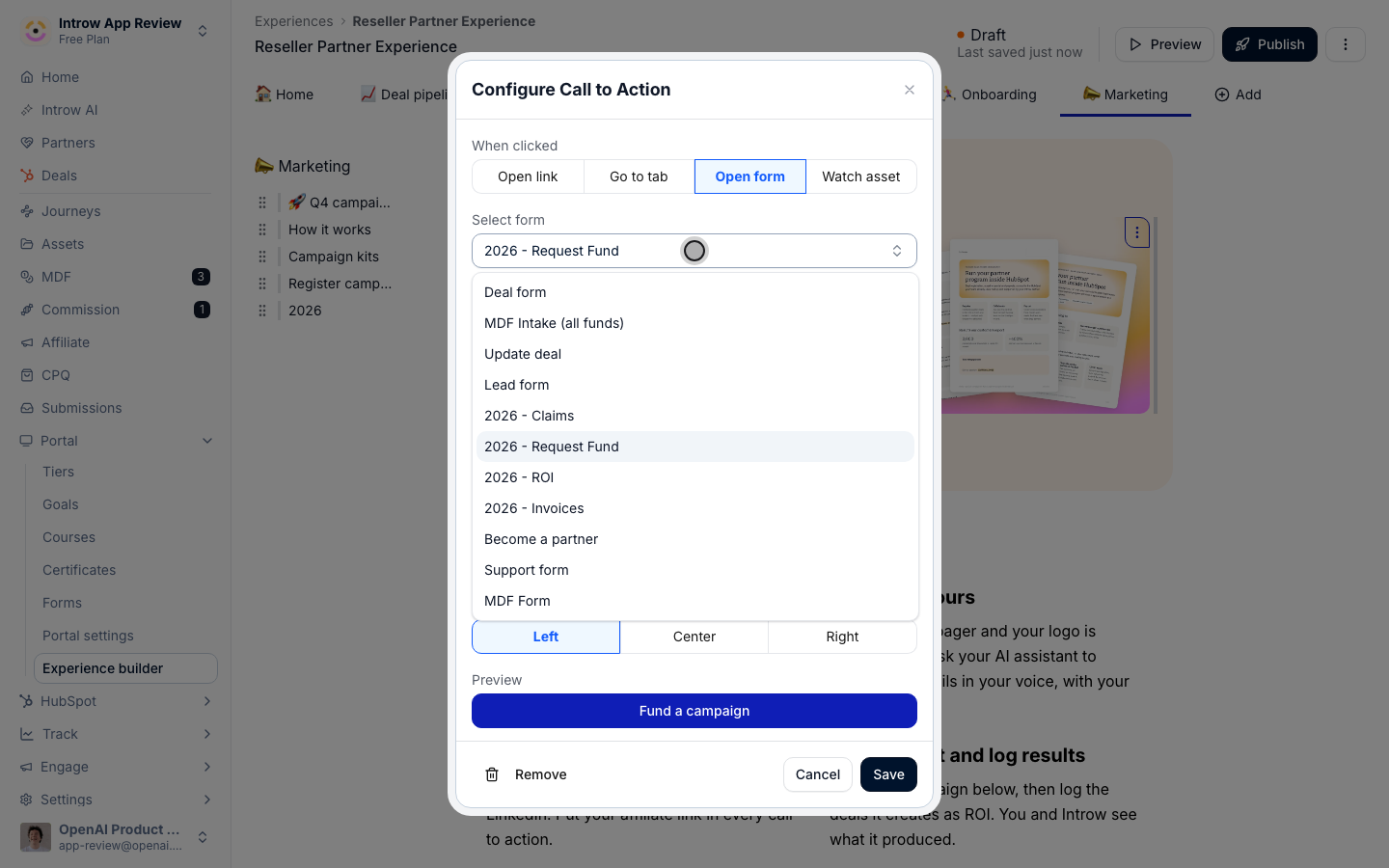
Select the settings icon next to a hero button to open **Configure Call to Action**.
Under **When clicked**, choose **Open form** and select the form you want partners to fill in after picking up the kit: a request for marketing funds when the campaign is funded, or your deal registration form when it is not.
Set **Button Text** to the action, such as Fund a campaign, and keep it **Primary**.
Under **Segments**, pick the same segments you used for **Restricted access**.
An announcement about a kit a partner cannot open is worse than no announcement.
Tag it with a **Categories** value such as Campaigns, so partners find it again next to past campaigns.
Choose **Portal** and **Email** at least, and **Slack** or **Microsoft Teams** where you share channels with partners.
Publish.
For every option on this screen, see [Send an announcement](/features/engagement/announcements/guides/send-an-announcement).
### Give the tab one next step
Go to the [Experience builder](https://app.introw.io/templates), open the experience and its Marketing tab.
Select the settings icon next to a hero button to open **Configure Call to Action**.
Under **When clicked**, choose **Open form** and select the form you want partners to fill in after picking up the kit: a request for marketing funds when the campaign is funded, or your deal registration form when it is not.
Set **Button Text** to the action, such as Fund a campaign, and keep it **Primary**.
 Select **Publish** and apply the experience to the same partners, so their portal shows the updated buttons.
### Read the first week
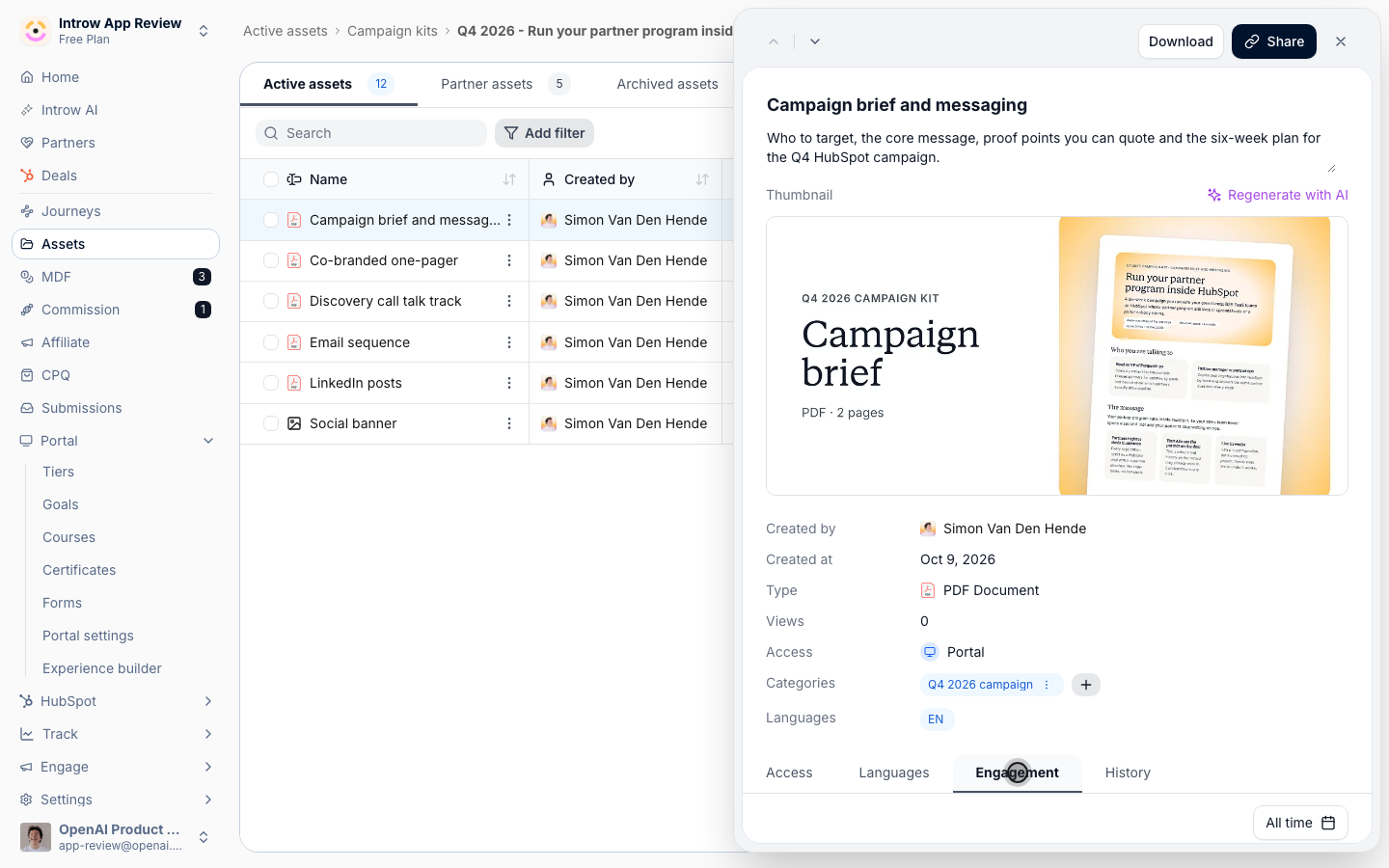
In Assets, open an asset from the kit and go to its **Engagement** tab.
**Partners** lists the partner companies that viewed it, and **People** lists the individual users, each with **Last viewed** and **Total views**.
The brief is usually the first asset opened; partners who opened the brief but not the emails stopped before sending.
Select **Publish** and apply the experience to the same partners, so their portal shows the updated buttons.
### Read the first week
In Assets, open an asset from the kit and go to its **Engagement** tab.
**Partners** lists the partner companies that viewed it, and **People** lists the individual users, each with **Last viewed** and **Total views**.
The brief is usually the first asset opened; partners who opened the brief but not the emails stopped before sending.
 Open the campaign folder's details.
**Views** shows the total across the kit, and the list underneath shows each viewer by **Name** with their **Total views**.
Compare the **Partners** list against the segment you announced to.
Partners missing from it never opened the kit: a direct note from their partner manager moves them more than a second announcement.
## Verify it worked
Open a partner's portal in the targeted segment: the announcement sits in their feed and the kit is on their Marketing tab.
Open a partner's portal outside the segment: a restricted kit is not there.
On the kit's assets, the **Engagement** tab starts listing partners within hours of the announcement.
## What your partners experience
The partners the campaign is for get one message, in their inbox and their portal, that says what the campaign is and where the kit is.
They open the Marketing tab, pick up the kit, and the button under the headline takes them straight to the next form.
Partners the campaign is not for are never asked about it.
## Related
Build the kit and the Marketing tab.
Every announcement option in detail.
Read views per partner and per person.
Settings and troubleshooting.
This documentation is built and hosted on [Mintlify](https://mintlify.com), a developer documentation platform.
Open the campaign folder's details.
**Views** shows the total across the kit, and the list underneath shows each viewer by **Name** with their **Total views**.
Compare the **Partners** list against the segment you announced to.
Partners missing from it never opened the kit: a direct note from their partner manager moves them more than a second announcement.
## Verify it worked
Open a partner's portal in the targeted segment: the announcement sits in their feed and the kit is on their Marketing tab.
Open a partner's portal outside the segment: a restricted kit is not there.
On the kit's assets, the **Engagement** tab starts listing partners within hours of the announcement.
## What your partners experience
The partners the campaign is for get one message, in their inbox and their portal, that says what the campaign is and where the kit is.
They open the Marketing tab, pick up the kit, and the button under the headline takes them straight to the next form.
Partners the campaign is not for are never asked about it.
## Related
Build the kit and the Marketing tab.
Every announcement option in detail.
Read views per partner and per person.
Settings and troubleshooting.
This documentation is built and hosted on [Mintlify](https://mintlify.com), a developer documentation platform.