> ## Documentation Index
> Fetch the complete documentation index at: https://docs.introw.io/llms.txt
> Use this file to discover all available pages before exploring further.
# Report on campaign kit usage
> Tag every asset in a campaign kit with one category, then build an Assets report that shows which kits partners view and download, and which partners use them.
You publish a campaign kit and partners go quiet.
Either they are using it in their own tools, or they never opened it.
This guide shows you which: it tags each kit so usage rolls up per campaign, builds one report across all your kits, and reads usage per asset and per partner.
## What you'll achieve
One saved report that compares your campaign kits by how often partners view and download them.
A ranking of the people at your partners who used the kit, and a split by region or tier.
Per-asset engagement, so you know which piece of a kit carries it.
## Before you start
Usage only appears once partners can open the kit.
See [Enable partners with a campaign kit](/features/tcma/campaign-kits/guides/enable-partners-with-a-campaign-kit).
You need reports write access, and report quota on your plan.
## Watch it
## Steps
### Tag each kit
Go to [Assets](https://app.introw.io/assets/library) and open the kit's folder.
Select every asset in it and use the bulk editor to set **Categories**, or open each asset and add the category under **Categories** in its details panel.
* Name the category after the campaign, for example "Q4 2026 HubSpot campaign".
* Use exactly one campaign category per kit.
The report groups on it, so an asset in two campaign categories counts in both.
* Tag new assets as you add them to the kit, or they will be missing from the totals.
### Build the usage report
Go to [Reports](https://app.introw.io/reports), create a report and name it, for example "Campaign kit usage".
On the **Configure** tab, set **Data source** to **Assets**.
Every view and download of an asset in the portal becomes one row, so the chart starts with one bar per asset.
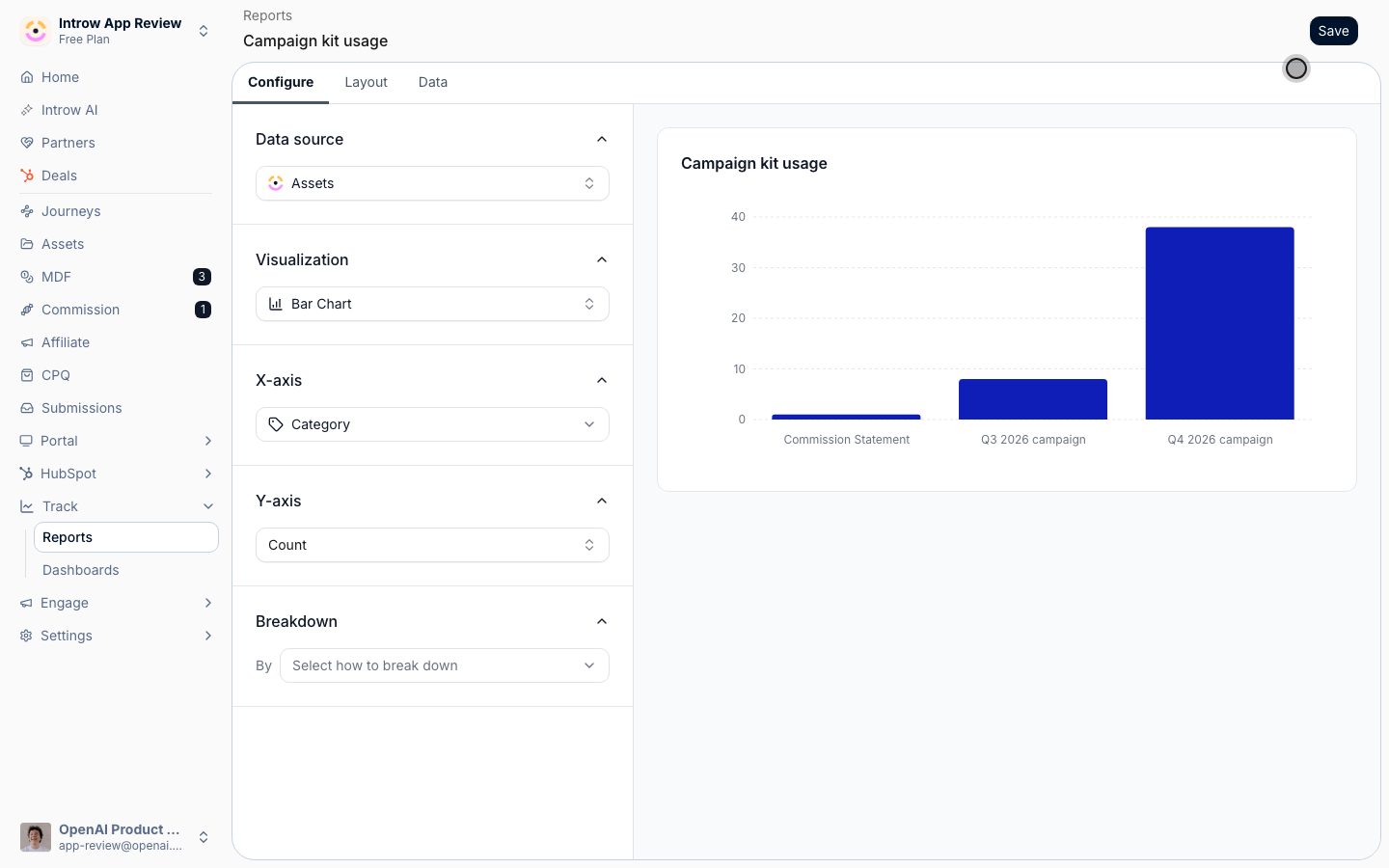
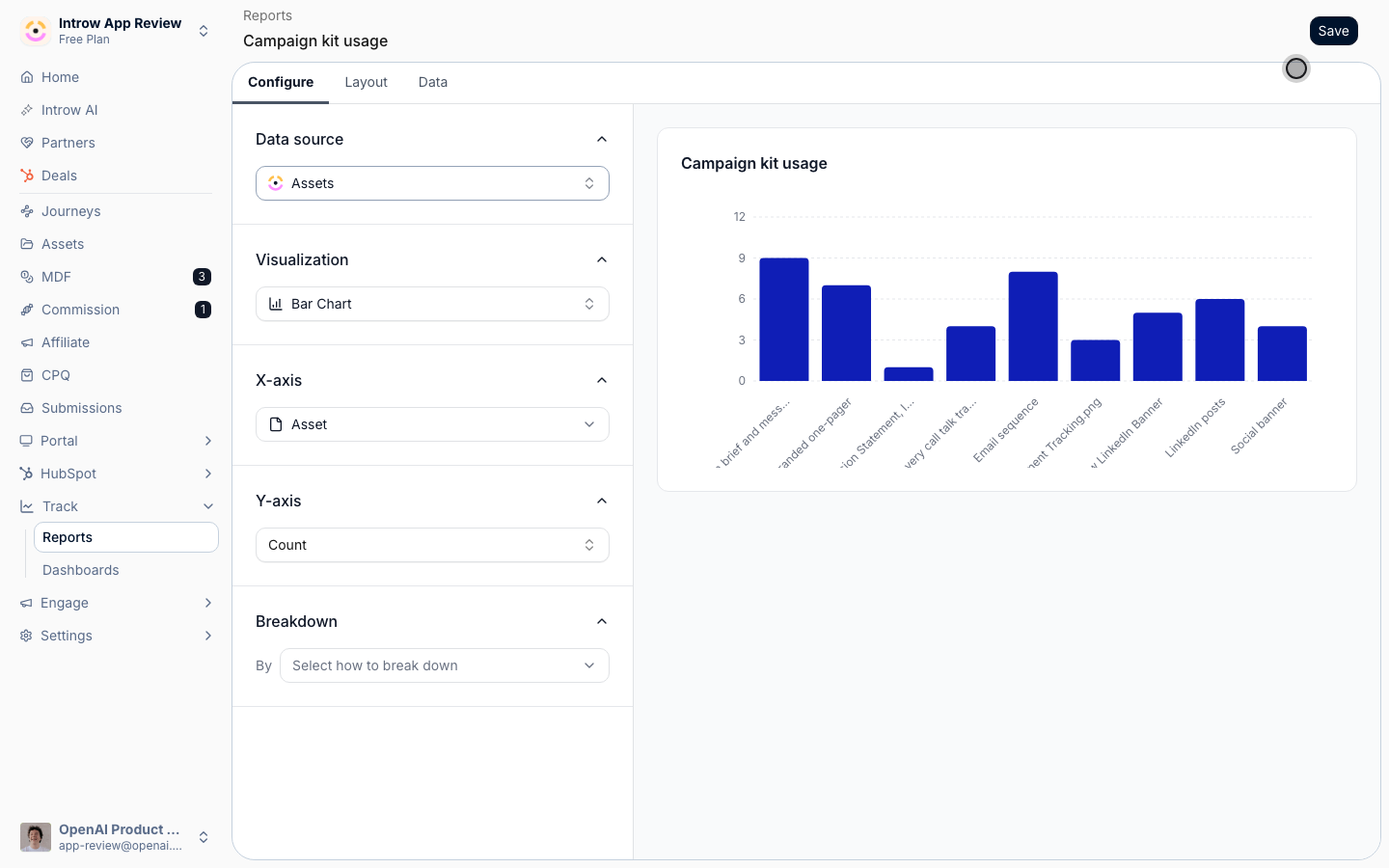 Keep **Visualization** on **Bar chart** and set the **X-axis** grouping to **Category**, so each campaign kit is one bar.
Keep the metric on **Count**: each bar is the number of times partners opened that kit's assets.
Keep **Visualization** on **Bar chart** and set the **X-axis** grouping to **Category**, so each campaign kit is one bar.
Keep the metric on **Count**: each bar is the number of times partners opened that kit's assets.
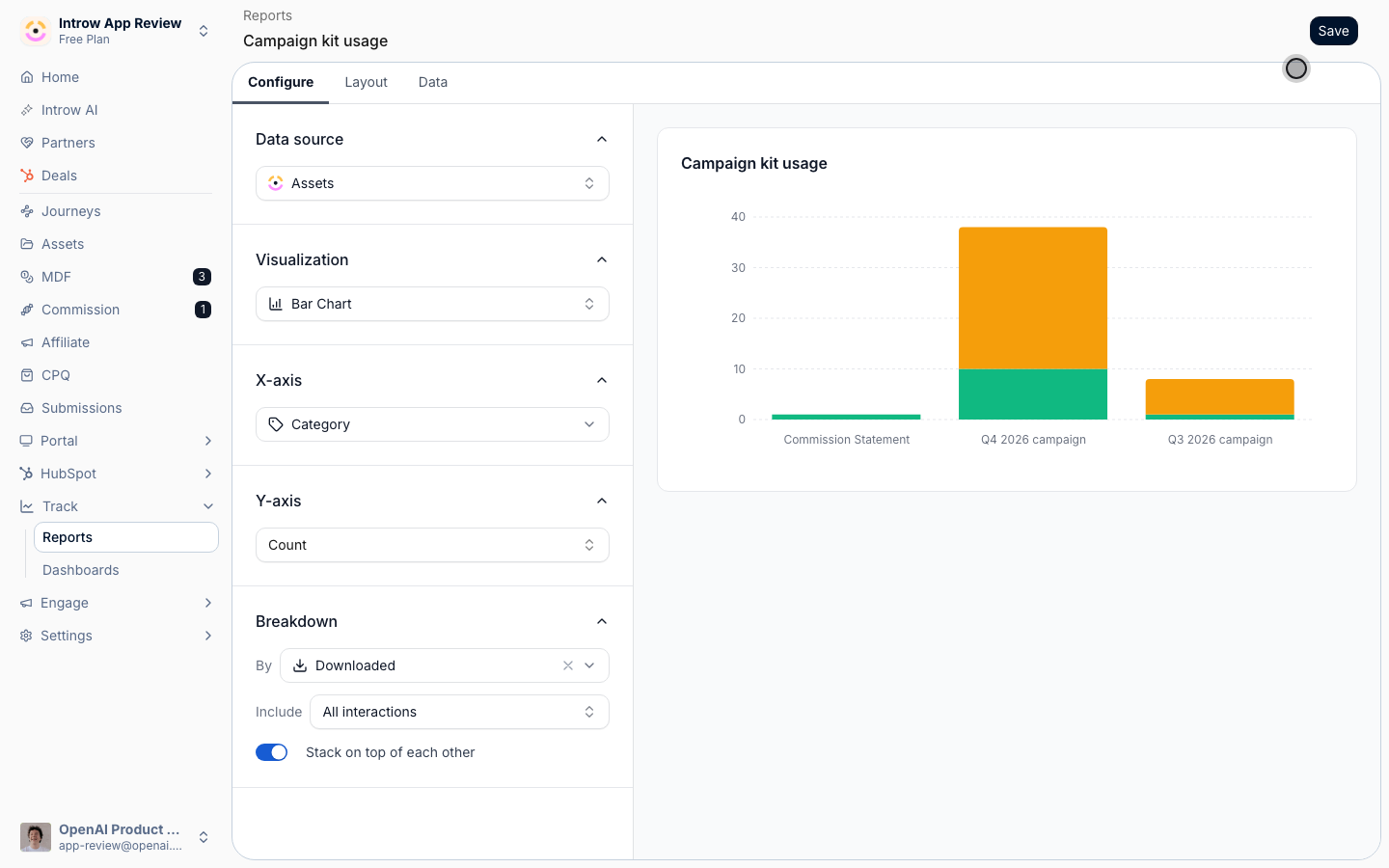
 Set **Breakdown** to **Downloaded** and keep **Stack on top of each other** on.
Each bar splits into **Viewed** and **Downloaded**.
A download is the stronger signal: the partner took the asset into their own tool.
Set **Breakdown** to **Downloaded** and keep **Stack on top of each other** on.
Each bar splits into **Viewed** and **Downloaded**.
A download is the stronger signal: the partner took the asset into their own tool.
 On the **Data** tab, add a **Date** filter for the campaign's run.
Add a **Categories** filter to look at one campaign, or a **Partner** filter to look at one partner.
Save the report.
### Find who used it
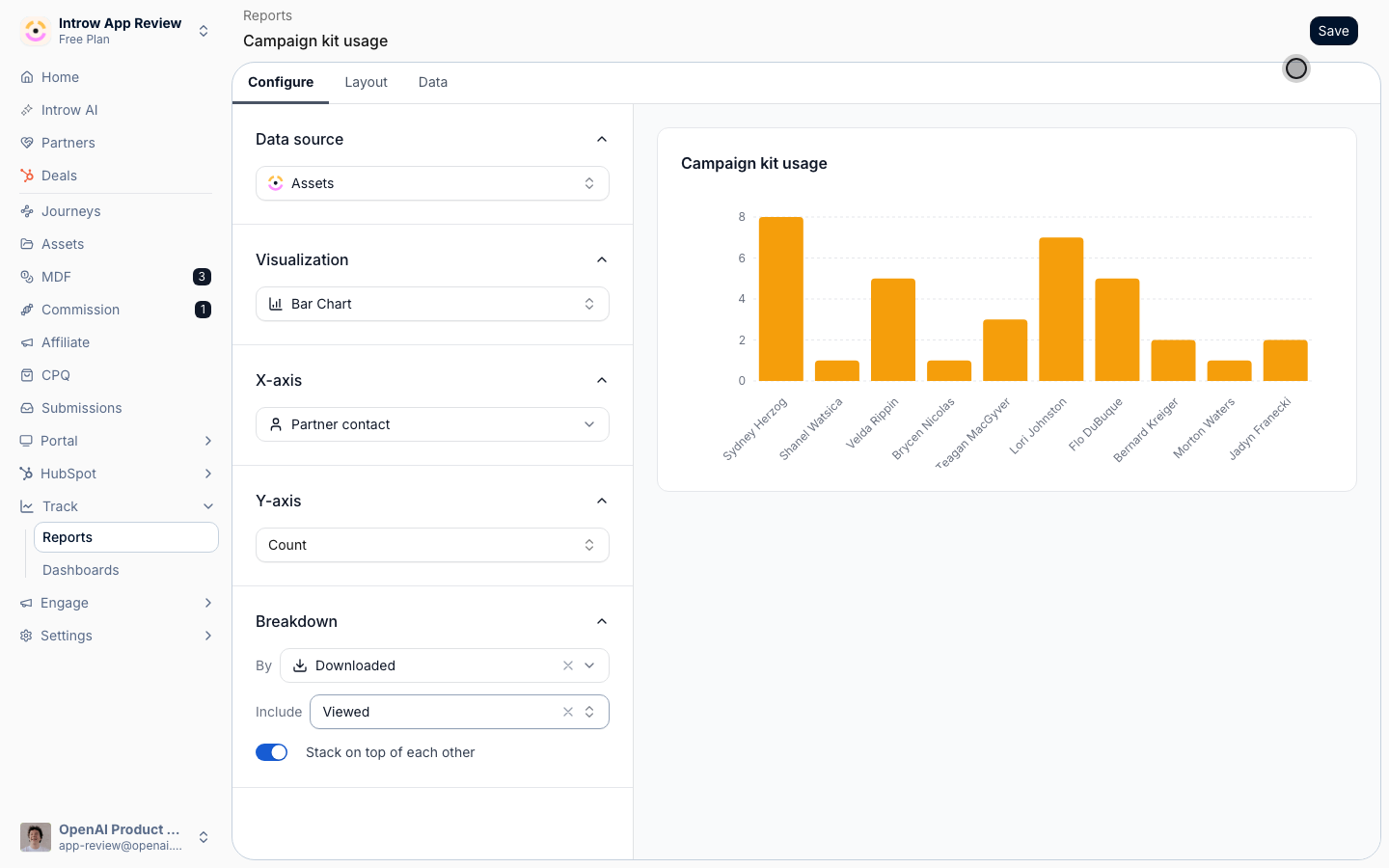
Duplicate the report and set the **X-axis** grouping to **Partner contact**.
Under **Breakdown**, set **Include** to **Viewed**.
A download from a public asset link carries no contact, so counting views keeps every bar a named person.
Those at the top are the partner marketers to work the next campaign with.
On the **Data** tab, add a **Date** filter for the campaign's run.
Add a **Categories** filter to look at one campaign, or a **Partner** filter to look at one partner.
Save the report.
### Find who used it
Duplicate the report and set the **X-axis** grouping to **Partner contact**.
Under **Breakdown**, set **Include** to **Viewed**.
A download from a public asset link carries no contact, so counting views keeps every bar a named person.
Those at the top are the partner marketers to work the next campaign with.
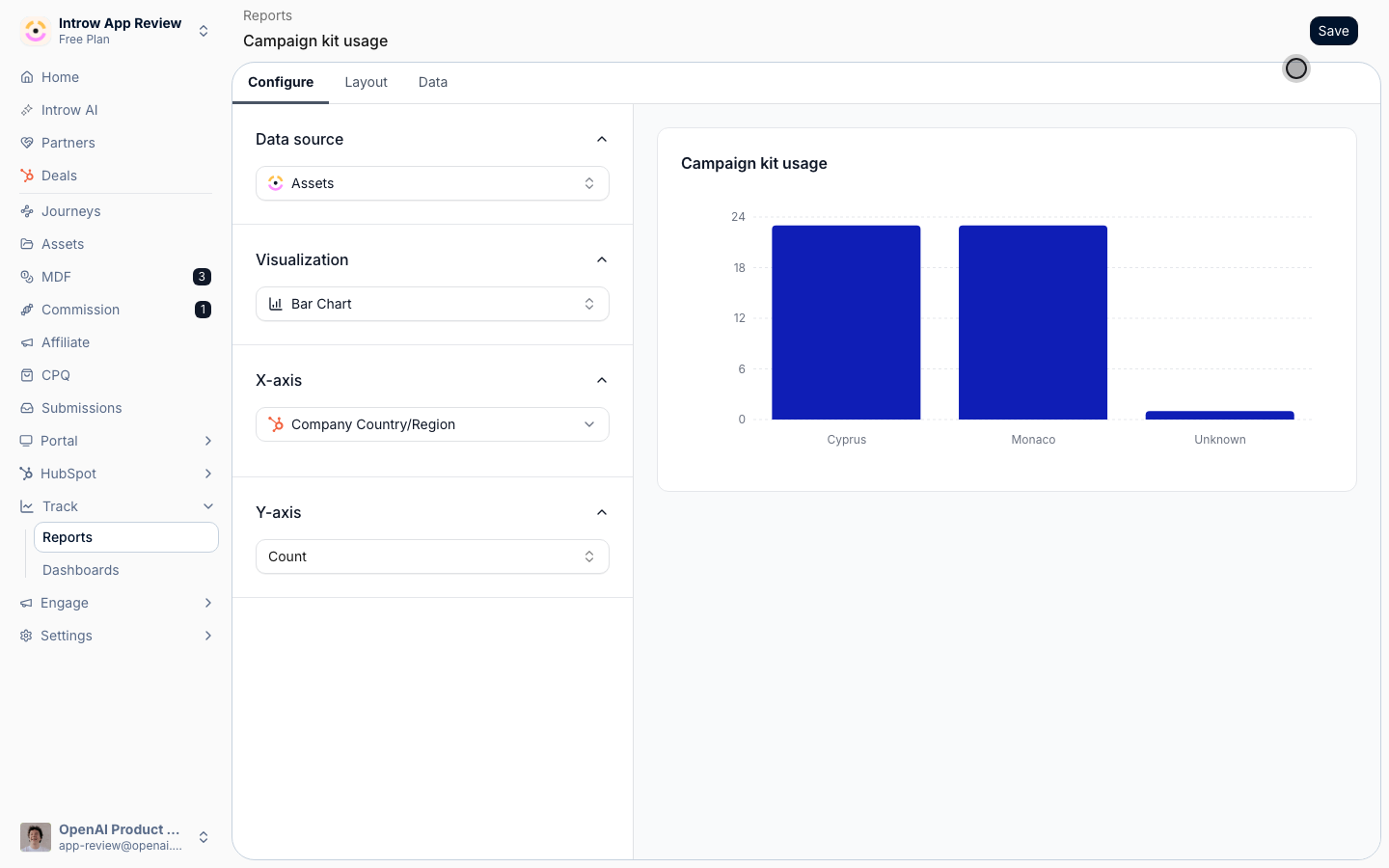
 Set the **X-axis** grouping to a CRM property on the partner, such as **Company Country/Region**, or to **Partner tier**.
Search the grouping list to find a property by name.
Partners whose property is empty in your CRM land in **Unknown**.
Set the **X-axis** grouping to a CRM property on the partner, such as **Company Country/Region**, or to **Partner tier**.
Search the grouping list to find a property by name.
Partners whose property is empty in your CRM land in **Unknown**.
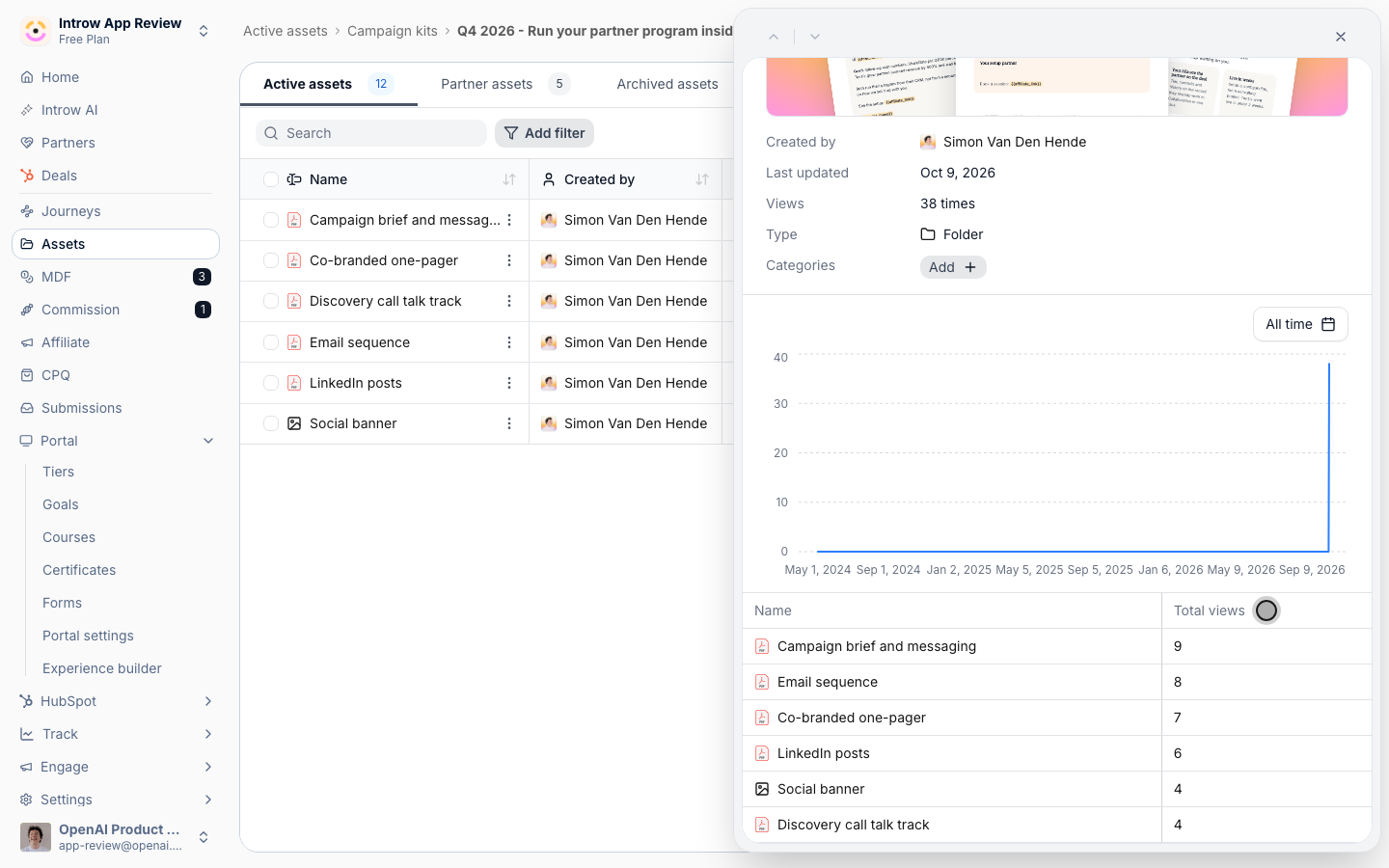
 Back in [Assets](https://app.introw.io/assets/library), open the kit's folder and its details.
The folder shows **Views** for everything inside it and **Total views** per asset.
An asset nobody opens is the one to rewrite or drop from the next kit.
Back in [Assets](https://app.introw.io/assets/library), open the kit's folder and its details.
The folder shows **Views** for everything inside it and **Total views** per asset.
An asset nobody opens is the one to rewrite or drop from the next kit.
 Open an asset and select its **Engagement** tab.
Switch between **People** and **Partners** to see **Last viewed** and **Total views** per person and per partner.
## Verify it worked
Open the report.
You see one bar per campaign kit, split into viewed and downloaded.
Grouping by **Partner contact** with **Include** set to **Viewed** lists the people who used it.
## Limits
Region and country come from a CRM company property on the partner, such as **Company Country/Region**.
A partner with that property empty lands in **Unknown**, so fill it in your CRM before you compare regions.
Usage tells you a partner opened or downloaded the kit, not that they sent the campaign.
For what the campaign drove, see [Track partner campaign attribution](/features/tcma/attribution/guides/track-partner-campaign-attribution).
## What your partners experience
Nothing changes for partners.
They open and download kit assets in their portal as before, and every view counts toward the report.
## Related
See the clicks and signups each partner drove.
Every option on the Engagement tab.
Every report builder setting in depth.
Full campaign attribution configuration options.
This documentation is built and hosted on [Mintlify](https://mintlify.com), a developer documentation platform.
Open an asset and select its **Engagement** tab.
Switch between **People** and **Partners** to see **Last viewed** and **Total views** per person and per partner.
## Verify it worked
Open the report.
You see one bar per campaign kit, split into viewed and downloaded.
Grouping by **Partner contact** with **Include** set to **Viewed** lists the people who used it.
## Limits
Region and country come from a CRM company property on the partner, such as **Company Country/Region**.
A partner with that property empty lands in **Unknown**, so fill it in your CRM before you compare regions.
Usage tells you a partner opened or downloaded the kit, not that they sent the campaign.
For what the campaign drove, see [Track partner campaign attribution](/features/tcma/attribution/guides/track-partner-campaign-attribution).
## What your partners experience
Nothing changes for partners.
They open and download kit assets in their portal as before, and every view counts toward the report.
## Related
See the clicks and signups each partner drove.
Every option on the Engagement tab.
Every report builder setting in depth.
Full campaign attribution configuration options.
This documentation is built and hosted on [Mintlify](https://mintlify.com), a developer documentation platform.