> ## Documentation Index
> Fetch the complete documentation index at: https://docs.introw.io/llms.txt
> Use this file to discover all available pages before exploring further.
# Prepare a campaign kit for AI
> Structure and write a campaign kit so a partner's AI assistant can find it, read it and rewrite it on message, then test it the way a partner will use it.
A partner's assistant can only rewrite what it can find and read.
It searches the text of the assets the partner's portal shows, so a kit made of image slides, vague file names and a hidden folder gives it nothing to work with.
This guide sets up a kit that an assistant finds on the first question and rewrites without losing your message.
## What you'll achieve
One campaign folder, visible on an Asset Hub, holding a text-based brief, email sequence and social posts with clear placeholders, plus a co-branded one-pager, tested end to end with an assistant.
## Before you start
Have the brief, the emails and the posts drafted.
This guide is about how you package them, not what they say.
The assistant searches what a partner's portal shows them.
See [Enable partners with a campaign kit](/features/tcma/campaign-kits/guides/enable-partners-with-a-campaign-kit).
## Steps
### Structure the kit
Go to [Assets](https://app.introw.io/assets/library) and create a **Campaign kits** folder, with one subfolder per campaign.
Name the subfolder after the campaign the way a partner would ask for it, with the quarter in front: "Q4 2026 - Run your partner program inside HubSpot".
The assistant matches on names and text, so the name is part of what makes the kit findable.
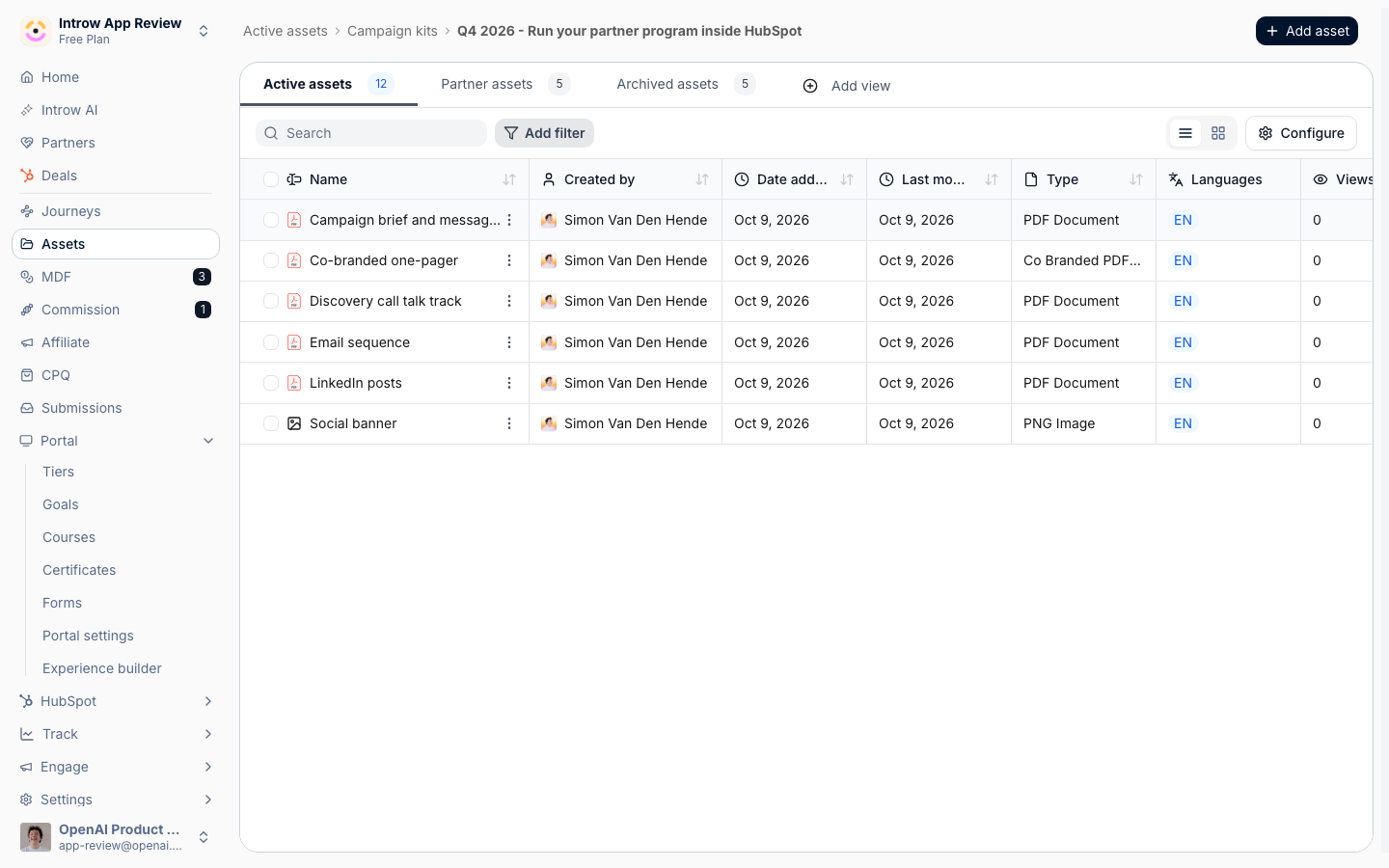 Use plain names such as **Campaign brief and messaging**, **Email sequence**, **LinkedIn posts** and **Co-branded one-pager**.
A partner will ask "give me email 2 of the email sequence", and the assistant finds it faster when the asset is called that.
Open each asset and fill in **Add a short description** with one or two sentences on what it holds and when to use it.
The description shows on the Asset Hub and gives the assistant one more clear line to match on.
Use plain names such as **Campaign brief and messaging**, **Email sequence**, **LinkedIn posts** and **Co-branded one-pager**.
A partner will ask "give me email 2 of the email sequence", and the assistant finds it faster when the asset is called that.
Open each asset and fill in **Add a short description** with one or two sentences on what it holds and when to use it.
The description shows on the Asset Hub and gives the assistant one more clear line to match on.
 ### Write it so an assistant can work with it
Upload the brief, emails and posts as text-based PDFs or documents.
The assistant reads text; it cannot read words inside an image or a flattened slide.
Keep the banner and other images in the kit for the partner, and put any copy they carry in a document next to them.
Give the brief four parts the assistant can quote back: who the campaign targets, the core message, the proof points with their source, and a do and don't list.
State the rules plainly, for example "Quote these numbers as written" and "Do not promise pricing".
A partner's assistant repeats what the brief says, so this is how your message survives the rewrite.
Use one placeholder style throughout, such as `{{first_name}}`, `{{partner_company}}` and `{{affiliate_link}}`.
One consistent style is easy to tell the assistant to keep, and the partner knows exactly what to replace.
Put each email and each post in its own block with a clear label, such as "Email 2 - send week 3".
Long documents are condensed around a question when the assistant reads them, so short labeled blocks come back whole.
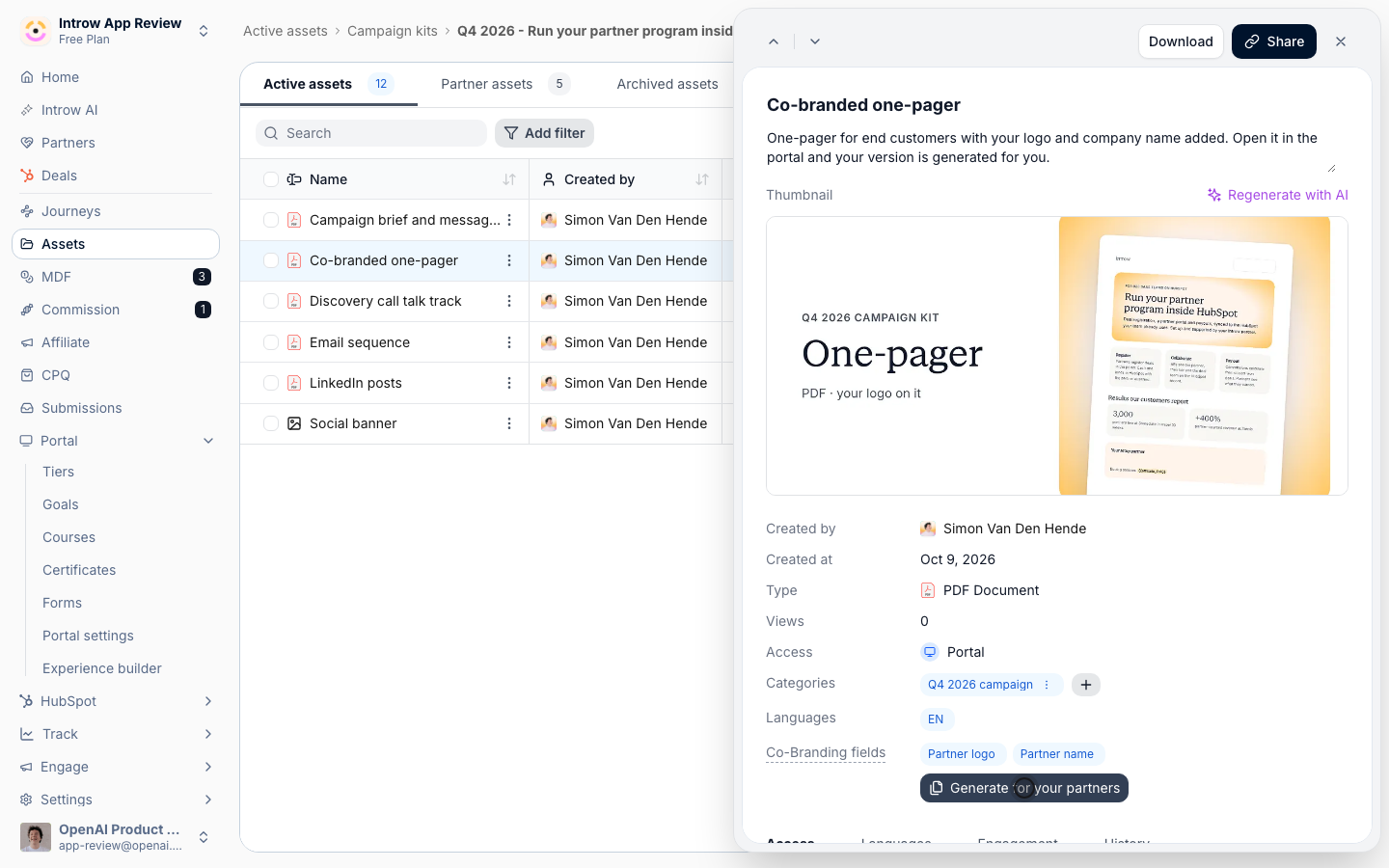
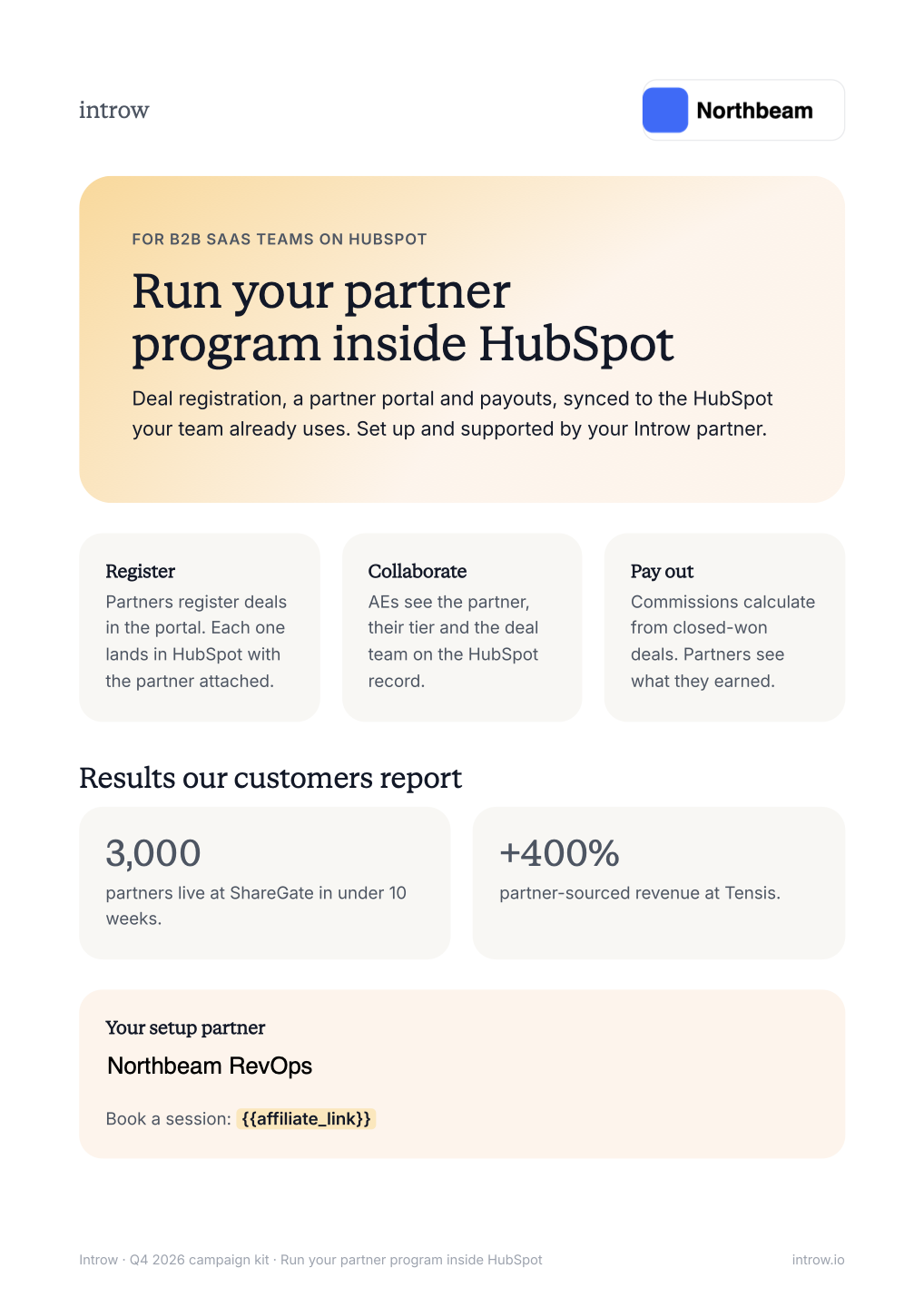
Upload the one-pager as a PDF with form fields for the partner's name and logo.
The assistant cannot co-brand it, but it links to it, and the partner gets their own copy when they open it in the portal.
See [Create and share co-branded assets](/features/content/co-branded-assets/guides/create-and-share-co-branded-assets).
### Write it so an assistant can work with it
Upload the brief, emails and posts as text-based PDFs or documents.
The assistant reads text; it cannot read words inside an image or a flattened slide.
Keep the banner and other images in the kit for the partner, and put any copy they carry in a document next to them.
Give the brief four parts the assistant can quote back: who the campaign targets, the core message, the proof points with their source, and a do and don't list.
State the rules plainly, for example "Quote these numbers as written" and "Do not promise pricing".
A partner's assistant repeats what the brief says, so this is how your message survives the rewrite.
Use one placeholder style throughout, such as `{{first_name}}`, `{{partner_company}}` and `{{affiliate_link}}`.
One consistent style is easy to tell the assistant to keep, and the partner knows exactly what to replace.
Put each email and each post in its own block with a clear label, such as "Email 2 - send week 3".
Long documents are condensed around a question when the assistant reads them, so short labeled blocks come back whole.
Upload the one-pager as a PDF with form fields for the partner's name and logo.
The assistant cannot co-brand it, but it links to it, and the partner gets their own copy when they open it in the portal.
See [Create and share co-branded assets](/features/content/co-branded-assets/guides/create-and-share-co-branded-assets).
 ### Make it searchable and test it
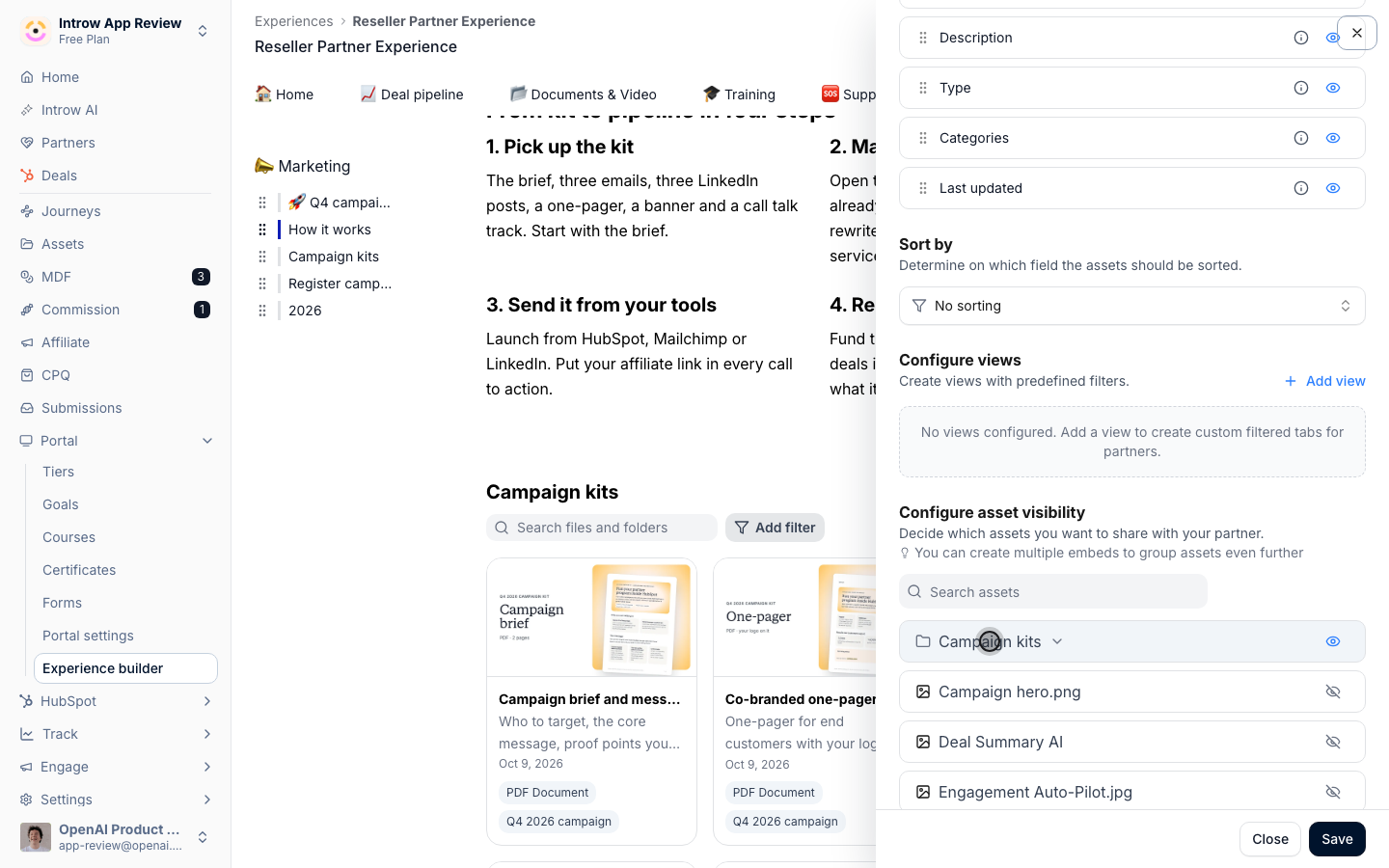
In the experience builder, add a **General Asset Hub** to the tab where partners find campaigns, open **Configure asset visibility**, and switch on the eye next to the **Campaign kits** folder.
Only assets visible on a hub in the partner's experience are searched for that partner.
Publish the experience so partners get the change.
### Make it searchable and test it
In the experience builder, add a **General Asset Hub** to the tab where partners find campaigns, open **Configure asset visibility**, and switch on the eye next to the **Campaign kits** folder.
Only assets visible on a hub in the partner's experience are searched for that partner.
Publish the experience so partners get the change.
 Keep the kit on **Portal access**, or on **Restricted access** for the partners and segments the campaign is for.
The assistant applies the same access as the portal, so a partner outside the restriction will not find the kit.
Ask your own Introw assistant, or a test partner's connected assistant, the questions a partner will ask.
Use the prompts in [Remix a campaign kit with your AI assistant](/features/tcma/ai-remix/guides/remix-a-campaign-kit-with-your-ai-assistant): find the kit, summarize the brief, rewrite email 1.
If an answer is vague or misses an asset, fix the name, the description or the document text and ask again.
Newly uploaded documents take a short while before their text is searchable.
Keep the kit on **Portal access**, or on **Restricted access** for the partners and segments the campaign is for.
The assistant applies the same access as the portal, so a partner outside the restriction will not find the kit.
Ask your own Introw assistant, or a test partner's connected assistant, the questions a partner will ask.
Use the prompts in [Remix a campaign kit with your AI assistant](/features/tcma/ai-remix/guides/remix-a-campaign-kit-with-your-ai-assistant): find the kit, summarize the brief, rewrite email 1.
If an answer is vague or misses an asset, fix the name, the description or the document text and ask again.
Newly uploaded documents take a short while before their text is searchable.
 ## Verify it worked
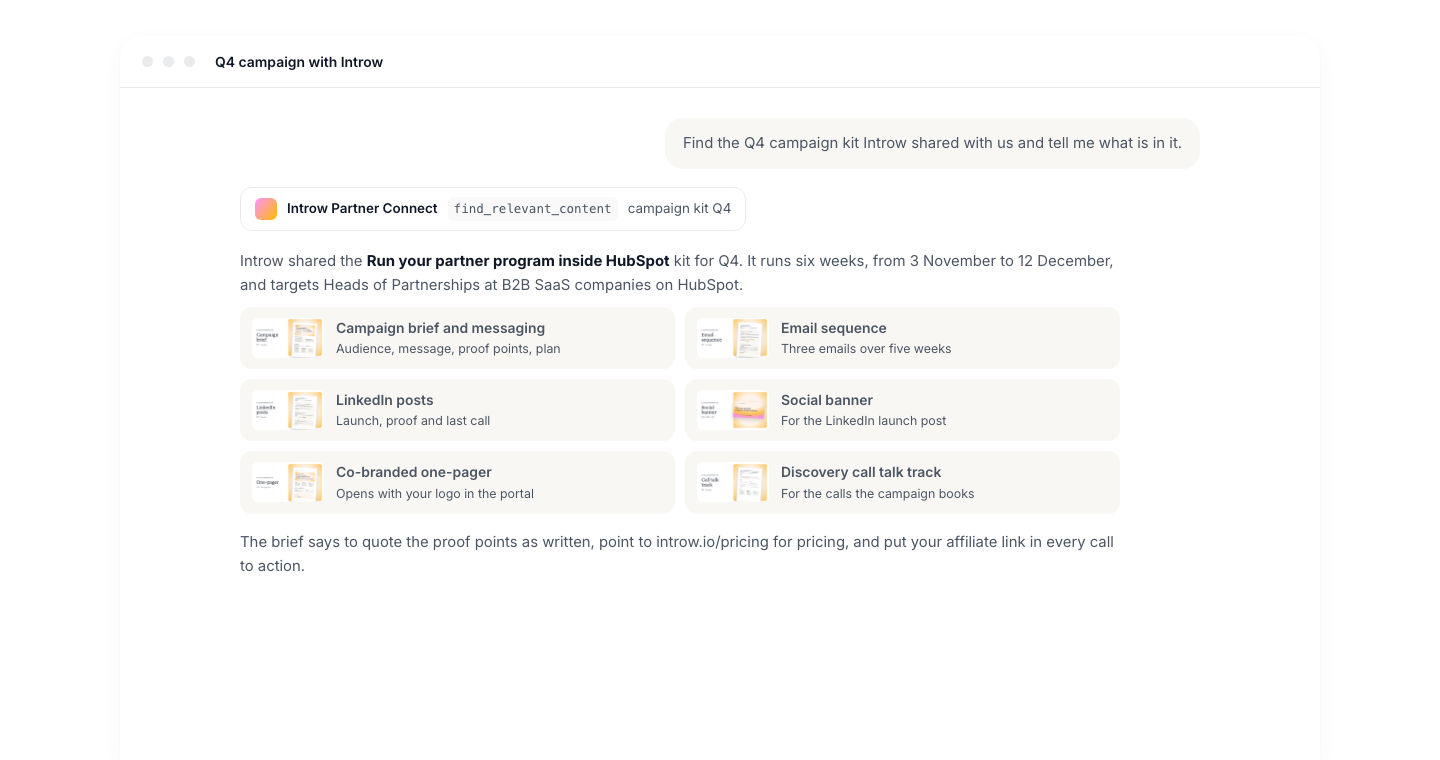
An assistant asked "Find the Q4 campaign kit" lists every asset in the folder with a link, summarizes the brief with your proof points and rules, and returns the full text of a single email when asked for it.
## What your partners experience
Partners get a kit their own assistant understands.
One conversation takes them from your brief to emails in their voice, with your proof points intact and their affiliate link in place.
## Related
The partner side of the same flow, to share with partners.
Build the kit and put it in the portal.
What the assistant can and cannot do.
This documentation is built and hosted on [Mintlify](https://mintlify.com), a developer documentation platform.
## Verify it worked
An assistant asked "Find the Q4 campaign kit" lists every asset in the folder with a link, summarizes the brief with your proof points and rules, and returns the full text of a single email when asked for it.
## What your partners experience
Partners get a kit their own assistant understands.
One conversation takes them from your brief to emails in their voice, with your proof points intact and their affiliate link in place.
## Related
The partner side of the same flow, to share with partners.
Build the kit and put it in the portal.
What the assistant can and cannot do.
This documentation is built and hosted on [Mintlify](https://mintlify.com), a developer documentation platform.