> ## Documentation Index
> Fetch the complete documentation index at: https://docs.introw.io/llms.txt
> Use this file to discover all available pages before exploring further.
# Surface Power BI in the portal
> Connect your Power BI tenant, register a report, scope it per partner with row-level security, and embed it in the partner portal.
> For RevOps who want to reuse existing Power BI analytics inside the partner portal.
The point of connecting Power BI is to put polished, familiar analytics in front of partners, scoped so each one sees only their own data. This is a full job: connect your tenant, register the report you want, map row-level security roles per partner, then embed it in a portal experience. This guide walks the whole arc so a partner ends up viewing a Power BI report of their own performance in the portal.
## What you'll achieve
A registered Power BI report embedded in a partner portal experience, scoped per partner through row-level security, so each partner sees a Power BI view of only their own data.
## Before you start
Power BI is a paid module and must be enabled on your plan. If the Power BI card shows an upgrade prompt, it is not enabled.
You need an Azure AD service principal with access to the workspace, and its tenant ID, client ID, and client secret. To scope data per partner, your Power BI dataset must already have row-level security roles defined.
## Watch it
## Steps
### Connect your tenant
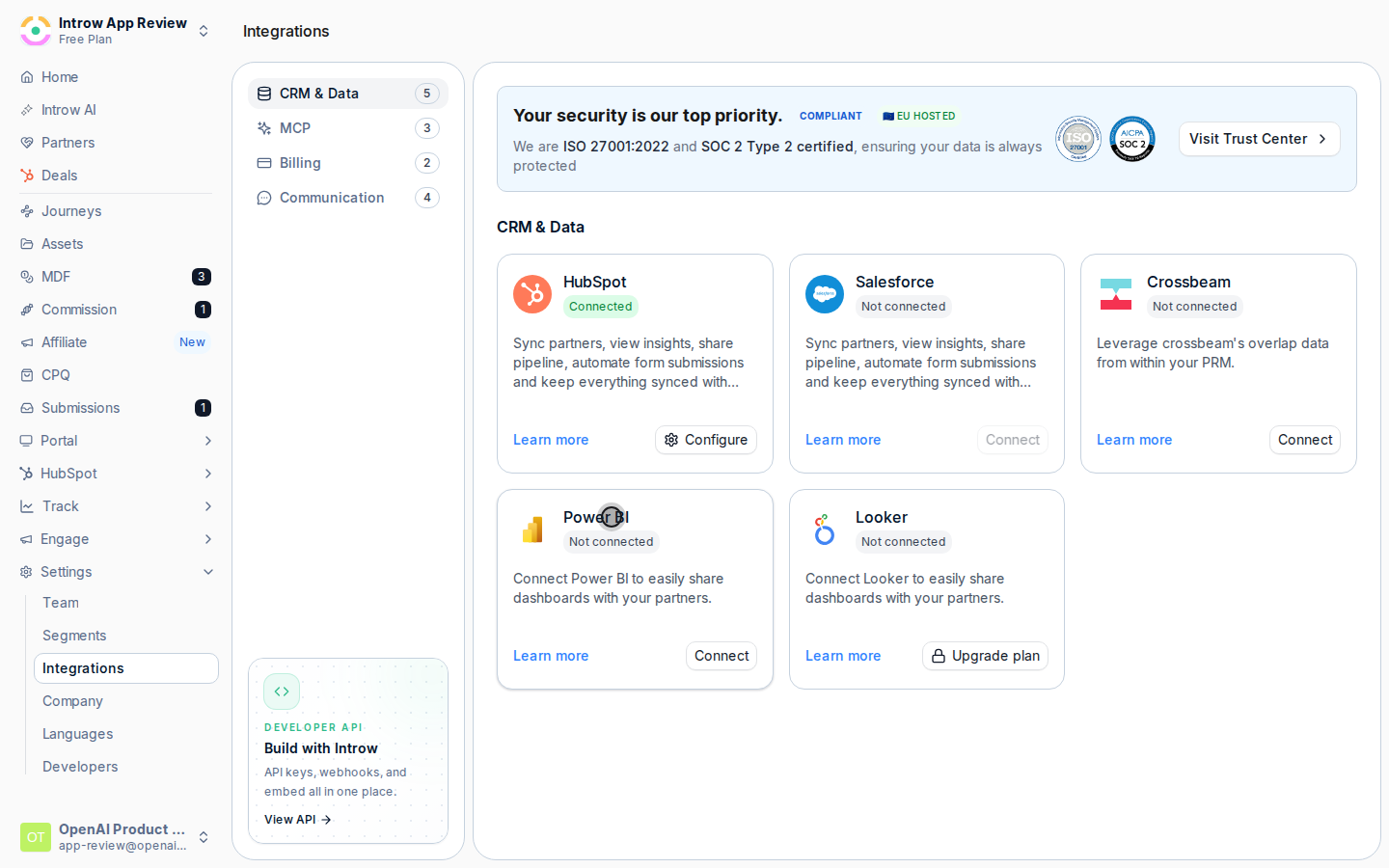
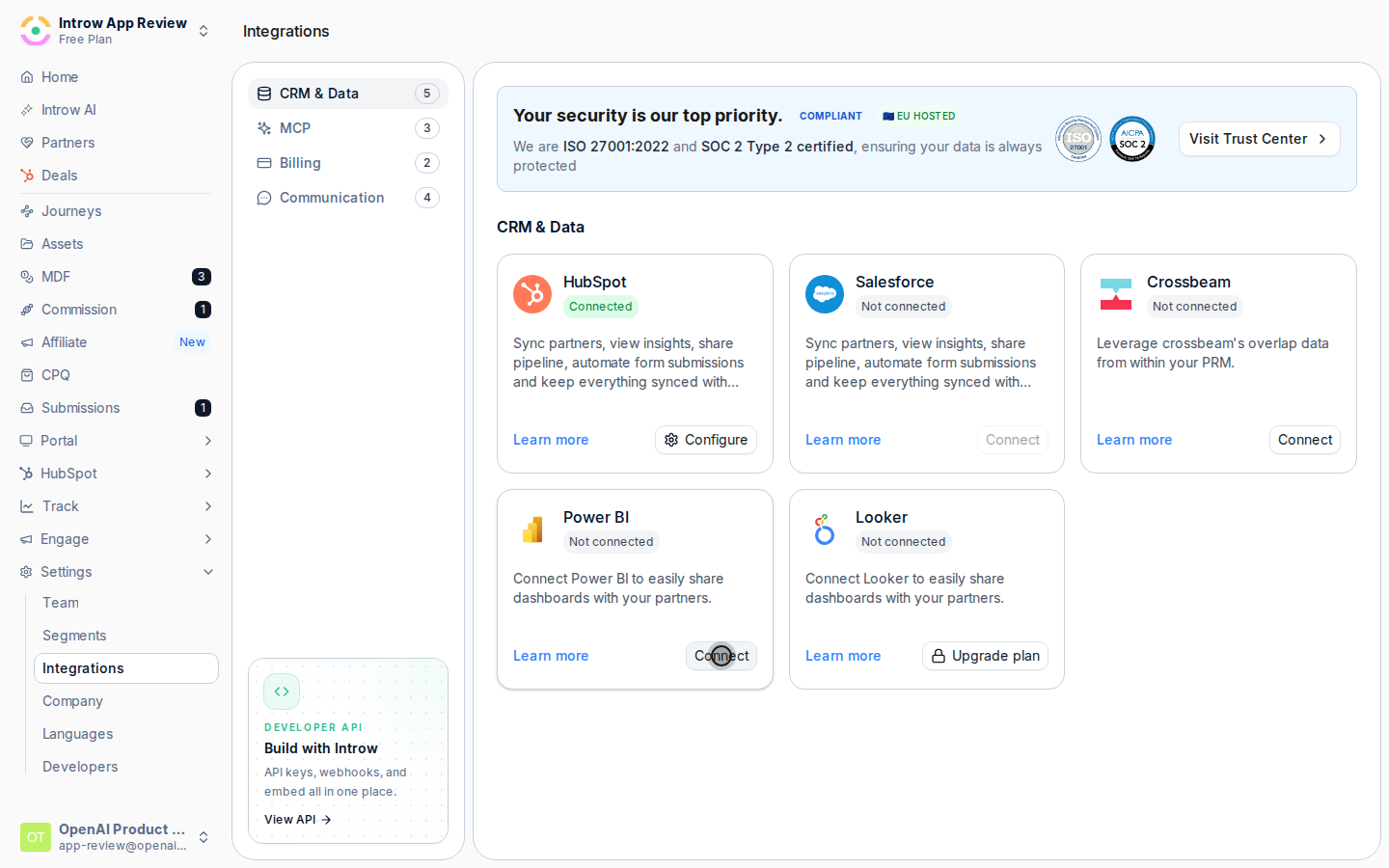
Go to [Integrations](https://app.introw.io/settings/integrations) and open the Power BI card.
 In the **Power BI Integration** dialog, under **Credentials**, fill in the service principal details.
* **Tenant ID** - your Azure tenant ID.
* **Client ID** - the application (service principal) client ID.
* **Client Secret** - the application client secret.
In the **Power BI Integration** dialog, under **Credentials**, fill in the service principal details.
* **Tenant ID** - your Azure tenant ID.
* **Client ID** - the application (service principal) client ID.
* **Client Secret** - the application client secret.
 Choose **Save Configuration**. Introw tests the connection as it saves, confirming it can list workspaces and access your reports and dashboards. If the test fails, recheck the credentials and the service principal's workspace access.
### Register a report
On the Power BI integration page, choose **Add Power BI Report**.
Enter the **Power BI Embed URL** of the report or dashboard you want to use, then add it. It now appears in your list of Power BI embeds, available to place in portals.
### Scope it per partner
Select the registered report or dashboard to open its configuration, where you link each partner to a Power BI role.
For each partner, choose the dataset role that scopes the data to them. For a dashboard, you assign a role per dataset, since a dashboard can draw on several datasets. Selections save as you make them. If no roles are listed, define row-level security roles in Power BI first, then return here.
### Embed it in the portal
Go to the [Experience builder](https://app.introw.io/templates) and open the portal experience your partners see.
Add a **Power BI Dashboard** section to a stage and select the registered report or dashboard to show.
Publish the experience so the embed goes live for partners.
## Verify it worked
Open the portal as different partners and confirm the Power BI report renders, and that each partner sees only their own rows according to the row-level security role you assigned.
## Related
Use Introw dashboards too.
Full configuration options.
Choose **Save Configuration**. Introw tests the connection as it saves, confirming it can list workspaces and access your reports and dashboards. If the test fails, recheck the credentials and the service principal's workspace access.
### Register a report
On the Power BI integration page, choose **Add Power BI Report**.
Enter the **Power BI Embed URL** of the report or dashboard you want to use, then add it. It now appears in your list of Power BI embeds, available to place in portals.
### Scope it per partner
Select the registered report or dashboard to open its configuration, where you link each partner to a Power BI role.
For each partner, choose the dataset role that scopes the data to them. For a dashboard, you assign a role per dataset, since a dashboard can draw on several datasets. Selections save as you make them. If no roles are listed, define row-level security roles in Power BI first, then return here.
### Embed it in the portal
Go to the [Experience builder](https://app.introw.io/templates) and open the portal experience your partners see.
Add a **Power BI Dashboard** section to a stage and select the registered report or dashboard to show.
Publish the experience so the embed goes live for partners.
## Verify it worked
Open the portal as different partners and confirm the Power BI report renders, and that each partner sees only their own rows according to the row-level security role you assigned.
## Related
Use Introw dashboards too.
Full configuration options.