> ## Documentation Index
> Fetch the complete documentation index at: https://docs.introw.io/llms.txt
> Use this file to discover all available pages before exploring further.
# Launch a partner goal
> Set a goal end to end: define what it measures, set targets by tier, assign it to partners, and surface live progress in the partner portal.
> For partner managers who want partners aligned on a clear, measurable target.
A goal gives partners something concrete to work toward, like closing ten deals this quarter, and shows them live progress against it. Launching one is a full job: you define what it measures, set the targets, assign it to partners, and surface it in their portal so they can track themselves without you sending updates. This guide walks the whole arc so a partner ends up seeing their own goal progress in the portal.
## What you'll achieve
A published goal assigned to your partners, with each partner seeing their own live progress toward their target inside the partner portal.
## Before you start
Goal progress is computed from CRM object lists (for example deals) and from Introw certifications, so the relevant objects must be mapped. Partner attribution must be configured for the object so progress can be credited to each partner.
You need goals write access, and your plan must have goal quota available.
If you plan to set targets by tier or segment, define those first so partners fall into the right group.
If your reporting periods do not follow the calendar year, set your fiscal year start in Company settings so quarter and year periods line up with your fiscal calendar. See the [implementation reference](../technical).
## Watch it
## Steps
### Create the goal
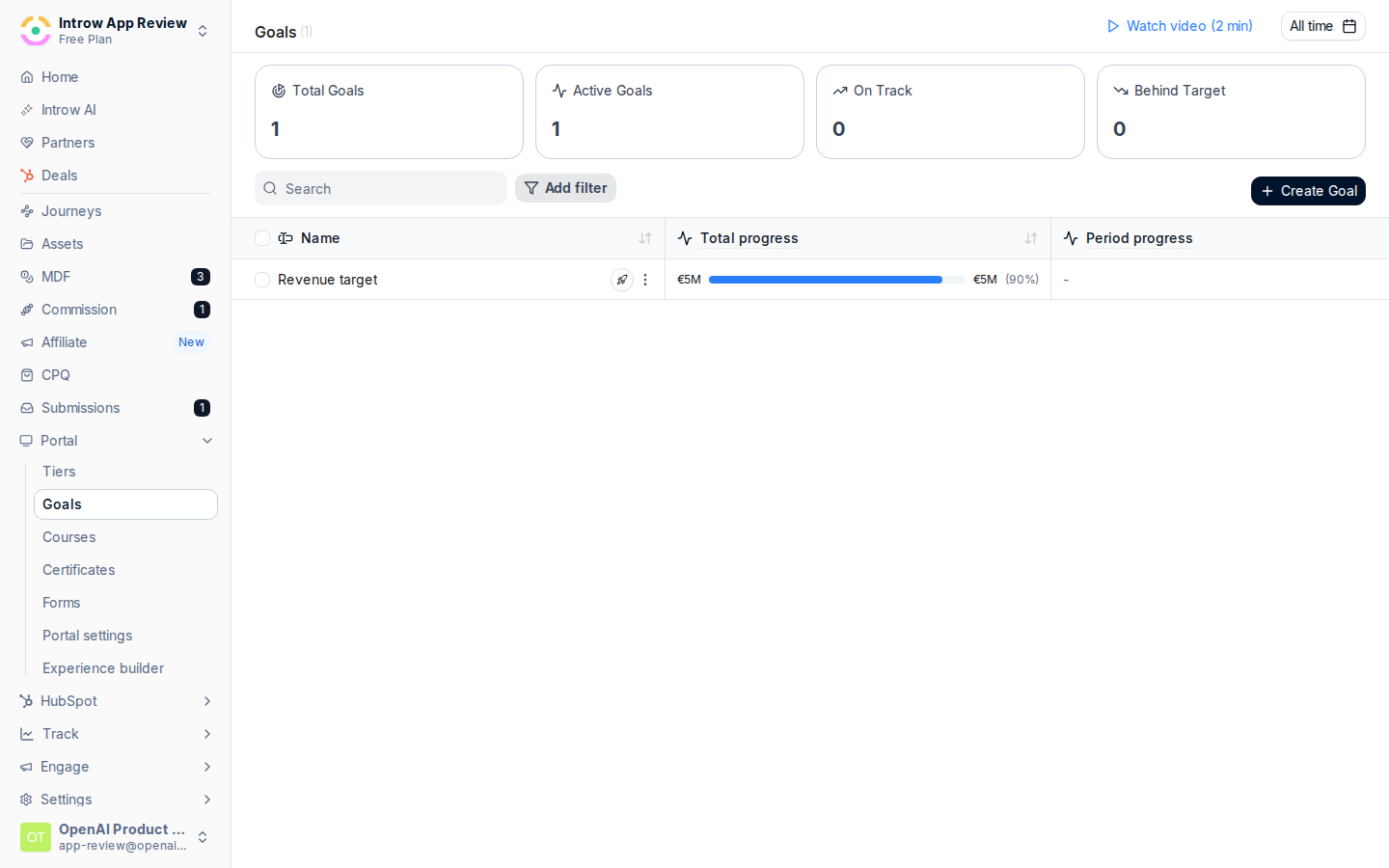
Go to [Goals](https://app.introw.io/settings/goals) and start a new goal. On the create screen, choose **create from scratch** to open the goal builder, which has a **Configure** tab and a **Values** tab with a live preview on the right.
 ### Configure what the goal measures
On the **Configure** tab, define the metric. The preview updates as you go.
* **Name** - what partners see, for example "Closed-won deals". Make it specific.
* **Description** - a short line of context, for example "Close 10 deals this quarter", so the intent is clear in the portal.
### Configure what the goal measures
On the **Configure** tab, define the metric. The preview updates as you go.
* **Name** - what partners see, for example "Closed-won deals". Make it specific.
* **Description** - a short line of context, for example "Close 10 deals this quarter", so the intent is clear in the portal.
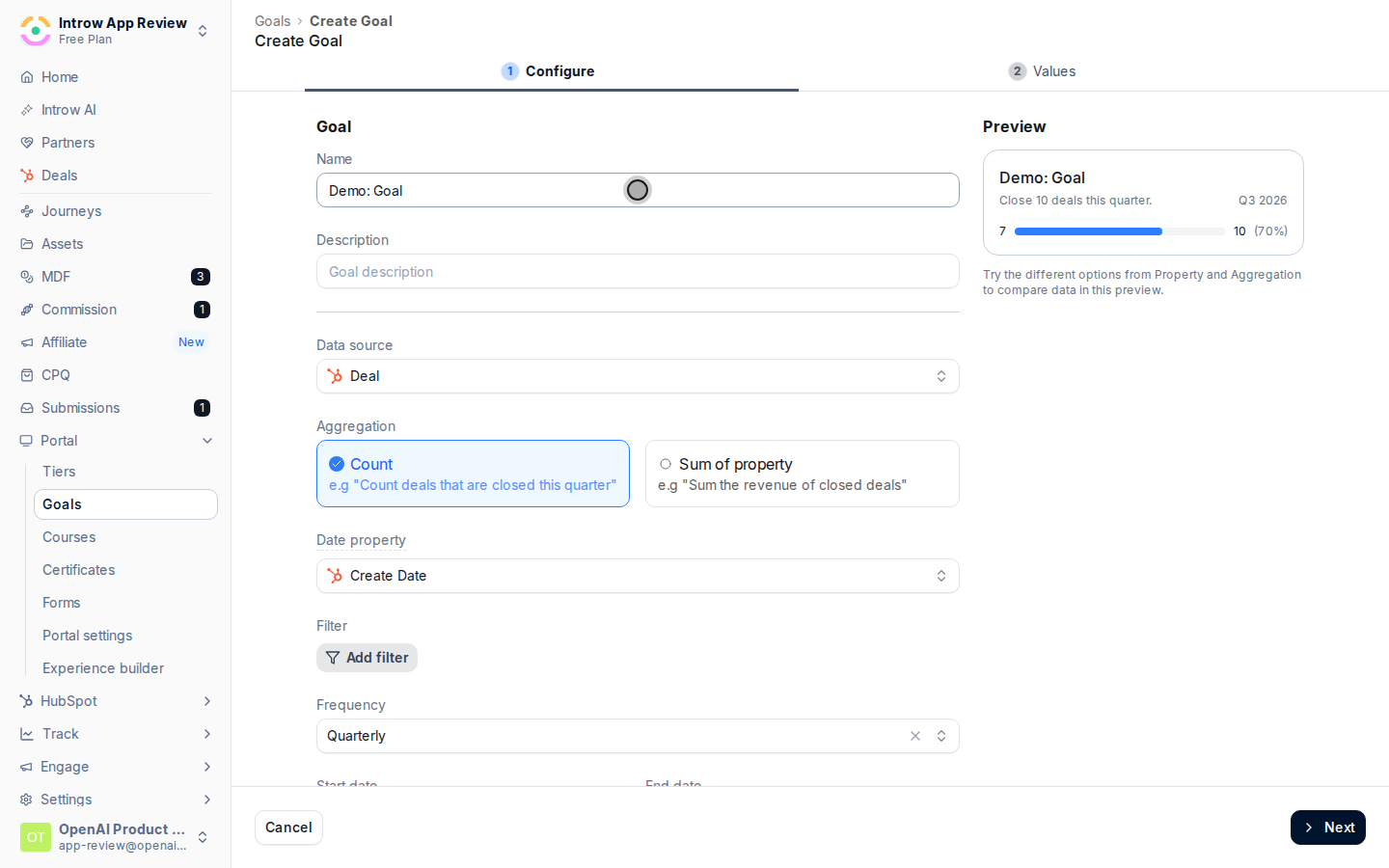 * **Data source** - the object the goal counts. Pick a CRM object that has partner attribution (such as deals) or **Introw certificates** to track certifications. This drives the rest of the form, so set it first.
* **Attribution** - shown only when the object has more than one partner attribution method. Choose which attribution counts toward the goal, or leave it on all methods.
* **Data source** - the object the goal counts. Pick a CRM object that has partner attribution (such as deals) or **Introw certificates** to track certifications. This drives the rest of the form, so set it first.
* **Attribution** - shown only when the object has more than one partner attribution method. Choose which attribution counts toward the goal, or leave it on all methods.
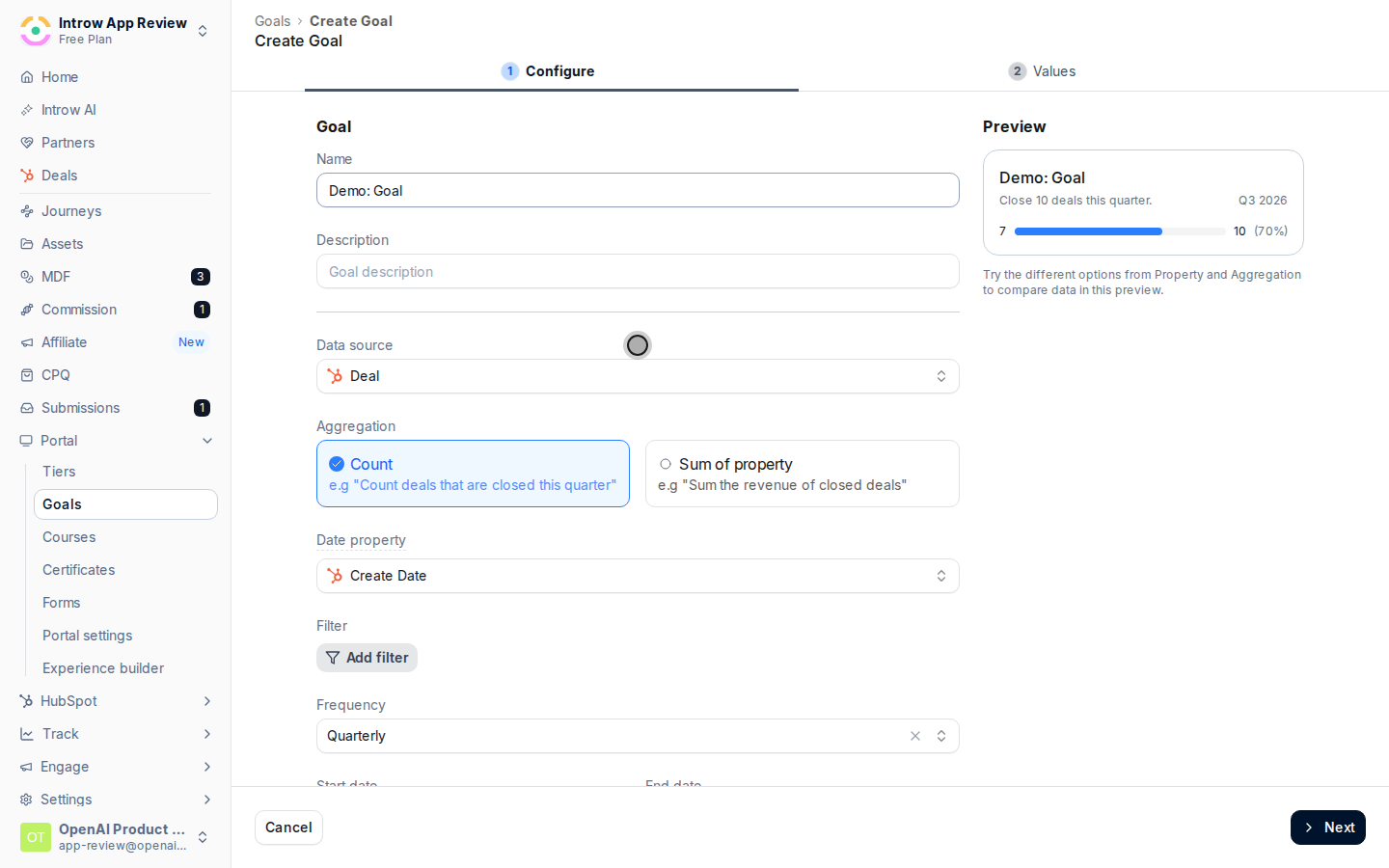 * **Aggregation** - **Count** to count records (for example number of deals), or **Sum of property** to total a numeric value.
* **Aggregation property** - shown only for **Sum of property**: the numeric or currency property to sum, for example deal amount. Certificate goals are always a count.
* **Date property** - for recurring goals on a CRM object, the date field used to place each record into a period (for example created date or close date). Required for monthly, quarterly, and yearly goals; not used for one-time goals or certificate goals.
* **Filters** - narrow which records count, for example only deals in a closed-won stage, so the goal measures exactly what you intend.
* **Frequency** - **One Time**, **Monthly**, **Quarterly**, or **Yearly**. This sets whether partners have a single target or a recurring target each period.
* **Start date** and **End date** - the window the goal runs over. Together with the frequency, these define the periods partners are measured against.
### Set the targets
Switch to the **Values** tab to decide who is measured and against what numbers.
* **Target Type** - how targets are assigned:
* **Tier based** - one target per tier, so all partners in a tier share the same goal. This is the most common setup for a structured program.
* **Partner based** - a target per partner, for individual goals you can fine-tune later.
* **Segment based** - one target for a segment of partners.
* **Tier plan** (tier based) or **Segment** (segment based) - the tier plan or segment whose groups receive targets.
A table appears with a column per period and a row per tier, partner, or segment. Enter the target value each group should reach in each period, for example 10 closed-won deals per quarter. These numbers are what progress is measured against.
Save. The goal is created and Introw opens its detail page, where you assign it to partners next.
### Assign the goal to partners
A goal only reaches partners once it is assigned to them. Assigning is what makes a partner's progress appear in their portal.
On the goal's detail page, select **Assign to partners**. (It also opens automatically right after you save a new goal.)
In the **Assign your goal to your partners** dialog, filter by tier, experience, or owner if needed, then select the partners who should receive the goal. Partners who already have it stay selected.
Choose **Assign Goal**. Each selected partner now has the goal and a target, and Introw starts tracking their progress from the CRM and certification data.
### Show the goal in the portal
To let partners see their own progress, add a Goals section to a portal experience.
Go to the [Experience builder](https://app.introw.io/templates) and open the portal experience your partners see.
Add a **Goals** section to a stage. This is the block that renders partner goal progress.
Open **Goals settings** and, under **Configure goals**, toggle on the goals you want to surface. Only goals that are assigned to a partner appear for them, so each partner sees just their own goals and targets. Optionally adjust which object properties show for each goal, then choose **Save**.
Publish the experience so the Goals section goes live for partners.
## Verify it worked
Open the portal as an assigned partner and confirm the Goals section shows their goal with a live progress bar against their target. Back on the goal's detail page, partners are grouped by status (on track, at risk, achieved), and you can select partners and use **Nudge** to prompt anyone falling behind.
## Related
See goal progress alongside revenue.
Add deal metrics next to goals.
Full configuration options.
* **Aggregation** - **Count** to count records (for example number of deals), or **Sum of property** to total a numeric value.
* **Aggregation property** - shown only for **Sum of property**: the numeric or currency property to sum, for example deal amount. Certificate goals are always a count.
* **Date property** - for recurring goals on a CRM object, the date field used to place each record into a period (for example created date or close date). Required for monthly, quarterly, and yearly goals; not used for one-time goals or certificate goals.
* **Filters** - narrow which records count, for example only deals in a closed-won stage, so the goal measures exactly what you intend.
* **Frequency** - **One Time**, **Monthly**, **Quarterly**, or **Yearly**. This sets whether partners have a single target or a recurring target each period.
* **Start date** and **End date** - the window the goal runs over. Together with the frequency, these define the periods partners are measured against.
### Set the targets
Switch to the **Values** tab to decide who is measured and against what numbers.
* **Target Type** - how targets are assigned:
* **Tier based** - one target per tier, so all partners in a tier share the same goal. This is the most common setup for a structured program.
* **Partner based** - a target per partner, for individual goals you can fine-tune later.
* **Segment based** - one target for a segment of partners.
* **Tier plan** (tier based) or **Segment** (segment based) - the tier plan or segment whose groups receive targets.
A table appears with a column per period and a row per tier, partner, or segment. Enter the target value each group should reach in each period, for example 10 closed-won deals per quarter. These numbers are what progress is measured against.
Save. The goal is created and Introw opens its detail page, where you assign it to partners next.
### Assign the goal to partners
A goal only reaches partners once it is assigned to them. Assigning is what makes a partner's progress appear in their portal.
On the goal's detail page, select **Assign to partners**. (It also opens automatically right after you save a new goal.)
In the **Assign your goal to your partners** dialog, filter by tier, experience, or owner if needed, then select the partners who should receive the goal. Partners who already have it stay selected.
Choose **Assign Goal**. Each selected partner now has the goal and a target, and Introw starts tracking their progress from the CRM and certification data.
### Show the goal in the portal
To let partners see their own progress, add a Goals section to a portal experience.
Go to the [Experience builder](https://app.introw.io/templates) and open the portal experience your partners see.
Add a **Goals** section to a stage. This is the block that renders partner goal progress.
Open **Goals settings** and, under **Configure goals**, toggle on the goals you want to surface. Only goals that are assigned to a partner appear for them, so each partner sees just their own goals and targets. Optionally adjust which object properties show for each goal, then choose **Save**.
Publish the experience so the Goals section goes live for partners.
## Verify it worked
Open the portal as an assigned partner and confirm the Goals section shows their goal with a live progress bar against their target. Back on the goal's detail page, partners are grouped by status (on track, at risk, achieved), and you can select partners and use **Nudge** to prompt anyone falling behind.
## Related
See goal progress alongside revenue.
Add deal metrics next to goals.
Full configuration options.