> ## Documentation Index
> Fetch the complete documentation index at: https://docs.introw.io/llms.txt
> Use this file to discover all available pages before exploring further.
# Add a partner profile section
> Show each logged-in partner their own details, tier, and key information inside a portal experience.
> For partner marketing personalizing the portal to each partner.
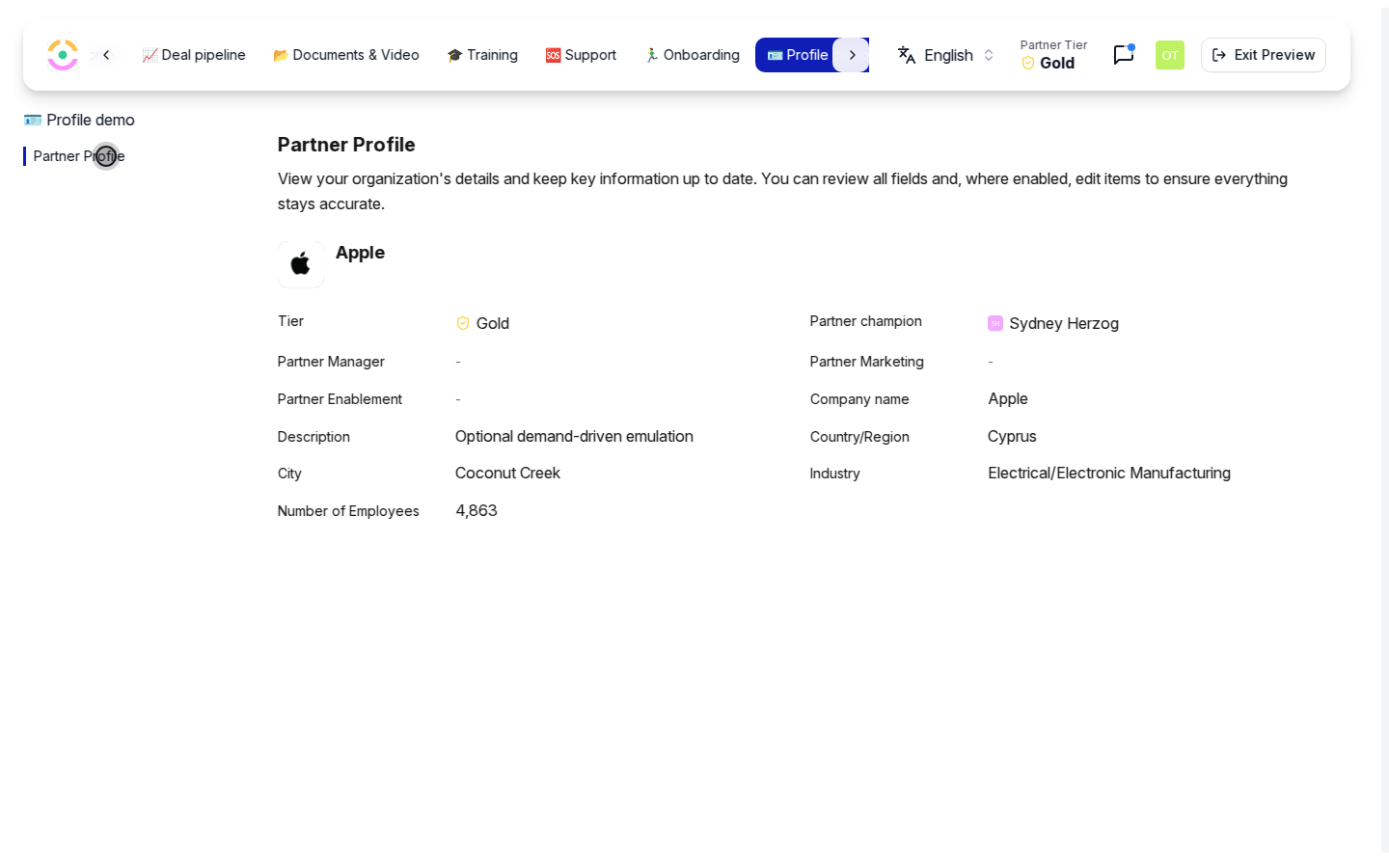
A generic portal feels like a brochure; a personal one feels like a relationship. The partner profile section is a smart block that shows the logged-in partner their own details, such as tier and key information, so the portal reflects who they are and where they stand. This guide adds it to an experience.
## What you'll achieve
A profile section in the experience that renders the current partner's own details when they log in, so every partner sees a portal personalized to them rather than the same static page.
## Before you start
You need write access to experiences to edit a stage.
The section shows what is on the partner record, so make sure the details you want to surface, such as tier, are populated for your partners.
## Watch it
## Steps
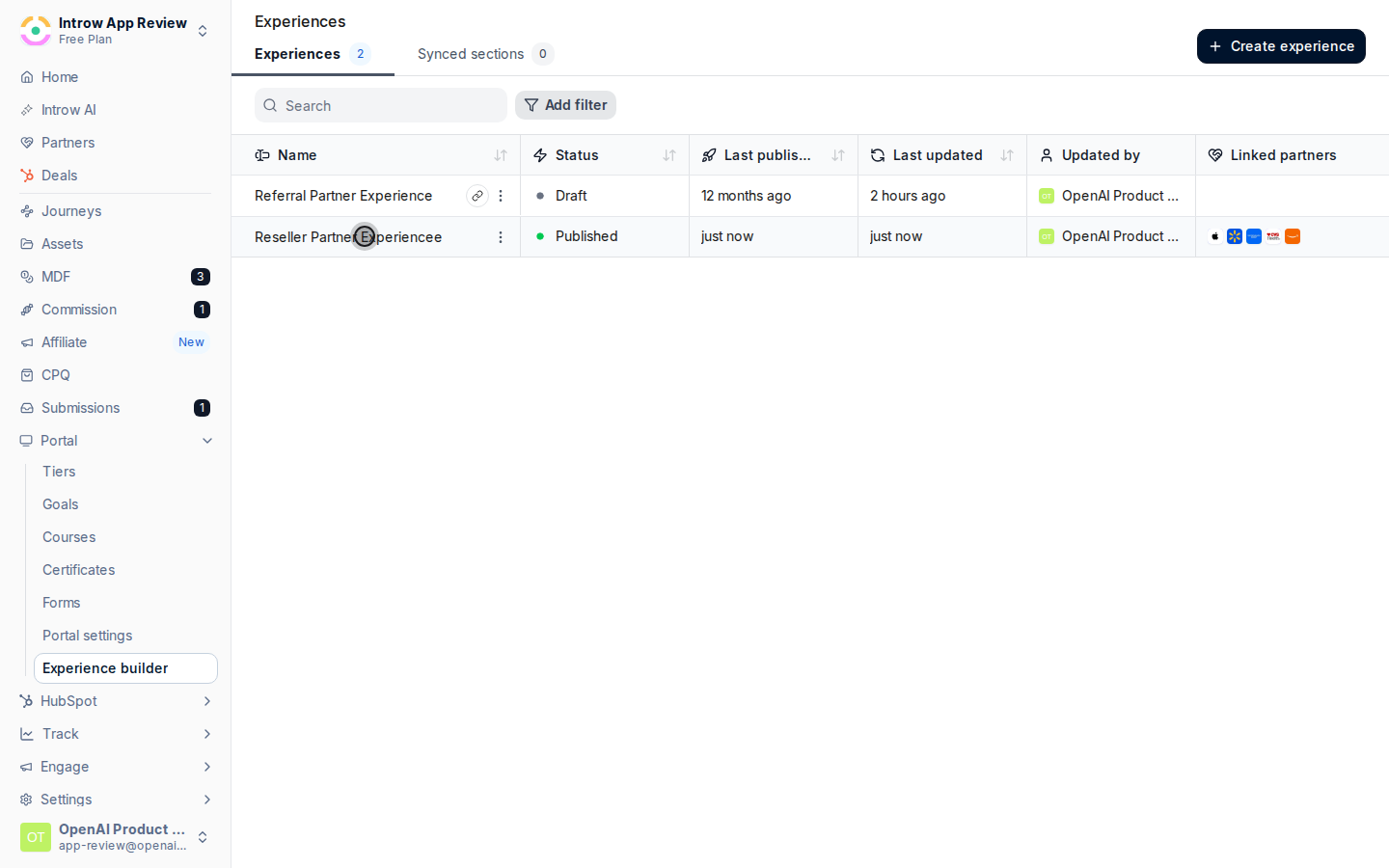
Go to [Experiences](https://app.introw.io/templates) and open the experience you want to personalize.
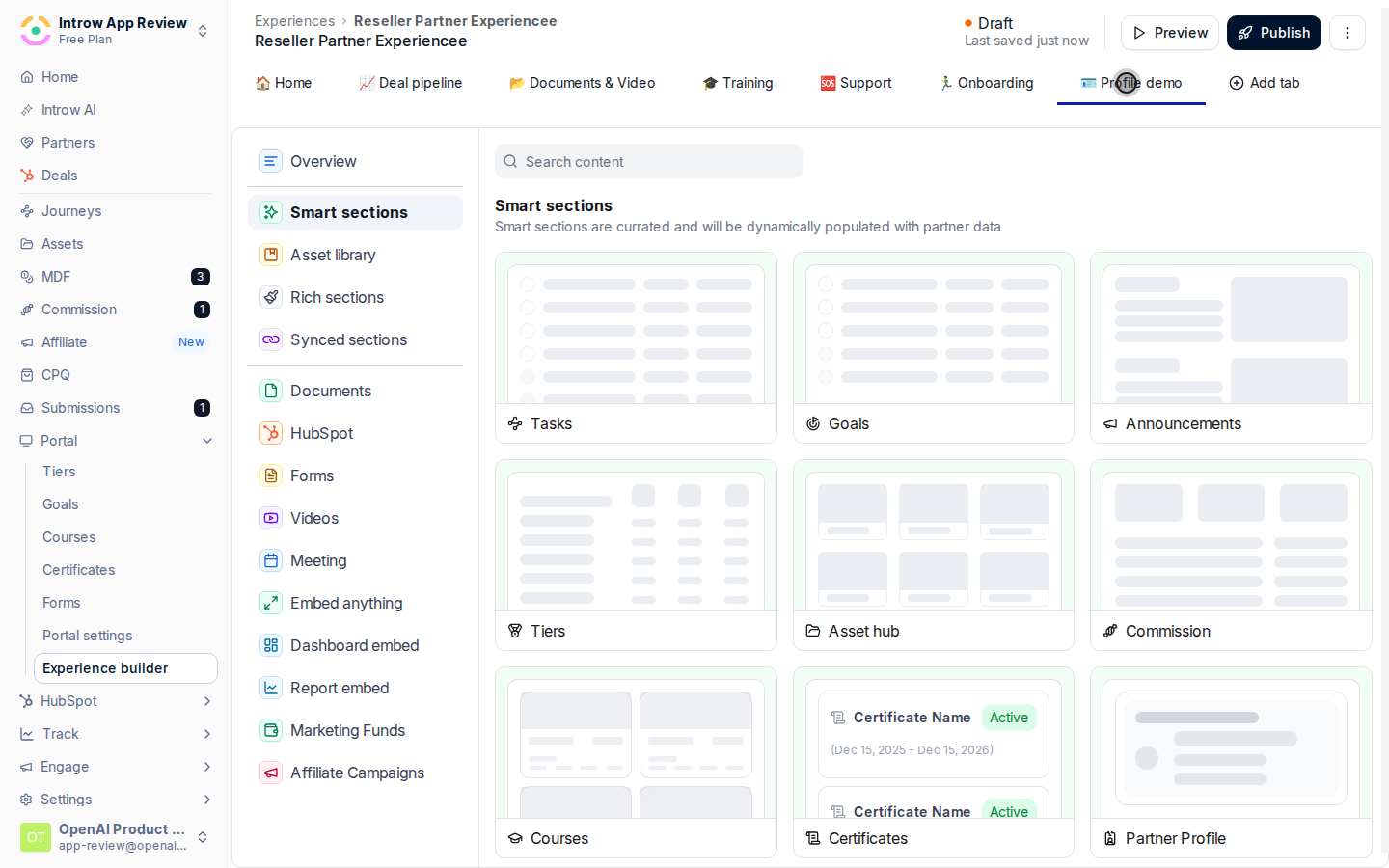
 On the stage where you want it, add a section from the picker and choose **Partner profile** from the smart sections. Because it is a smart section, it renders each viewer's own data automatically rather than a fixed value. Place it near the top of the home tab so partners see their status first.
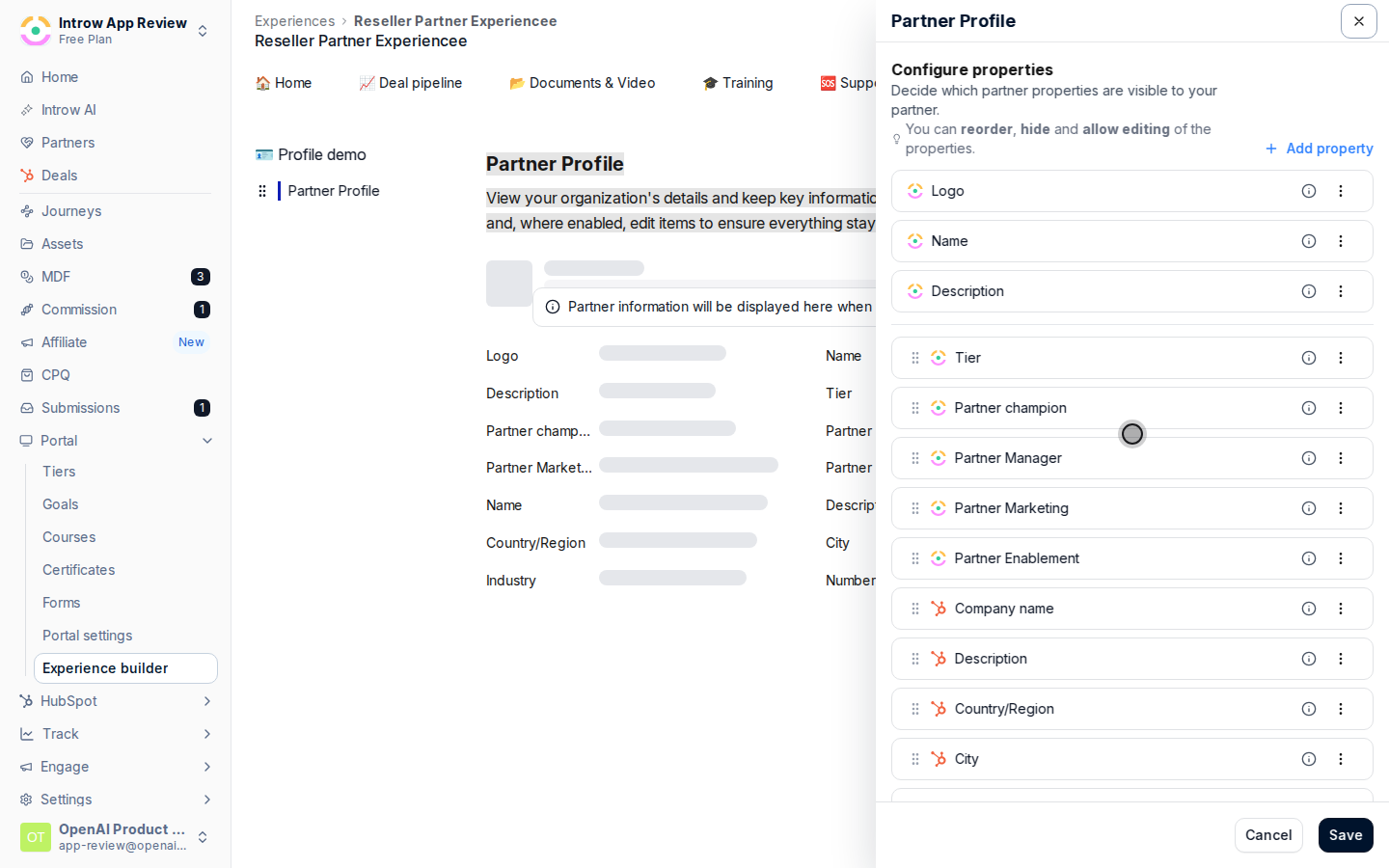
 The section reflects the partner record, so confirm the details you want partners to see, such as their tier, are present on their records. Pair it with a Tiers section if you want their tier status shown prominently.
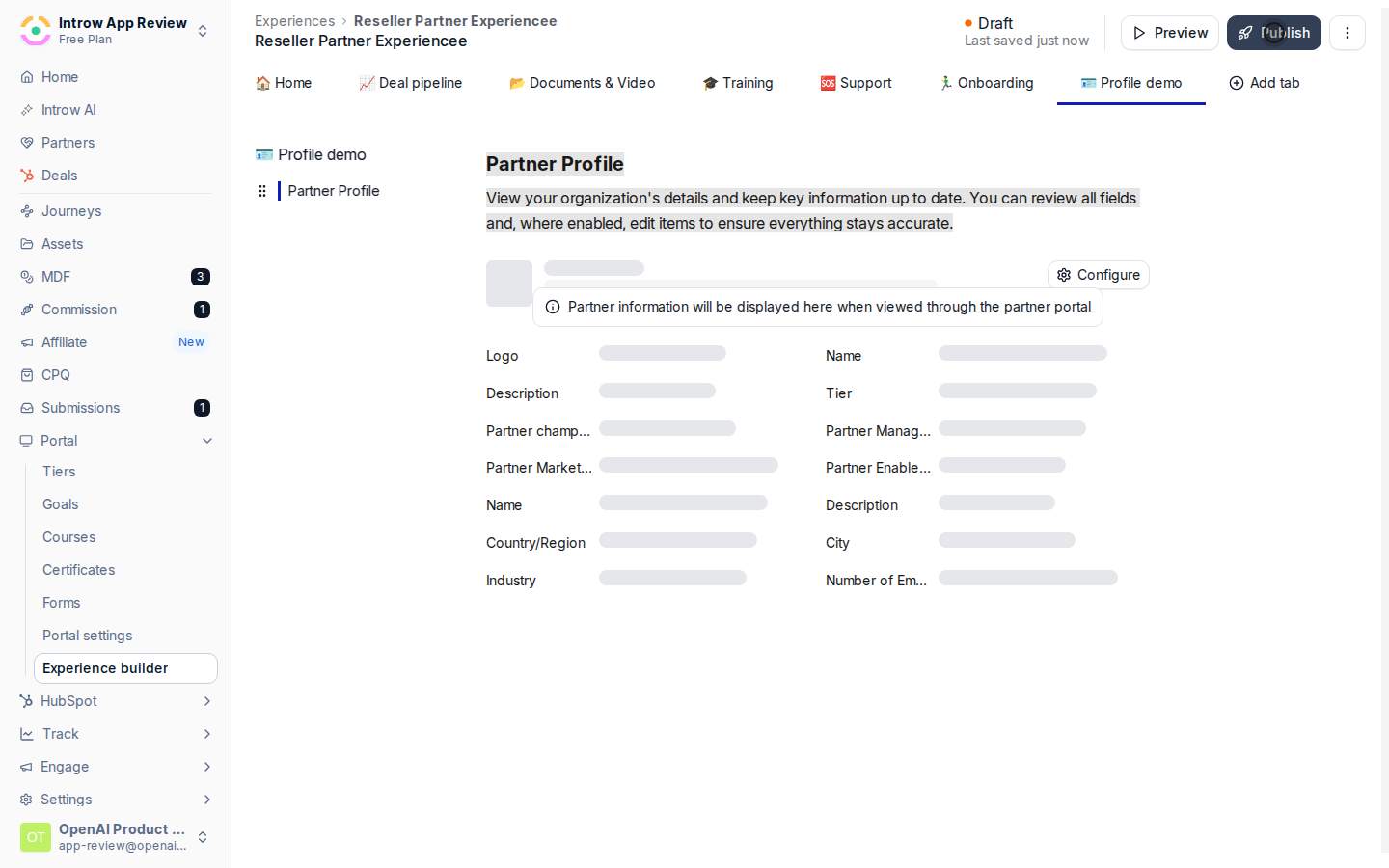
 Preview to confirm the section reads correctly, then publish the experience so linked partners see their profile.
 ## Verify it worked
A logged-in partner sees their own profile details in the experience, and a different partner sees theirs, confirming the section is personalized per viewer rather than showing one fixed record.
## Verify it worked
A logged-in partner sees their own profile details in the experience, and a different partner sees theirs, confirming the section is personalized per viewer rather than showing one fixed record.
 ## Related
Assemble the full experience around the profile.
Show tier status alongside the profile.
Full experience configuration options.
## Related
Assemble the full experience around the profile.
Show tier status alongside the profile.
Full experience configuration options.