> ## Documentation Index
> Fetch the complete documentation index at: https://docs.introw.io/llms.txt
> Use this file to discover all available pages before exploring further.
# Brand email notifications
> Make the emails partners receive carry your logo and colors so off-portal messages still look like your product.
> For partner marketing keeping the brand consistent in the inbox, where a lot of partner attention lives.
A lot of partner engagement happens off-portal, in email. Announcements, invites, and notifications all arrive as emails, and when those carry your logo and colors they reinforce that the program is yours. This guide sets the email branding so every outbound message matches the portal partners already know.
## What you'll achieve
Partner emails that render with your horizontal logo and brand colors on the header, buttons, and background, consistent with the portal. Every announcement, invite, and notification looks like it came from your product.
## Before you start
You need admin access to portal settings to set email branding.
Emails reuse the logo and colors from your brand setup, so set those first. See [Brand the partner portal](./brand-the-partner-portal).
## Watch it
## Steps
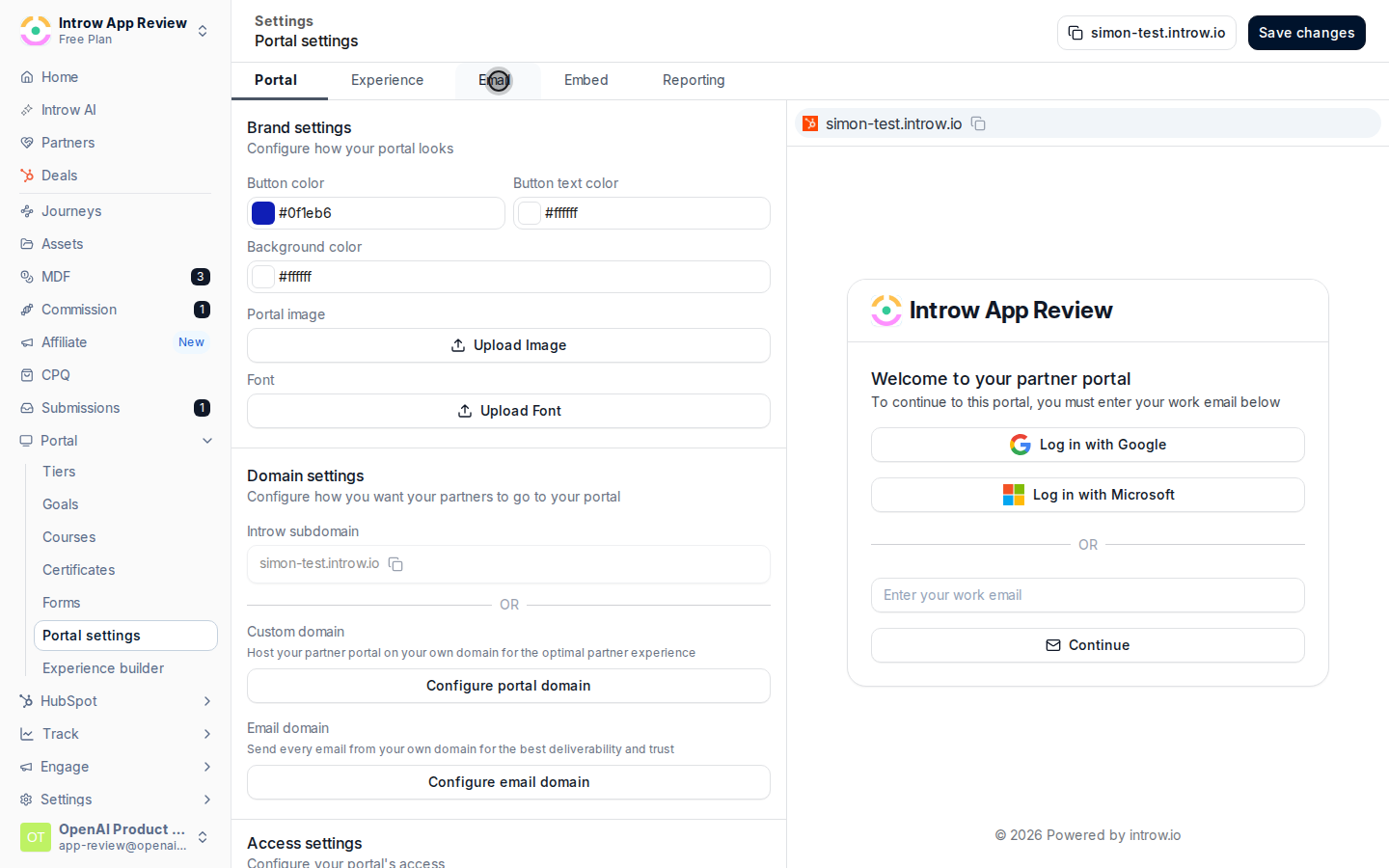
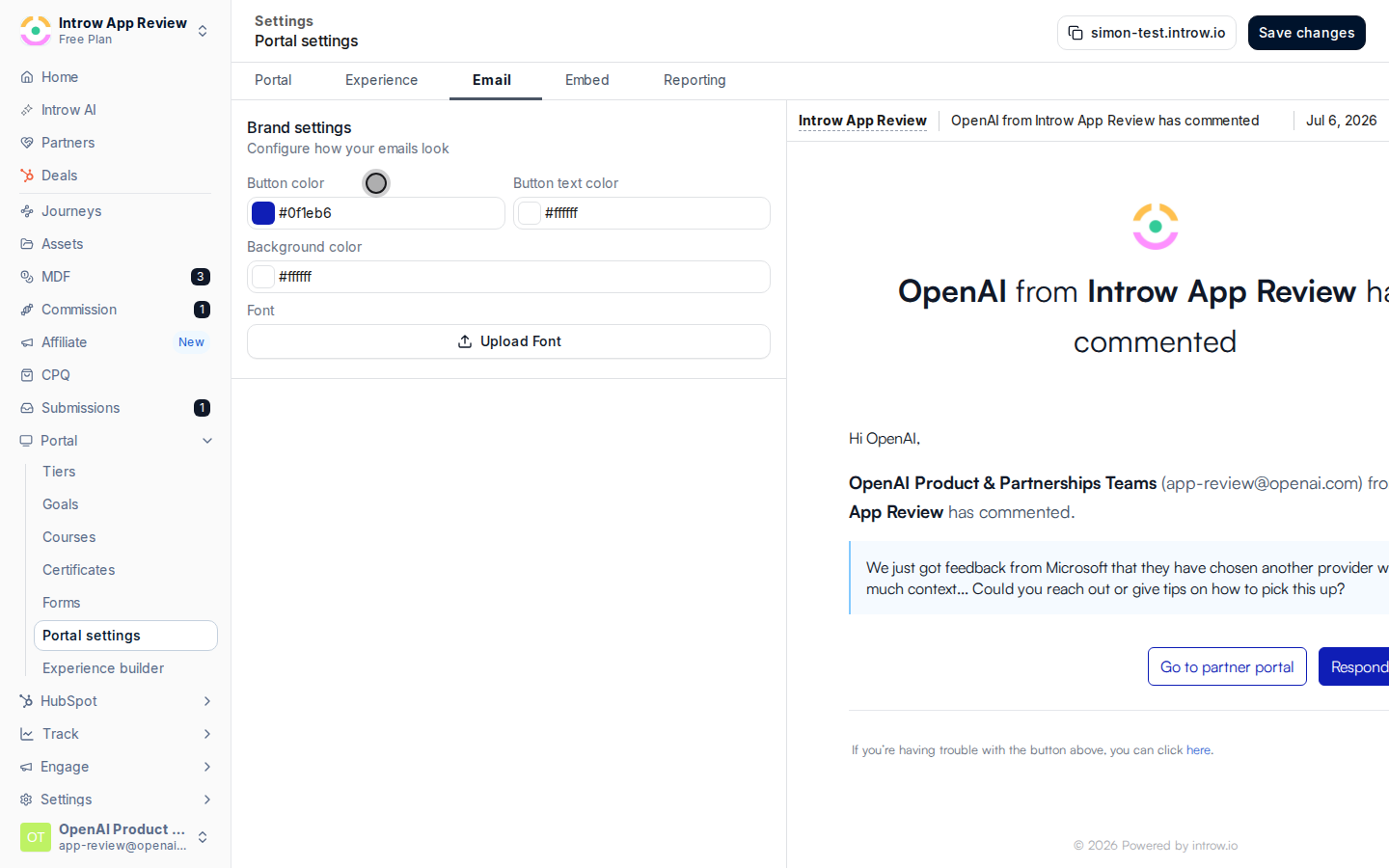
Go to [Portal settings](https://app.introw.io/settings/portal) and switch to the **Email** branding tab. A preview of a sample partner email updates as you change each value.
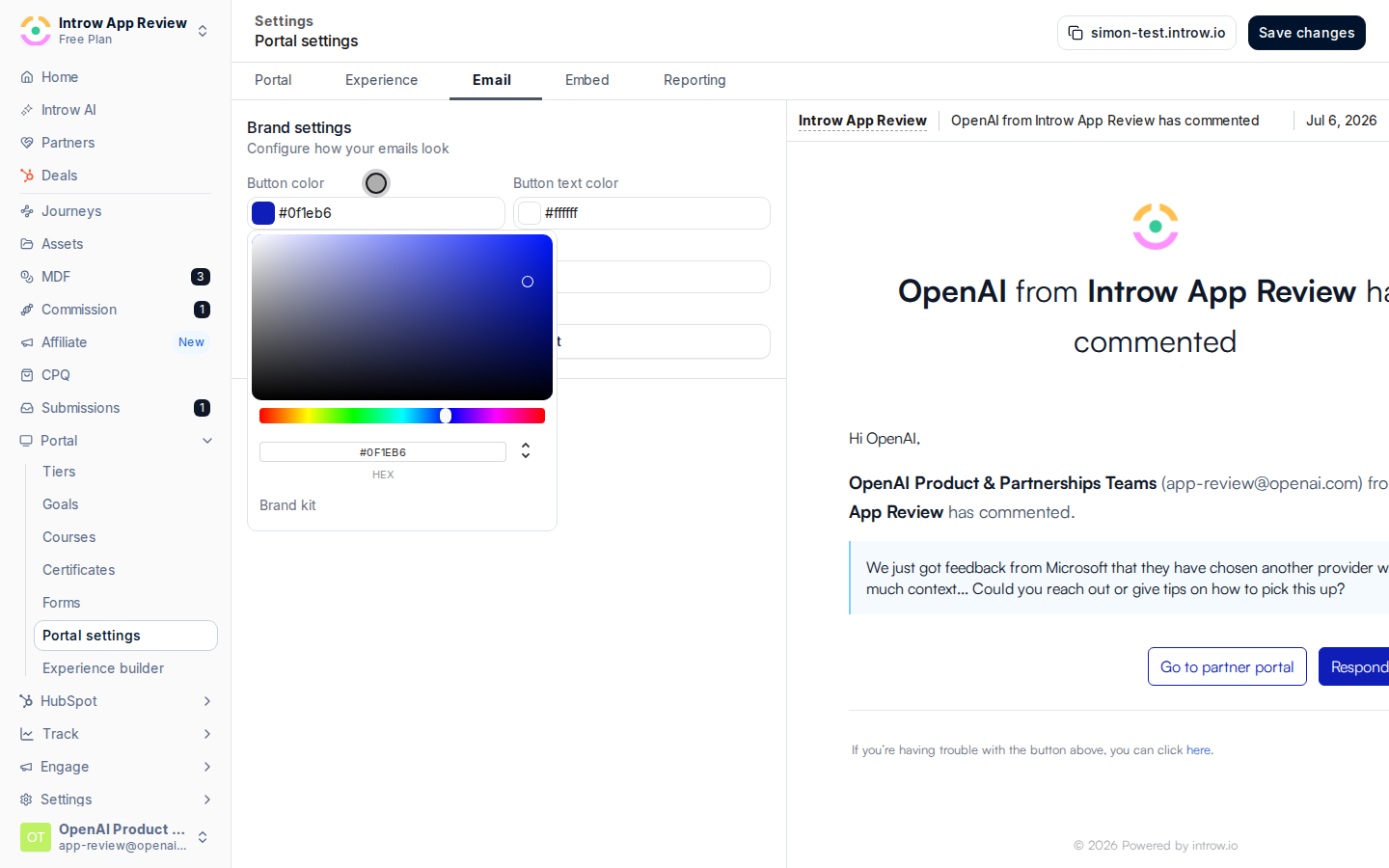
 Set the colors that style the email template, each chosen with a color picker or a hex code:
* **Button color** - the fill of action buttons inside emails, such as the link to open an announcement. Use your primary brand color so the call to action stands out in the inbox.
* **Button text color** - the label color on those buttons; pick a value with strong contrast so it stays readable.
* **Background color** - the background of the email body. Keep it light so the logo and text remain legible across email clients.
Set the colors that style the email template, each chosen with a color picker or a hex code:
* **Button color** - the fill of action buttons inside emails, such as the link to open an announcement. Use your primary brand color so the call to action stands out in the inbox.
* **Button text color** - the label color on those buttons; pick a value with strong contrast so it stays readable.
* **Background color** - the background of the email body. Keep it light so the logo and text remain legible across email clients.
 Trigger or preview a partner email, such as an announcement, and open it in a real inbox. Email clients render differently from the in-app preview, so confirm the logo, colors, and buttons look right where partners actually read them.
 ## Verify it worked
A partner email opens with your horizontal logo, your colors on the header and buttons, and a background consistent with the portal. The message reads as coming from your brand rather than a generic system notification.
## Related
Set the logo and colors emails inherit.
Send a branded update partners receive by email.
Authenticate a sending domain so branded emails come from your address.
Full branding configuration options.
## Verify it worked
A partner email opens with your horizontal logo, your colors on the header and buttons, and a background consistent with the portal. The message reads as coming from your brand rather than a generic system notification.
## Related
Set the logo and colors emails inherit.
Send a branded update partners receive by email.
Authenticate a sending domain so branded emails come from your address.
Full branding configuration options.