> ## Documentation Index
> Fetch the complete documentation index at: https://docs.introw.io/llms.txt
> Use this file to discover all available pages before exploring further.
# Review announcement engagement
> See who an announcement was sent to, who opened it, and who clicked, then decide who to nudge.
> For partner marketing learning what landed and who to follow up with.
Sending an announcement is only half the job; knowing it was seen is the other half. Engagement data shows who was sent the update, who opened it, and who clicked, so you can follow up with the right partners and learn which kinds of updates resonate. This guide reads that data and turns it into a follow-up.
## What you'll achieve
A clear read on how an announcement performed, sent, opened, and clicked figures down to the partner, and a decision on whether to nudge the partners who have not engaged.
## Before you start
Engagement only accrues after an announcement is published, so send it first. See [Send an announcement](./send-an-announcement).
## Watch it
## Steps
Go to [Announcements](https://app.introw.io/announcements) and open the announcement you want to review.
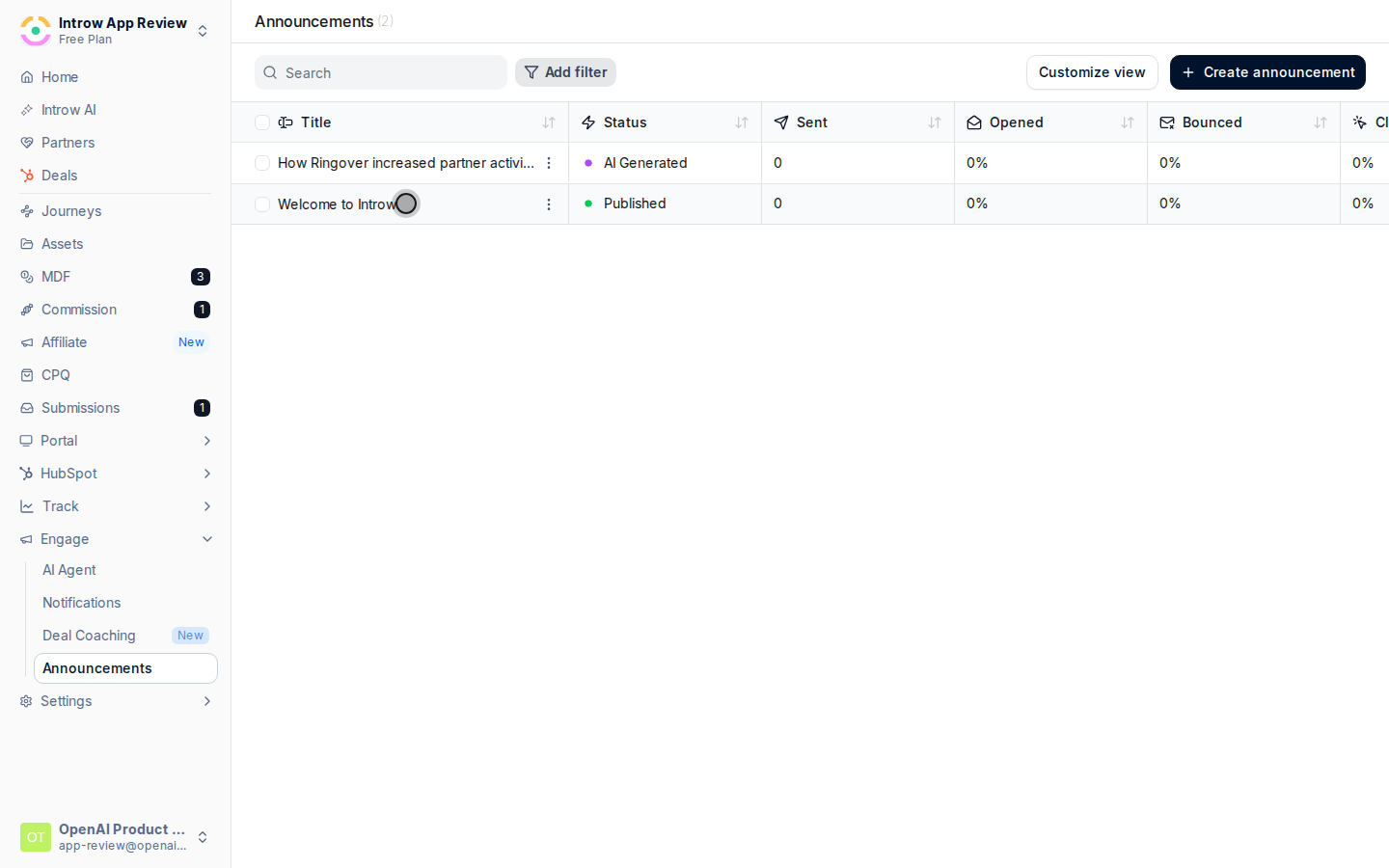 Review who the announcement was **sent** to and who **opened** it. A high sent count with low opens usually points to channel or subject-line issues rather than content.
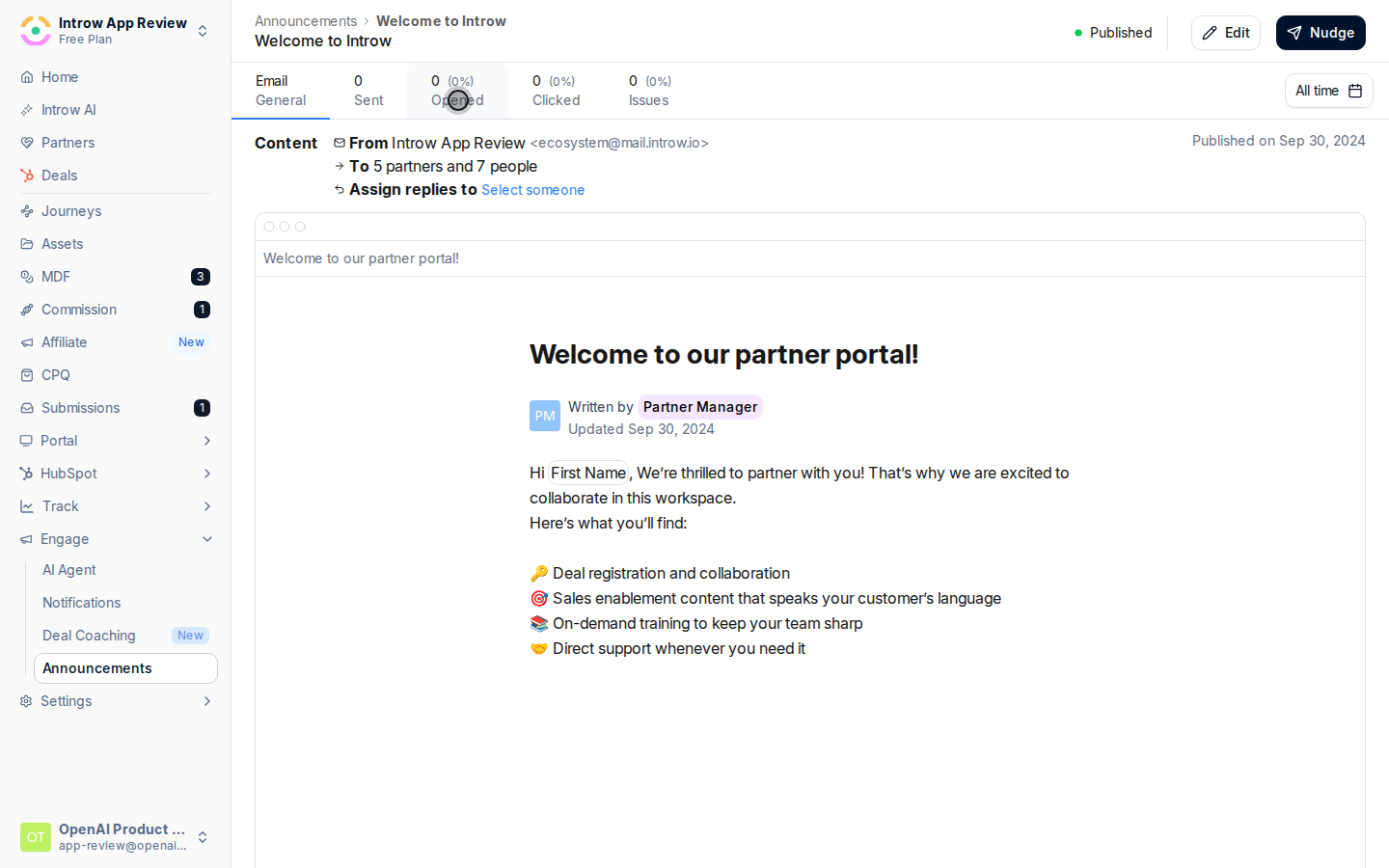 Review who **clicked** the links in the announcement. Clicks are the strongest signal of real engagement, since they show partners acted, not just glanced.
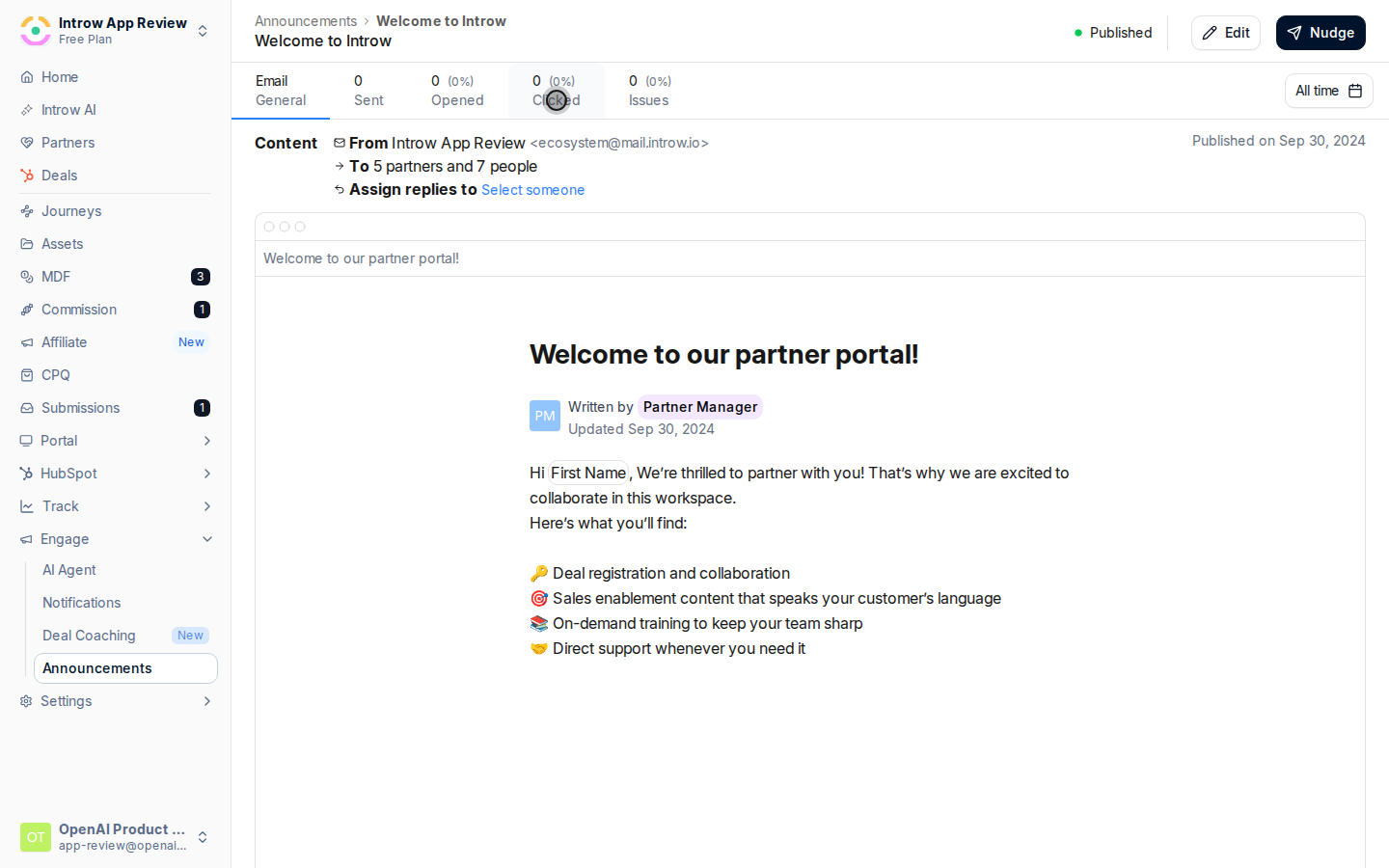 Use the gap between sent and engaged to decide whether to nudge non-responders. Nudging reminds only the partners who have not engaged, so it is a low-cost way to lift reach without spamming everyone.
## Verify it worked
You can see sent, opened, and clicked figures for the announcement and identify the specific partners who have not engaged, ready to nudge.
## Related
Apply what you learned to the next send and nudge non-responders.
Draft the next update quickly.
Full announcement configuration options.
Use the gap between sent and engaged to decide whether to nudge non-responders. Nudging reminds only the partners who have not engaged, so it is a low-cost way to lift reach without spamming everyone.
## Verify it worked
You can see sent, opened, and clicked figures for the announcement and identify the specific partners who have not engaged, ready to nudge.
## Related
Apply what you learned to the next send and nudge non-responders.
Draft the next update quickly.
Full announcement configuration options.