> ## Documentation Index
> Fetch the complete documentation index at: https://docs.introw.io/llms.txt
> Use this file to discover all available pages before exploring further.
# Generate an announcement with AI
> Draft a partner announcement in seconds from a URL or prompt using an AI preset, then refine and send it.
> For partner marketing keeping the portal active without writing every update from scratch.
When you already have the source material, a webinar, a product update, a blog post, AI can turn it into a partner-ready announcement in seconds. You give it a starting point, it drafts the message, and you refine the wording before sending. This keeps partners updated without doubling your writing.
## What you'll achieve
A drafted announcement generated by AI from your source, ready for you to refine, target, and publish, so a piece of content you already produced reaches partners in the portal with minimal extra writing.
## Before you start
You need access to announcements to create one.
Have the link or the key points for the webinar, product update, or post you want to announce.
## Watch it
## Steps
Go to [Announcements](https://app.introw.io/announcements), create a new announcement, and choose to start with AI rather than from scratch.
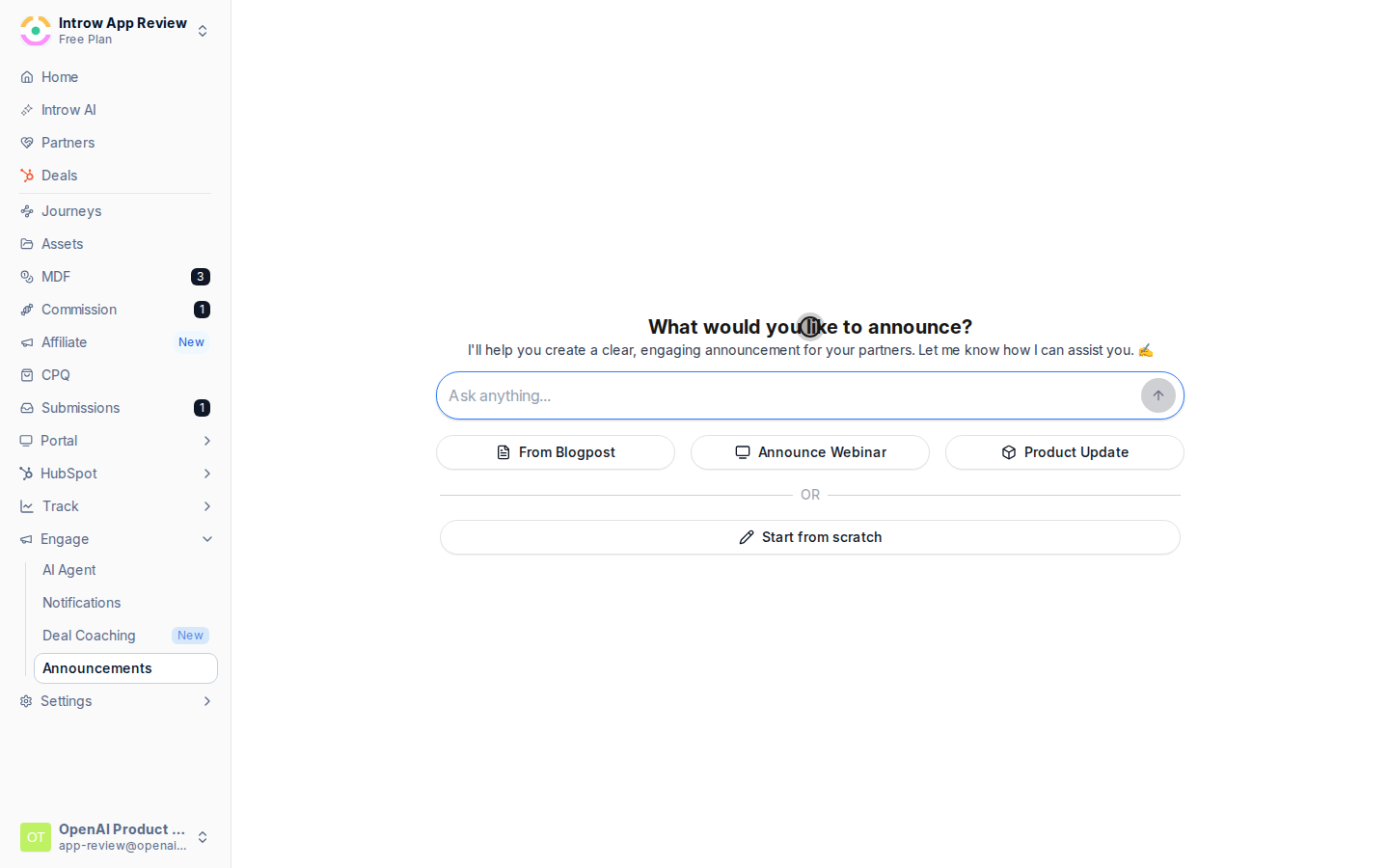 Choose the preset that matches your update so the draft uses the right tone and structure:
* **Webinar** - announce an upcoming or recorded webinar.
* **Product update** - announce a release or new capability.
* **Blog post** - turn a published post into a partner update.
Then provide the source, a URL to the page or a short prompt describing the update, and let AI generate the draft.
Choose the preset that matches your update so the draft uses the right tone and structure:
* **Webinar** - announce an upcoming or recorded webinar.
* **Product update** - announce a release or new capability.
* **Blog post** - turn a published post into a partner update.
Then provide the source, a URL to the page or a short prompt describing the update, and let AI generate the draft.
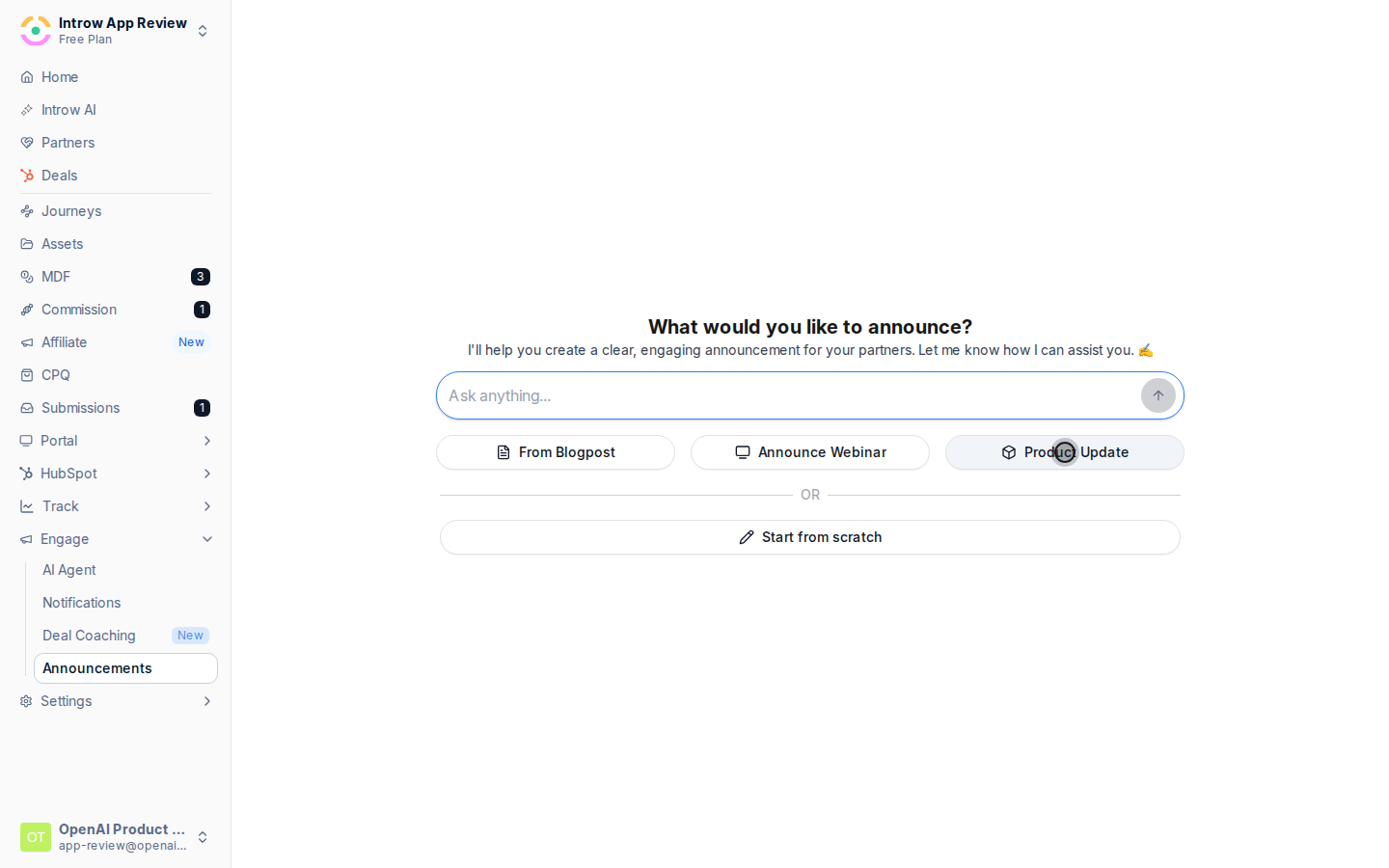 Review the generated announcement and edit it to your voice: tighten the title, adjust the body, and make sure the action you want partners to take is clear. AI gives you a strong starting point, not the final word.
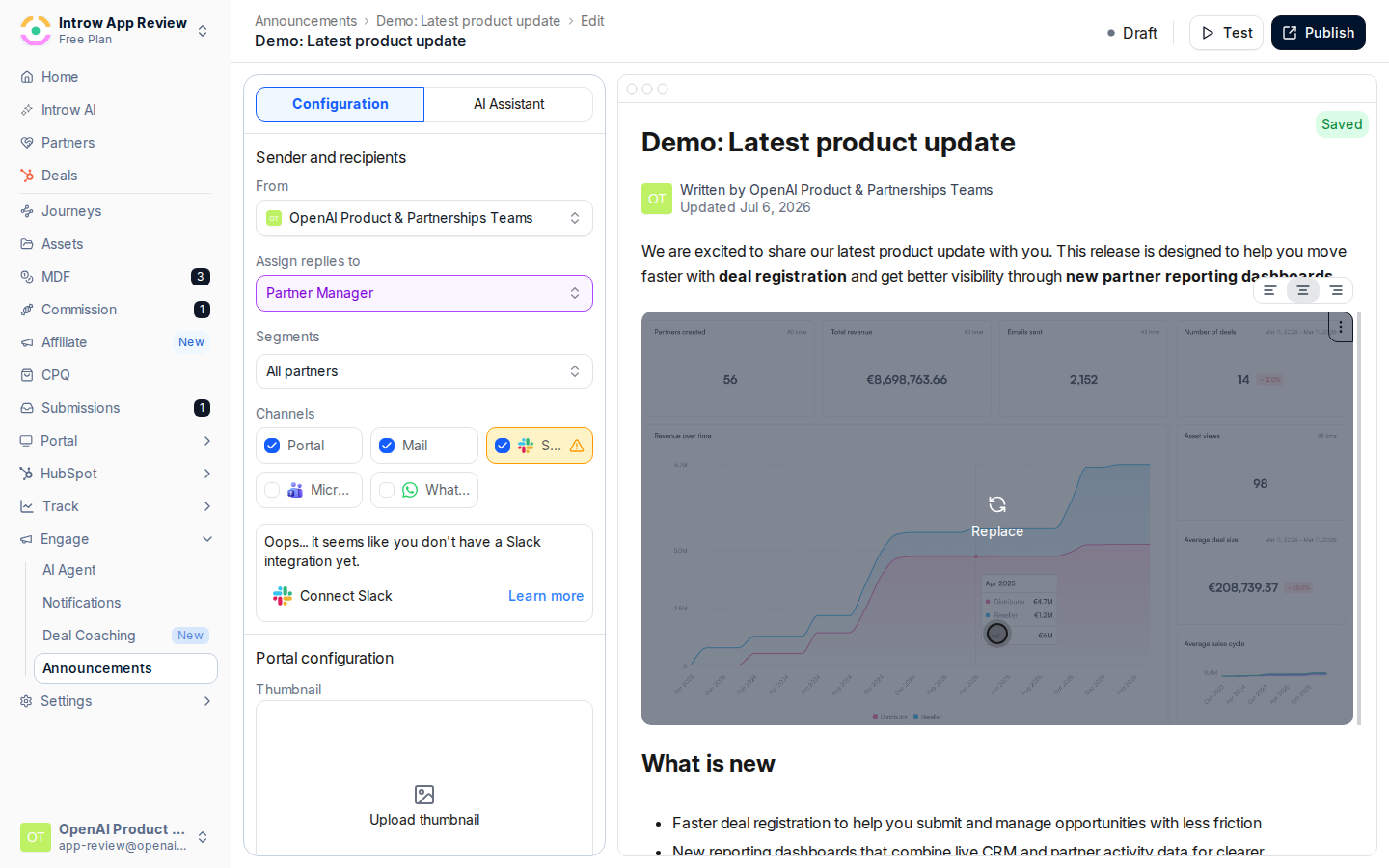 Continue with the rest of the send: set the author and replies, target the right segments, pick channels, and publish. See [Send an announcement](./send-an-announcement) for each of those steps.
## Verify it worked
AI produces an announcement draft from your source that you can edit, and once you target and publish it, it reaches partners exactly like one written from scratch.
## Related
Target, choose channels, and publish the draft.
See how the AI-drafted update performed.
Full announcement configuration options.
Continue with the rest of the send: set the author and replies, target the right segments, pick channels, and publish. See [Send an announcement](./send-an-announcement) for each of those steps.
## Verify it worked
AI produces an announcement draft from your source that you can edit, and once you target and publish it, it reaches partners exactly like one written from scratch.
## Related
Target, choose channels, and publish the draft.
See how the AI-drafted update performed.
Full announcement configuration options.