> ## Documentation Index
> Fetch the complete documentation index at: https://docs.introw.io/llms.txt
> Use this file to discover all available pages before exploring further.
# Build a tier program
> Create a tier program, add ordered tiers with their name, color, badge, and description, and fill each tier's requirements and benefits with text, checkbox, and goal items.
{/* A tier program is the frame your whole ladder hangs on. This guide builds it end to end: create
the program, add the tiers in order with the name, color, badge, and description partners see,
then fill each tier's requirements and benefits so the ladder is concrete, with goal items that
track real progress against a target. The result is a program partners understand, with a clear
top to aim for and clear steps along the way. */}
## What you'll achieve
A complete tier program: ordered tiers each with a visual identity (name, color, badge, description), and requirements and benefits filled in so partners know what it takes to climb and what they unlock, including measurable goals that show live progress.
## Before you start
You need access to tier settings to create programs and tiers.
Have the badge images you want for each tier ready to upload.
## Watch it
## Steps
### Create the program and tiers
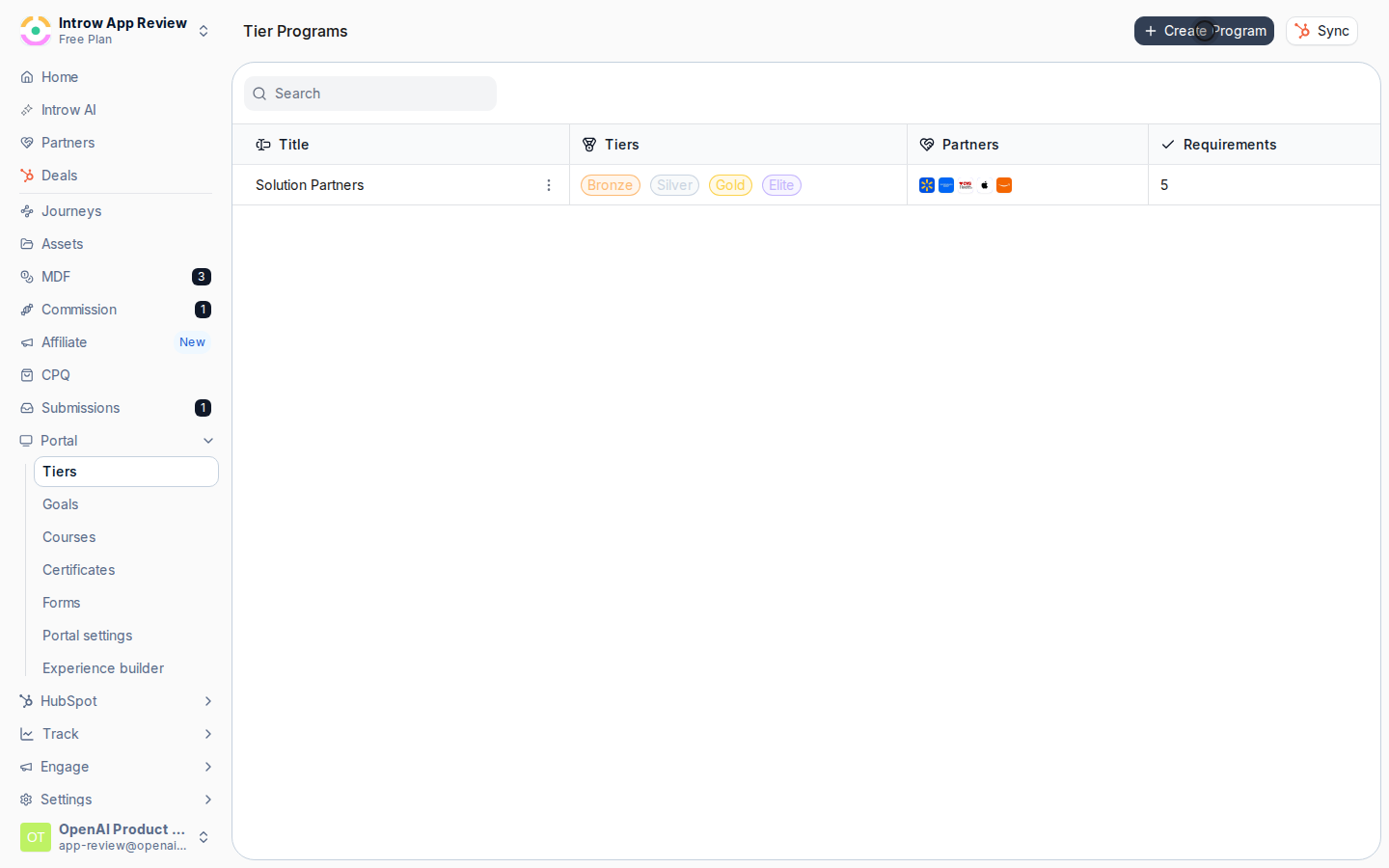
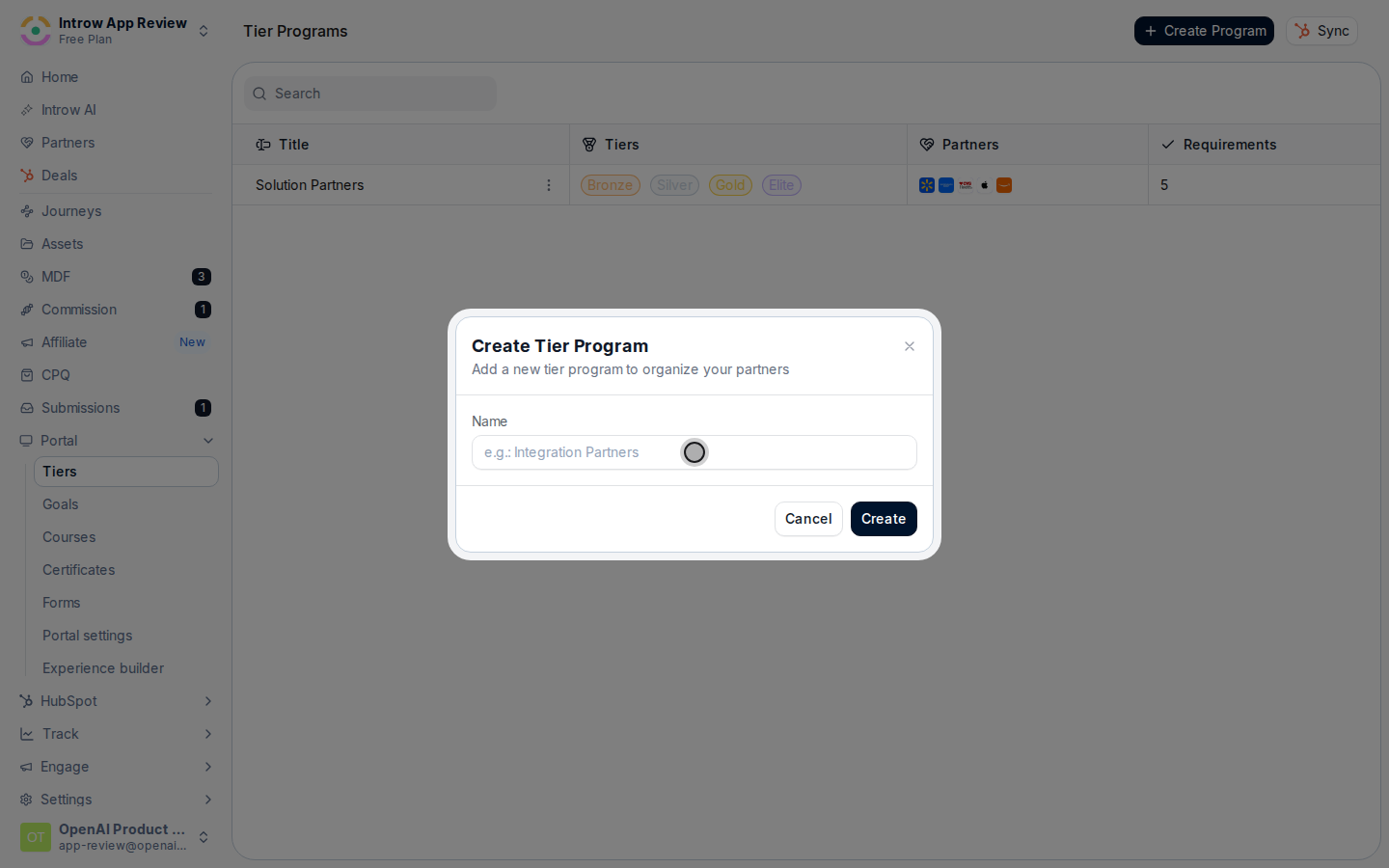
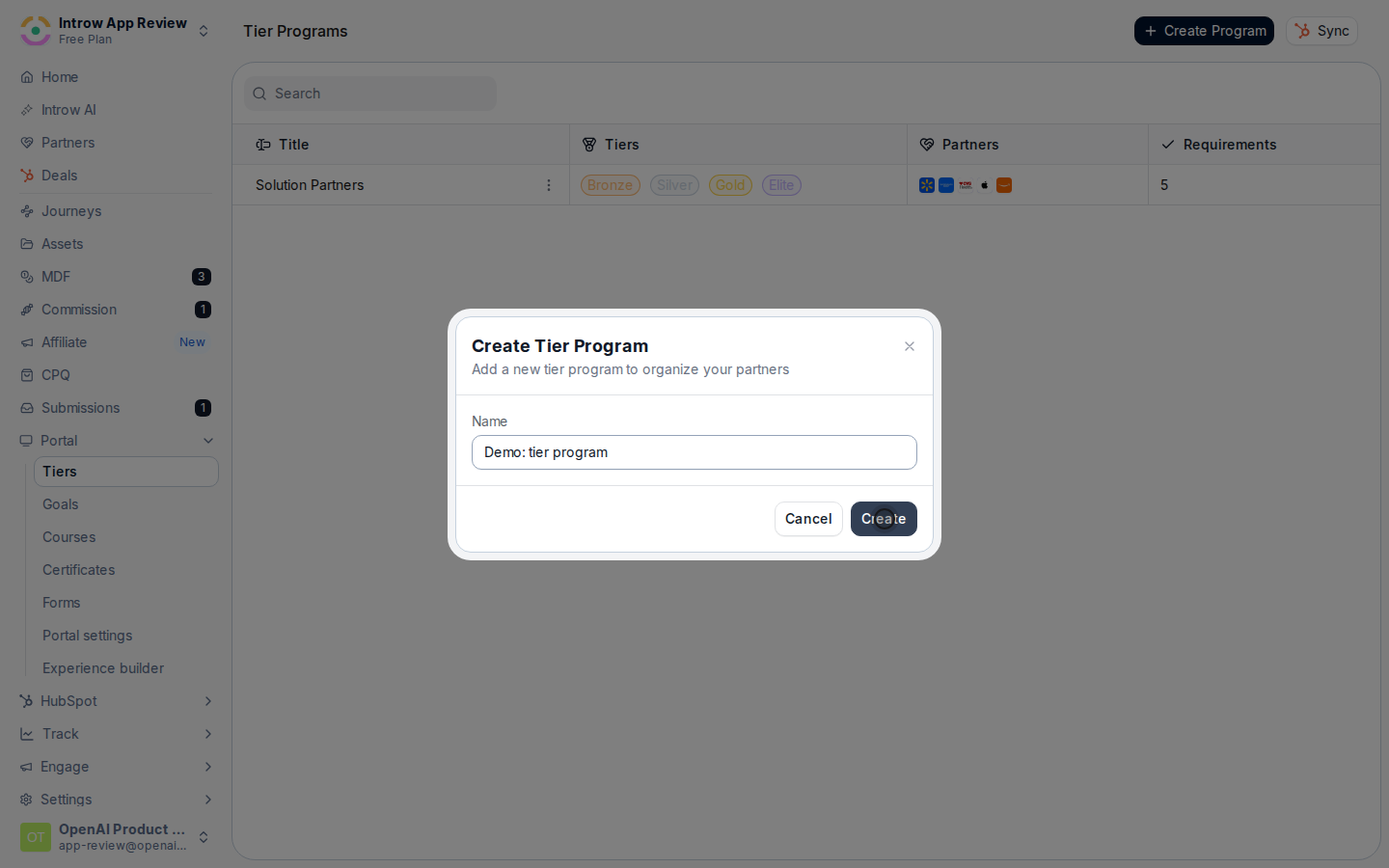
On [Tiers](https://app.introw.io/settings/tiers), choose **Create Program** and name it for the partner type or motion it covers. Each program is independent, so you can run different ladders side by side for different partner types.
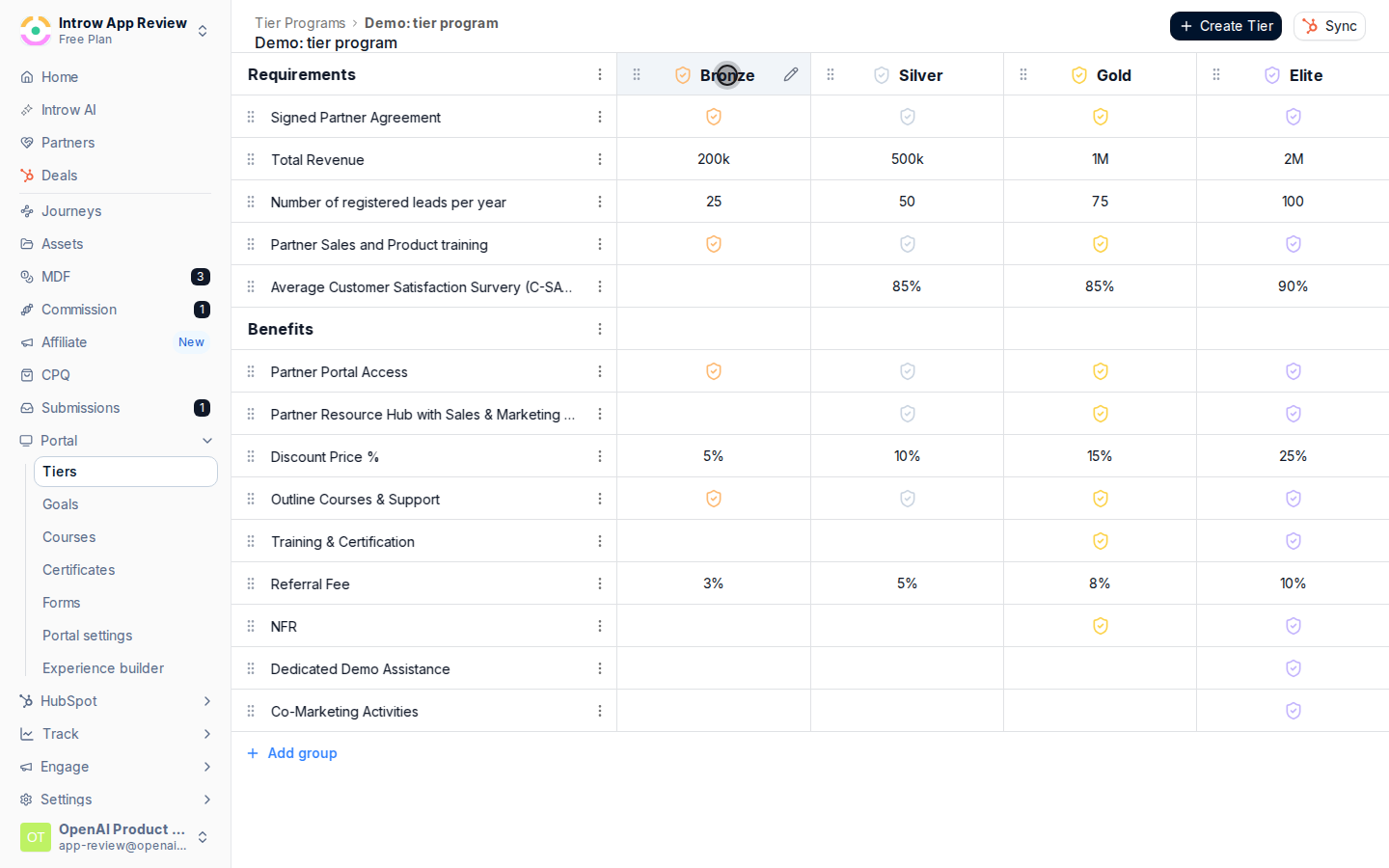
 In the program editor, choose **Create tier** for each level, such as Bronze, Silver, and Gold. A partner holds exactly one tier per program.
 Drag the tiers into sequence from entry level to top. This order is the ladder partners see, so keep it lowest to highest.
 ### Brand each tier
Open a tier and set what partners see:
* **Name** - the label for the level, such as Gold. Keep it consistent with how you talk about the program.
* **Color** - a color that distinguishes this tier from the others on the ladder at a glance.
* **Badge image** - the artwork for the tier. Partners assigned to it can download the badge to display on their site or signature, which markets your program for you.
* **Description** - a rich description of what the tier represents, reinforcing its value.
### Brand each tier
Open a tier and set what partners see:
* **Name** - the label for the level, such as Gold. Keep it consistent with how you talk about the program.
* **Color** - a color that distinguishes this tier from the others on the ladder at a glance.
* **Badge image** - the artwork for the tier. Partners assigned to it can download the badge to display on their site or signature, which markets your program for you.
* **Description** - a rich description of what the tier represents, reinforcing its value.
 ### Define requirements and benefits
In the tier's **requirements** group, add items that explain how to reach the tier. Each item can be:
* **Text** - a plain statement of what is expected.
* **Checkbox** - a yes/no item partners can see as a checklist.
* **Goal** - a measurable target that progress tracks against.
### Define requirements and benefits
In the tier's **requirements** group, add items that explain how to reach the tier. Each item can be:
* **Text** - a plain statement of what is expected.
* **Checkbox** - a yes/no item partners can see as a checklist.
* **Goal** - a measurable target that progress tracks against.
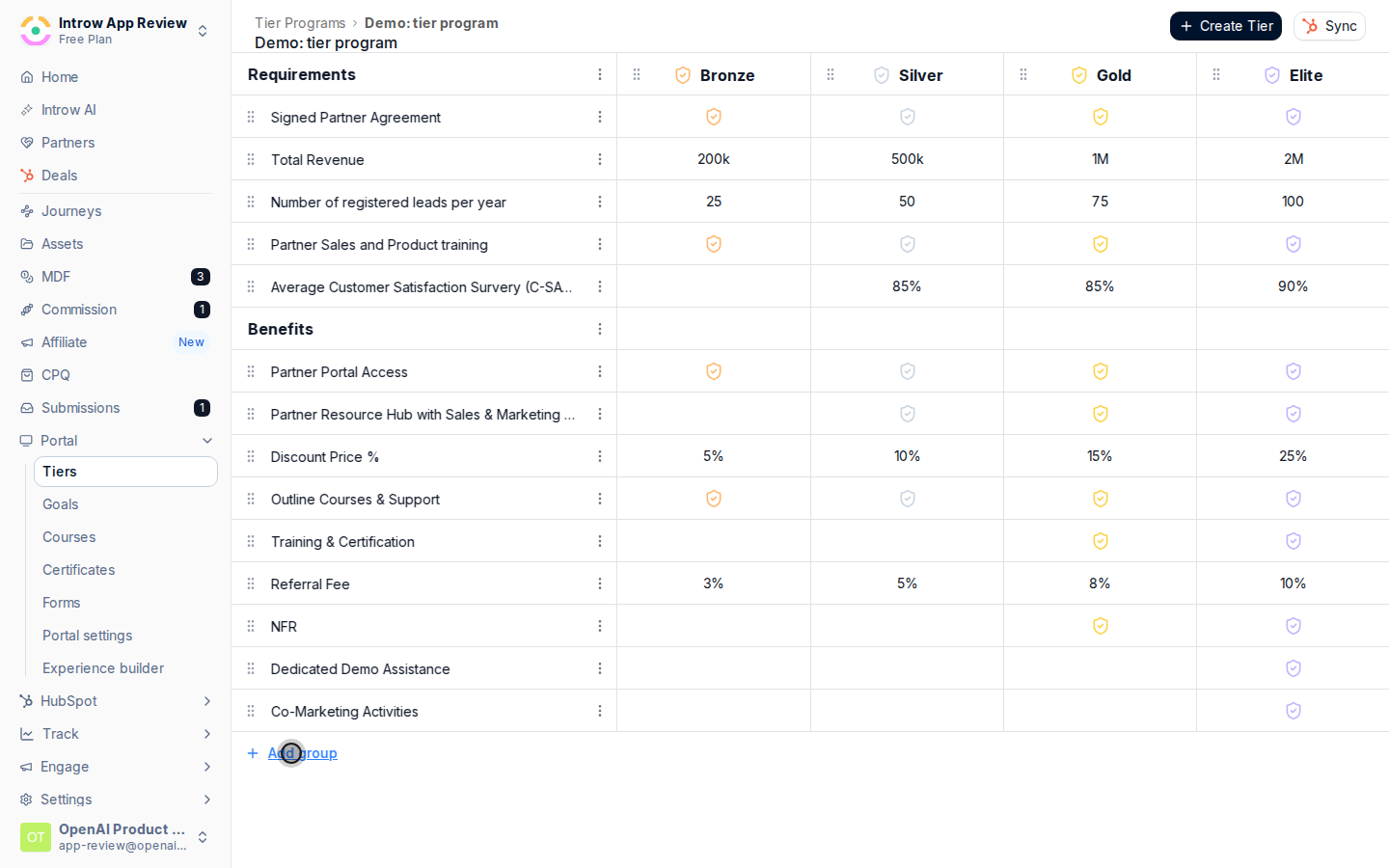 In the **benefits** group, add the perks the tier unlocks using the same text, checkbox, or goal item types, so the value of leveling up is obvious.
For any goal item, set its target so a partner's progress shows against it. A goal with no target shows no progress, so this is what turns a static requirement into a live one.
## Verify it worked
The program appears on [Tiers](https://app.introw.io/settings/tiers) with your tiers in order, each showing its color and badge, and every tier shows its requirements and benefits. Goal items display progress toward their target. The program is ready to assign partners to.
## Related
Place partners on the ladder, individually or in bulk.
Keep tier status aligned with your CRM.
Full configuration options for tiers.
In the **benefits** group, add the perks the tier unlocks using the same text, checkbox, or goal item types, so the value of leveling up is obvious.
For any goal item, set its target so a partner's progress shows against it. A goal with no target shows no progress, so this is what turns a static requirement into a live one.
## Verify it worked
The program appears on [Tiers](https://app.introw.io/settings/tiers) with your tiers in order, each showing its color and badge, and every tier shows its requirements and benefits. Goal items display progress toward their target. The program is ready to assign partners to.
## Related
Place partners on the ladder, individually or in bulk.
Keep tier status aligned with your CRM.
Full configuration options for tiers.