> ## Documentation Index
> Fetch the complete documentation index at: https://docs.introw.io/llms.txt
> Use this file to discover all available pages before exploring further.
# Assign a partner's tier
> Set a partner's tier on their detail page, or update a whole cohort at once with bulk edit, and have it flow to your CRM when tier sync is on.
{/* Building tiers only pays off once partners are on them. Assigning a tier sets a partner's level so
the right benefits apply and, when CRM sync is on, the status flows to your CRM. This guide covers
both paths: setting a tier on a single partner, and updating many partners together after a tier
review, so a whole cohort lands on the right level in one pass. */}
## What you'll achieve
Partners assigned to the right tier, individually or in bulk, so the correct benefits apply and, when tier CRM sync is configured, the status is written to your CRM.
## Before you start
Your tier program and its tiers should already exist, and you need write access to partners.
## Watch it
## Steps
Open the partner on [Partners](https://app.introw.io/partners) and set the **Tier** field on their detail page. The tier options come from the program, and each partner holds one tier per program. Use this for a single new partner or a one-off change.
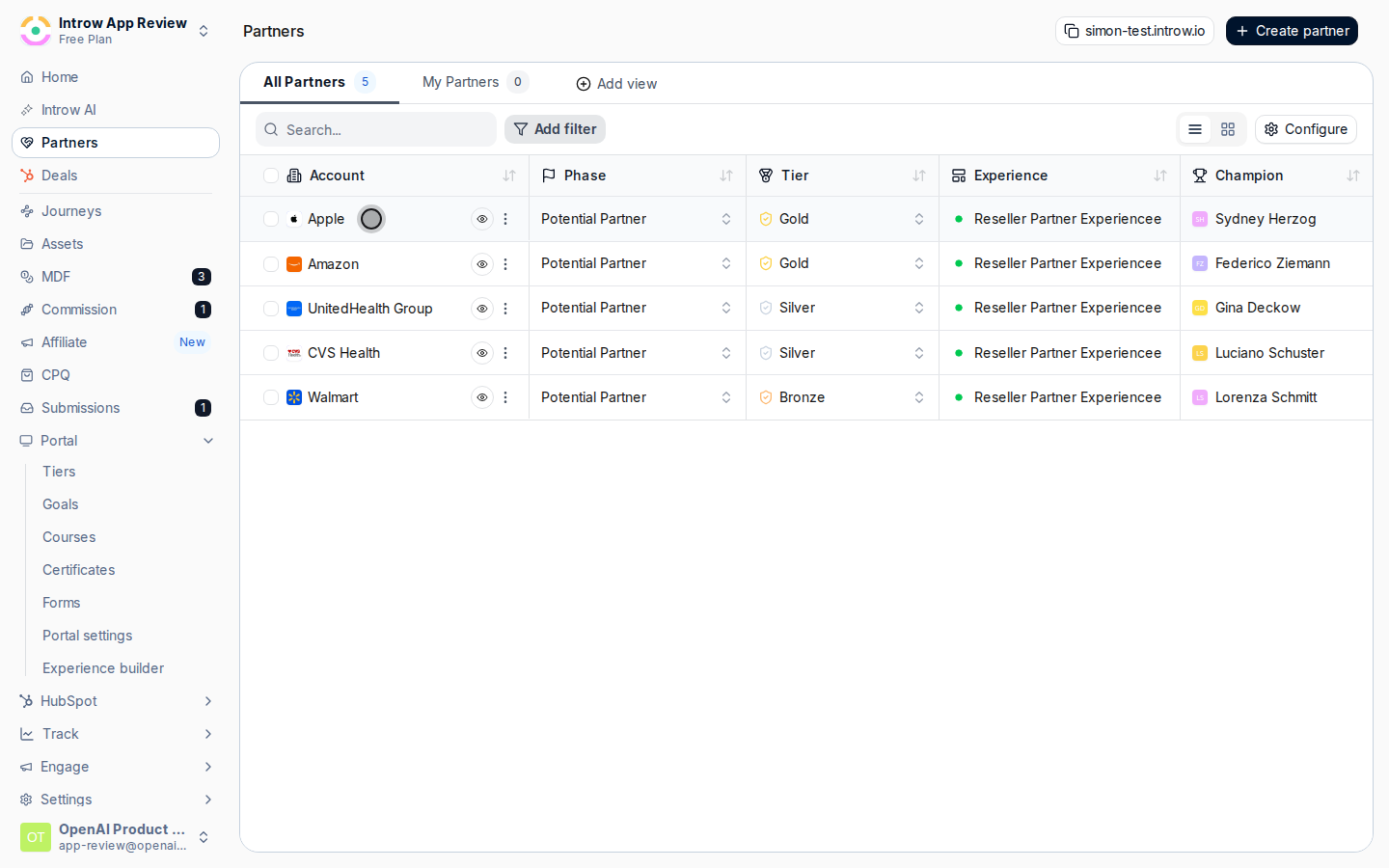 On the partners list, select the partners you want to update, choose the bulk **Edit** action, pick **Tier** as the property, and set the tier for the whole selection together. Use this after a tier review to move a cohort in one pass instead of opening each record.
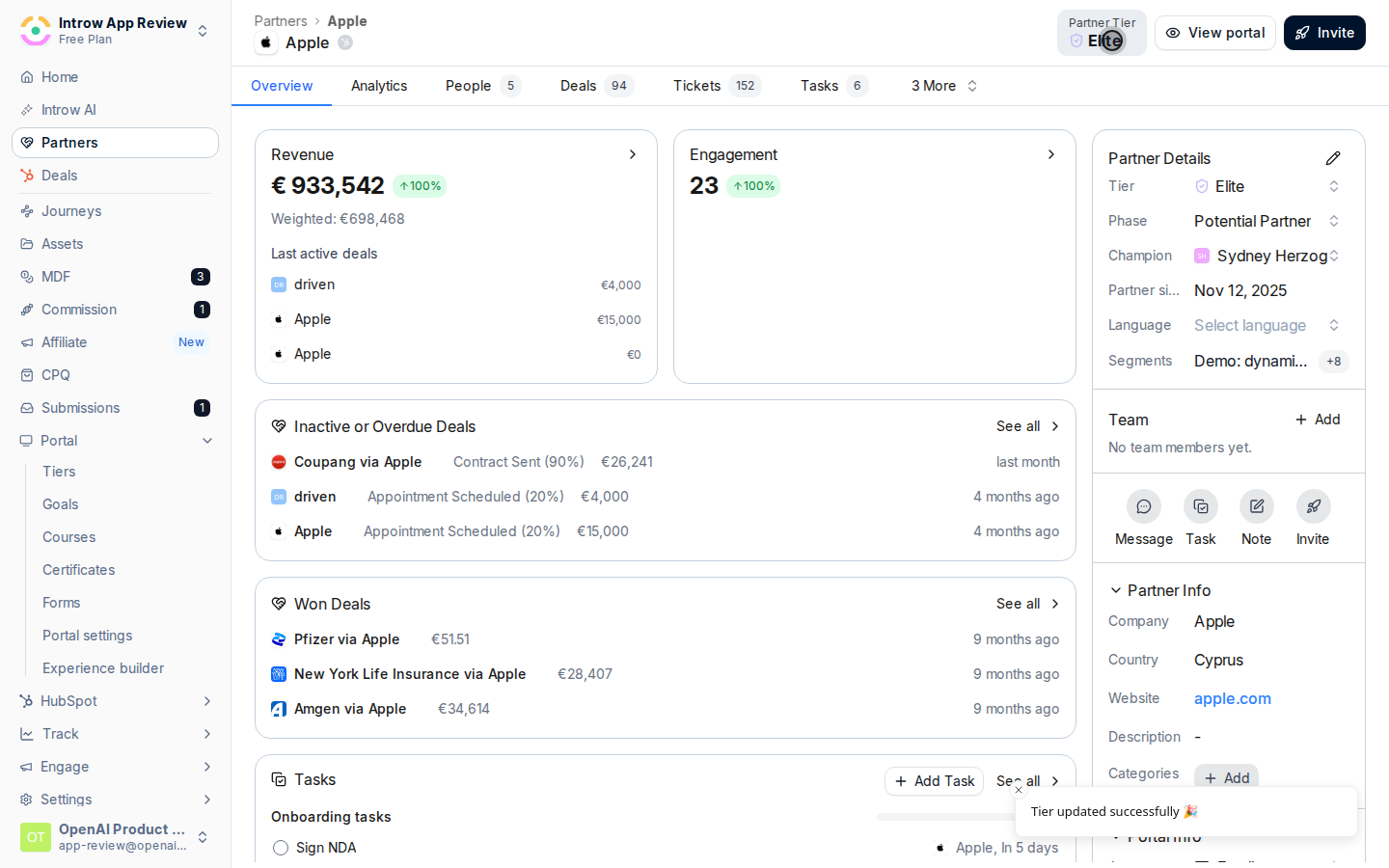
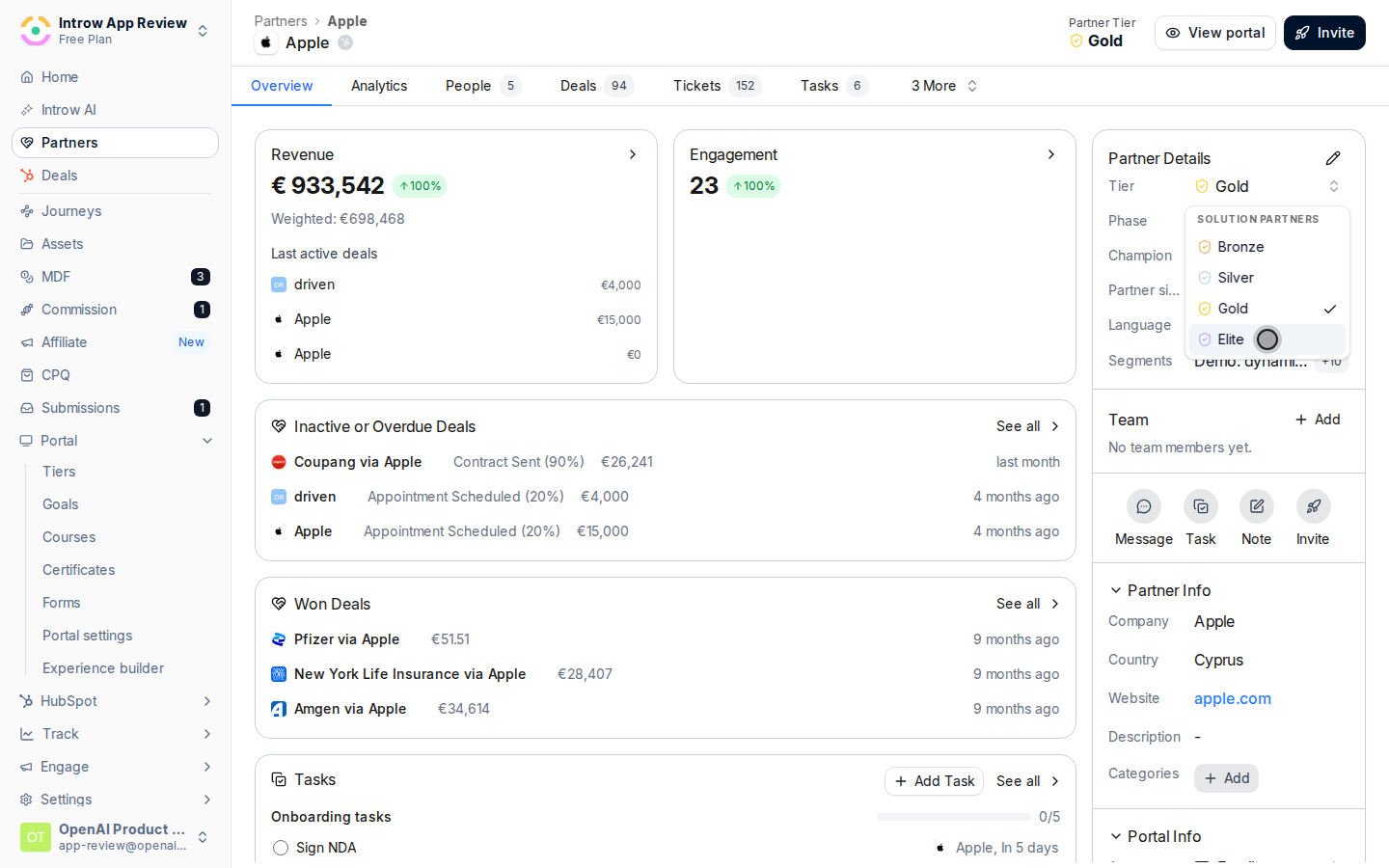 Save. If tier CRM sync is configured, the assignment is written to the CRM as well, so the tier stays aligned across both systems.
 ## Verify it worked
Each partner shows the assigned tier on [Partners](https://app.introw.io/partners), and on their CRM record when sync is configured.
## Related
Create the program and its tiers first.
Push tier status to the CRM and keep it in sync.
Change tier and other properties across a cohort.
Full configuration options for tiers.
## Verify it worked
Each partner shows the assigned tier on [Partners](https://app.introw.io/partners), and on their CRM record when sync is configured.
## Related
Create the program and its tiers first.
Push tier status to the CRM and keep it in sync.
Change tier and other properties across a cohort.
Full configuration options for tiers.