> ## Documentation Index
> Fetch the complete documentation index at: https://docs.introw.io/llms.txt
> Use this file to discover all available pages before exploring further.
# Wire partner ownership
> Assign your team to a partner with the right roles, then wire that ownership through the portal points of contact, communication sender, certificate issuer, and form approval routing.
{/* Assigning a team to a partner is the input the whole program reads from. Once a partner has an
owner, the portal can show points of contact, communications can send from the assigned manager,
certificates can name them as issuer, and approvals can route to them, all resolving per partner
with no per-record maintenance. This guide covers the whole job: assign the team, then wire each
downstream surface. Without assignment, every one of these falls back to org defaults. */}
## What you'll achieve
Each partner has a clear owner, and that ownership flows automatically into the portal points of contact, the sender and reply-to on partner communications, the issuer on certificates, and form approval routing. Change the assignment and every downstream surface follows, with no per-partner editing.
## Before you start
You need permission to edit a partner and manage its team.
The partner team roles you assign (for example lead partner manager, technical contact) should already exist. See [Team Management](/features/access/team-management/guides/set-up-partner-team-roles).
## Watch it
## Steps
### Assign the team
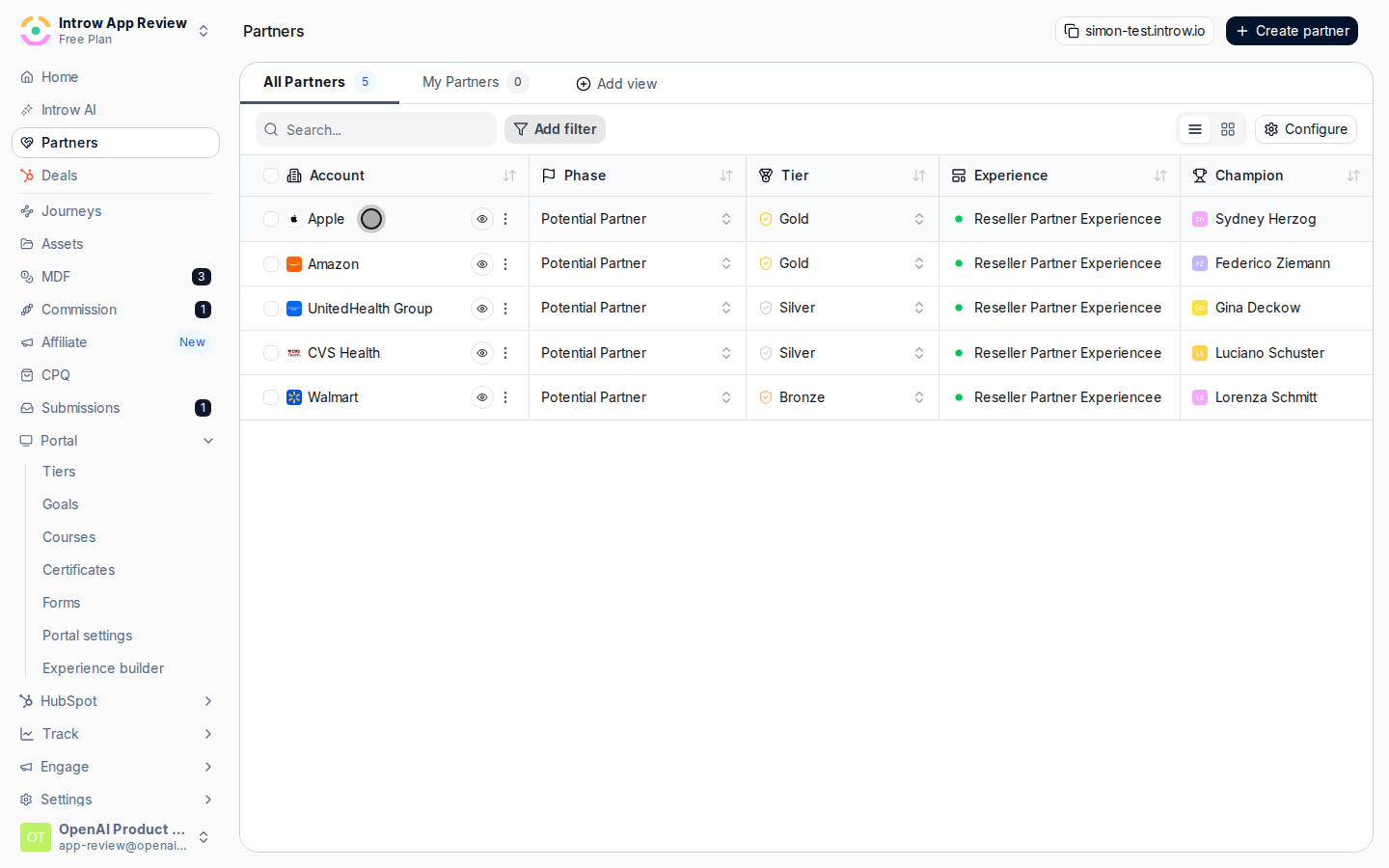
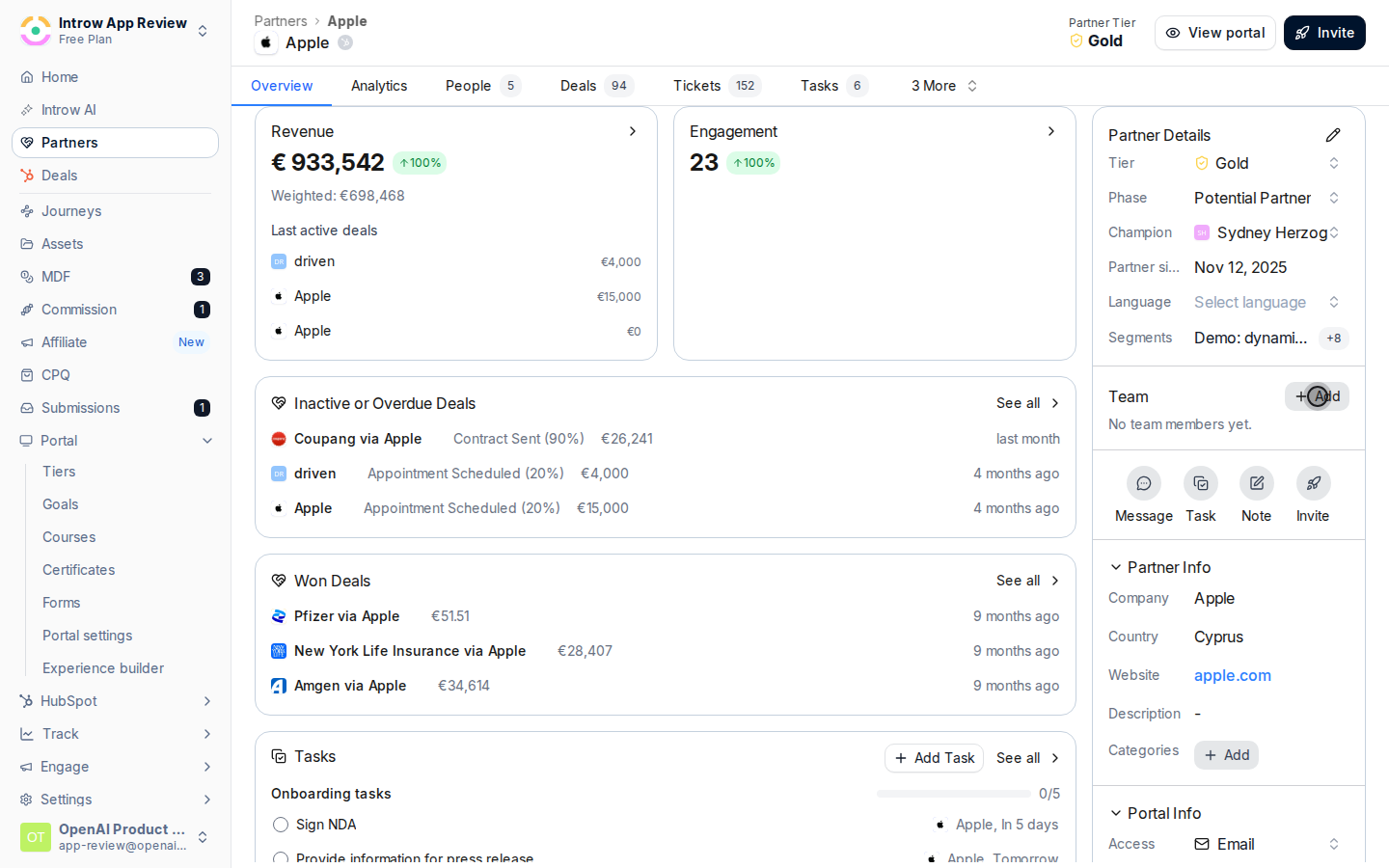
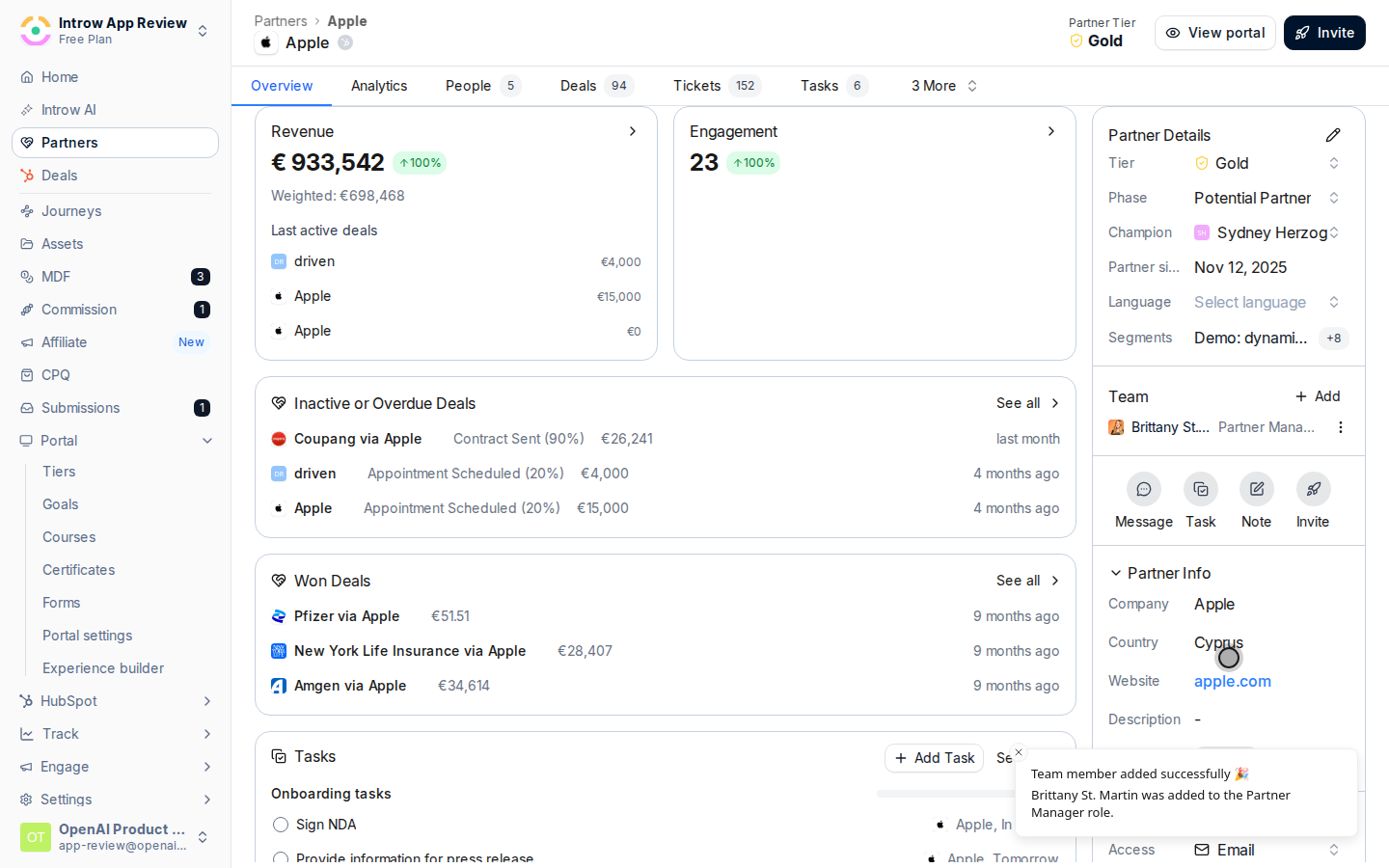
Go to [Partners](https://app.introw.io/partners), open the partner, and find its **Team** card. This card lists the people from your side who own the relationship.
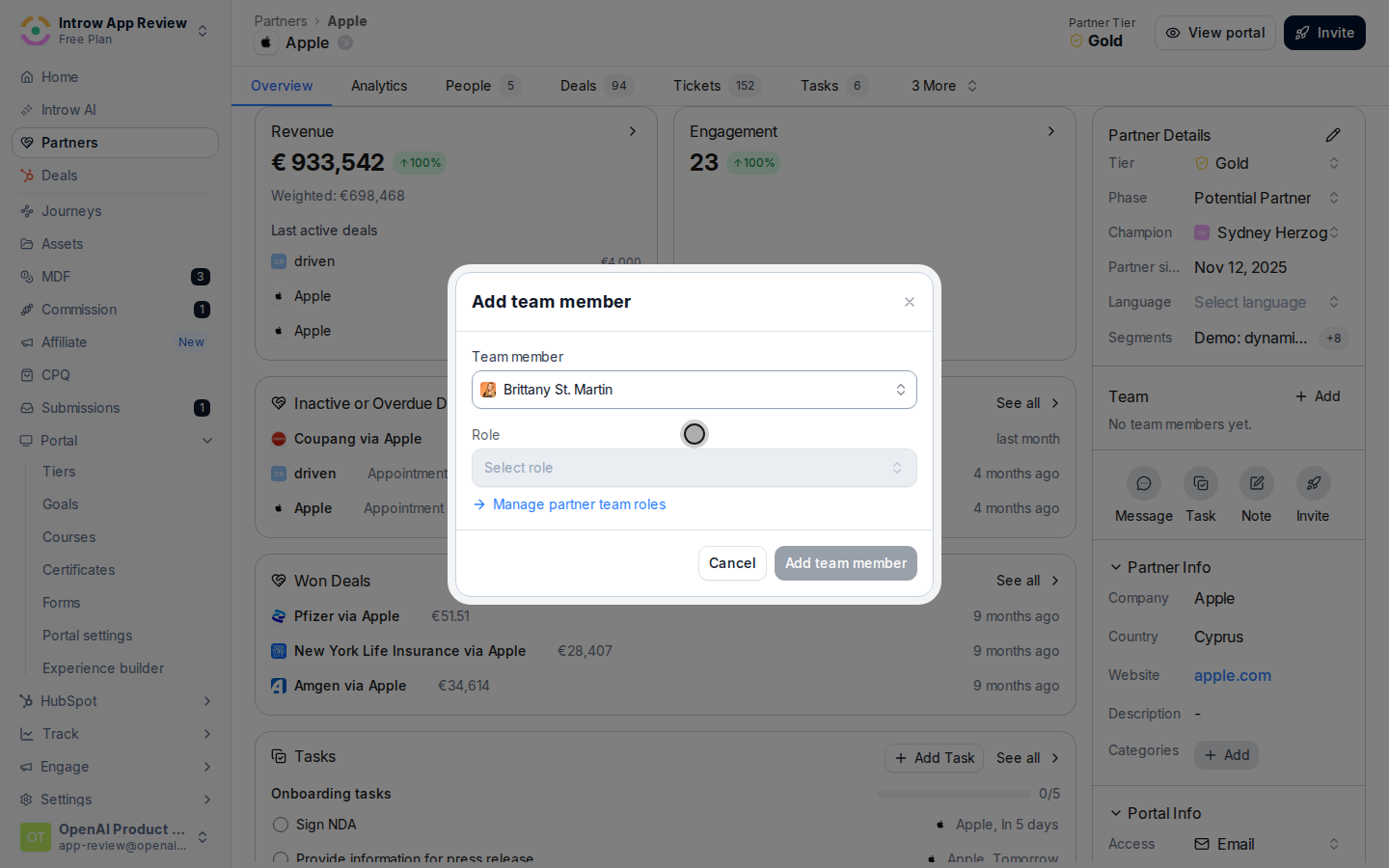
 Add a team member and choose the **partner team role** they hold, such as lead partner manager or technical contact. The role is what downstream surfaces key on (the partnership manager step, for example, resolves to whoever holds the lead role).
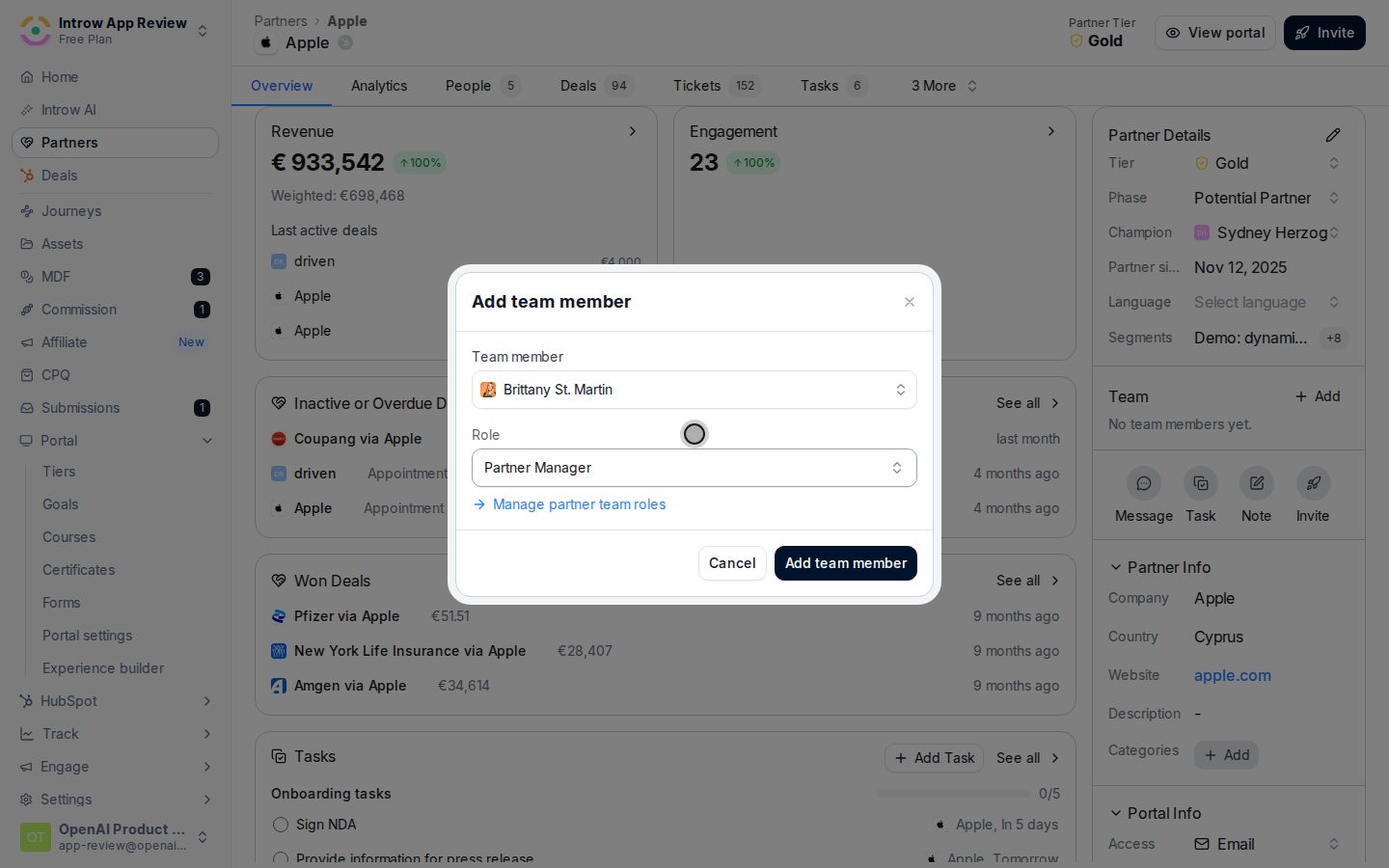
 Some roles allow only one member, such as a single lead manager. Adding another prompts you to replace the current one. Set the lead deliberately, since the sender, issuer, and approver routing all resolve to the assigned manager.
 ### Wire the downstream surfaces
In [Experiences](https://app.introw.io/templates), add a partner profile or team section to the experience so the logged-in partner sees their assigned team. The names update automatically as you change the assignment, so you build it once. Preview as a partner, then publish.
### Wire the downstream surfaces
In [Experiences](https://app.introw.io/templates), add a partner profile or team section to the experience so the logged-in partner sees their assigned team. The names update automatically as you change the assignment, so you build it once. Preview as a partner, then publish.
 On a partner-facing communication, set the sender to the partner's assigned manager rather than a fixed address, so it resolves per partner and replies reach the owner. Set it on [Announcements](https://app.introw.io/announcements) and on partner notifications. Reply-to follows the same assigned manager.
 On a certificate, set the **Issued by** field to the team member who should appear as the issuer, such as the partner's assigned manager, so credentials are signed by the right person. Open the certificate in [Certificates](https://app.introw.io/certificates) and save so new awards carry it.
On a form's automation, enable the approval gate and add an approver step set to the **partnership manager**, which resolves to the partner's assigned manager at submission time. Open the form in [Forms](https://app.introw.io/forms), add the step, and save so new submissions route to whoever owns the partner.
## Verify it worked
The partner's **Team** card lists the assigned members with their roles. The portal shows those people as points of contact, a delivered communication shows the assigned manager as sender and reply-to, a new certificate names them as issuer, and a test submission routes its approval to the partner's manager. A partner with no team assigned falls back to org defaults instead.
## Related
Define the roles you assign here.
Use the assigned manager as the email sender.
Manage the rest of the partner's fields.
Full configuration options for partner team ownership.
On a certificate, set the **Issued by** field to the team member who should appear as the issuer, such as the partner's assigned manager, so credentials are signed by the right person. Open the certificate in [Certificates](https://app.introw.io/certificates) and save so new awards carry it.
On a form's automation, enable the approval gate and add an approver step set to the **partnership manager**, which resolves to the partner's assigned manager at submission time. Open the form in [Forms](https://app.introw.io/forms), add the step, and save so new submissions route to whoever owns the partner.
## Verify it worked
The partner's **Team** card lists the assigned members with their roles. The portal shows those people as points of contact, a delivered communication shows the assigned manager as sender and reply-to, a new certificate names them as issuer, and a test submission routes its approval to the partner's manager. A partner with no team assigned falls back to org defaults instead.
## Related
Define the roles you assign here.
Use the assigned manager as the email sender.
Manage the rest of the partner's fields.
Full configuration options for partner team ownership.