> ## Documentation Index
> Fetch the complete documentation index at: https://docs.introw.io/llms.txt
> Use this file to discover all available pages before exploring further.
# Spot and re-activate inactive partners
> Build rolling segments of inactive and engaged partners, then route each into tailored follow-up to re-activate them the moment their activity drops.
Partner managers usually notice a partner has gone quiet only when a renewal wobbles or a number slips, and by then the momentum is already lost. A dynamic segment built on last activity turns that reactive scramble into a standing list: group the partners who have gone silent, group the ones still engaged, and point each at the right follow-up. Because a dynamic segment re-evaluates itself against live data, a partner who re-engages drops off the inactive list on their own, and whatever you wire to each segment keeps running without anyone maintaining a spreadsheet.
## What you'll achieve
Two rolling segments, one for partners who have gone quiet and one for partners who are actively engaged, that keep themselves current from live activity. Point re-engagement follow-up (an announcement, a task, a journey) at the inactive segment and deeper enablement at the engaged one, and each partner moves between the two automatically as their activity changes, with no list to maintain.
## How last activity is measured
Segments can filter on two separate activity signals, and they mean different things:
* **Partner last activity** - the last time anything happened on the partner, from either side. A portal or room visit, an asset view, a comment, a task update, a deal or object update, a form submission, or an announcement all refresh it. Because it counts your team's activity too, read it as "has this account gone dark", not "has the partner taken an action".
* **Contact last activity** - the last time that specific contact did something themselves. Only the contact's own actions refresh it; activity your team logs on their behalf does not. Use this when you want to catch a single champion going quiet rather than the whole account.
* **Contact last nudged** - the last time you successfully sent that contact an outbound email from Introw (announcements, journey steps, notifications, and other automated sends). It refreshes only when the send left without a delivery error, per recipient address within your organisation. It deliberately does not count opens, clicks, bounces, or failed sends, so it measures your own outbound reach, not the contact's engagement. Use it to find contacts you haven't touched recently, for example "everyone we haven't emailed in the last 60 days", so a re-engagement send doesn't pile on top of one you already sent.
Choose the level that matches what you're asking. Partner and contact last activity answer "who has gone quiet on us?"; contact last nudged answers "who have we gone quiet on?". They compose well - combine "Contact last nudged is before 60 days ago" with "Contact last activity is before 30 days ago" to catch contacts who are inactive *and* haven't heard from you in a while.
A partner or contact who has never been active has no last-activity date at all. A "before" comparison never matches an empty date, so an inactive segment that should also include partners who never engaged has to say so explicitly (see the third step below).
## Watch it
## Before you start
You need access to segment settings, and a connected CRM so a dynamic segment can filter on live partner activity.
Decide what "engaged" and "inactive" mean for your program, for example active within the last 7 days, and silent for 30 days or more. Pick the windows that match your sales motion.
## Steps
### Build the inactive segment
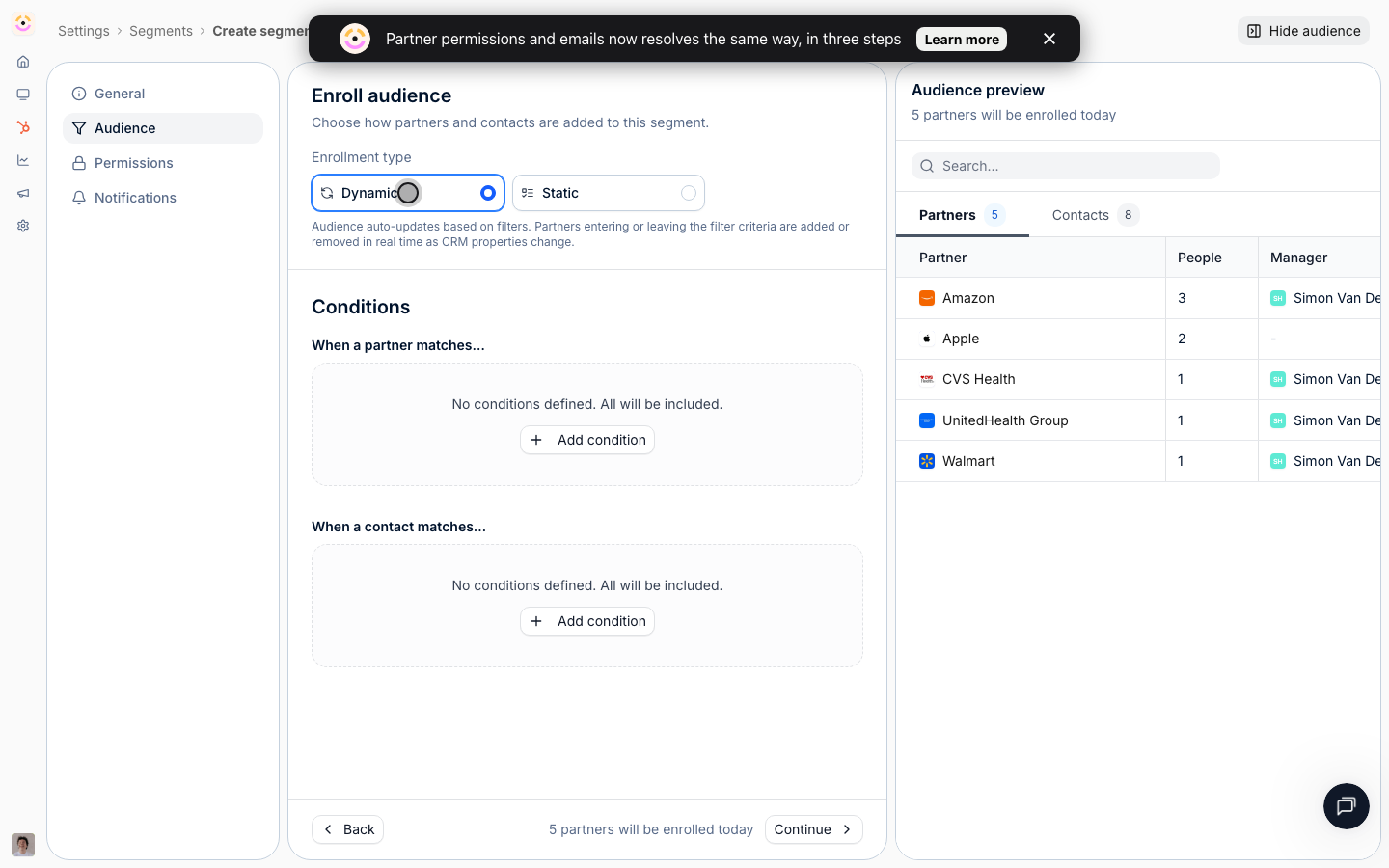
Go to [Segments](https://app.introw.io/settings/segments), create a new segment, and set **Enrollment type** to **Dynamic** on the **Audience** tab. Only a dynamic segment re-evaluates its members as activity changes; a static list would freeze the moment you saved it. Give it a name the whole team recognises, such as "Inactive partners (30+ days)". See [Create a dynamic segment](./create-a-dynamic-segment) for the full editor walkthrough.
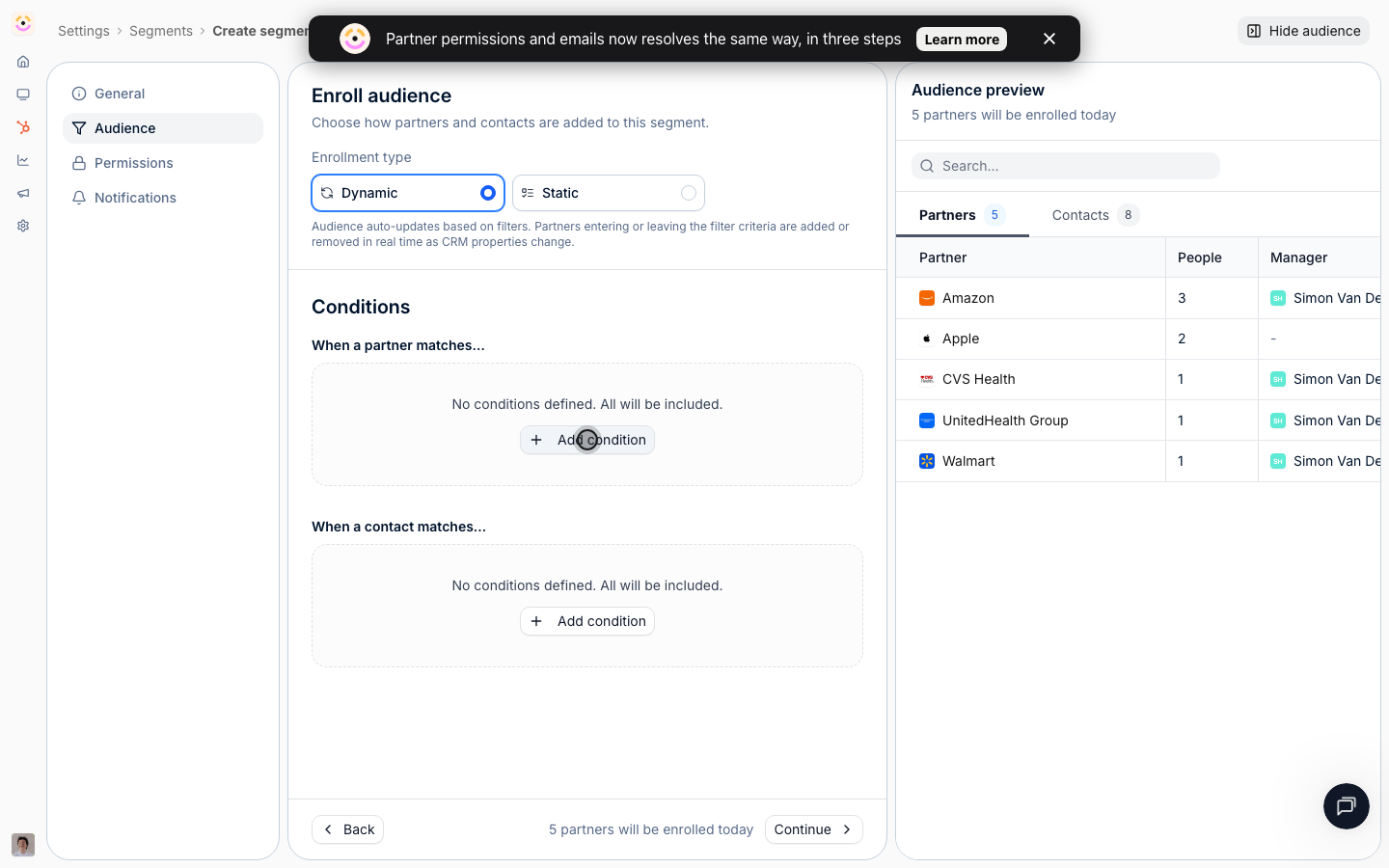
 Under **When a partner matches**, add a condition on **Partner last activity**. Set the operator to **`<`** (before) and the value to a **Relative** preset, picking **30 days ago** or typing your own window. This captures every partner whose last activity is older than your threshold. To key off a specific champion instead of the account, add the same condition under **When a contact matches** on **Contact last activity**.
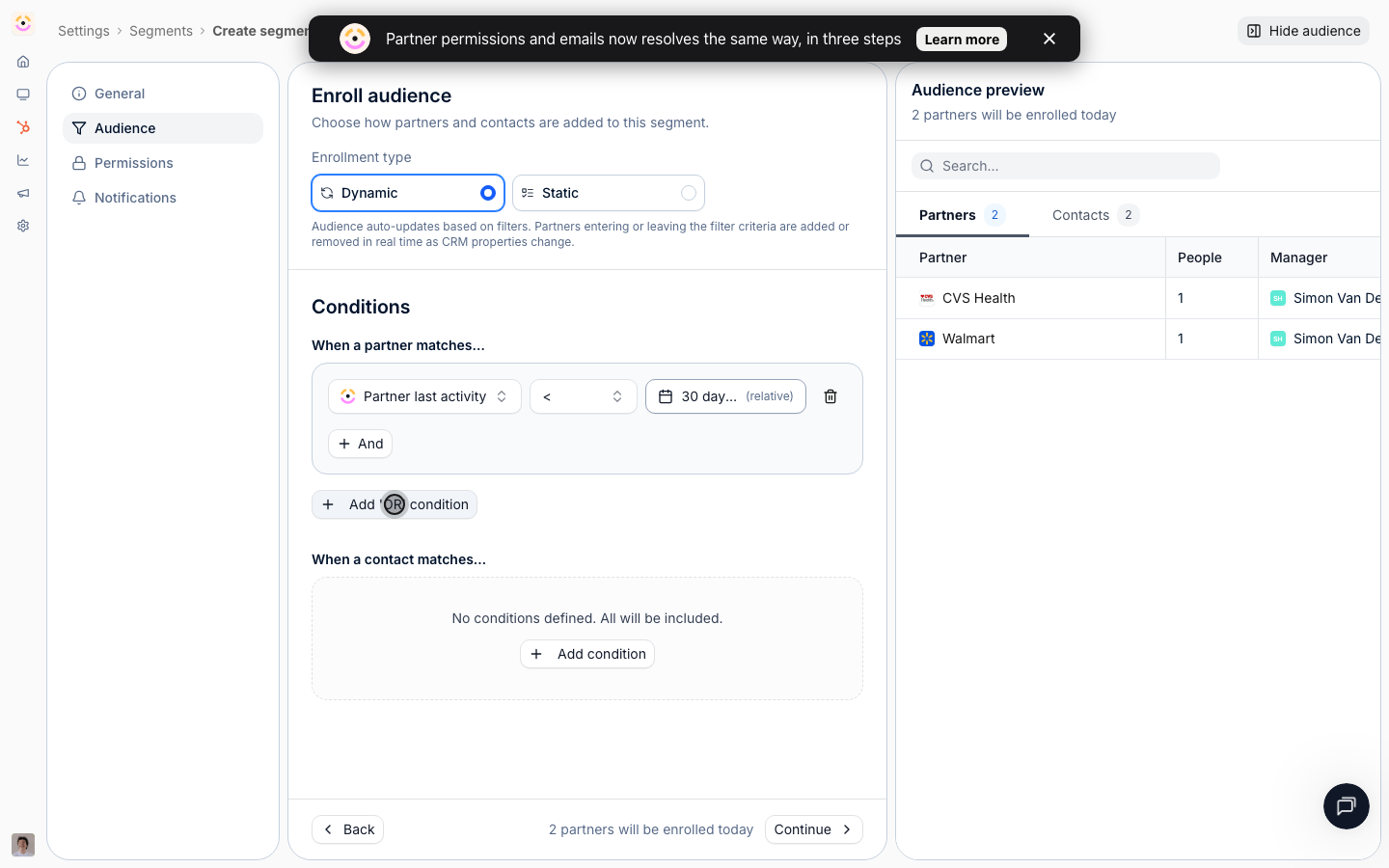
 A partner who has never done anything has no last-activity date, and the **`<`** comparison skips them. To pull them in, add a second condition on **Partner last activity** with the operator **is not known**; the builder joins it to the first with **Or**, so a partner counts as inactive when their last activity is old *or* absent. Leave this out only if you deliberately want to exclude partners who never engaged.
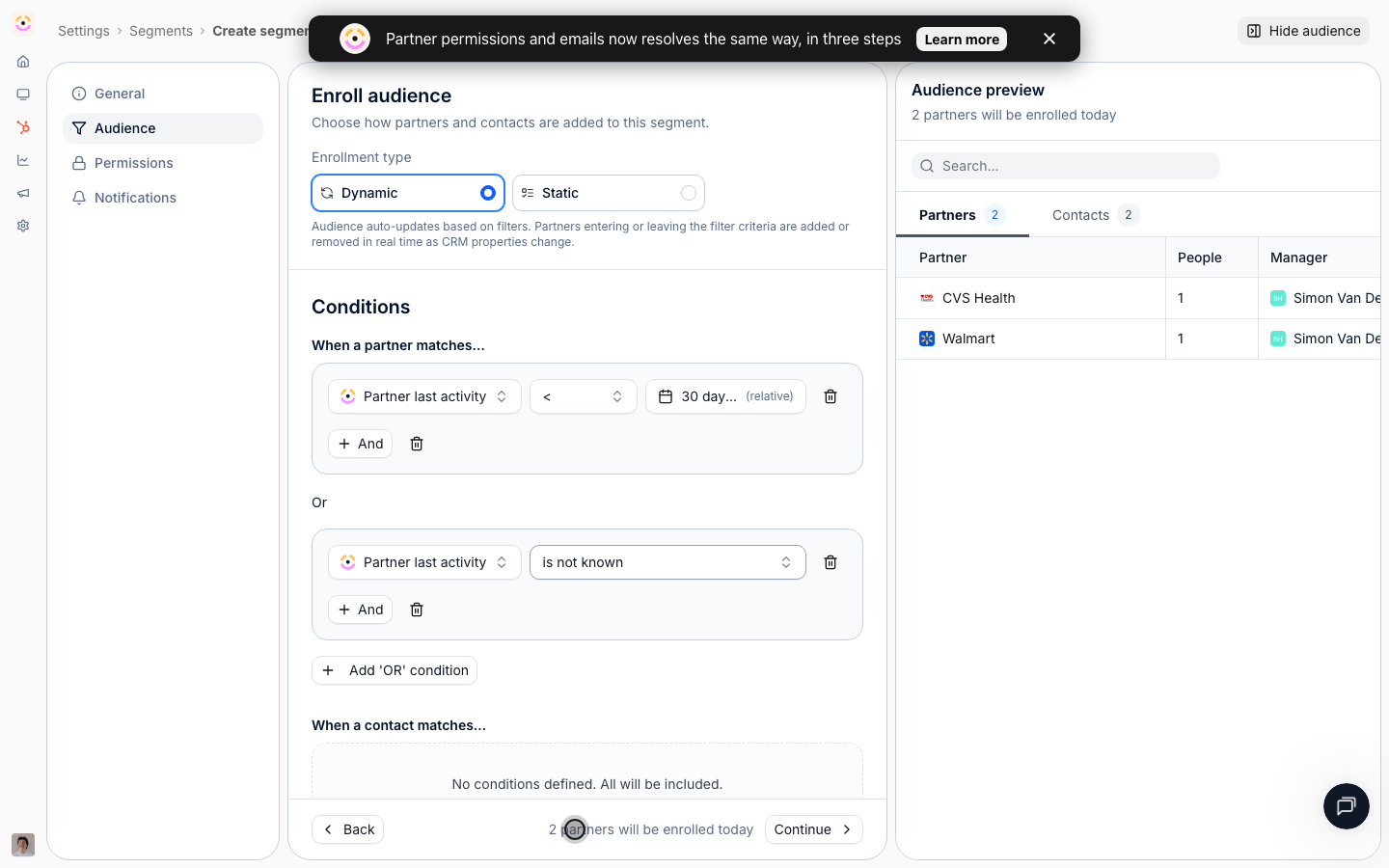
 Use the audience preview to confirm the segment is catching the partners you expect, and not, say, everyone. Adjust the window until the list looks right, then save.
 ### Build the engaged segment
Create another dynamic segment the same way, for example "Engaged partners". This is the positive mirror of the inactive one.
### Build the engaged segment
Create another dynamic segment the same way, for example "Engaged partners". This is the positive mirror of the inactive one.
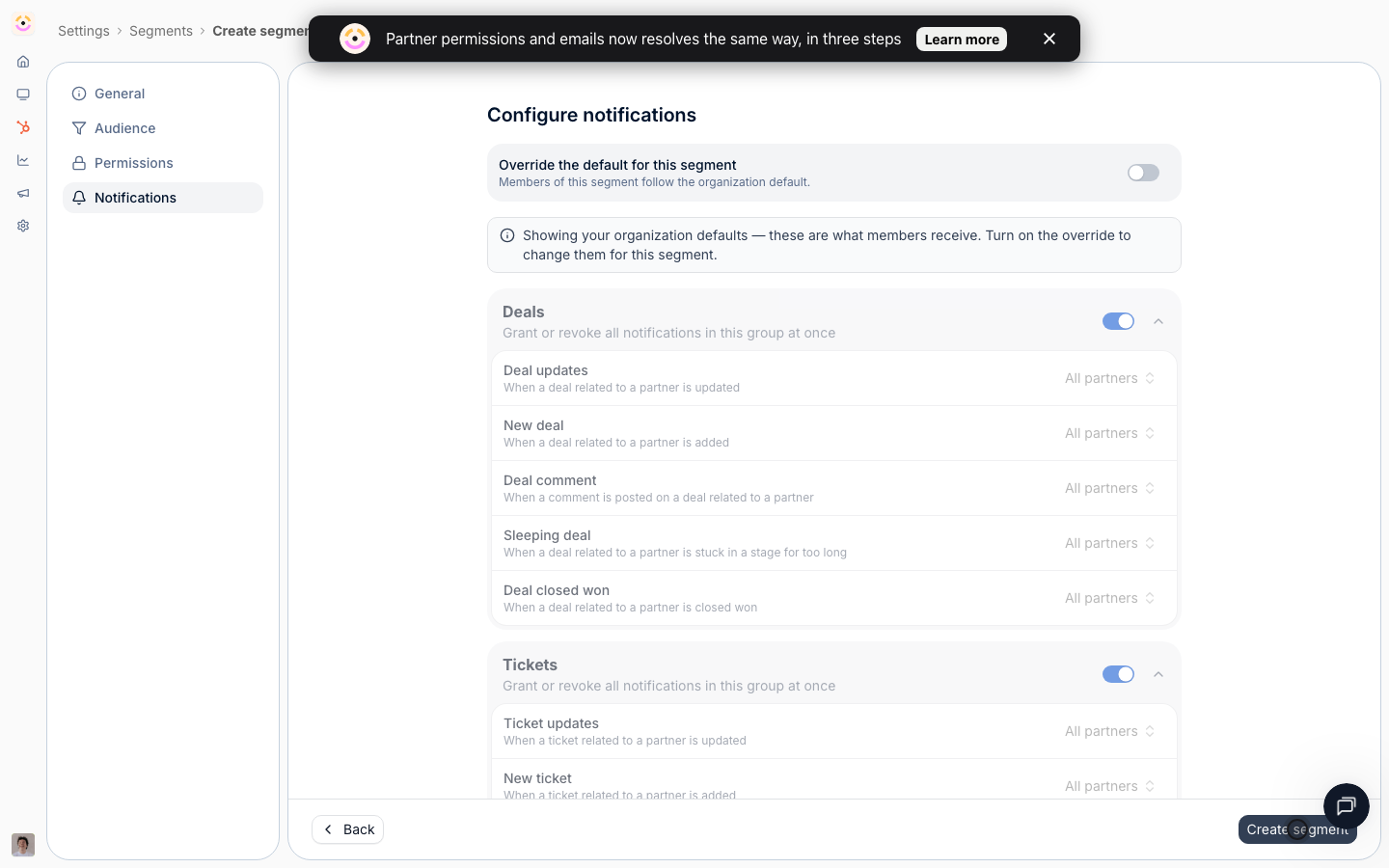 Under **When a partner matches**, add a condition on **Partner last activity** with the operator **`≥`** (on or after) and a **Relative** value of **7 days ago**, so the segment holds the partners who have done something recently. Check the preview and save.
 ### Route each segment to follow-up
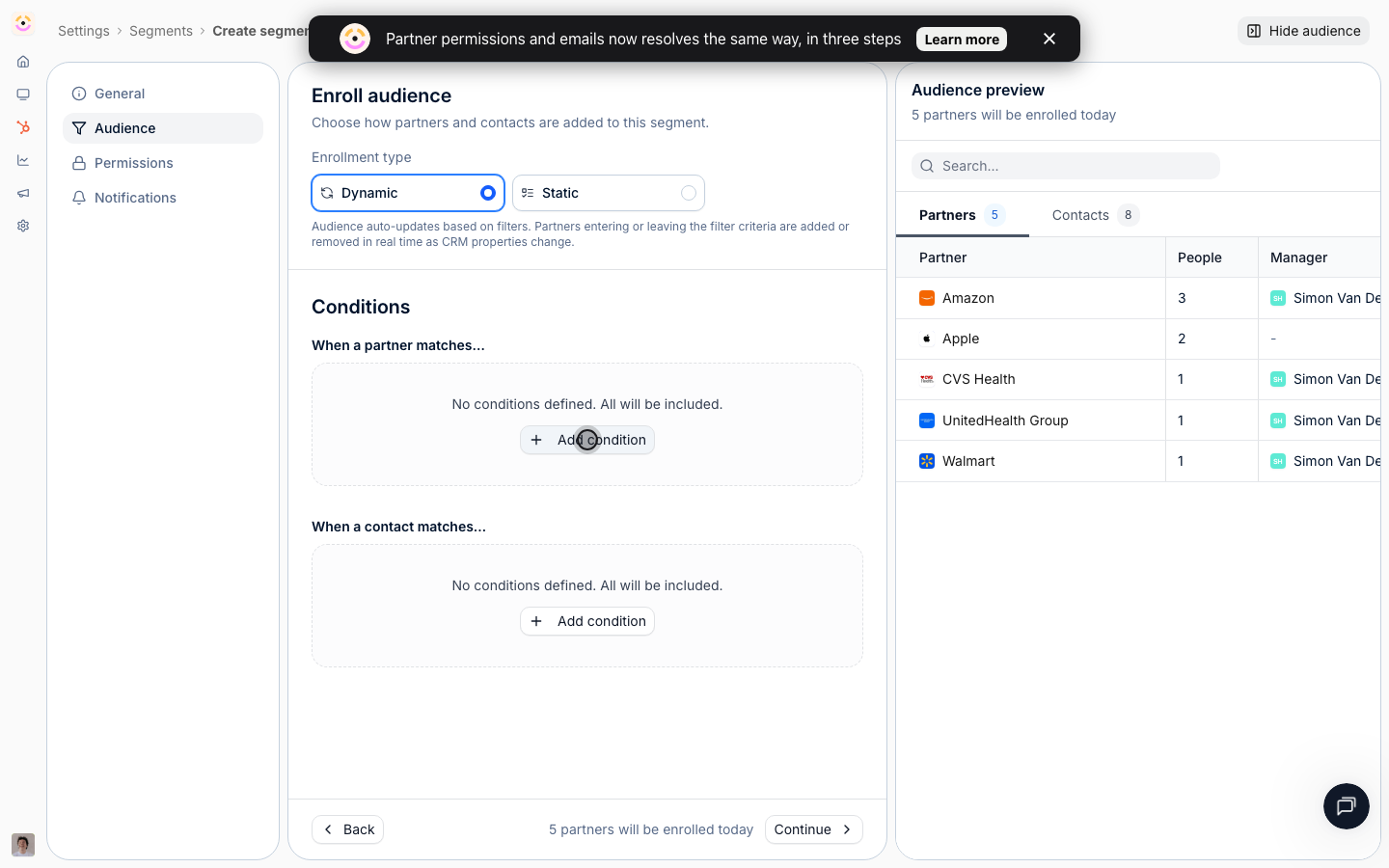
Point your win-back motion at the inactive segment: target a re-engagement [announcement](/features/engagement/announcements) at it, assign a [journey](/features/partners/journeys) that walks the partner back to a clear next step, or create a [task](/features/partners/tasks) so a partner manager reaches out. Because the segment is the audience, everyone currently quiet is included, and no one else.
### Route each segment to follow-up
Point your win-back motion at the inactive segment: target a re-engagement [announcement](/features/engagement/announcements) at it, assign a [journey](/features/partners/journeys) that walks the partner back to a clear next step, or create a [task](/features/partners/tasks) so a partner manager reaches out. Because the segment is the audience, everyone currently quiet is included, and no one else.
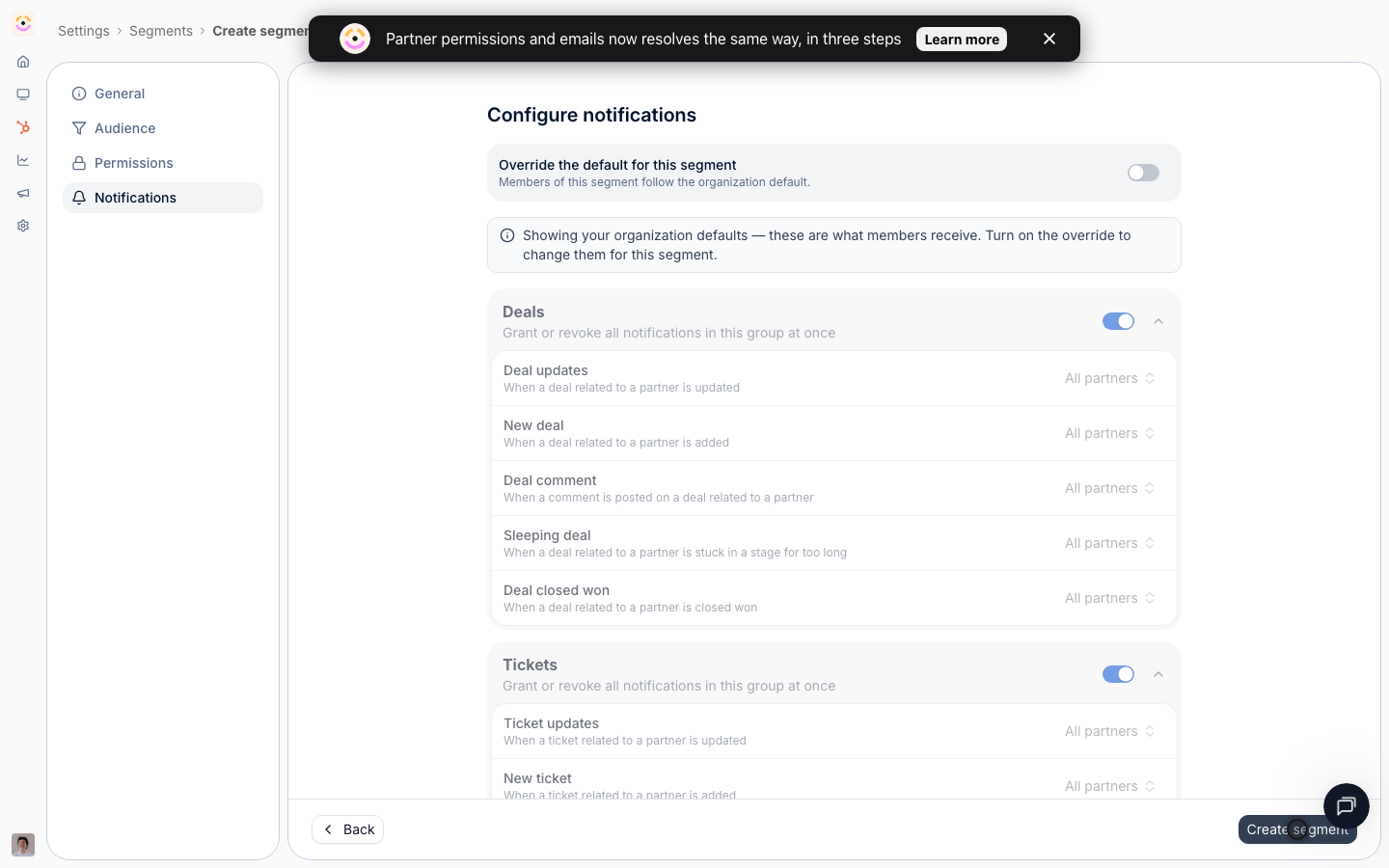 Point deeper enablement at the engaged segment: advanced content, a co-sell announcement, or the next tier's requirements, so momentum compounds where it already exists.
## Verify it worked
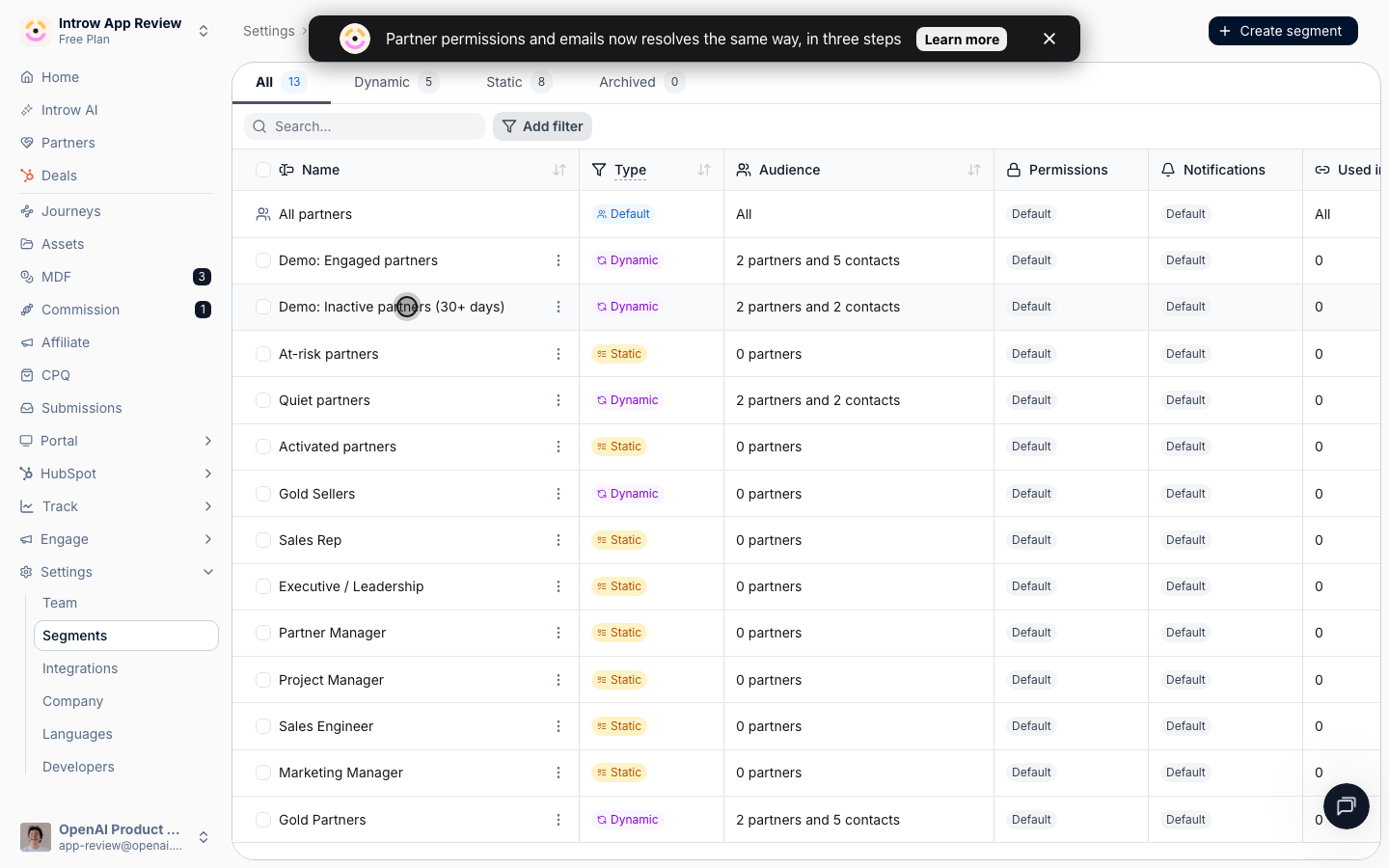
Open each segment on [Segments](https://app.introw.io/settings/segments) and confirm the member counts and names match what you expect. Then watch the mechanic work: when a quiet partner logs back in, views an asset, or registers a deal, their **Partner last activity** refreshes, they fall outside the "before 30 days ago" window, and they drop off the inactive segment (and into the engaged one) on their own. Anything you wired to the segments follows automatically, with no list to prune.
Point deeper enablement at the engaged segment: advanced content, a co-sell announcement, or the next tier's requirements, so momentum compounds where it already exists.
## Verify it worked
Open each segment on [Segments](https://app.introw.io/settings/segments) and confirm the member counts and names match what you expect. Then watch the mechanic work: when a quiet partner logs back in, views an asset, or registers a deal, their **Partner last activity** refreshes, they fall outside the "before 30 days ago" window, and they drop off the inactive segment (and into the engaged one) on their own. Anything you wired to the segments follows automatically, with no list to prune.
 ## Related
Build the audience that updates itself from conditions.
Target a re-engagement message at the inactive segment.
Combine engagement segments with stage-based unlocking.
Full configuration options for segments.
## Related
Build the audience that updates itself from conditions.
Target a re-engagement message at the inactive segment.
Combine engagement segments with stage-based unlocking.
Full configuration options for segments.