> ## Documentation Index
> Fetch the complete documentation index at: https://docs.introw.io/llms.txt
> Use this file to discover all available pages before exploring further.
# Create a static segment
> Hand-pick a fixed list of partners and contacts, then set its permissions and notifications so the exact group behaves the way you want.
{/* Sometimes you know precisely who belongs in an audience and do not want it to change on
its own, like a named pilot group or a hand-selected set for a specific program. This guide
builds a static segment end to end: pick the partners and contacts, then set who can invite
and collaborate and tune the notifications, so the exact group you chose behaves the way
every feature pointed at it should. */}
## What you'll achieve
A static segment containing exactly the partners and contacts you chose, with collaboration permissions and notification behavior set for that group. The list stays fixed until you change it, and every feature pointed at the segment treats precisely that group the way you intend.
## Before you start
You need access to segment settings.
Have the partners (and the specific contacts) you want in mind, since a static segment is the exact list you pick.
## Watch it
## Steps
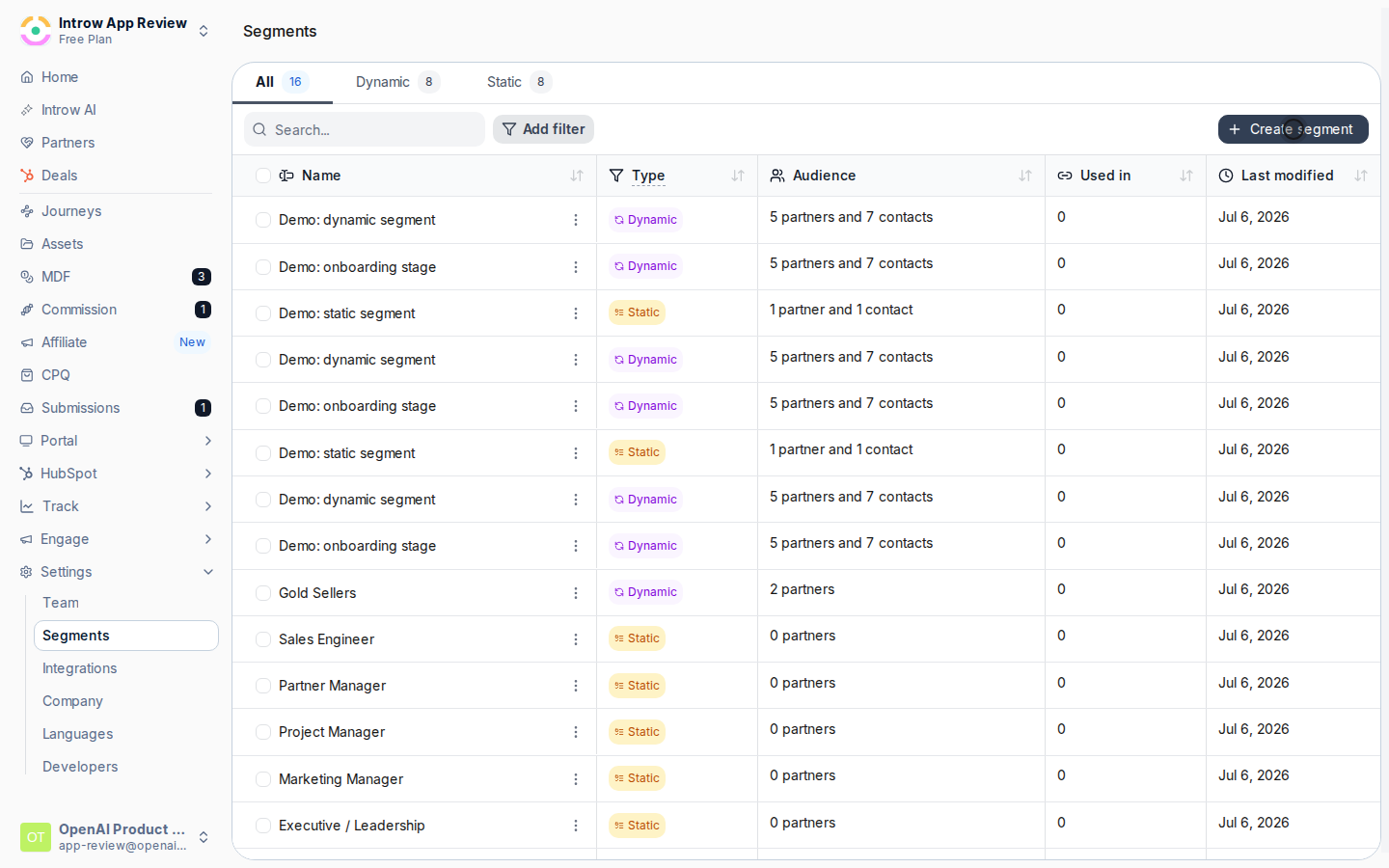
Go to [Segments](https://app.introw.io/settings/segments) and create a new segment. The segment editor opens on the **General** tab.
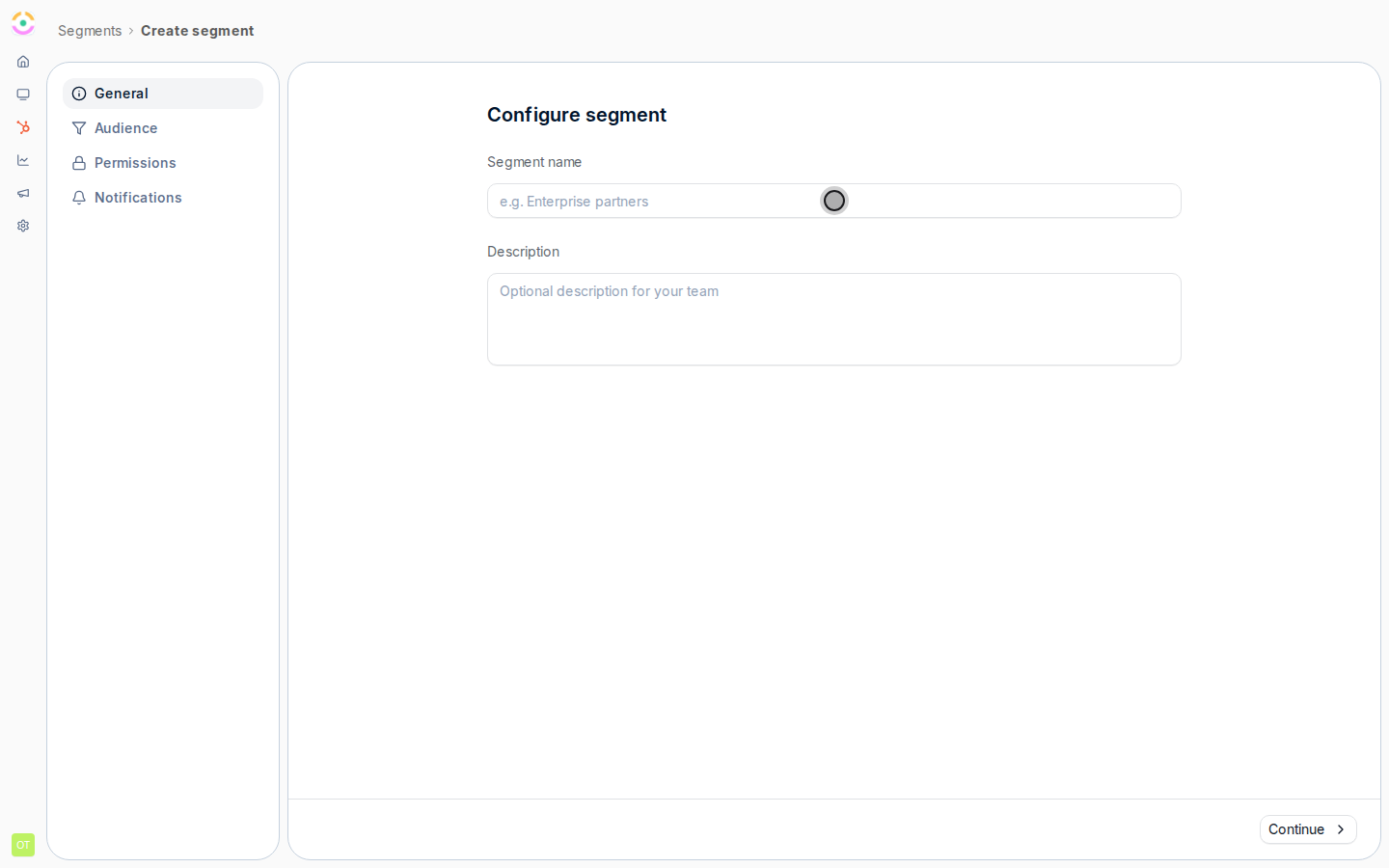
 On the **General** tab, fill in the basics:
* **Segment name** - how the segment appears everywhere you use it. Required.
* **Description** - an optional note for your team about who this group is for.
On the **General** tab, fill in the basics:
* **Segment name** - how the segment appears everywhere you use it. Required.
* **Description** - an optional note for your team about who this group is for.
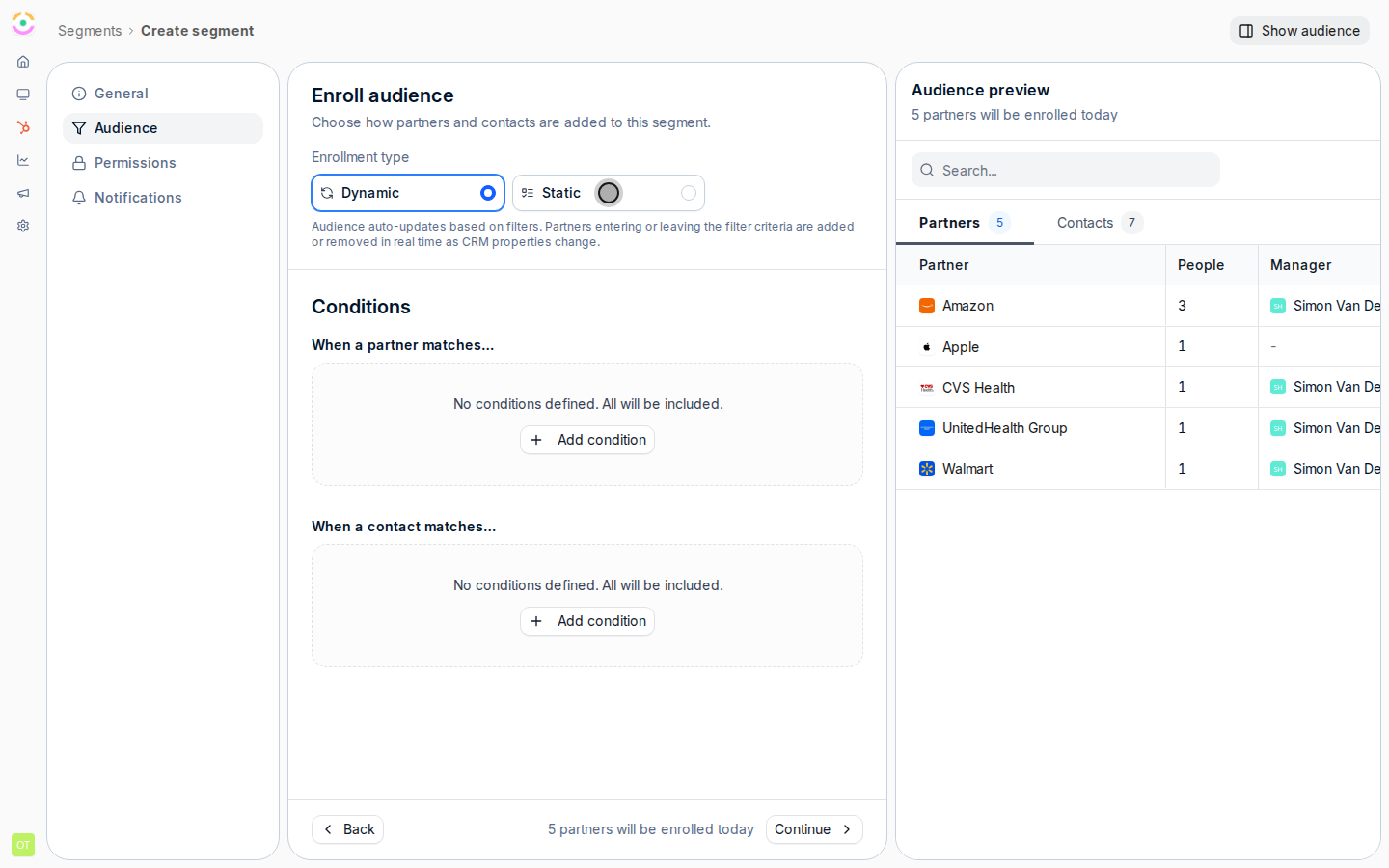
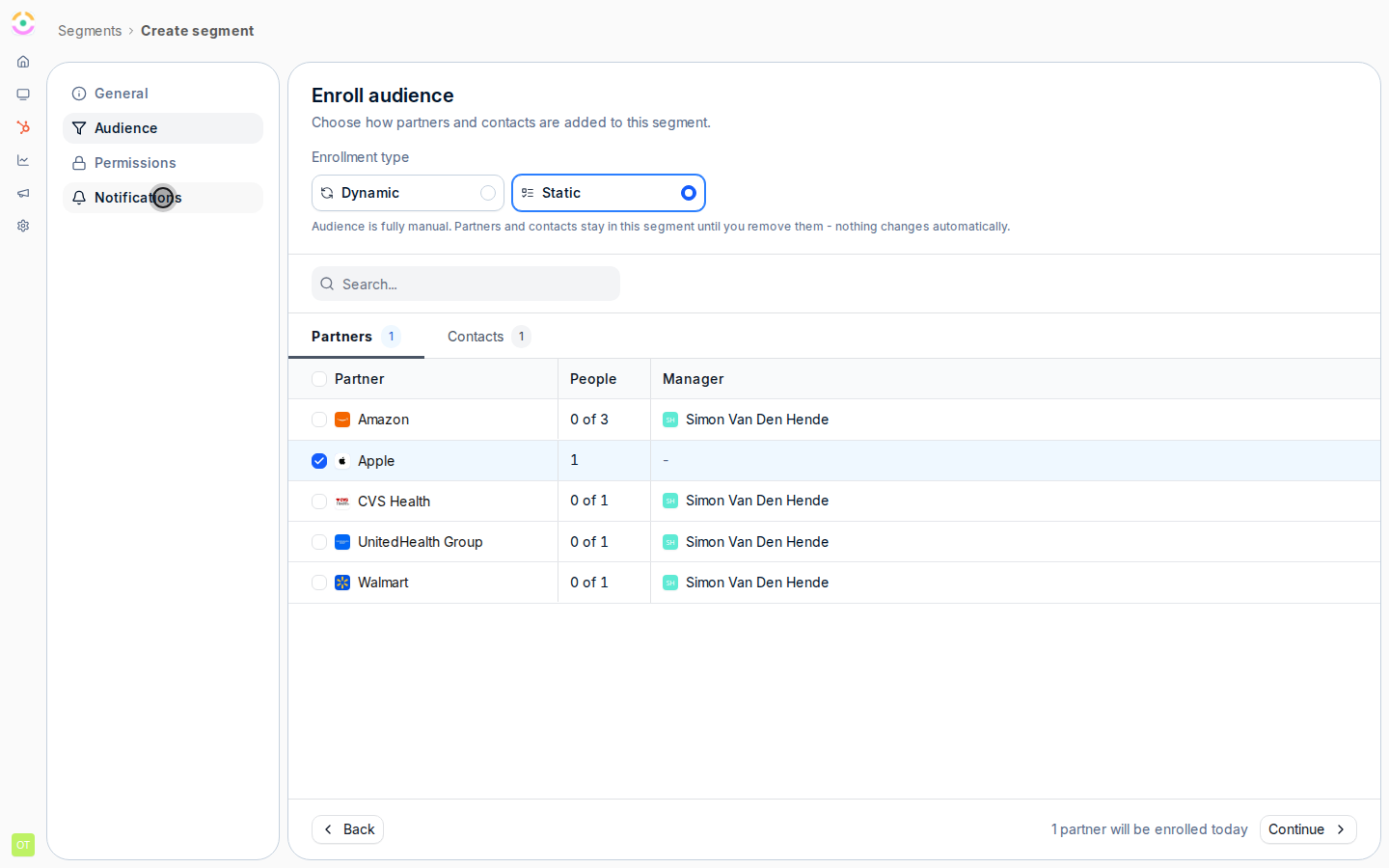
 On the **Audience** tab, set **Enrollment type** to **Static**. Static means you hand-pick the members and the list stays exactly as you set it until you edit it, rather than following conditions.
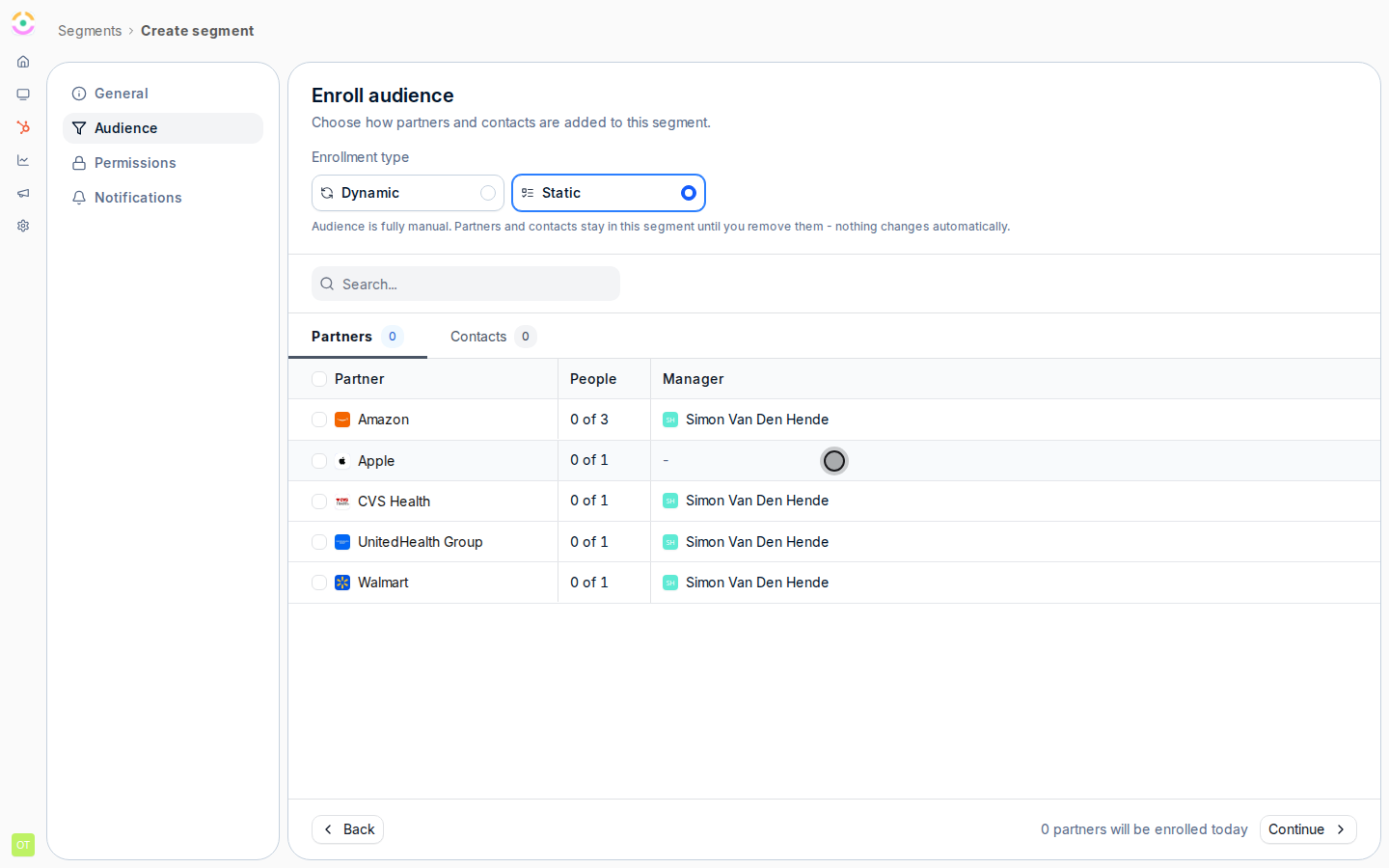
 On the **Audience** tab, check the partner organizations you want in the segment. The audience panel shows the running count of who will be enrolled, so you can confirm the group as you build it.
 Switch the audience view to contacts to refine who is included from those partners. By default the contacts at the partners you picked are enrolled; check or uncheck specific people when you need a tighter set than "everyone at these partners".
 On the **Permissions** tab, decide how this group may act:
* **Invite team members** - lets these partners invite their own colleagues into the portal. On by default.
* **Collaboration restricted** - when on, deal and lead nudges show only where a partner contact is actively collaborating. Off by default; turn it on for groups where you want to limit collaboration surface area.
For contacts who belong to several segments, the most permissive setting wins: a restriction here only applies to contacts whose every segment restricts them. See [Layer segments to progressively unlock capabilities](./layer-segments-to-progressively-unlock).
On the **Permissions** tab, decide how this group may act:
* **Invite team members** - lets these partners invite their own colleagues into the portal. On by default.
* **Collaboration restricted** - when on, deal and lead nudges show only where a partner contact is actively collaborating. Off by default; turn it on for groups where you want to limit collaboration surface area.
For contacts who belong to several segments, the most permissive setting wins: a restriction here only applies to contacts whose every segment restricts them. See [Layer segments to progressively unlock capabilities](./layer-segments-to-progressively-unlock).
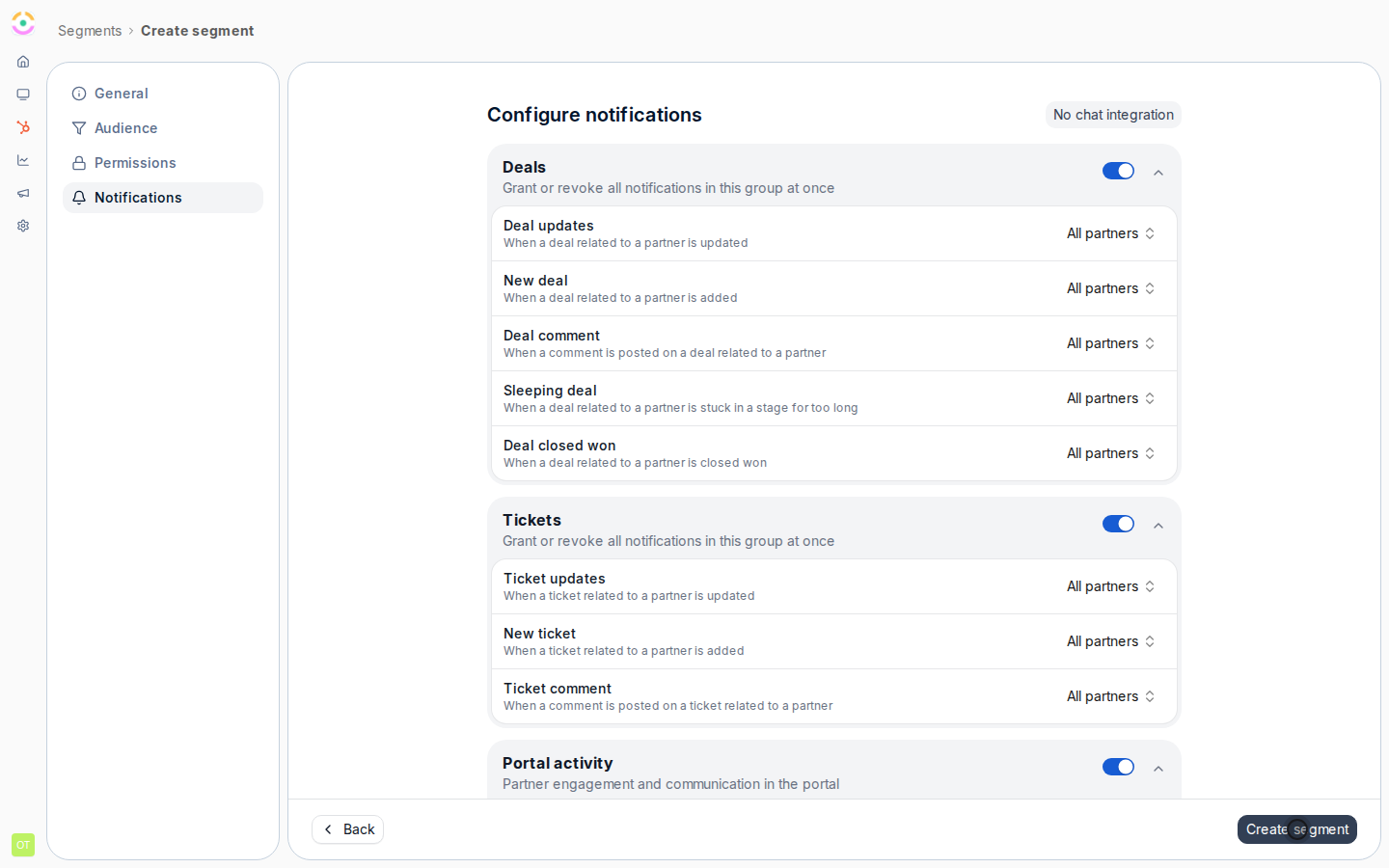 On the **Notifications** tab, override notification behavior for this group. For each update type (announcements, comments, new records, task nudges, object updates, sleeping-deal nudges, submission outcomes, course and certificate events), set the **channel** (email, chat, or both) and the **scope** (all partners or only collaborating contacts). Override only the types that should differ from your program defaults. For contacts in several segments, the most allowing override wins: a notification turned on in any of their segments reaches them, even if another of their segments turns it off.
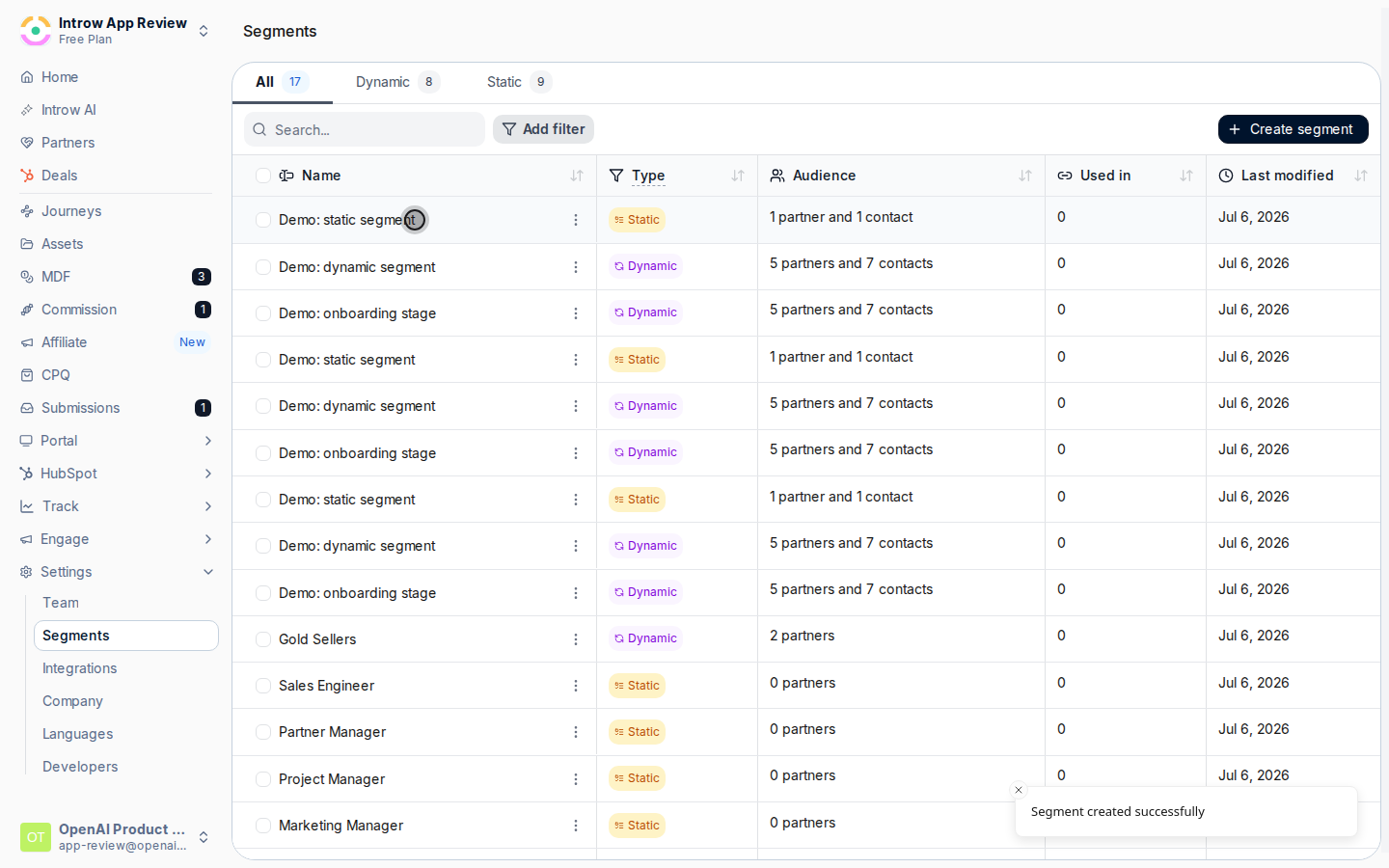 Save to create the segment. The list stays exactly as you set it, with the permissions and notification settings applied to that group.
Come back and add or remove members whenever the group changes; static segments do not update on their own.
## Verify it worked
The segment on [Segments](https://app.introw.io/settings/segments) contains exactly the partners and contacts you selected, and shows where it is used across the product so you can check its reach before editing or deleting it.
## Related
Let conditions define the audience instead.
Use the segment to gate portal content.
How overlapping segments resolve, and how to design around it.
Full configuration options for segments.
Save to create the segment. The list stays exactly as you set it, with the permissions and notification settings applied to that group.
Come back and add or remove members whenever the group changes; static segments do not update on their own.
## Verify it worked
The segment on [Segments](https://app.introw.io/settings/segments) contains exactly the partners and contacts you selected, and shows where it is used across the product so you can check its reach before editing or deleting it.
## Related
Let conditions define the audience instead.
Use the segment to gate portal content.
How overlapping segments resolve, and how to design around it.
Full configuration options for segments.