> ## Documentation Index
> Fetch the complete documentation index at: https://docs.introw.io/llms.txt
> Use this file to discover all available pages before exploring further.
# Create a partner manually
> Add a single partner by hand, linked to its CRM company, before sync detects it.
{/* Sometimes you need a partner in the program right now, before they match your detection
filters or before sync runs - or you have no CRM connected at all. Creating one by hand
pulls company data from your CRM so the new partner starts with clean information and a
link back to the record, ready to onboard. This is the by-name variant for partners that
detection will not pick up on its own. */}
## What you'll achieve
A single partner added directly, linked to its CRM company where one exists, sitting on the partners list with a detail page ready for you to set their phase, tier, experience, and other fields. The new partner behaves exactly like a detected one, just created on demand.
## Before you start
You need write access to Partners. Connecting your CRM first lets Introw prefill company data and link the new partner back to its record, but you can also create one with no CRM connected.
## Watch it
## Steps
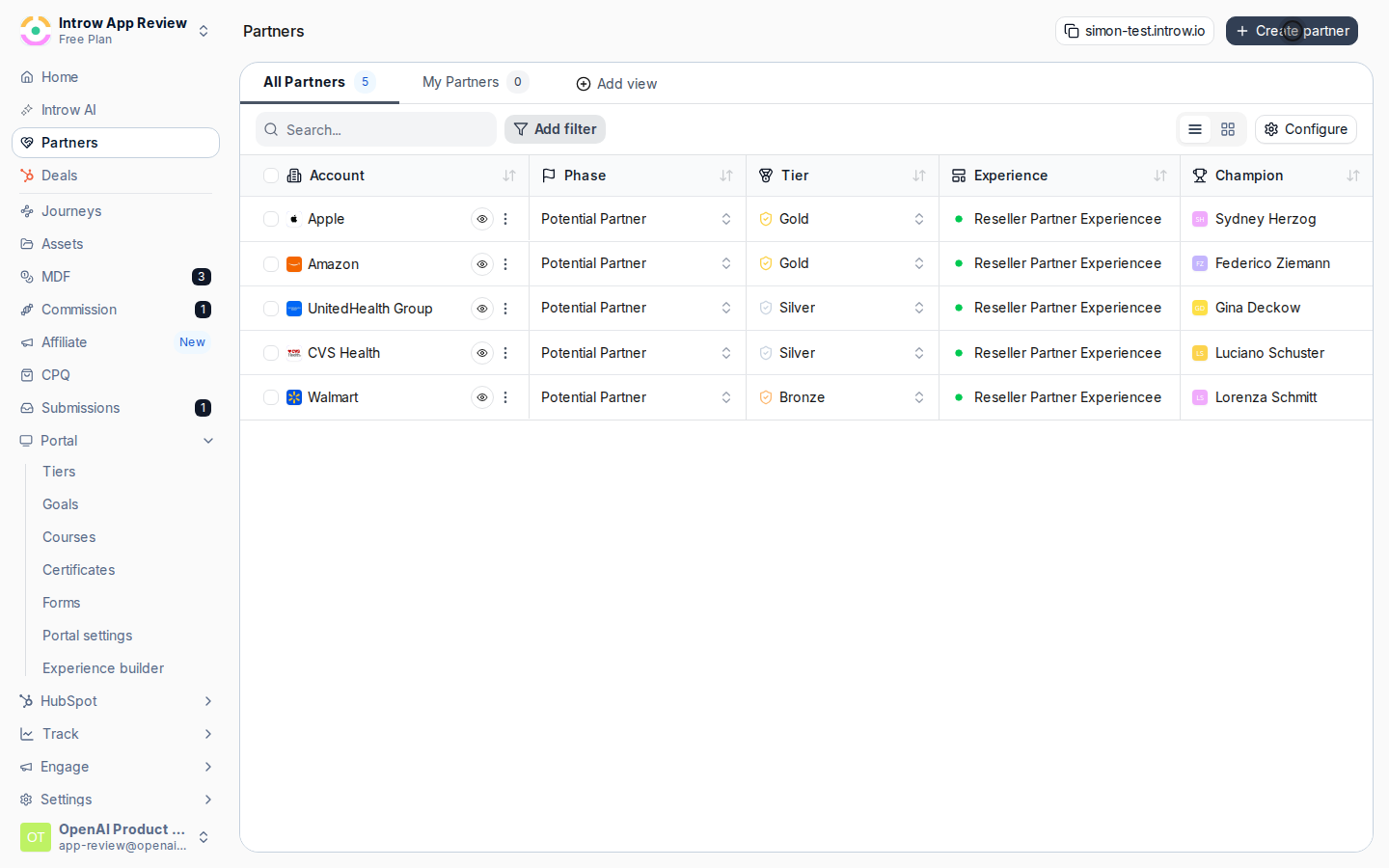
On [Partners](https://app.introw.io/partners), choose **Create partner** to open the dialog.
 Identify the partner organization. The fields you see depend on whether a CRM is connected:
* **Company (CRM connected)** - search for and pick the partner's company so the new partner links back to that CRM record. If your CRM uses a custom partner object, you can also pick the **Partner** record directly. Linking is what makes the partner's deals and people attribute automatically.
* **Company domain and Company name (no CRM, or filling in by hand)** - enter the domain and name directly. Typing a domain prefills a suggested company name, which you can edit.
Identify the partner organization. The fields you see depend on whether a CRM is connected:
* **Company (CRM connected)** - search for and pick the partner's company so the new partner links back to that CRM record. If your CRM uses a custom partner object, you can also pick the **Partner** record directly. Linking is what makes the partner's deals and people attribute automatically.
* **Company domain and Company name (no CRM, or filling in by hand)** - enter the domain and name directly. Typing a domain prefills a suggested company name, which you can edit.
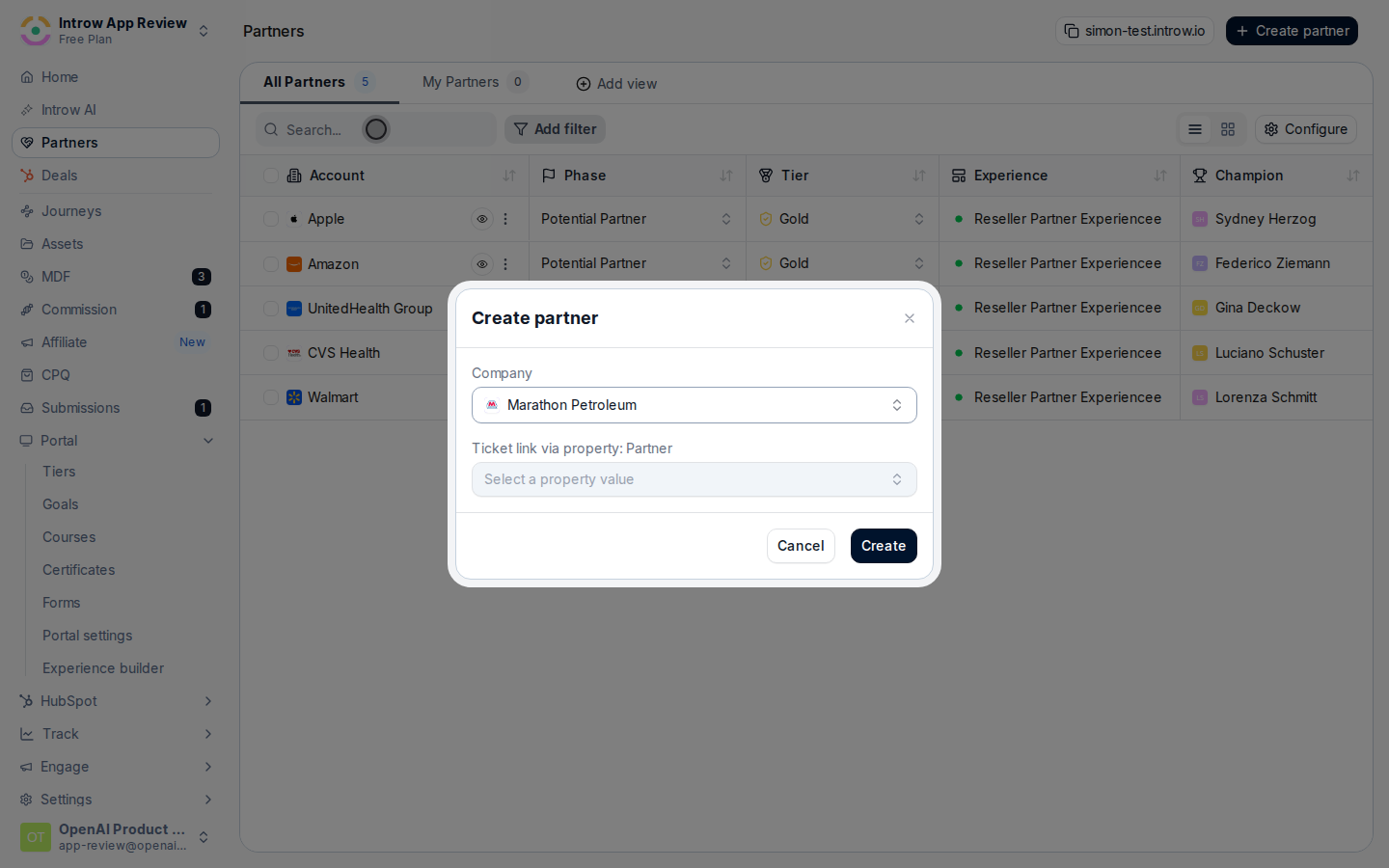 If your setup maps partner attribution properties, the dialog asks you to fill them in. Set them so the partner's deals and people attribute correctly from the moment they are created, rather than waiting for a later edit. Skip this step if no attribution properties are mapped.
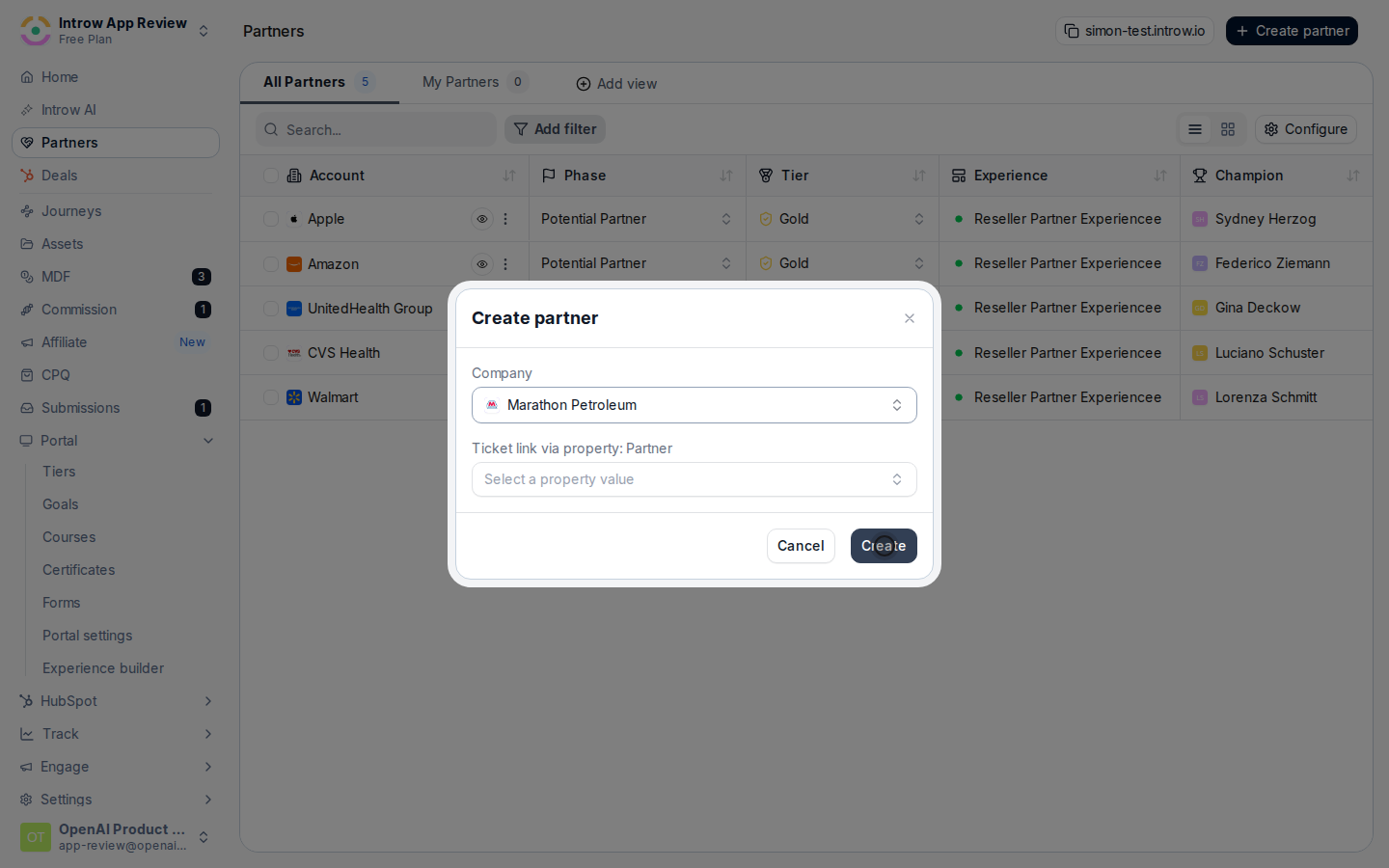 Confirm to create the partner. Introw opens the new partner's detail page.
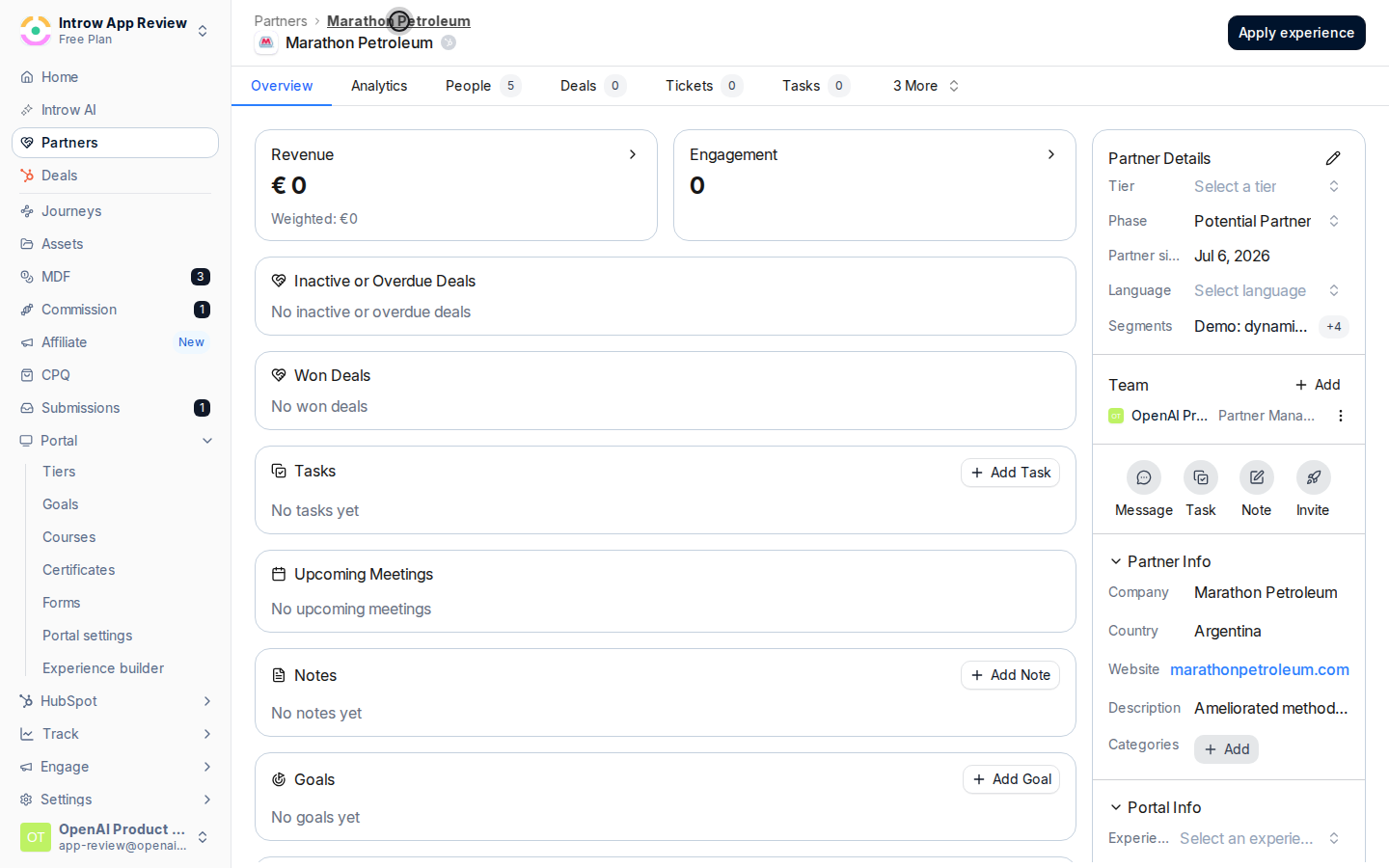 On the detail page, set the fields that decide how the partner is treated: **Phase**, **Tier**, **Champion**, **Language**, **Currency**, **Categories**, **Experience**, and **Commission Plan**. See [Work a partner record](./work-a-partner-record) for what each field controls. Setting them now means the partner is fully onboarded, not just created.
## Verify it worked
The new partner appears in [Partners](https://app.introw.io/partners) and on its detail page, linked to the CRM record when one was selected, with the fields you set ready to drive their experience.
## Related
Set every field, manage people, and add notes.
Let detection add partners automatically.
Full configuration options for partner records.
On the detail page, set the fields that decide how the partner is treated: **Phase**, **Tier**, **Champion**, **Language**, **Currency**, **Categories**, **Experience**, and **Commission Plan**. See [Work a partner record](./work-a-partner-record) for what each field controls. Setting them now means the partner is fully onboarded, not just created.
## Verify it worked
The new partner appears in [Partners](https://app.introw.io/partners) and on its detail page, linked to the CRM record when one was selected, with the fields you set ready to drive their experience.
## Related
Set every field, manage people, and add notes.
Let detection add partners automatically.
Full configuration options for partner records.