> ## Documentation Index
> Fetch the complete documentation index at: https://docs.introw.io/llms.txt
> Use this file to discover all available pages before exploring further.
# Bulk update partners
> Change tier, commission plan, currency, team roles, or the published experience for many partners at once.
{/* Tier promotions, commission plan swaps, owner handoffs, and experience rollouts often land
on dozens of partners at once. Multi-select on the partners list lets you pick the cohort,
choose what to change, and apply it in one pass instead of repeating the same edit on every
record. Reach for it after a tier review, a plan change, or when a group of partners should
move onto a new branded experience. */}
## What you'll achieve
A whole cohort of partners updated in one pass: their tier, commission plan, currency, or a team role changed through the bulk edit dialog, or their published experience created or swapped through the bulk actions bar. What would have been dozens of identical edits becomes a single action.
## Before you start
You need write access to Partners. Tiers, commission plans, team roles, and experiences must already exist for the values you want to apply.
## Watch it
## Steps
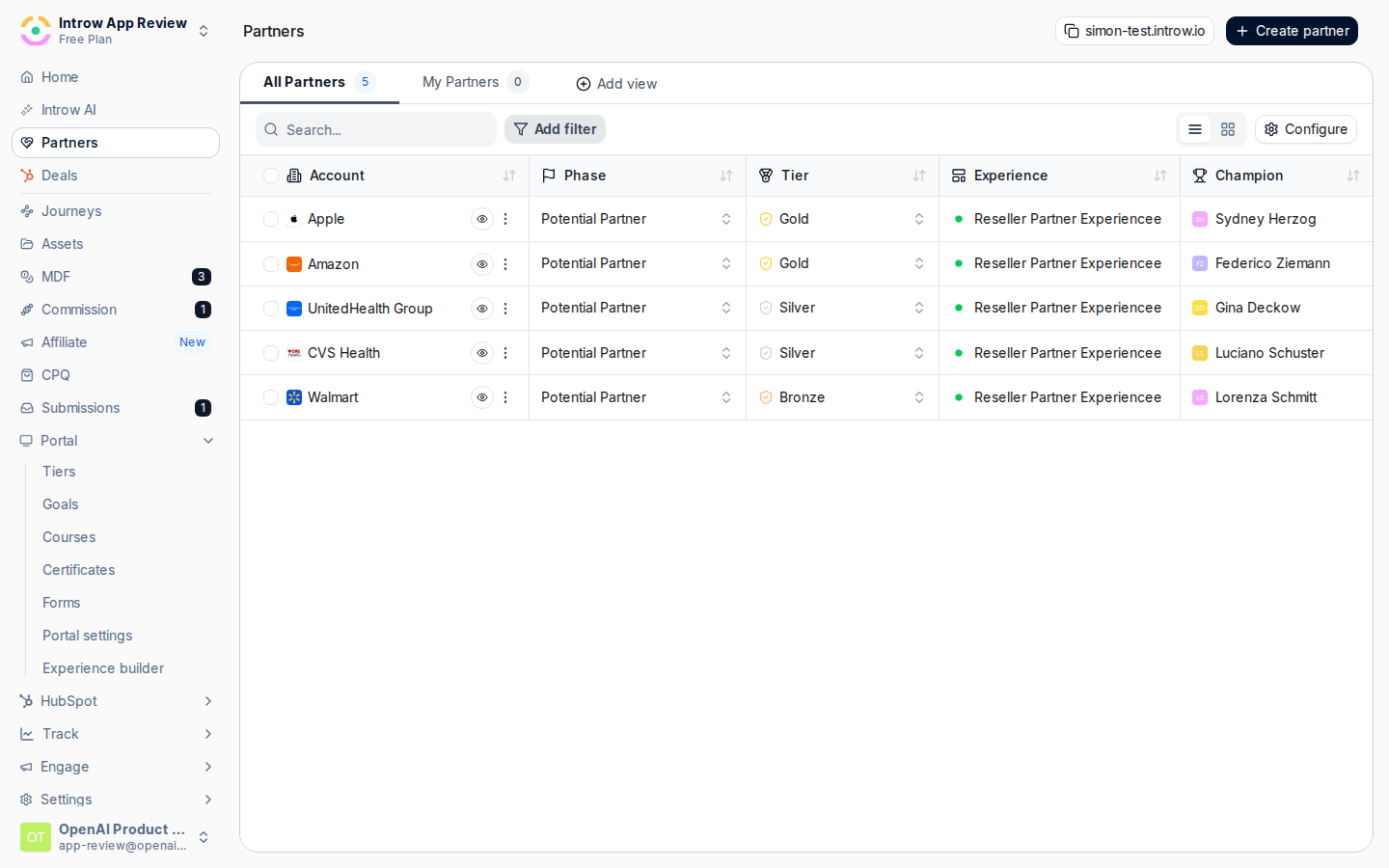
On [Partners](https://app.introw.io/partners), use the row checkboxes to select every partner you want to change. The header shows how many are selected and opens the bulk actions bar. Filter the list first so you select exactly the cohort you mean.
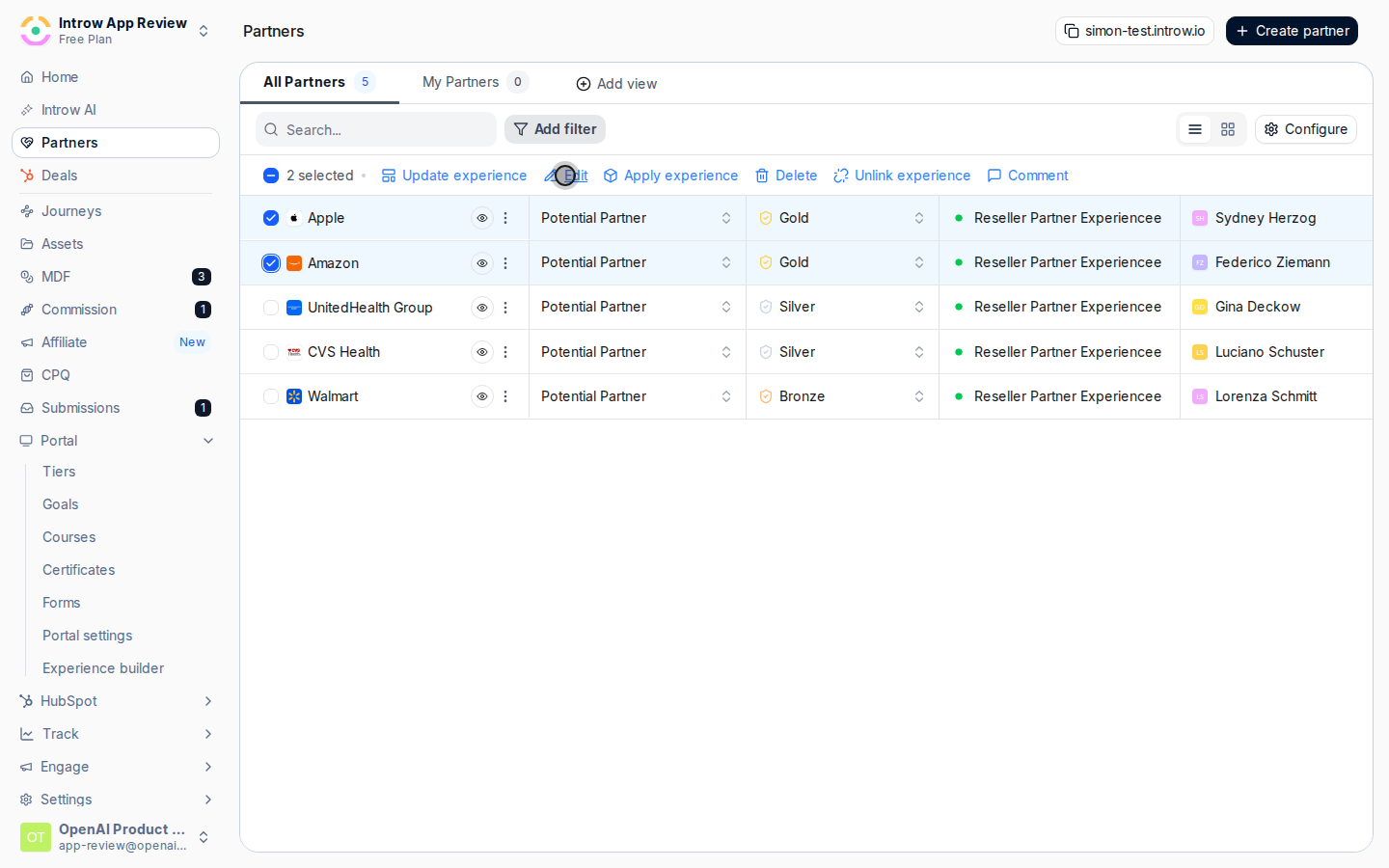
 Click **Edit** in the bulk actions bar to open the bulk edit dialog for your selection.
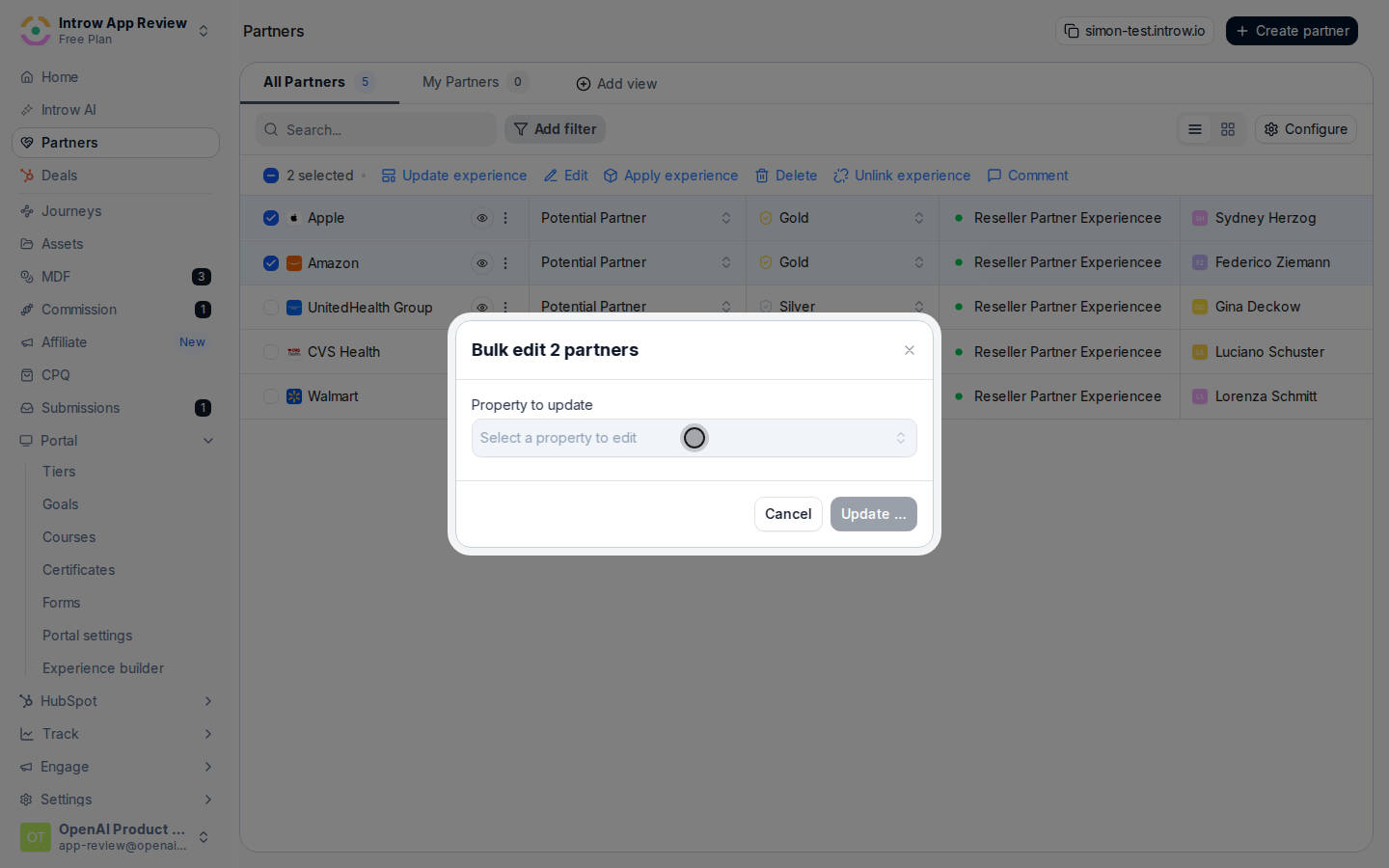
 Under **Property to update**, pick what you are changing. One bulk edit changes one property across the whole selection:
* **Tier** - move every selected partner to the chosen tier. Use it after a tier review to promote or demote a cohort at once.
* **Commission Plan** - set the commission plan(s) for the selection, so their conversions calculate against the right plan.
* **Currency** - set the currency the selected partners transact in. Available when multi-currency is enabled.
* **A team role** (listed by its name, such as **Partner manager**) - assign a team member to that role across the selection. The dialog then asks for the **User** to assign.
Under **Property to update**, pick what you are changing. One bulk edit changes one property across the whole selection:
* **Tier** - move every selected partner to the chosen tier. Use it after a tier review to promote or demote a cohort at once.
* **Commission Plan** - set the commission plan(s) for the selection, so their conversions calculate against the right plan.
* **Currency** - set the currency the selected partners transact in. Available when multi-currency is enabled.
* **A team role** (listed by its name, such as **Partner manager**) - assign a team member to that role across the selection. The dialog then asks for the **User** to assign.
 Choose the tier, commission plan, currency, or team member that should apply to all selected partners. When assigning a team role to partners that already have someone in that role, Introw asks whether to replace the existing assignment.
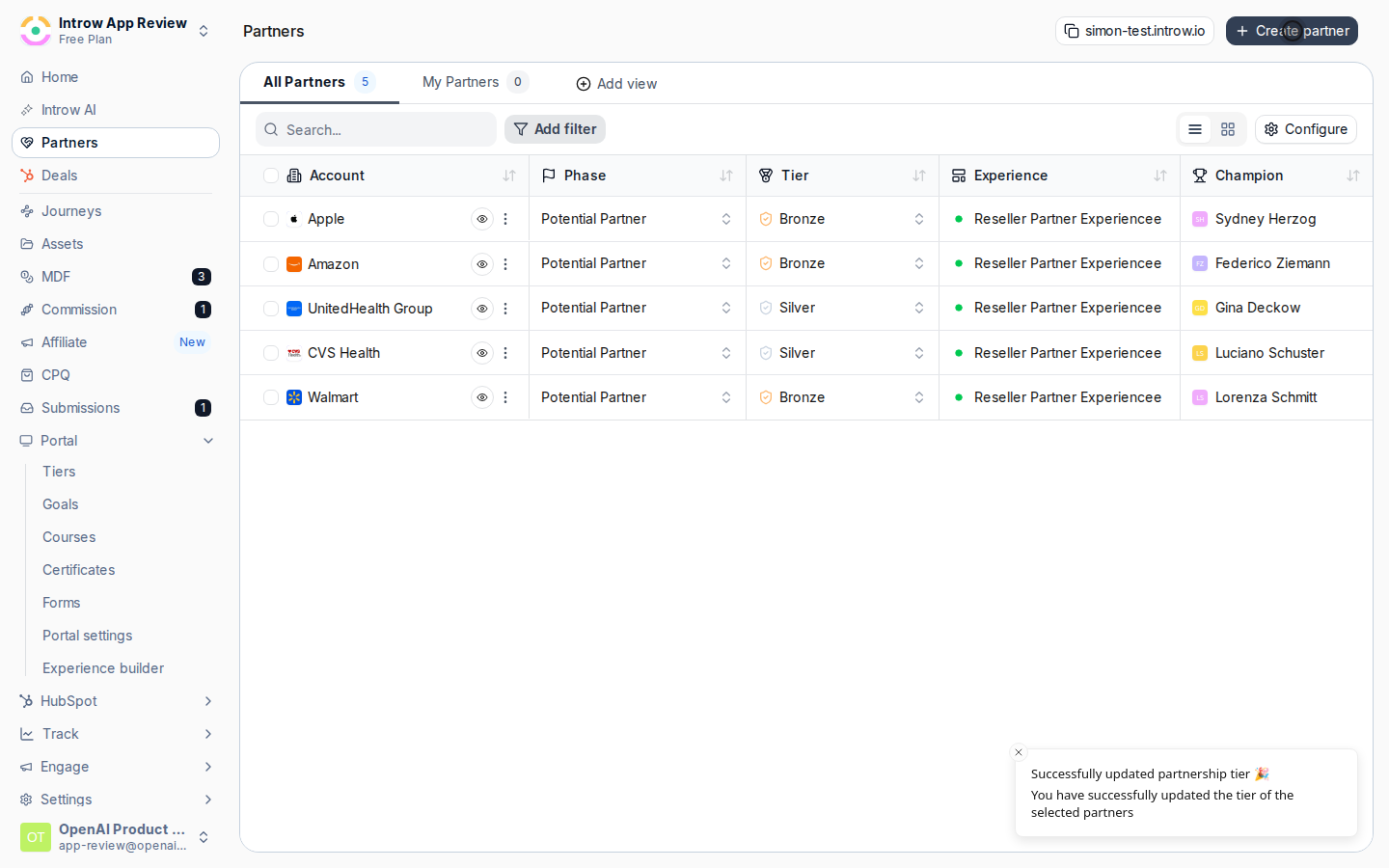
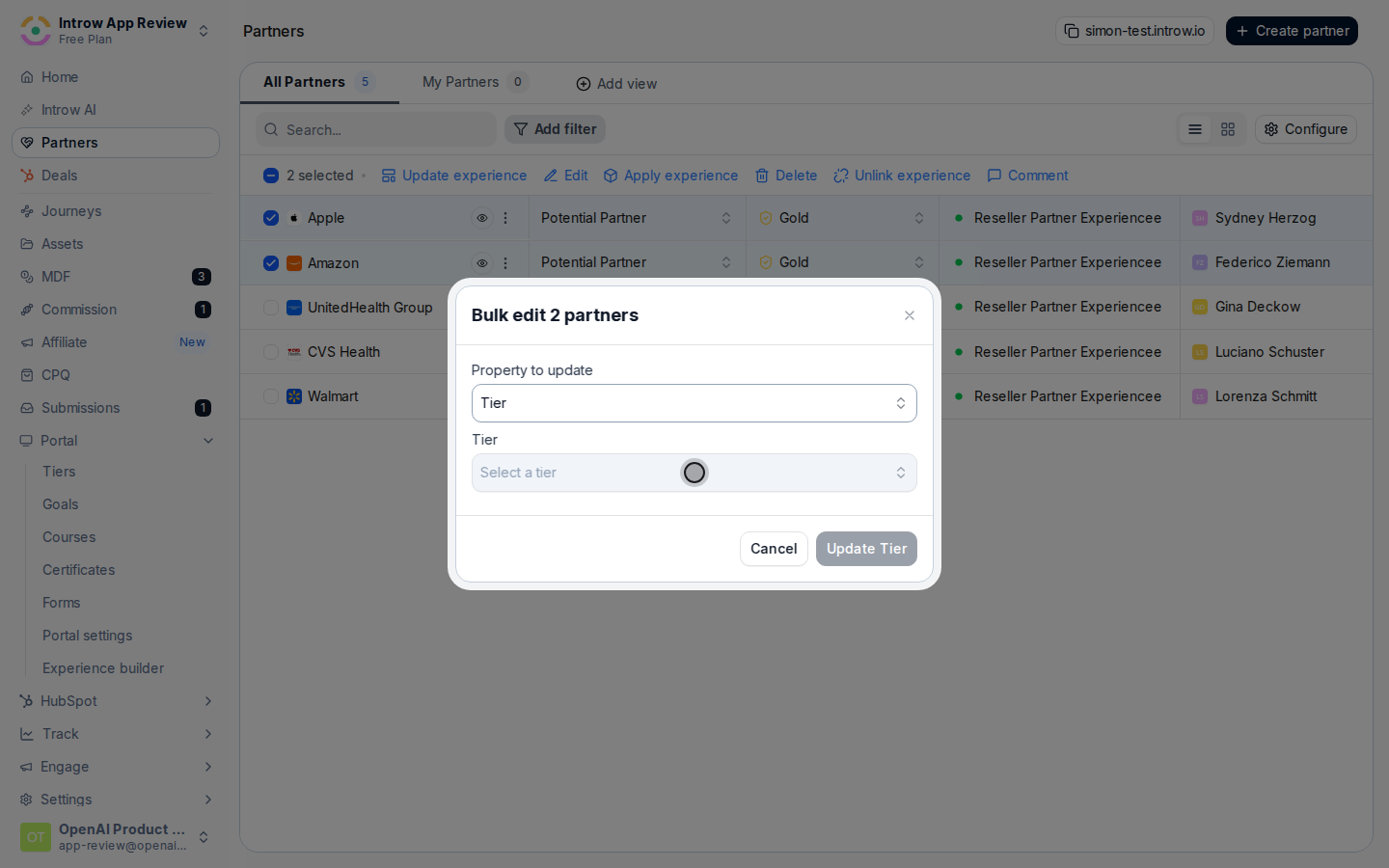 Click **Update** to save. Introw updates every selected partner and clears the selection when it finishes.
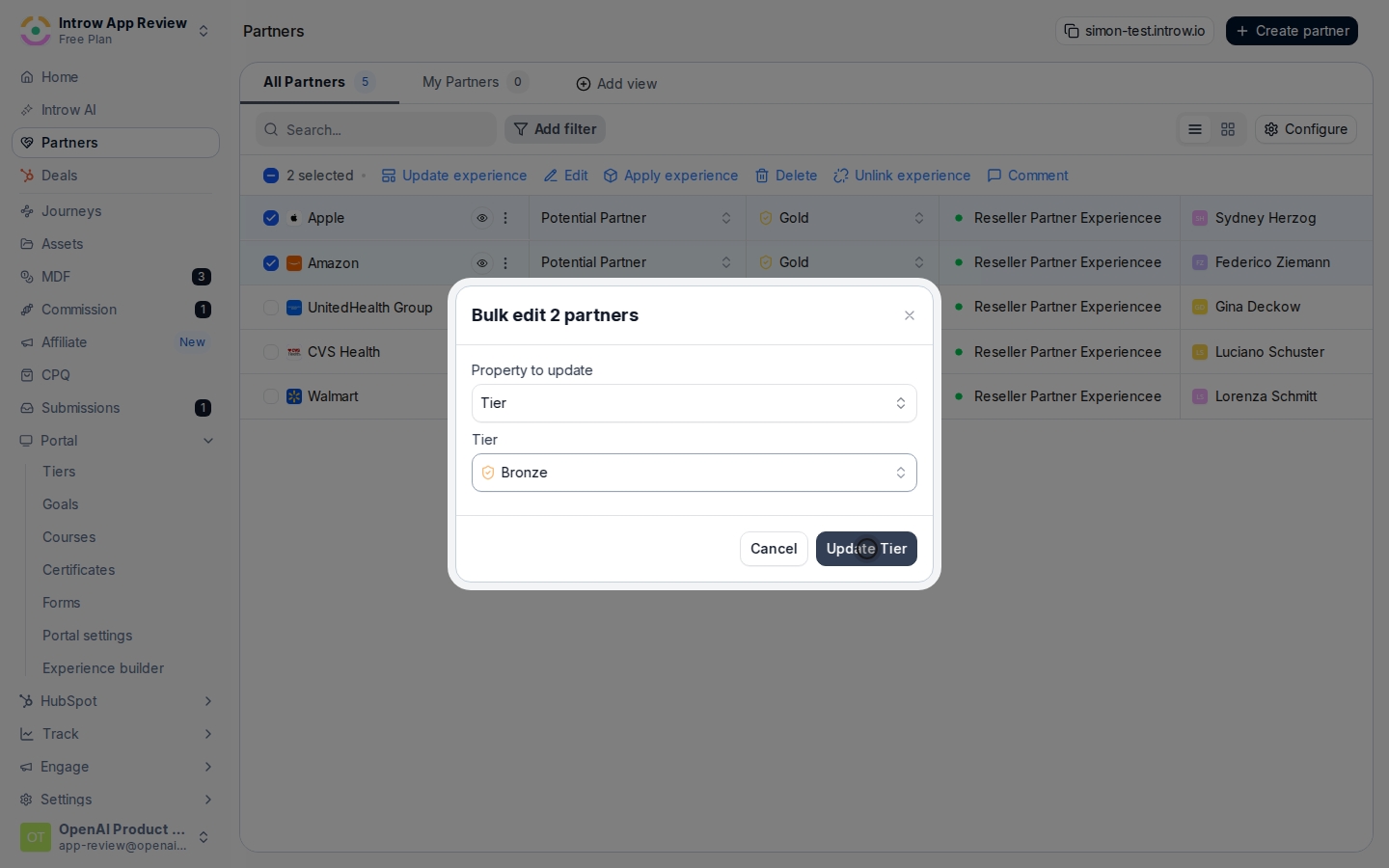 To change which experience a cohort is published with, keep the partners selected and use the bulk actions bar instead of the Edit dialog:
* **Apply experience** - publish the selected partners with an experience, creating their partner portals in one pass. Use it to launch portals for a new cohort.
* **Update experience** - swap the experience the selected partners already use, updating their existing portals. Use it to move a cohort onto a refreshed or rebranded experience.
To change which experience a cohort is published with, keep the partners selected and use the bulk actions bar instead of the Edit dialog:
* **Apply experience** - publish the selected partners with an experience, creating their partner portals in one pass. Use it to launch portals for a new cohort.
* **Update experience** - swap the experience the selected partners already use, updating their existing portals. Use it to move a cohort onto a refreshed or rebranded experience.
 ## Verify it worked
The partners you selected show the new value in the list, and the bulk actions bar is gone because the selection cleared. If you applied an experience, the selected partners now have portals on that experience.
## Related
Filter and view the list before you select a cohort.
Define team roles and assign owners on a single partner.
Full configuration options for the partners list.
## Verify it worked
The partners you selected show the new value in the list, and the bulk actions bar is gone because the selection cleared. If you applied an experience, the selected partners now have portals on that experience.
## Related
Filter and view the list before you select a cohort.
Define team roles and assign owners on a single partner.
Full configuration options for the partners list.