> ## Documentation Index
> Fetch the complete documentation index at: https://docs.introw.io/llms.txt
> Use this file to discover all available pages before exploring further.
# Troubleshoot partner email delivery
> Work through the usual causes when a partner says they did not get an email or invite: the address, the notification setting, spam and domain filtering, then resend.
{/* When a partner says they did not get a notification or invite, the cause is almost always one
of a few things: the wrong or unverified email address, the notification being turned off,
or the partner's mail server filtering the message. Working through them in order finds the
cause fast and gets the partner receiving Introw emails reliably. */}
## What you'll achieve
The cause of a partner's missing emails identified and fixed, so they reliably receive Introw notifications and invites going forward.
## Before you start
Note which email the partner expected and which address is on their record.
## Watch it
## Steps
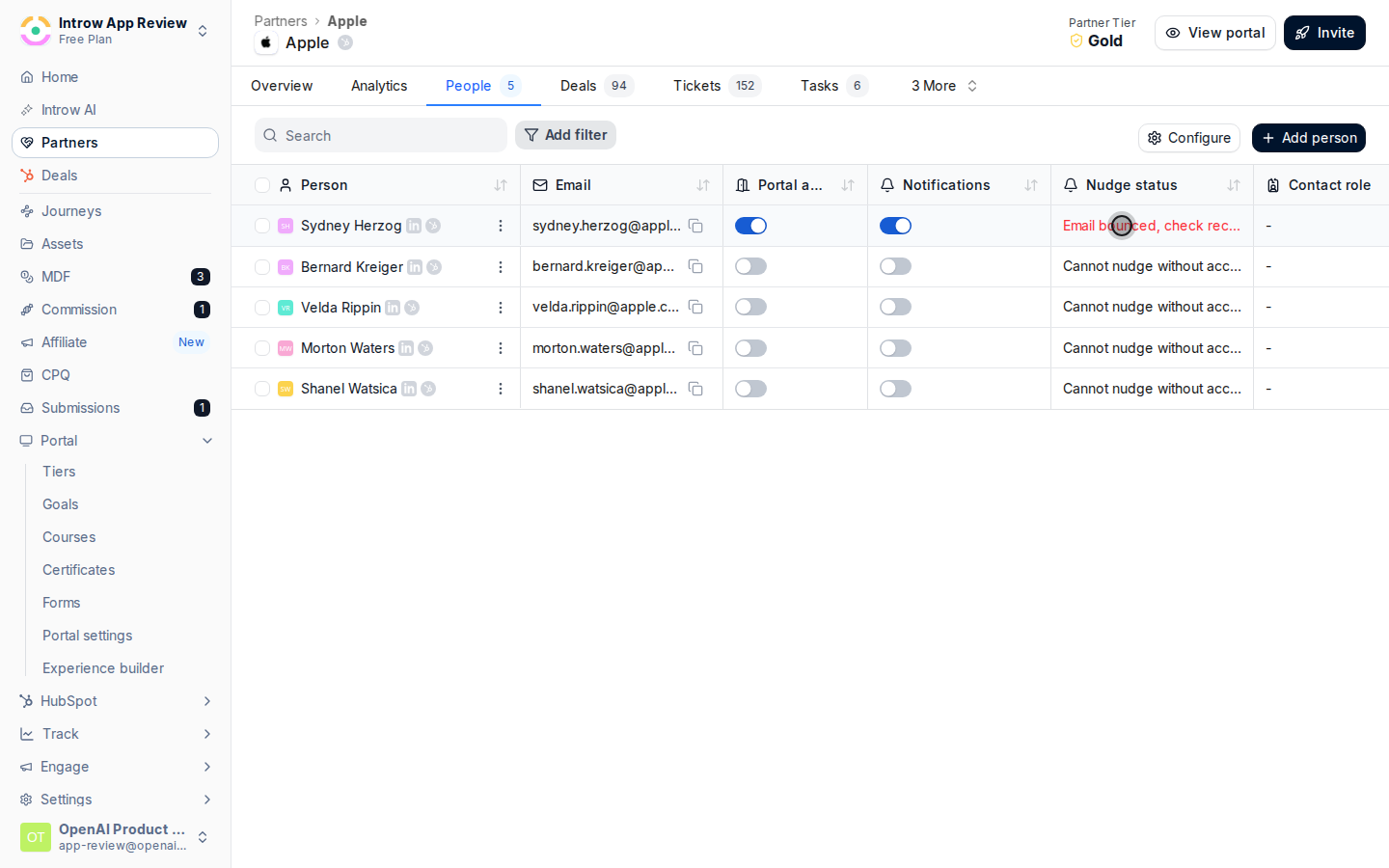
In [Partners](https://app.introw.io/partners), open the partner and confirm the contact's email is correct and verified. A typo or unverified address is the most common cause, and Introw only emails a valid address.
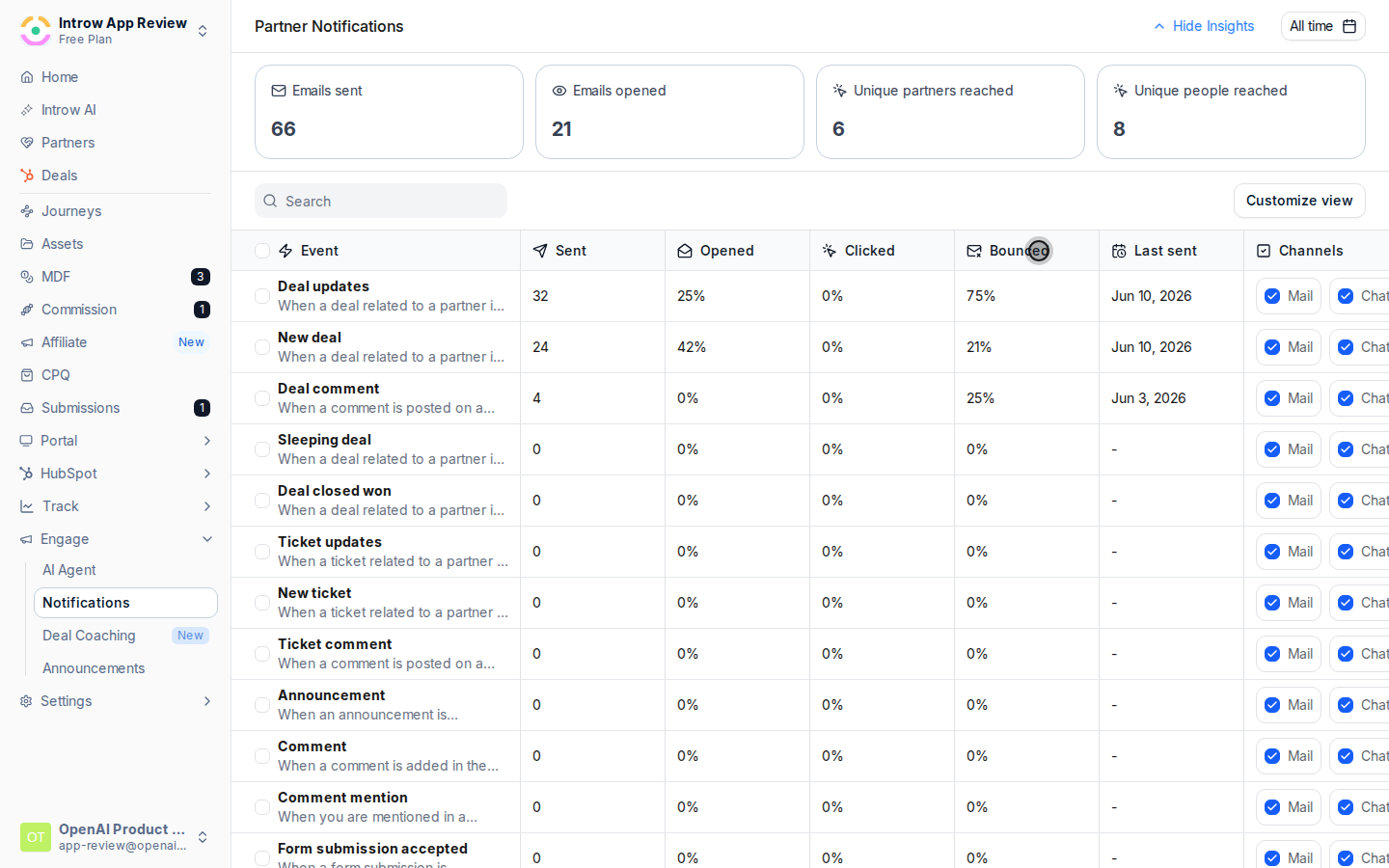
 In [Notification settings](https://app.introw.io/settings/notifications), confirm the relevant notification is enabled with **Mail** checked, and that any **Segments** on it actually include this partner. A notification scoped to a segment the partner is not in will skip them.
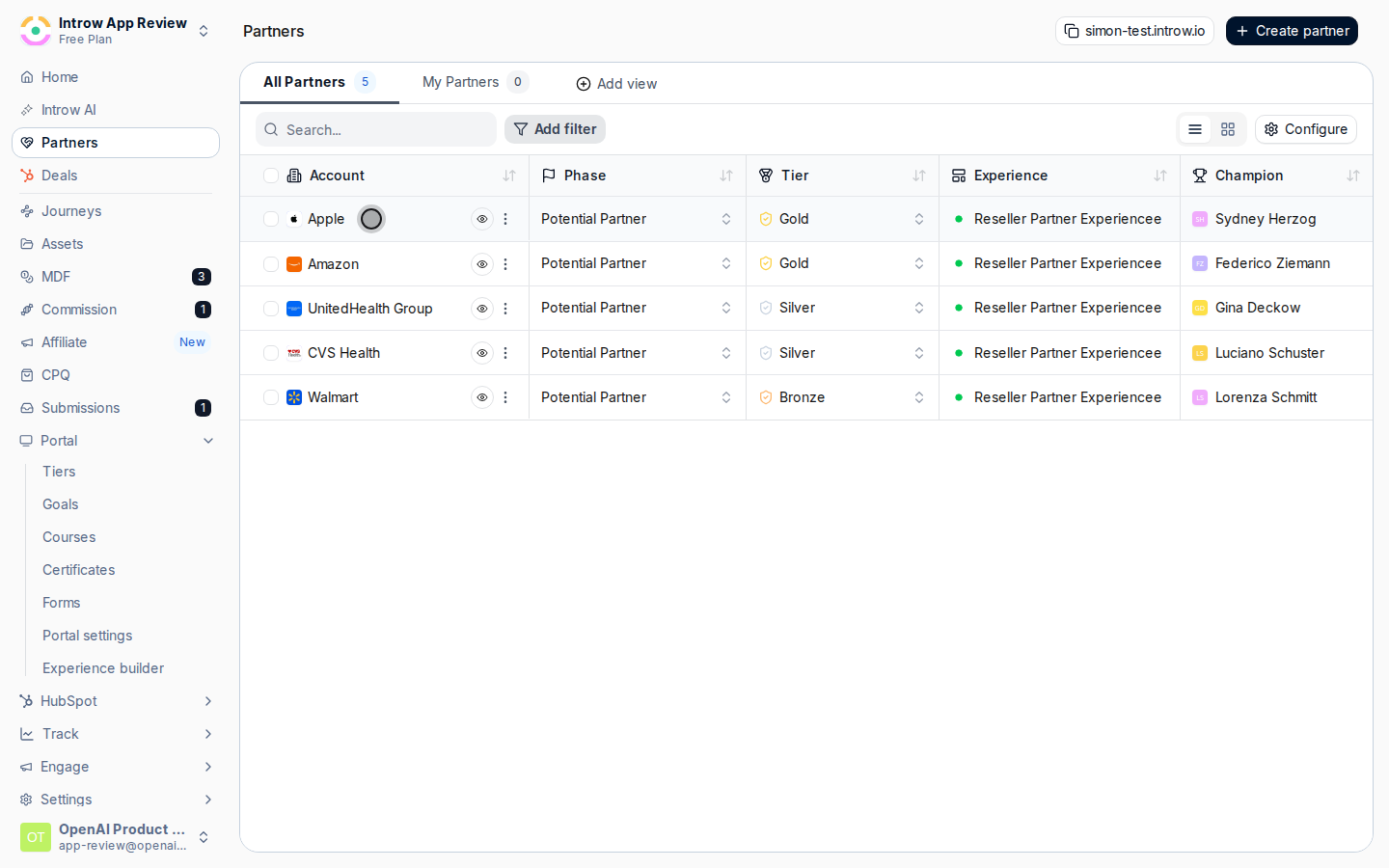
 Ask the partner to check their spam folder, and confirm their mail server is not blocking the sender. Corporate filters are a frequent culprit for partners who never see invites. If spam filtering is a recurring problem across partners, [send notifications from your own authenticated domain](/features/portal/email-domain/guides/send-notifications-from-your-own-domain) so mailbox providers trust the mail.
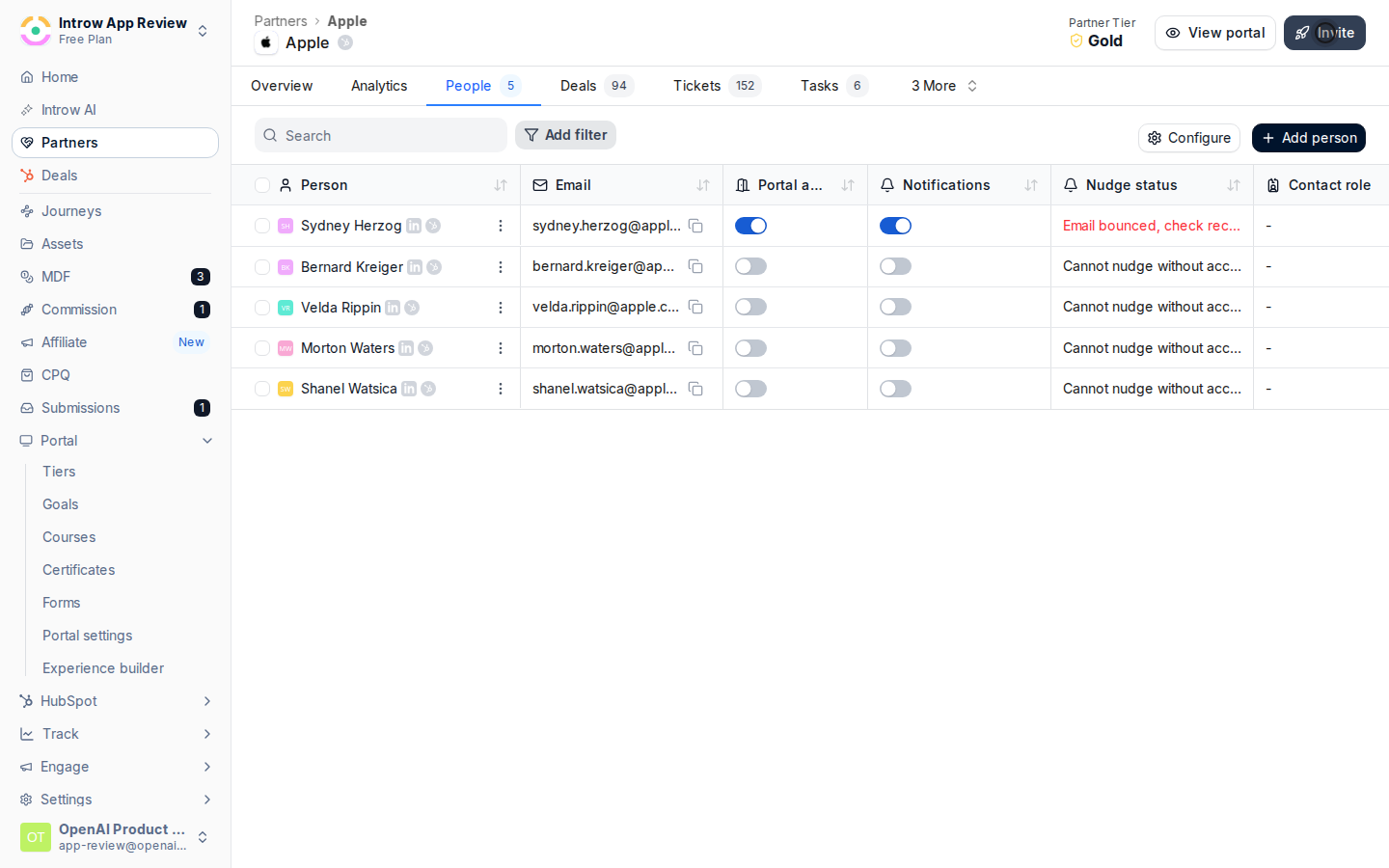
 Once the address and settings are correct, resend the notification or invite so the partner gets it.
 ## Verify it worked
The partner receives the resent email, and the notification's **Last sent** column updates to show it went out.
## Related
Turn on Mail and reply-by-email.
Email verification for access.
Full configuration options for partner notifications.
## Verify it worked
The partner receives the resent email, and the notification's **Last sent** column updates to show it went out.
## Related
Turn on Mail and reply-by-email.
Email verification for access.
Full configuration options for partner notifications.