> ## Documentation Index
> Fetch the complete documentation index at: https://docs.introw.io/llms.txt
> Use this file to discover all available pages before exploring further.
# Configure partner notifications in Microsoft Teams
> Enable the right partner notifications on Chat so Introw posts them to each partner's mapped Microsoft Teams channel, and scope who receives them.
{/* Partners engage more when updates reach them where they already work. Once Teams is connected
and partner channels are mapped, you enable Chat on the partner notifications that suit a chat
feed and Introw posts them to each partner's channel. This guide covers turning on the right
events, scoping who receives them, and knowing which notifications are chat-ready versus
email-only. */}
## What you'll achieve
The partner notifications that suit a chat feed delivered to each partner's mapped Microsoft Teams channel, scoped to the right audiences, so partners and your team see high-signal updates without leaving Teams.
## Before you start
Install the Introw app in your tenant, see [Connect Microsoft Teams](/features/integrations/chat/guides/connect-microsoft-teams).
Partners need a mapped Teams channel to receive chat notifications, see [Map a partner channel](/features/integrations/chat/guides/configure-the-chat-integration).
## Watch it
## Steps
Go to [Notification settings](https://app.introw.io/settings/notifications).
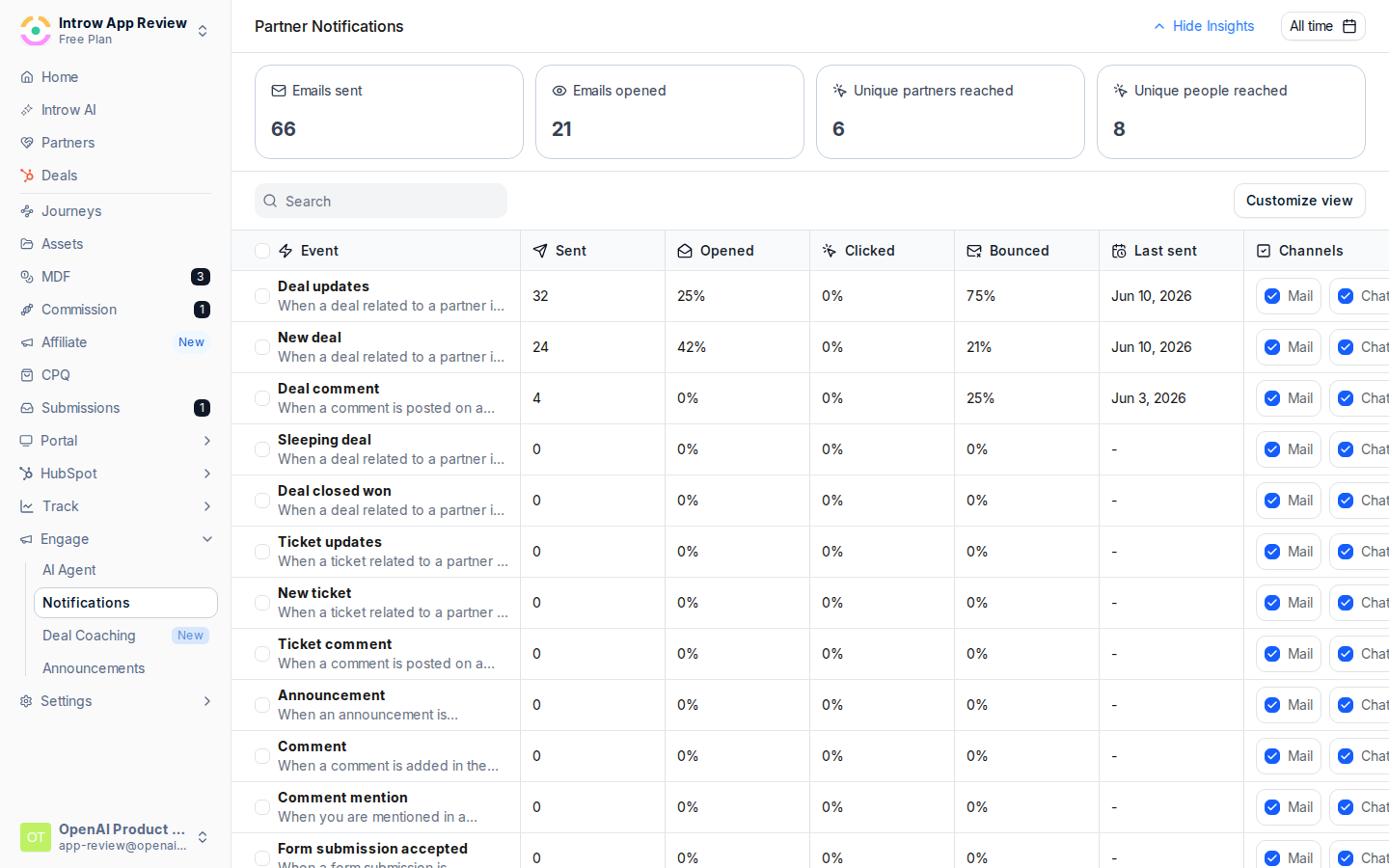 For each notification, check **Chat** to deliver it in Teams. The column is labeled **Chat** in Introw and uses your connected Microsoft Teams workspace.
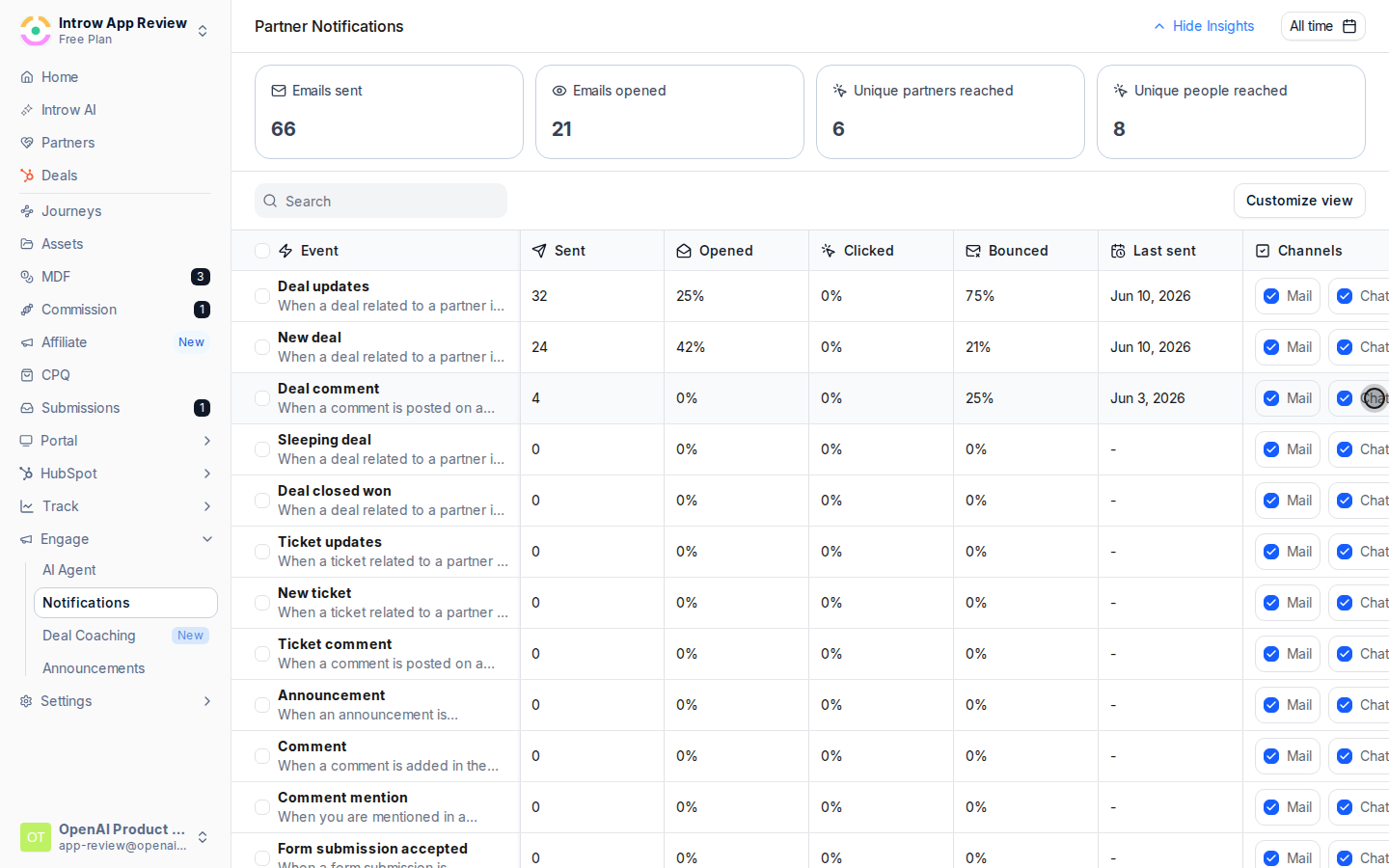 **Chat** is available for deal and object updates, announcements, comments and mentions, form submission outcomes, and task assignments. Task reminder nudges, learning emails, and system messages are email-only, so those stay on Mail.
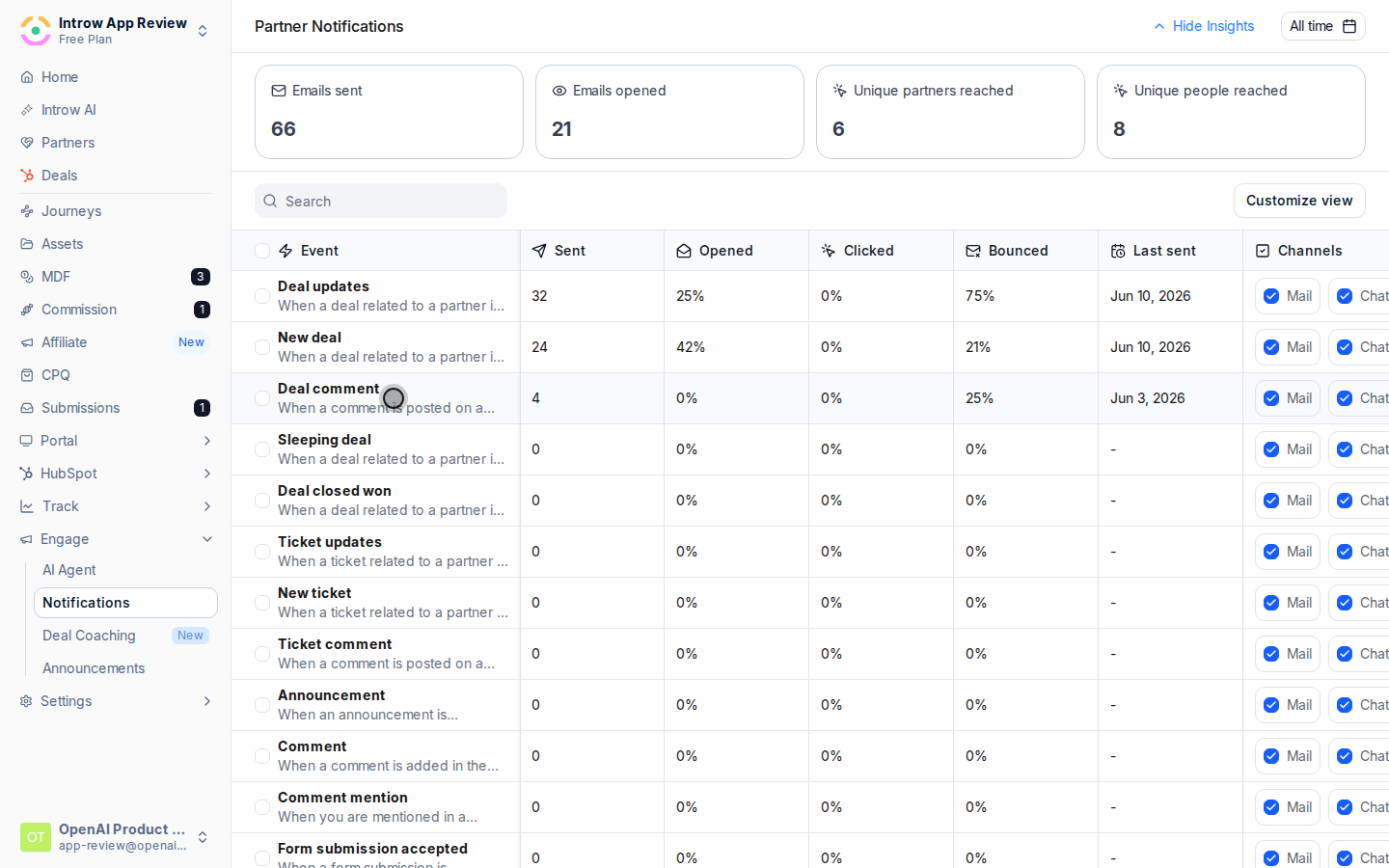 Open a notification's detail page and use **Segments** to limit delivery to a specific partner audience, or leave segments empty to reach all eligible partners with a mapped channel.
## Verify it worked
Trigger a test event for a mapped partner and confirm the message appears in their Teams channel. The notification's **Last sent** column also updates after the next real event.
## Related
Reach every partner in their inbox.
Deliver notifications in Slack instead.
Link your tenant.
Full configuration options for partner notifications.
Open a notification's detail page and use **Segments** to limit delivery to a specific partner audience, or leave segments empty to reach all eligible partners with a mapped channel.
## Verify it worked
Trigger a test event for a mapped partner and confirm the message appears in their Teams channel. The notification's **Last sent** column also updates after the next real event.
## Related
Reach every partner in their inbox.
Deliver notifications in Slack instead.
Link your tenant.
Full configuration options for partner notifications.