> ## Documentation Index
> Fetch the complete documentation index at: https://docs.introw.io/llms.txt
> Use this file to discover all available pages before exploring further.
# Create a journey from a template
> Start from a built-in onboarding, activation, or certification journey, then tailor the tasks, order, assignees, and auto-complete actions to your program.
{/* Starting from a blank journey means rediscovering the steps every program needs. The built-in
templates give you a sensible onboarding, activation, or certification sequence out of the box,
so you can launch in minutes. This guide takes you from picking the template through tailoring
every task, its order, assignee, due date, visibility, and auto-complete action, so the journey
reflects how you actually run the motion before you apply it. */}
## What you'll achieve
A new journey seeded from a built-in template and tailored to your program: the right tasks, execution order, per-task assignees and due dates, visibility, and auto-complete actions, ready to apply to a cohort.
## Before you start
You need write access to Journeys.
## Watch it
## Steps
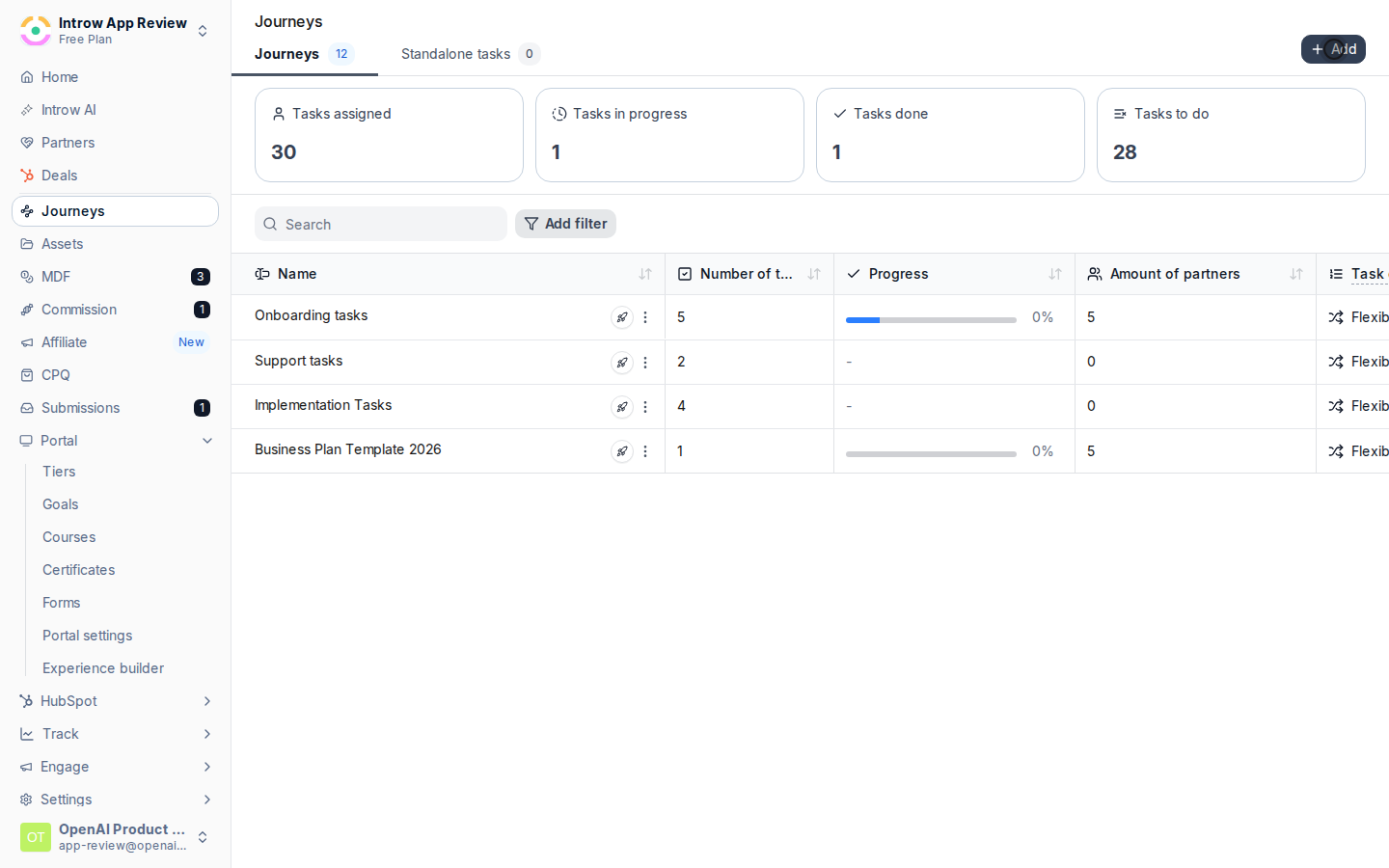
On [Journeys](https://app.introw.io/tasks), choose **Add**, then **Journey**.
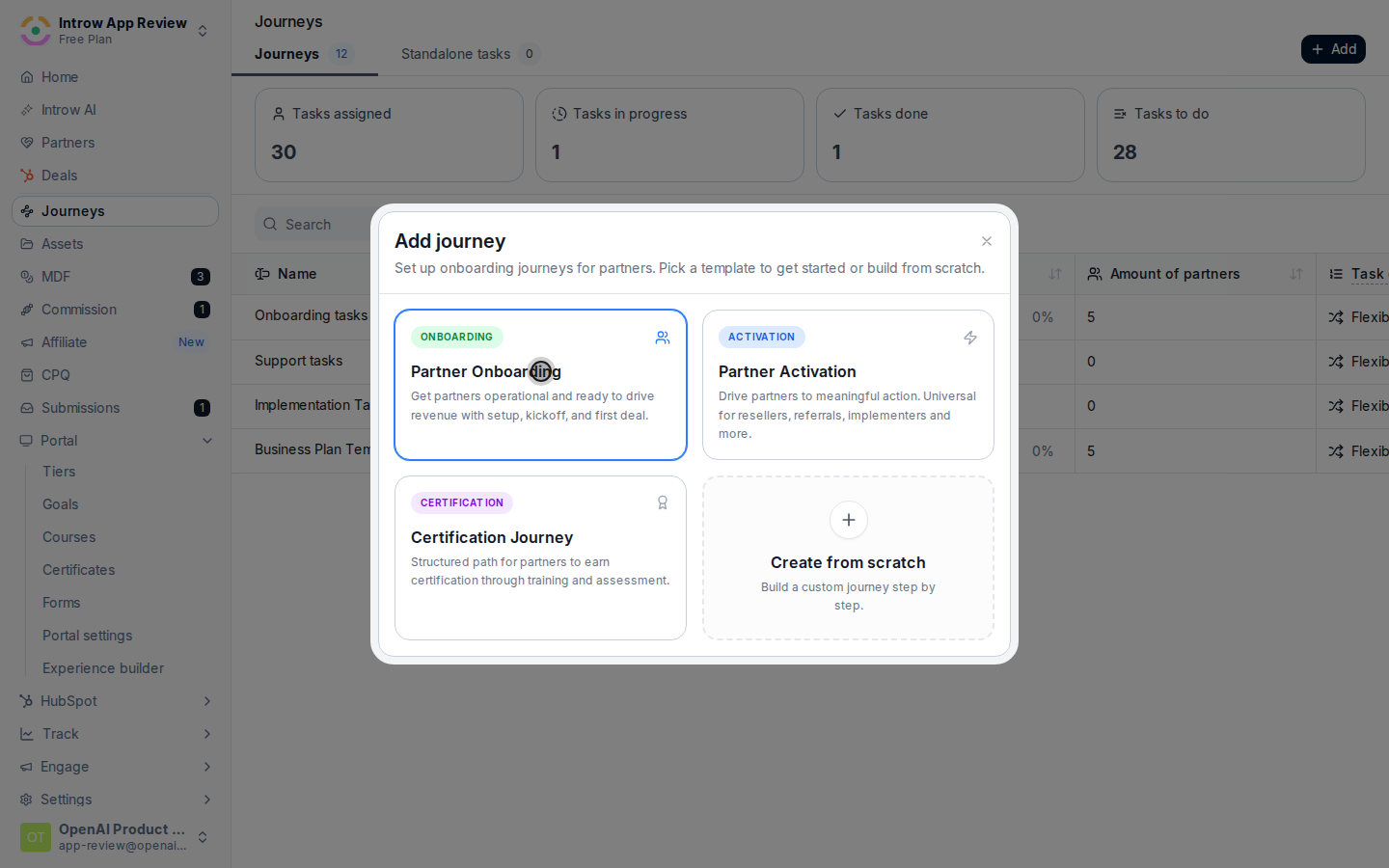
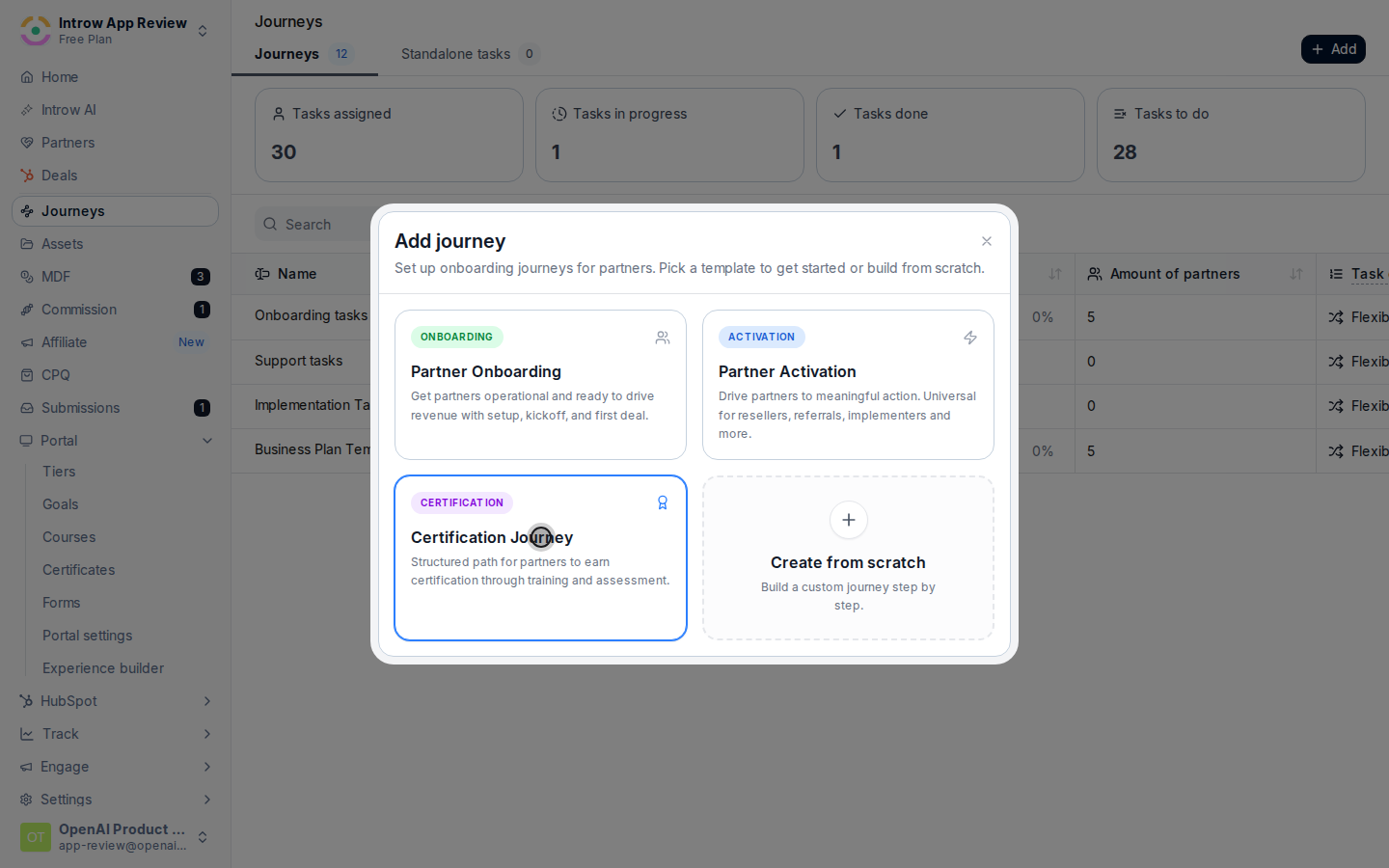
 Choose the playbook that fits the moment:
* **Partner onboarding** - the steps a brand-new partner works through to get set up.
* **Partner activation** - the steps that push a signed partner toward their first win.
* **Certification journey** - the steps that drive a partner through training and certification.
Choose the playbook that fits the moment:
* **Partner onboarding** - the steps a brand-new partner works through to get set up.
* **Partner activation** - the steps that push a signed partner toward their first win.
* **Certification journey** - the steps that drive a partner through training and certification.
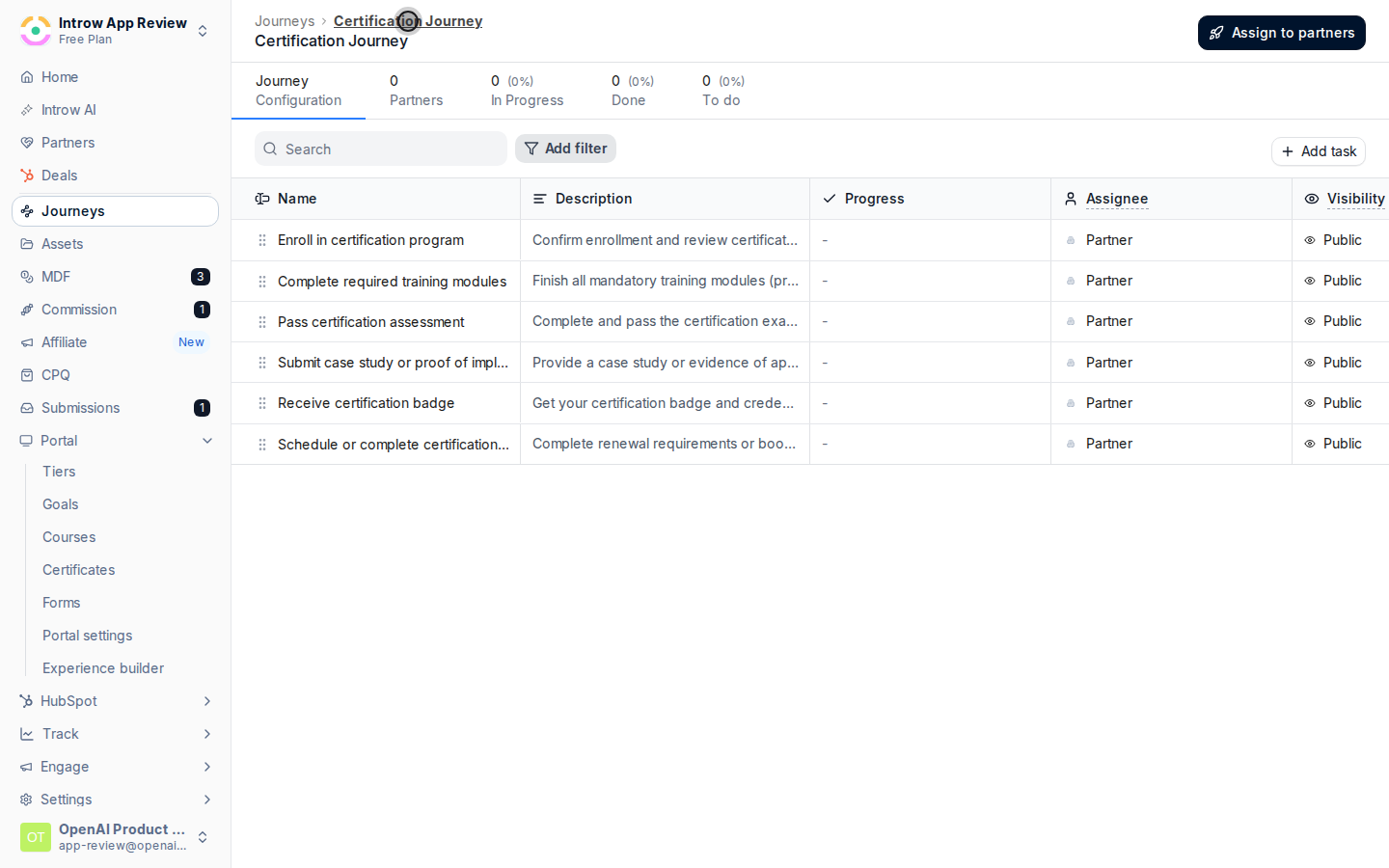
 The journey opens with a starting set of tasks. Read through them and keep the ones that fit your program.
 Confirm the **task execution order**: **Flexible** lets partners complete tasks in any order, while **Sequential** unlocks each task only after the previous one is done. Switch it if the template's default does not match how dependent your steps are.
 For each task you keep, open it and adjust the same inputs you would set when building from scratch:
* **Due date** - the offset in days after the journey is applied, so each step has a deadline relative to onboarding start.
* **Assignee** - your team, the **Partner**, a specific **Role** on the partner's team, or a named **Individual** (which can dynamically resolve to the partner's assigned partner manager).
* **Visibility** - **Public**, **Internal**, or **Assignee** (a partner-assigned task cannot be Internal).
* **Description** - reword the instructions to match your program's voice and specifics.
* **Action** - add or change an auto-complete action (**Watch asset**, **Upload**, **Submit form**, **Go to link**, **Complete course**, or **Obtain certificate**) so the task completes itself when the partner acts, with the **Button label** they see. **Complete course** and **Obtain certificate** are especially useful in a certification journey, since they close the task the moment the partner finishes the course or earns the certificate.
Add steps unique to your program and remove any that do not apply.
## Verify it worked
The new journey appears on [Journeys](https://app.introw.io/tasks) with its tailored tasks and order, ready to apply to partners.
## Related
Start with a blank journey instead.
Apply the journey and follow partners through it.
Full configuration options for journeys.
For each task you keep, open it and adjust the same inputs you would set when building from scratch:
* **Due date** - the offset in days after the journey is applied, so each step has a deadline relative to onboarding start.
* **Assignee** - your team, the **Partner**, a specific **Role** on the partner's team, or a named **Individual** (which can dynamically resolve to the partner's assigned partner manager).
* **Visibility** - **Public**, **Internal**, or **Assignee** (a partner-assigned task cannot be Internal).
* **Description** - reword the instructions to match your program's voice and specifics.
* **Action** - add or change an auto-complete action (**Watch asset**, **Upload**, **Submit form**, **Go to link**, **Complete course**, or **Obtain certificate**) so the task completes itself when the partner acts, with the **Button label** they see. **Complete course** and **Obtain certificate** are especially useful in a certification journey, since they close the task the moment the partner finishes the course or earns the certificate.
Add steps unique to your program and remove any that do not apply.
## Verify it worked
The new journey appears on [Journeys](https://app.introw.io/tasks) with its tailored tasks and order, ready to apply to partners.
## Related
Start with a blank journey instead.
Apply the journey and follow partners through it.
Full configuration options for journeys.