> ## Documentation Index
> Fetch the complete documentation index at: https://docs.introw.io/llms.txt
> Use this file to discover all available pages before exploring further.
# Build a journey from scratch
> Define your own ordered or flexible set of partner tasks, with each task's assignee, due date, visibility, and auto-complete action set.
{/* When your onboarding or activation motion is specific to your program, a template gets in
the way. Building from scratch lets you define exactly the tasks partners complete, decide
whether they must follow them in order, and set how each task is assigned, when it is due,
who can see it, and how it completes itself. The result is a reusable journey that mirrors
your real process and that you can apply to any cohort. */}
## What you'll achieve
A reusable journey whose tasks, order behavior, assignees, due dates, visibility, and auto-complete actions all match how you actually onboard or activate partners. Once built, you apply it to a cohort and each partner gets their own copy of the tasks to work through.
## Before you start
You need write access to Journeys.
Have the list of tasks a partner should complete in mind, and whether any task must be finished before the next can start.
## Watch it
## Steps
### Create the journey
On [Journeys](https://app.introw.io/tasks), choose **Add**, then **Journey**, and pick create from scratch. Give it a **Name** that says what stage it covers, like onboarding or activation, since that name identifies it to your team and in the list.
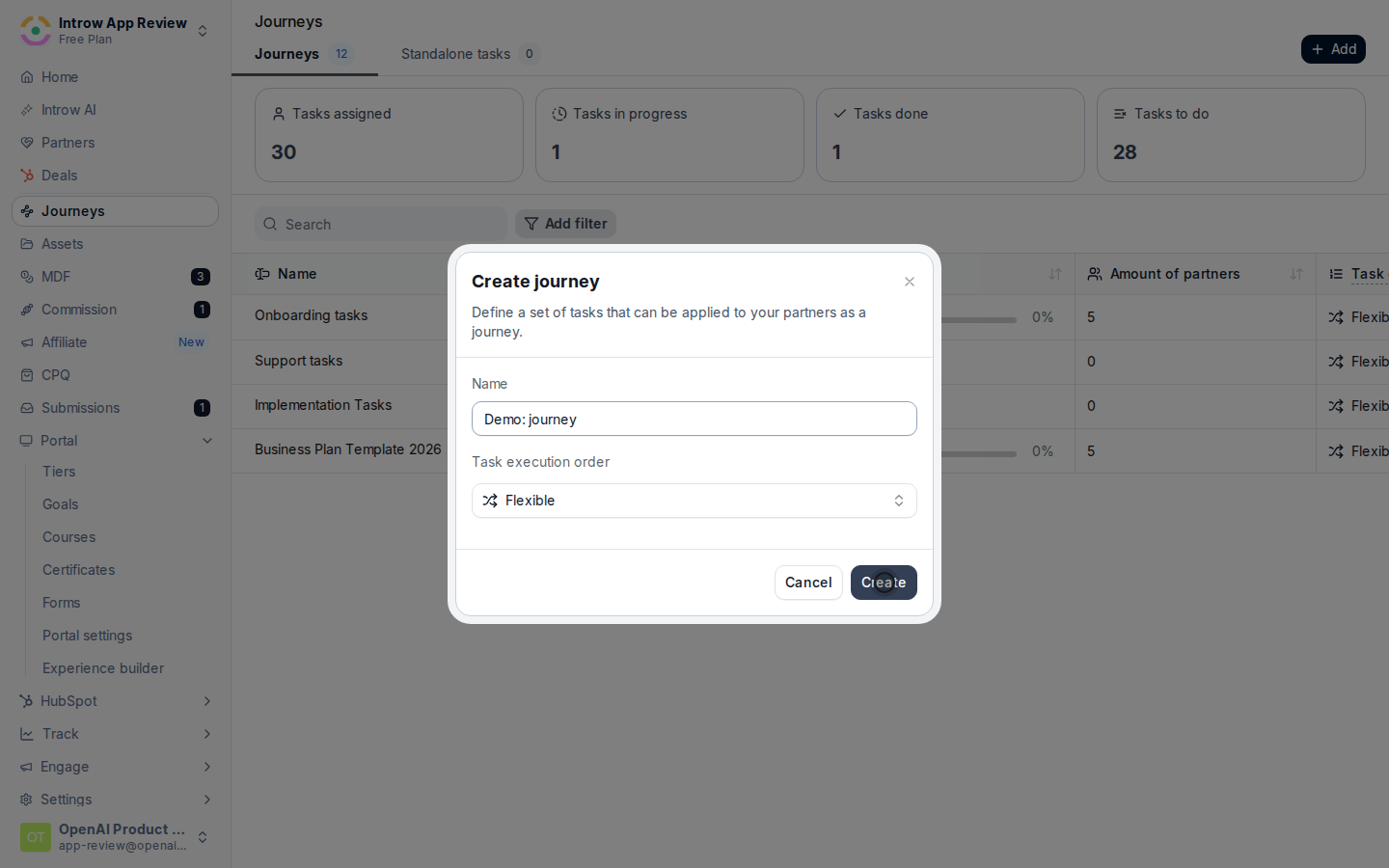 Set how partners move through the tasks:
* **Flexible** - partners can complete tasks in any order. Use it when the steps are independent.
* **Sequential** - a task only unlocks once the previous one is done. Use it when later steps genuinely depend on earlier ones, such as signing an agreement before accessing deal registration.
Set how partners move through the tasks:
* **Flexible** - partners can complete tasks in any order. Use it when the steps are independent.
* **Sequential** - a task only unlocks once the previous one is done. Use it when later steps genuinely depend on earlier ones, such as signing an agreement before accessing deal registration.
 ### Build the tasks
Add a task and give it a clear name. Open the task to set its details. Every task you add walks the same set of inputs below.
For each task, set:
* **Due date** - on a journey task this is an offset, a number of days after the journey is applied to the partner, rather than a fixed date. Set it so each step has a realistic deadline relative to when onboarding starts; leave it empty for no due date.
* **Assignee** - who is responsible for completing the task. Choose **your team** (anyone on your side), **Partner** (anyone on the partner's team), **Role** (anyone on the partner's team with a specific role), or **Individual** (a named person; you can dynamically assign it to the partner's assigned partner manager). Pick the level of accountability the step needs.
* **Visibility** - who can see the task: **Public** (your team and the partner), **Internal** (your team only), or **Assignee** (your team plus the assignee). A task assigned to a partner must stay visible to them, so it cannot be Internal.
* **Description** - the instructions the partner reads. Write enough that they know exactly what to do without asking.
* **Attachment** - an optional file to attach to the task for reference.
To let a task complete itself when the partner does something in the portal, use **Add action** on the task and pick the **Action type**:
* **Watch asset** - completes when the partner views a chosen asset. Select the asset.
* **Upload** - completes when the partner uploads a file.
* **Submit form** - completes when the partner submits a chosen form. Select the form.
* **Go to link** - completes when the partner opens a link. Enter the URL.
* **Complete course** - completes when the partner finishes a chosen course. Select the course.
* **Obtain certificate** - completes when the partner earns a chosen certificate. Select the certificate.
Set the **Button label** the partner sees on the task, then save the action. Auto-complete actions remove manual check-off and give you a clean signal that the partner actually did the step. **Complete course** and **Obtain certificate** finish automatically when the partner completes the course or is issued the certificate, which makes them a natural fit for certification and training journeys.
Drag the tasks into the sequence partners should follow. Order matters most for a sequential journey, since it sets the unlock path; for a flexible journey it sets the order partners see.
## Verify it worked
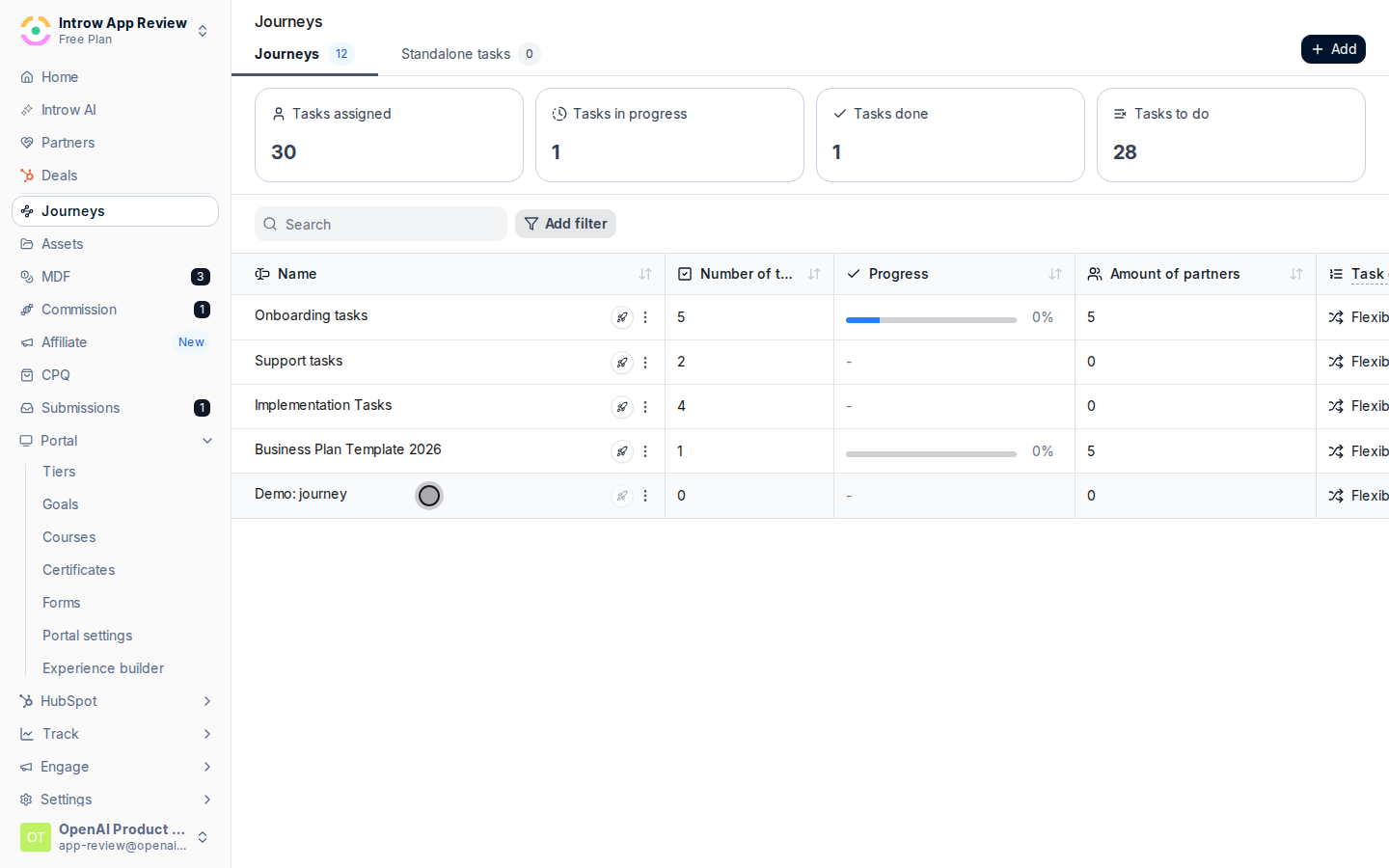
The journey appears on [Journeys](https://app.introw.io/tasks) with your tasks, the order behavior you chose, and each task's assignee, due-date offset, visibility, and any action. It is ready to apply to partners.
## Related
Start from a built-in playbook instead.
Apply the journey and follow partners through it.
Enroll partners automatically from the portal.
Full configuration options for journeys.
### Build the tasks
Add a task and give it a clear name. Open the task to set its details. Every task you add walks the same set of inputs below.
For each task, set:
* **Due date** - on a journey task this is an offset, a number of days after the journey is applied to the partner, rather than a fixed date. Set it so each step has a realistic deadline relative to when onboarding starts; leave it empty for no due date.
* **Assignee** - who is responsible for completing the task. Choose **your team** (anyone on your side), **Partner** (anyone on the partner's team), **Role** (anyone on the partner's team with a specific role), or **Individual** (a named person; you can dynamically assign it to the partner's assigned partner manager). Pick the level of accountability the step needs.
* **Visibility** - who can see the task: **Public** (your team and the partner), **Internal** (your team only), or **Assignee** (your team plus the assignee). A task assigned to a partner must stay visible to them, so it cannot be Internal.
* **Description** - the instructions the partner reads. Write enough that they know exactly what to do without asking.
* **Attachment** - an optional file to attach to the task for reference.
To let a task complete itself when the partner does something in the portal, use **Add action** on the task and pick the **Action type**:
* **Watch asset** - completes when the partner views a chosen asset. Select the asset.
* **Upload** - completes when the partner uploads a file.
* **Submit form** - completes when the partner submits a chosen form. Select the form.
* **Go to link** - completes when the partner opens a link. Enter the URL.
* **Complete course** - completes when the partner finishes a chosen course. Select the course.
* **Obtain certificate** - completes when the partner earns a chosen certificate. Select the certificate.
Set the **Button label** the partner sees on the task, then save the action. Auto-complete actions remove manual check-off and give you a clean signal that the partner actually did the step. **Complete course** and **Obtain certificate** finish automatically when the partner completes the course or is issued the certificate, which makes them a natural fit for certification and training journeys.
Drag the tasks into the sequence partners should follow. Order matters most for a sequential journey, since it sets the unlock path; for a flexible journey it sets the order partners see.
## Verify it worked
The journey appears on [Journeys](https://app.introw.io/tasks) with your tasks, the order behavior you chose, and each task's assignee, due-date offset, visibility, and any action. It is ready to apply to partners.
## Related
Start from a built-in playbook instead.
Apply the journey and follow partners through it.
Enroll partners automatically from the portal.
Full configuration options for journeys.