> ## Documentation Index
> Fetch the complete documentation index at: https://docs.introw.io/llms.txt
> Use this file to discover all available pages before exploring further.
# Auto-apply a journey from the experience
> Use the tasks section in the experience builder to auto-assign a journey to every partner who gets the experience.
> For partner ops who want a journey to start itself, no manual applying, the moment a partner lands on an experience.
Applying a journey from the [Journeys](https://app.introw.io/tasks) page is a deliberate,
one-time push to a chosen set of partners. The tasks section in the experience builder does
the opposite: it ties a journey to an experience, so every partner who receives that
experience is enrolled automatically. Use it when onboarding should begin on its own as soon
as a partner gets the portal, instead of someone remembering to apply the journey.
## What you'll build
A tasks section in a portal experience that includes one or more journeys and auto-assigns
their tasks to each partner who gets the experience.
## Before you start
The [journey](/features/partners/journeys/guides/build-a-journey-from-scratch) and its
tasks should be ready, and you should have a portal experience you can edit.
## Watch it
## Steps
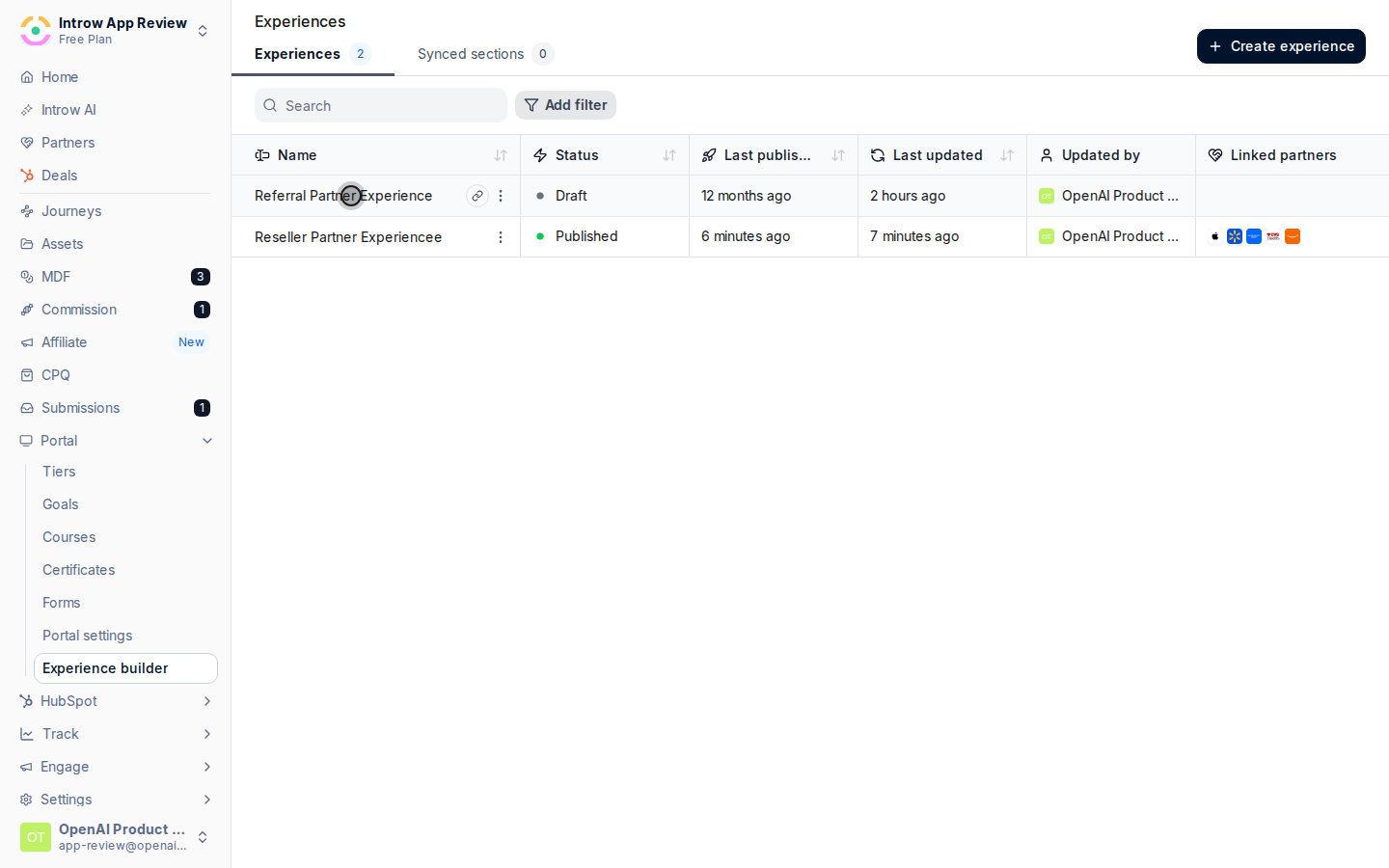
Go to [Portal](https://app.introw.io/templates) and edit the experience that partners
receive.
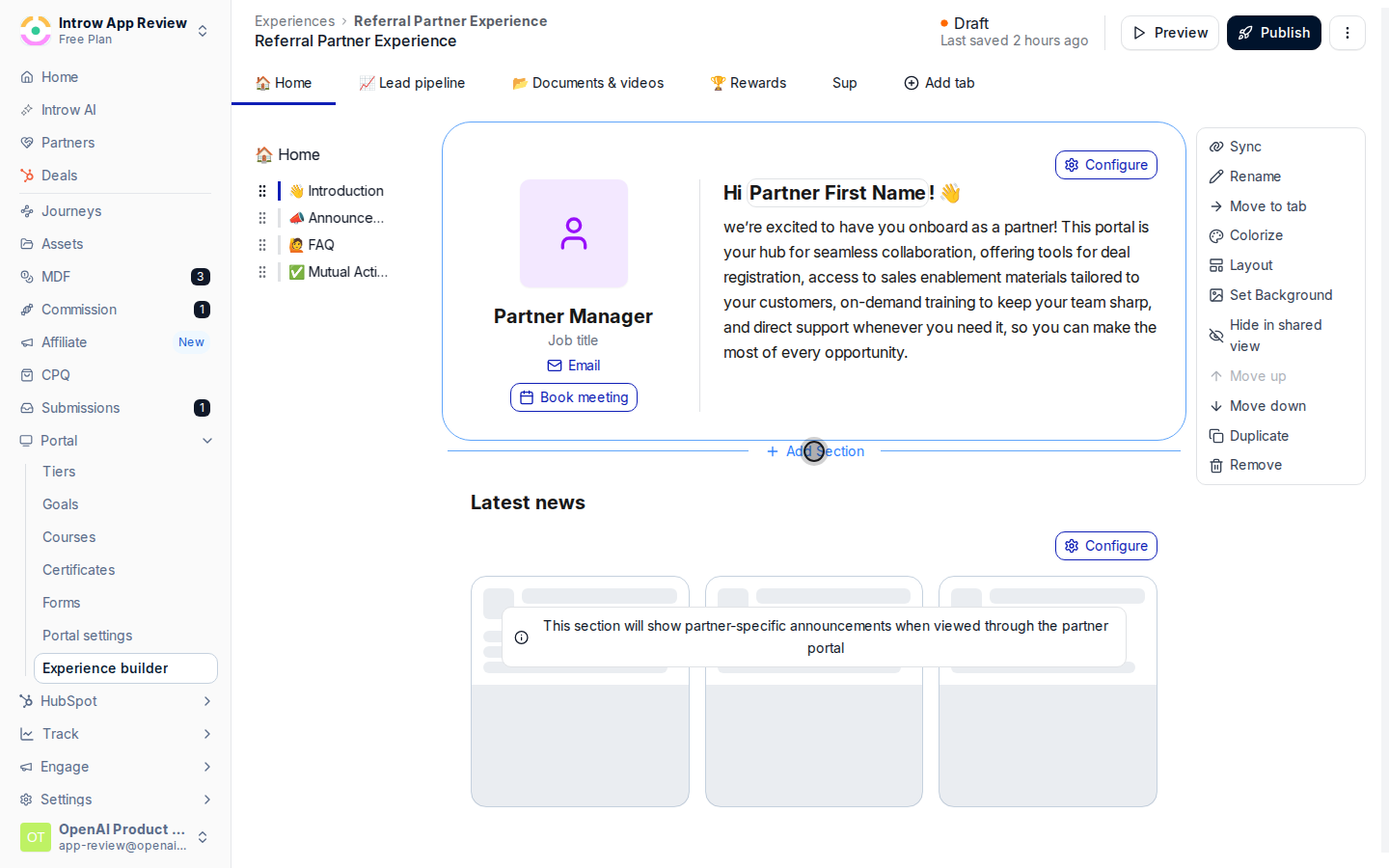
 Add the **Tasks** block to a section of the experience.
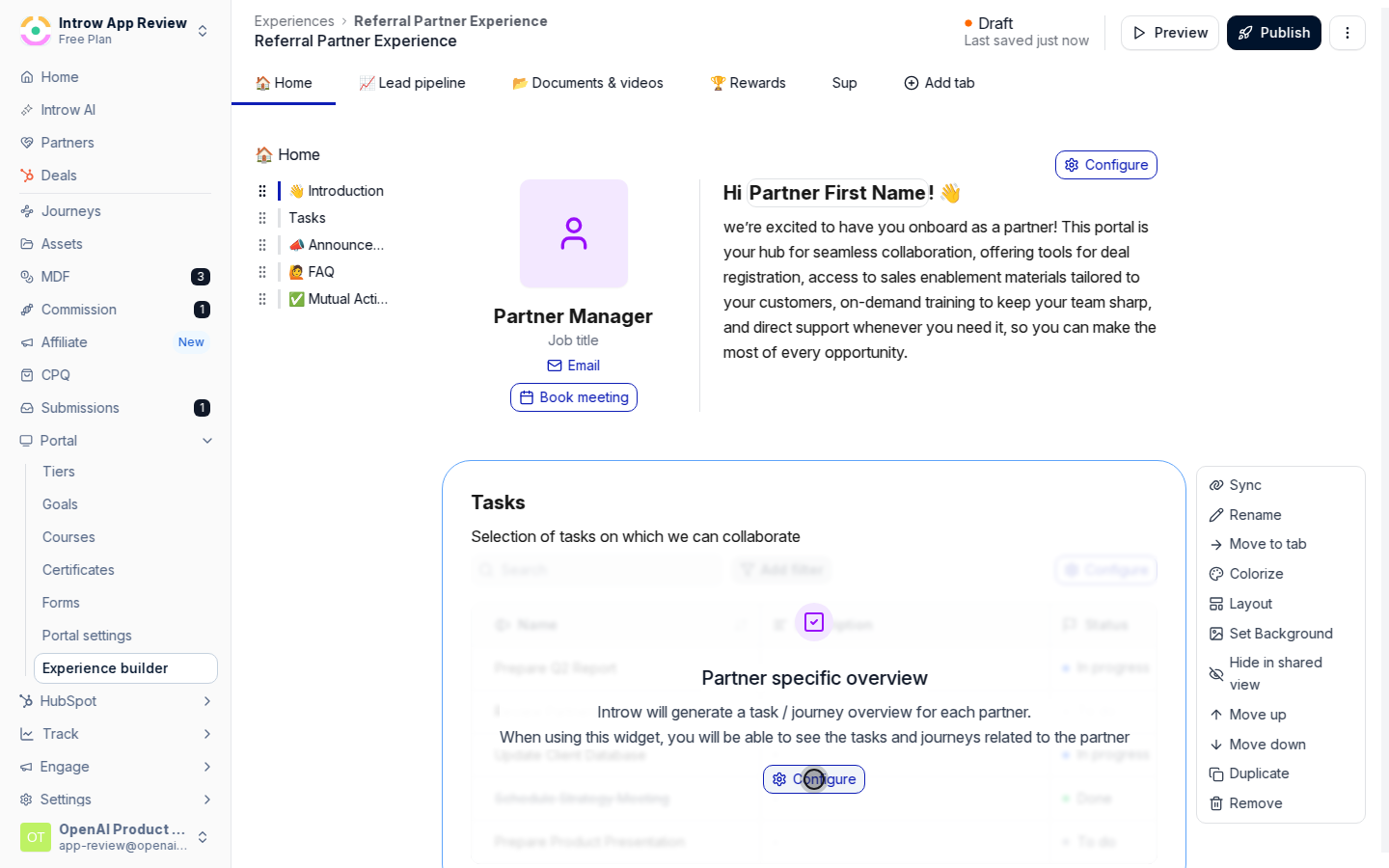
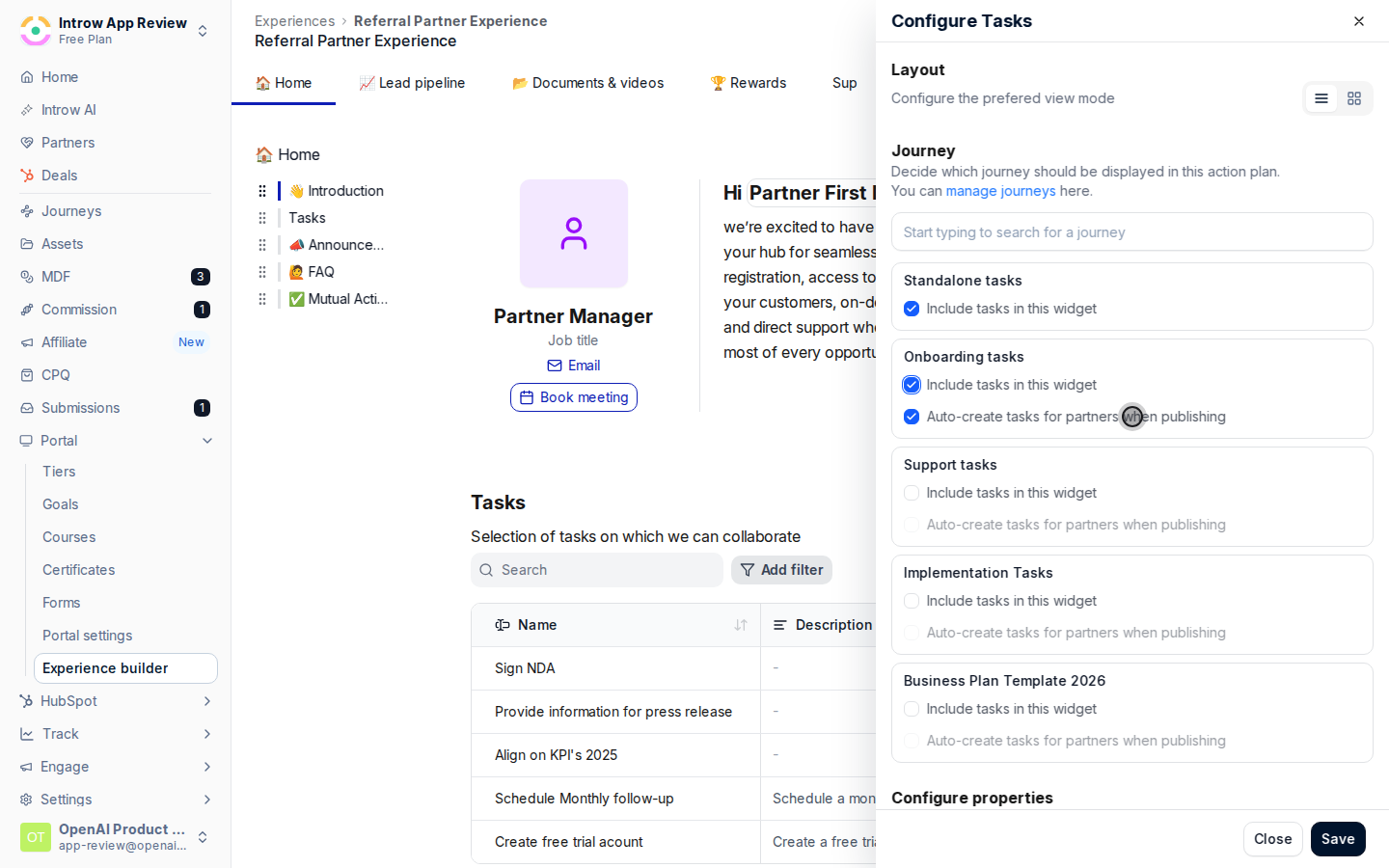
 Open the block's settings to reach the **Configure Tasks** panel.
 Under **Journey**, search for and select each journey you want shown here. Turning on
**Include tasks in this widget** adds that journey's tasks to the section. Pick
**Standalone tasks** if you also want ad-hoc tasks to appear.
Under **Journey**, search for and select each journey you want shown here. Turning on
**Include tasks in this widget** adds that journey's tasks to the section. Pick
**Standalone tasks** if you also want ad-hoc tasks to appear.
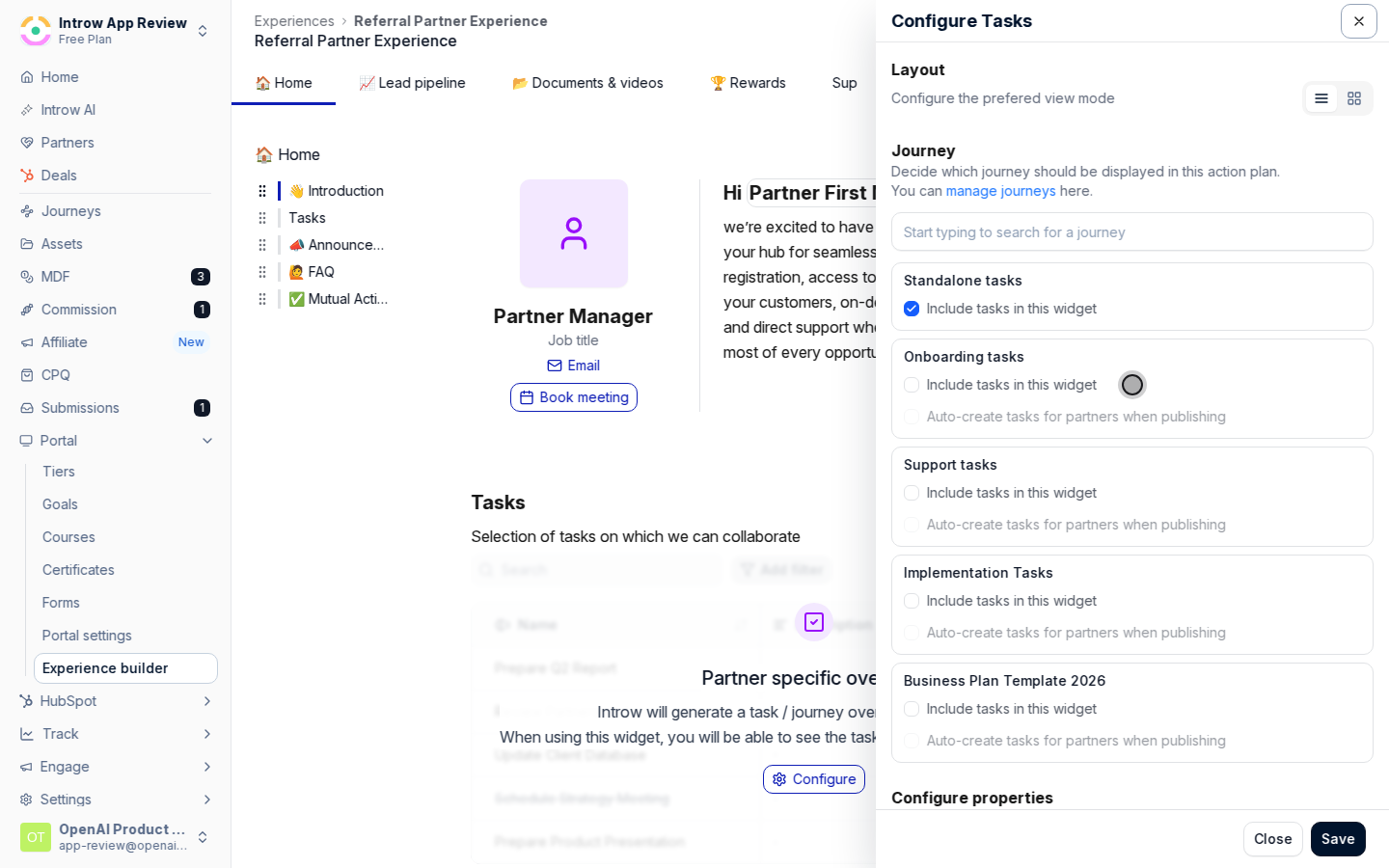 For each included journey, set **Auto-create tasks for partners when publishing**:
* **On** - every partner who gets this experience is automatically enrolled in the
journey and receives its tasks. This is the auto-apply behavior.
* **Off** - the section only displays journey tasks a partner already has; it does not
enroll anyone.
For each included journey, set **Auto-create tasks for partners when publishing**:
* **On** - every partner who gets this experience is automatically enrolled in the
journey and receives its tasks. This is the auto-apply behavior.
* **Off** - the section only displays journey tasks a partner already has; it does not
enroll anyone.
 Save the configuration, then publish the experience so the rule takes effect for
partners who receive it.
## Verify it worked
A partner who receives the experience automatically has the included journey's tasks on
their task list, without anyone applying the journey by hand.
## Limits & gotchas
Auto-assignment runs when the experience is published to a partner. Editing the journey
afterward does not rewrite tasks already created for partners who were enrolled earlier.
Auto-create is per journey; **Standalone tasks** cannot be auto-created.
## Related
Push a journey to a chosen set of partners manually and follow their progress.
Show partners their tasks inside the portal.
Save the configuration, then publish the experience so the rule takes effect for
partners who receive it.
## Verify it worked
A partner who receives the experience automatically has the included journey's tasks on
their task list, without anyone applying the journey by hand.
## Limits & gotchas
Auto-assignment runs when the experience is published to a partner. Editing the journey
afterward does not rewrite tasks already created for partners who were enrolled earlier.
Auto-create is per journey; **Standalone tasks** cannot be auto-created.
## Related
Push a journey to a chosen set of partners manually and follow their progress.
Show partners their tasks inside the portal.