> ## Documentation Index
> Fetch the complete documentation index at: https://docs.introw.io/llms.txt
> Use this file to discover all available pages before exploring further.
# Assign a journey and track progress
> Apply a journey to the right partners, then follow each one through to do, in progress, and done so you can step in before anyone stalls.
{/* A journey does nothing until it is applied to partners, and applying it is only half the job:
the value comes from partners actually completing it. This guide covers both halves end to end:
publish the journey to a chosen cohort, then read live progress so you can nudge the partners
who stall instead of finding out at the next review that onboarding never finished. */}
## What you'll achieve
A journey applied to a selected set of partners, each with their own task progress, and a live read on where every partner sits so you can act on the ones who are stuck. Onboarding or activation actually completes, rather than quietly stalling.
## Before you start
The journey and its tasks should be ready, and the partners you want to apply it to should exist in Introw.
## Watch it
## Steps
### Apply the journey
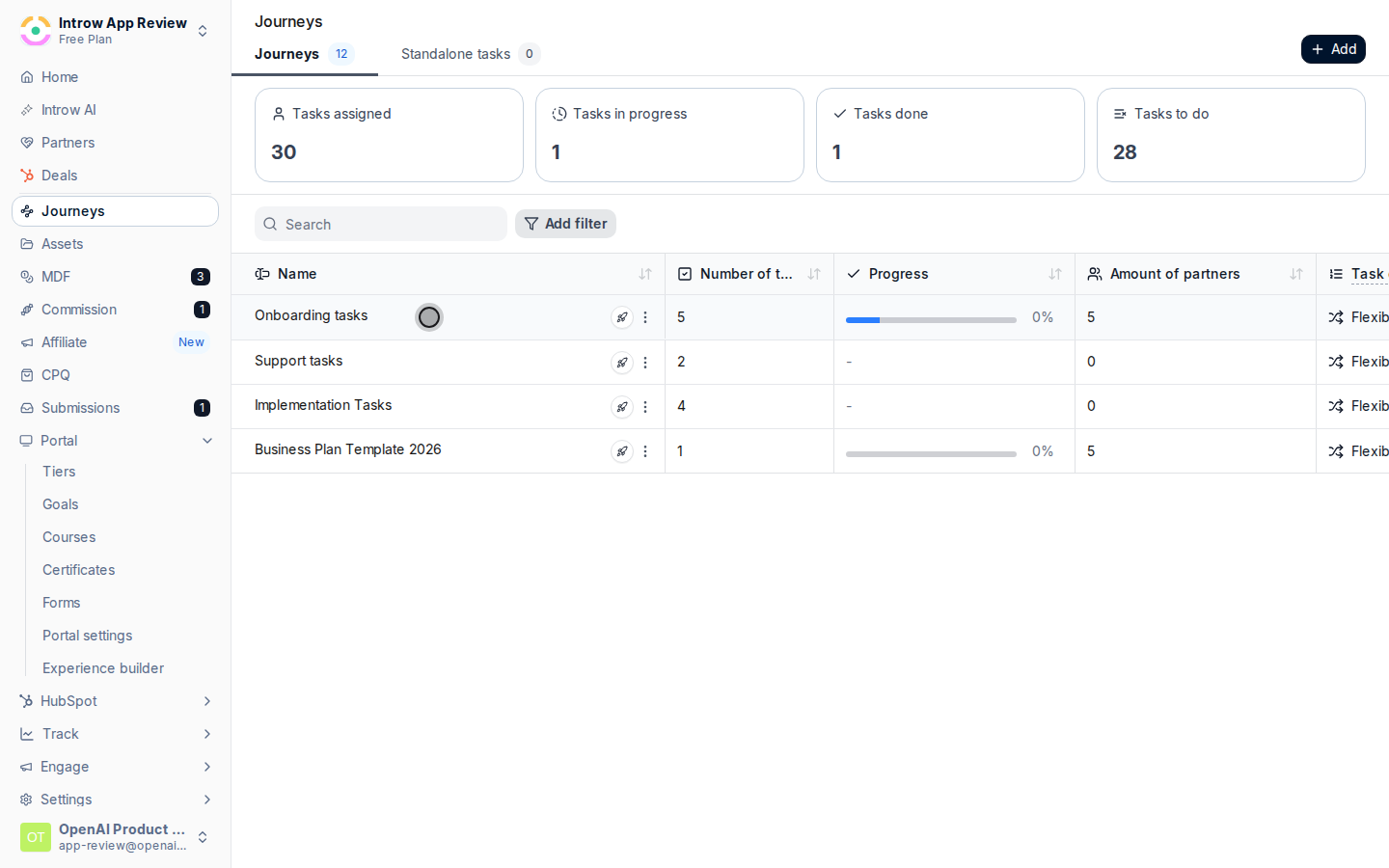
On [Journeys](https://app.introw.io/tasks), open the journey you want to apply.
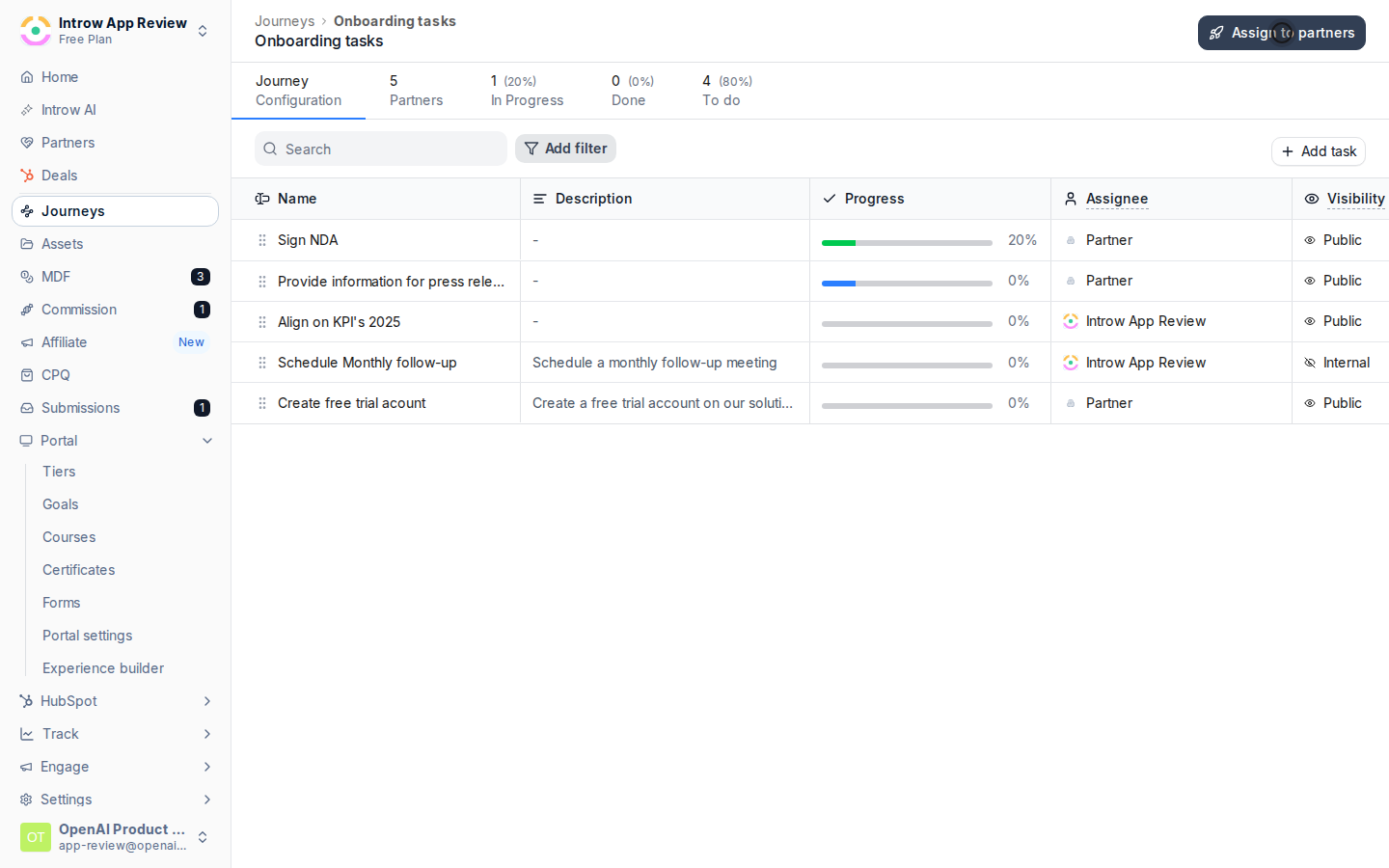
 Choose **Assign to partners** to open the partner picker.
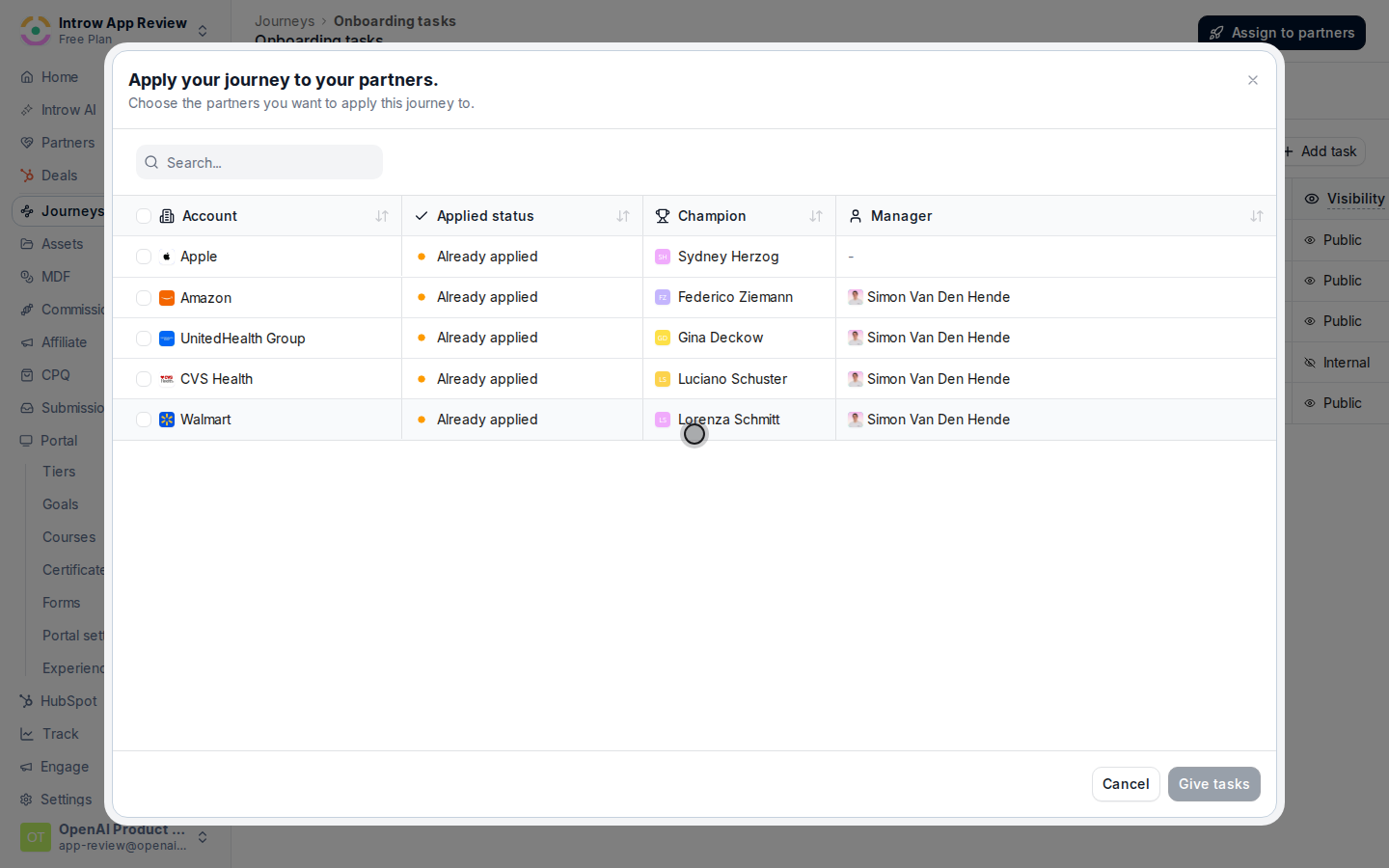
 Pick the partners who should run this journey, for example a new cohort or a group that has gone quiet. You can apply to many partners at once.
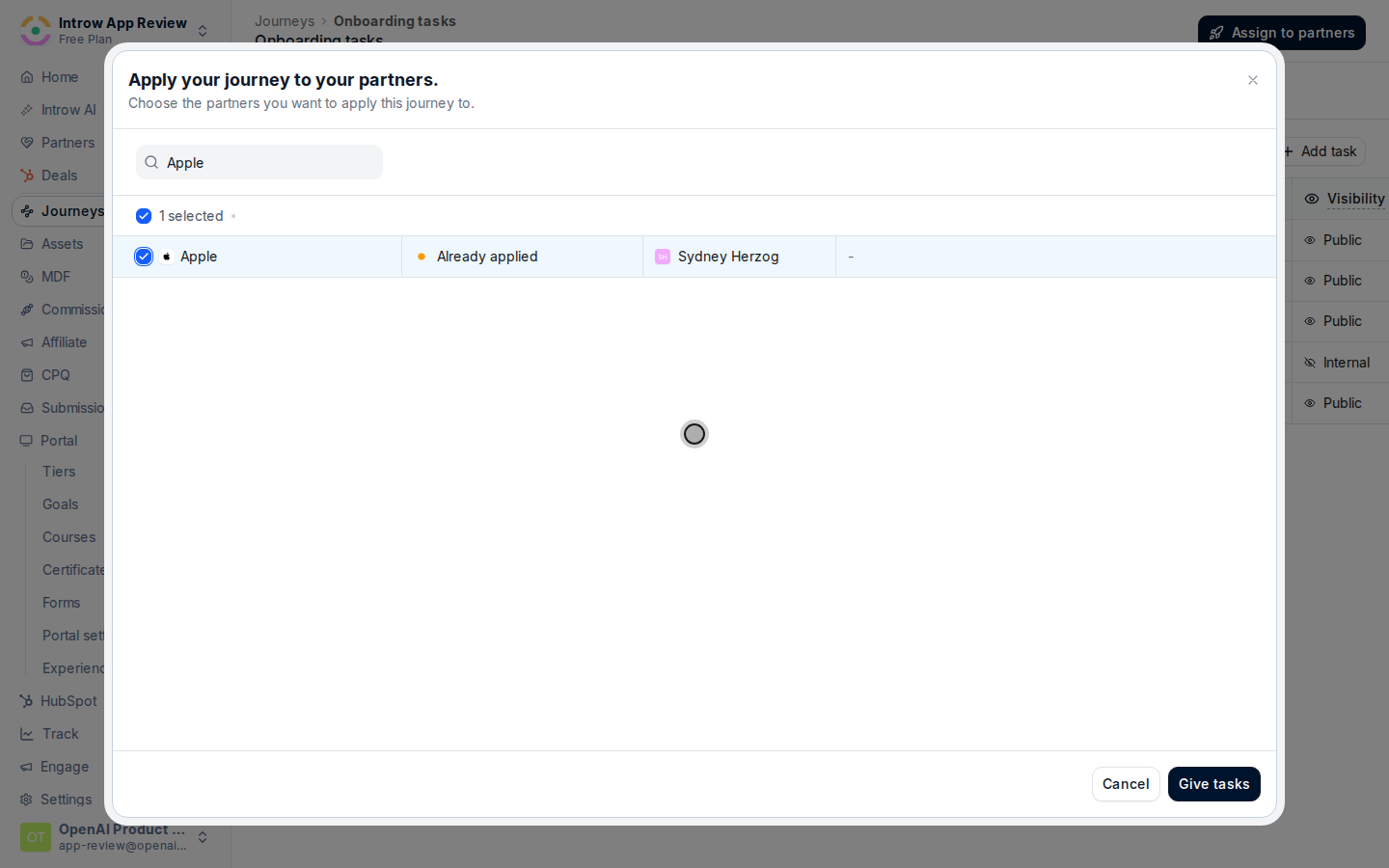
 Confirm to publish. Introw copies the journey's tasks onto each selected partner so they each get their own progress.
Applying a journey copies its tasks onto each partner at that moment. Editing the journey afterward does not rewrite tasks already applied, so a partner keeps the version they were given. Re-apply, or edit their tasks directly, when a later change needs to reach partners already on the journey.
Confirm to publish. Introw copies the journey's tasks onto each selected partner so they each get their own progress.
Applying a journey copies its tasks onto each partner at that moment. Editing the journey afterward does not rewrite tasks already applied, so a partner keeps the version they were given. Re-apply, or edit their tasks directly, when a later change needs to reach partners already on the journey.
 ### Track progress
Back on the journey, use the tabs to see partners grouped by **to do**, **in progress**, and **done**. The to do and in progress groups are where your attention is needed, since those partners have not finished.
### Track progress
Back on the journey, use the tabs to see partners grouped by **to do**, **in progress**, and **done**. The to do and in progress groups are where your attention is needed, since those partners have not finished.
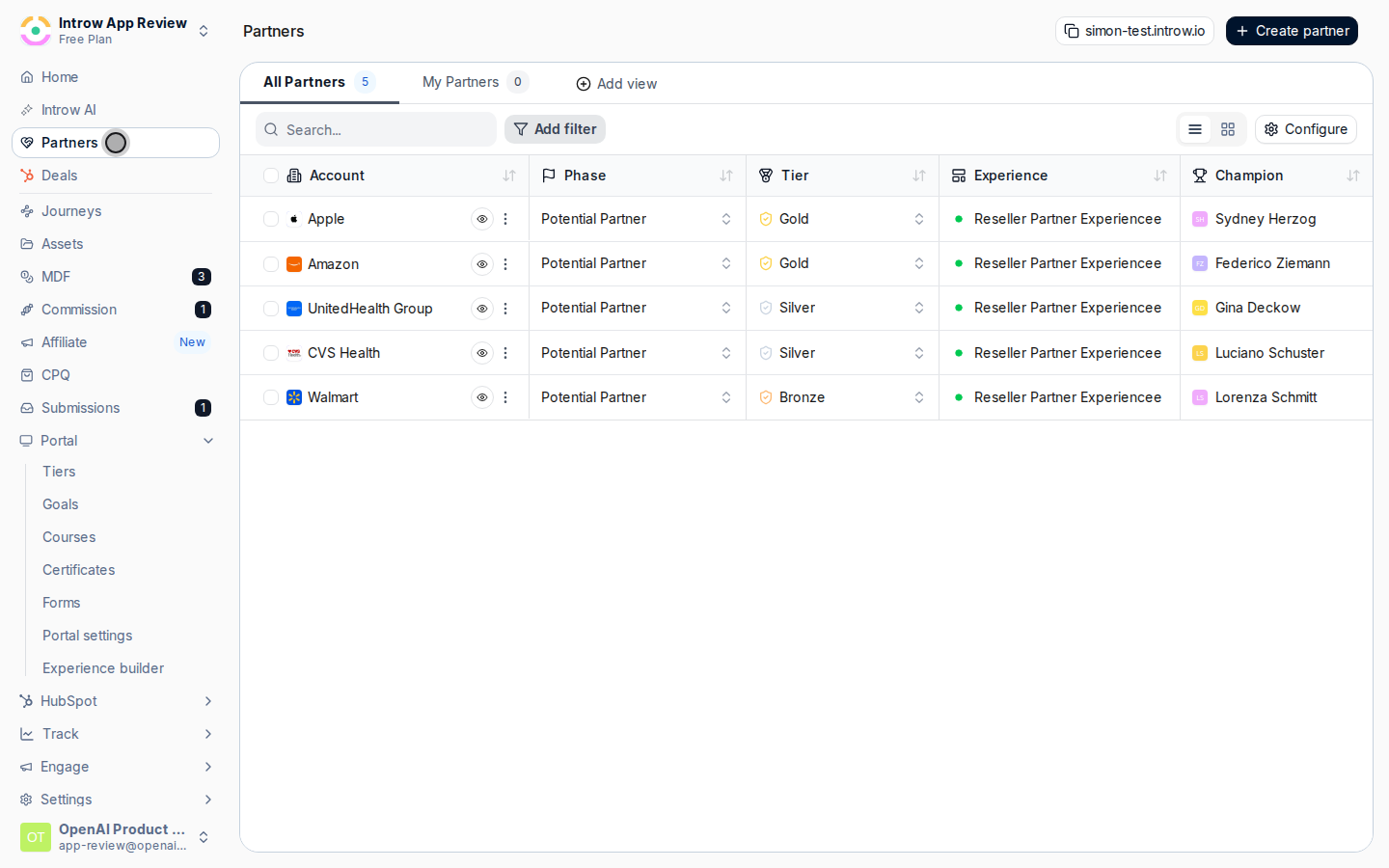 Open a partner to see their specific tasks and how far they have gotten, so you know exactly what is blocking them. For a sequential journey, an unfinished early task blocks the rest, so look for the task they are stuck on.
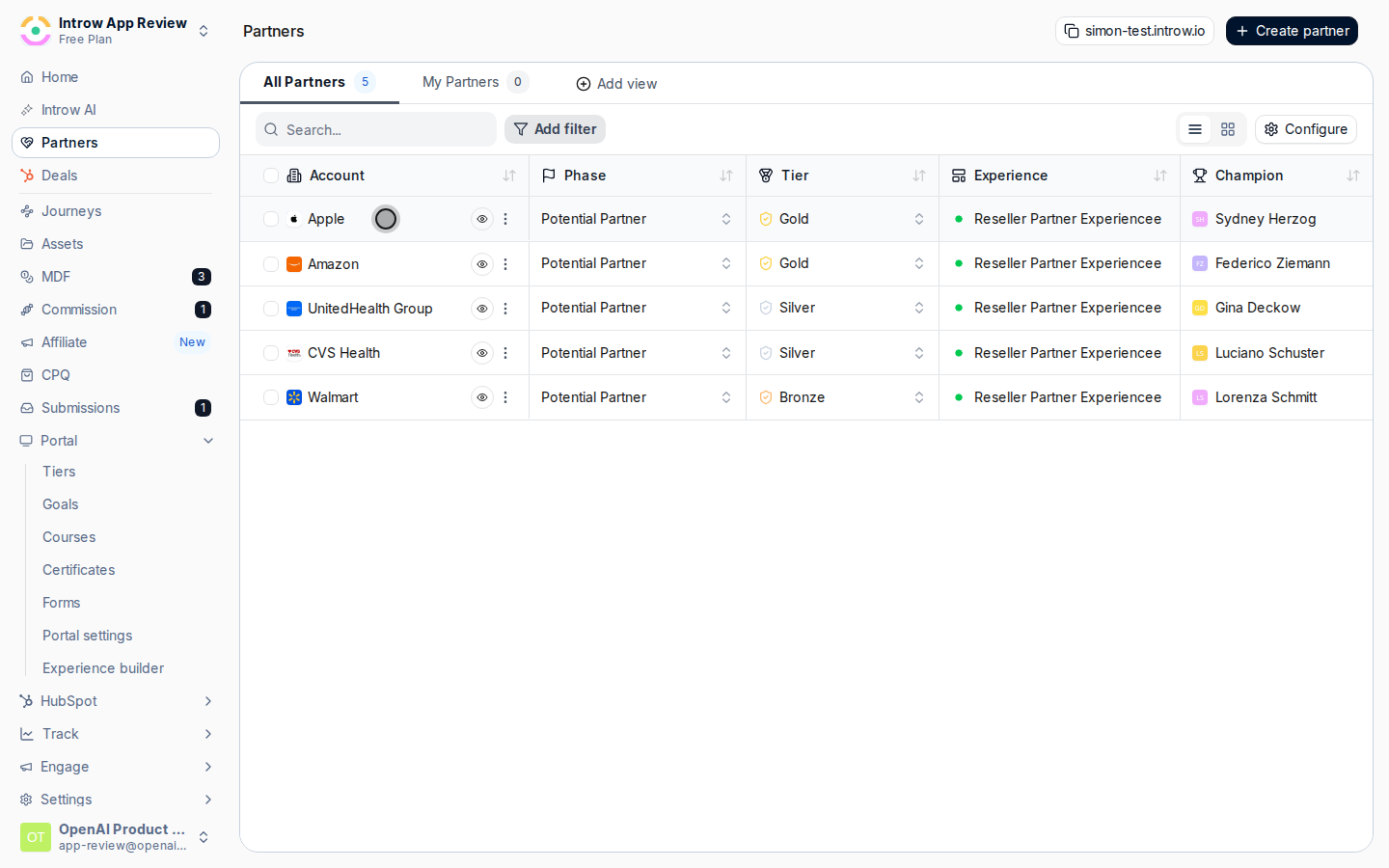 Reach out to partners who have stalled, or complete a task on their behalf when that is appropriate, to keep the journey moving. Partners shift between the groups as they complete tasks, giving you a live view of journey health.
## Verify it worked
The journey's progress tabs list the partners you applied it to, starting in **to do**, and each partner sees the tasks on their own task list. As partners work through the journey, they move across **to do**, **in progress**, and **done**, so the tabs always show current journey health.
## Related
Define the tasks and order first.
Enroll partners automatically from the portal instead.
Reflect lifecycle stage on the partners list.
Full configuration options for journeys.
Reach out to partners who have stalled, or complete a task on their behalf when that is appropriate, to keep the journey moving. Partners shift between the groups as they complete tasks, giving you a live view of journey health.
## Verify it worked
The journey's progress tabs list the partners you applied it to, starting in **to do**, and each partner sees the tasks on their own task list. As partners work through the journey, they move across **to do**, **in progress**, and **done**, so the tabs always show current journey health.
## Related
Define the tasks and order first.
Enroll partners automatically from the portal instead.
Reflect lifecycle stage on the partners list.
Full configuration options for journeys.