> ## Documentation Index
> Fetch the complete documentation index at: https://docs.introw.io/llms.txt
> Use this file to discover all available pages before exploring further.
# Submit ROI
> How a partner reports the outcomes of a funded MDF activity through the ROI form on their approved project - from the portal, a link, or an AI assistant.
> ROI is what lets you defend MDF to finance. Introw already tracks the real-time return from the CRM objects a project produced; the ROI form is where the partner adds the outcomes only they can report - leads captured at the event, meetings booked, qualitative results. The partner reports against their approved project, within the reporting window you set.
Real-time ROI from CRM data accrues automatically - see [Track ROI on a fund](./track-roi-on-a-fund). This guide is the **partner-reported** half: the outcomes a partner submits through the ROI form, tied to the project they ran.
## Before you start
The ROI form, its CRM automation, and the reporting window are set up in [Configure the ROI step](./configure-the-roi-form). The ROI step must be enabled on the fund's timeline.
ROI is reported against an approved project whose activity has run. See [Run the MDF lifecycle](/features/mdf/projects/guides/run-the-mdf-lifecycle).
## Ways to submit
The ROI form carries the project it belongs to, so outcomes land on the right project whichever way the partner reports them. They report within the fund's reporting window.
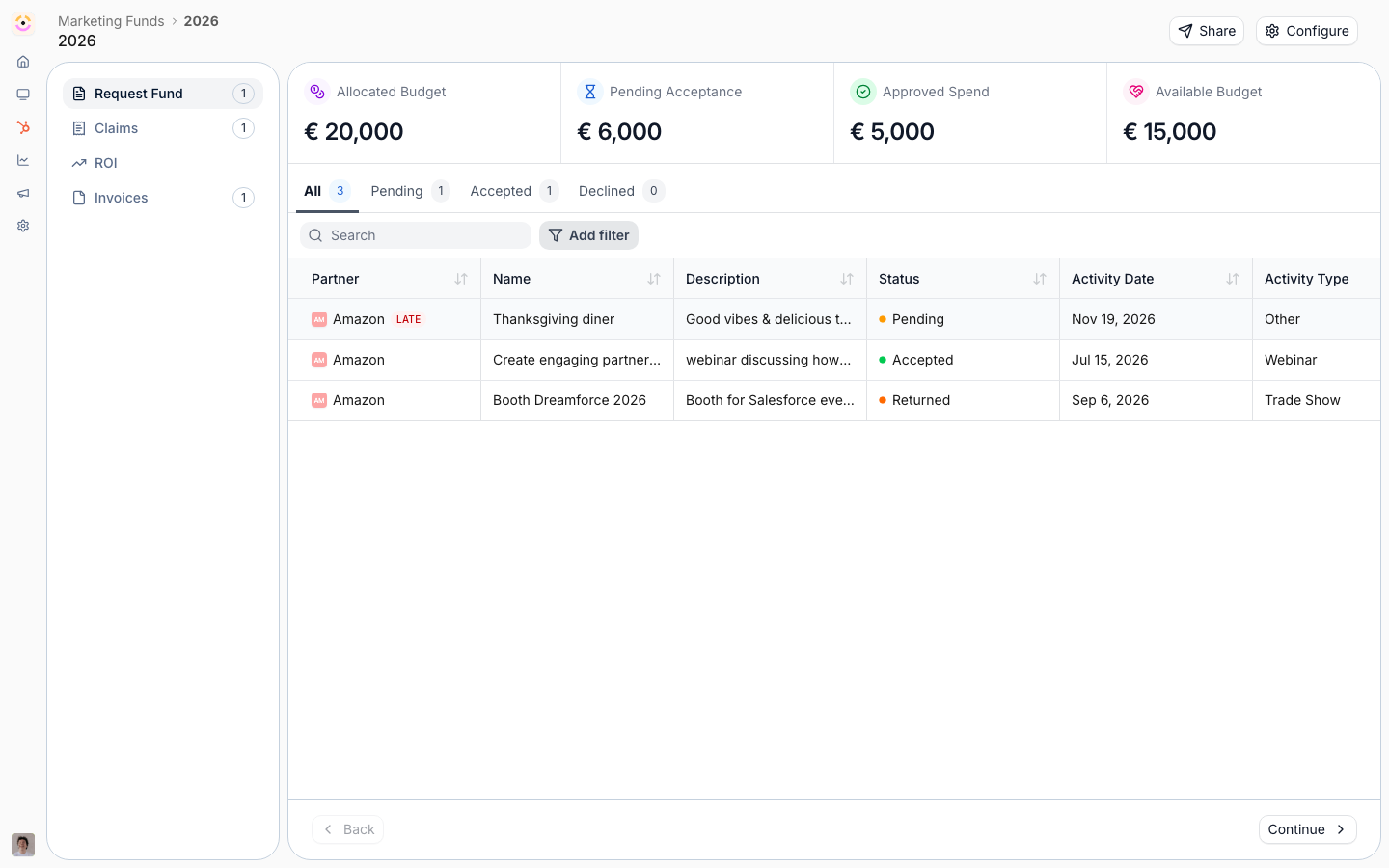 The partner opens their project and completes the ROI form there, entering the outcomes and any figures you ask for. The most direct path when they are already in the project.
Send the ROI form link - often in the reporting-window reminder - and the partner reports from anywhere. The link carries the project, so the outcomes attach to it automatically.
A partner working in an assistant connected to Introw over MCP can report ROI from there. See [Connect an MCP client](/features/developer/mcp/guides/connect-an-mcp-client) and [Partner Connect](/features/partner-connect).
## Verify it worked
Report test outcomes against a project and confirm they appear on the project and roll into the fund's ROI in [reports and dashboards](/features/reporting/report-builder), alongside the real-time figure tracked from CRM data.
## Related
Set up the ROI form, real-time tracking, and the reporting window.
Measure return from partner-reported outcomes and real-time CRM data.
Full ROI configuration options.
The partner opens their project and completes the ROI form there, entering the outcomes and any figures you ask for. The most direct path when they are already in the project.
Send the ROI form link - often in the reporting-window reminder - and the partner reports from anywhere. The link carries the project, so the outcomes attach to it automatically.
A partner working in an assistant connected to Introw over MCP can report ROI from there. See [Connect an MCP client](/features/developer/mcp/guides/connect-an-mcp-client) and [Partner Connect](/features/partner-connect).
## Verify it worked
Report test outcomes against a project and confirm they appear on the project and roll into the fund's ROI in [reports and dashboards](/features/reporting/report-builder), alongside the real-time figure tracked from CRM data.
## Related
Set up the ROI form, real-time tracking, and the reporting window.
Measure return from partner-reported outcomes and real-time CRM data.
Full ROI configuration options.