> ## Documentation Index
> Fetch the complete documentation index at: https://docs.introw.io/llms.txt
> Use this file to discover all available pages before exploring further.
# Configure the ROI step
> Configure the MDF ROI step: build the ROI form, set CRM automations, approval gates, the reporting window, and enable or disable the step per project.
> The ROI step is where a partner reports what the activity produced. Configuring it decides what outcomes they submit, how they land in your CRM, who reviews them, and by when. This guide sets up the whole step from the fund's edit mode.
Partner-reported ROI complements the real-time ROI a fund tracks from CRM data. The ROI step captures the partner's own outcomes through a form, records them against the project, runs them through approval, and bounds them with a reporting window - all no-code, and switchable off if you only track ROI from CRM data.
## What you'll achieve
An ROI step where partners report outcomes through a form, the results land against the project in your CRM, an AI review plus your approvers accept them, and a reporting window keeps them timely.
## Before you start
ROI is reported against an approved, funded project.
Partner-reported ROI pairs with CRM-based tracking. See [Track ROI on a fund](./track-roi-on-a-fund).
## Watch it
## Steps
### Open the ROI step
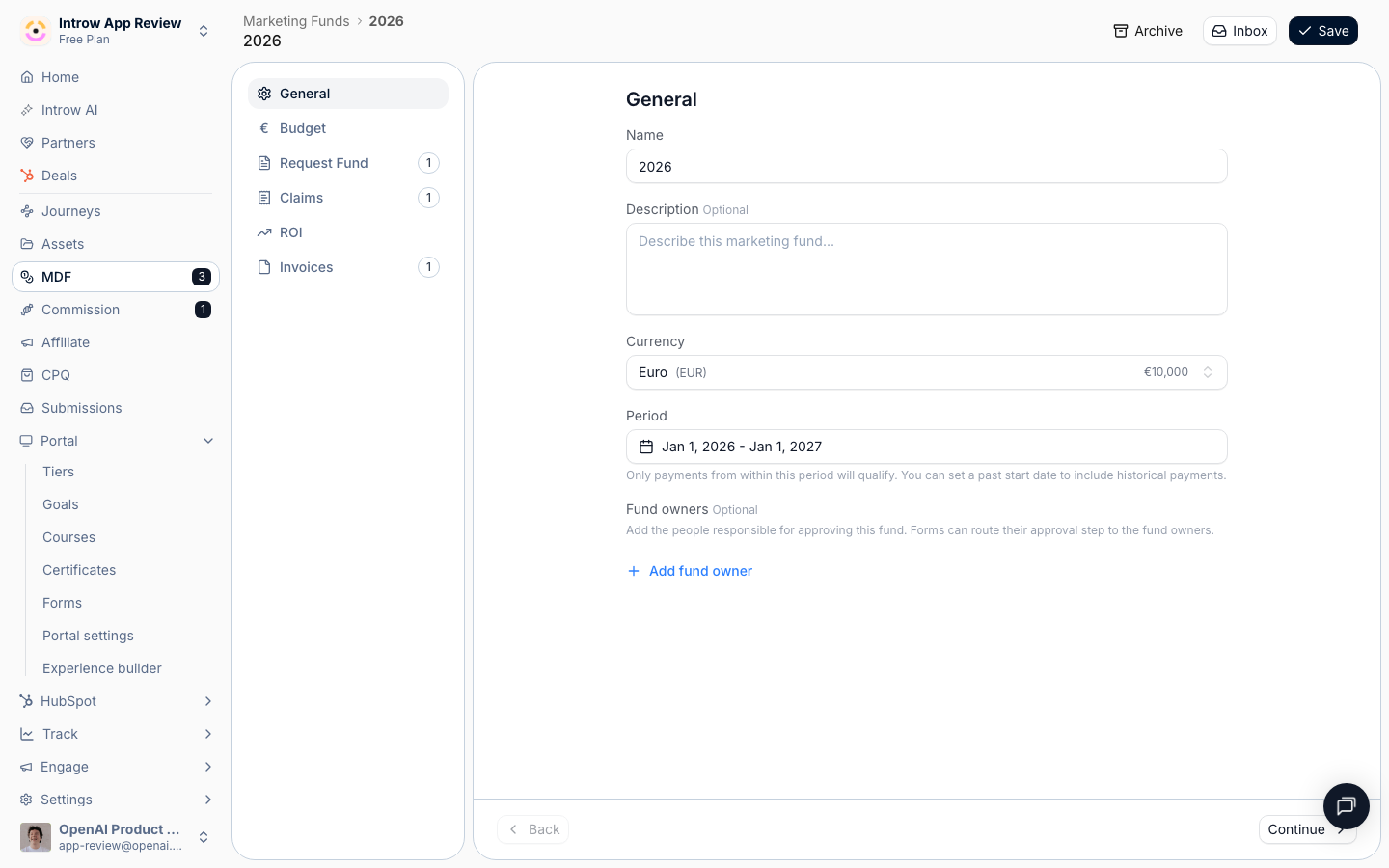
Go to [Marketing Funds](https://app.introw.io/marketing-funds), open the fund, and use **Configure**. Open the **ROI** step. A switch at the top turns it off if you only track ROI from CRM data.
 ### Build the ROI form
The **Intake form** section shows the ROI form bound to the step. Select **Go to form** to open it in the no-code builder.
### Build the ROI form
The **Intake form** section shows the ROI form bound to the step. Select **Go to form** to open it in the no-code builder.
 On the **Form builder** tab, shape the fields partners report against - results, metrics, and a summary of what the activity produced. Fields are drag-in, no code.
On the **Automation** tab, the form's automation maps each field to a CRM property and records the reported outcomes against the project. See [CRM Automations](/features/forms/crm-automations).
### Set the approval gates
Enable the agentic review so complete, well-evidenced reports clear automatically above a certainty threshold, and the rest escalate.
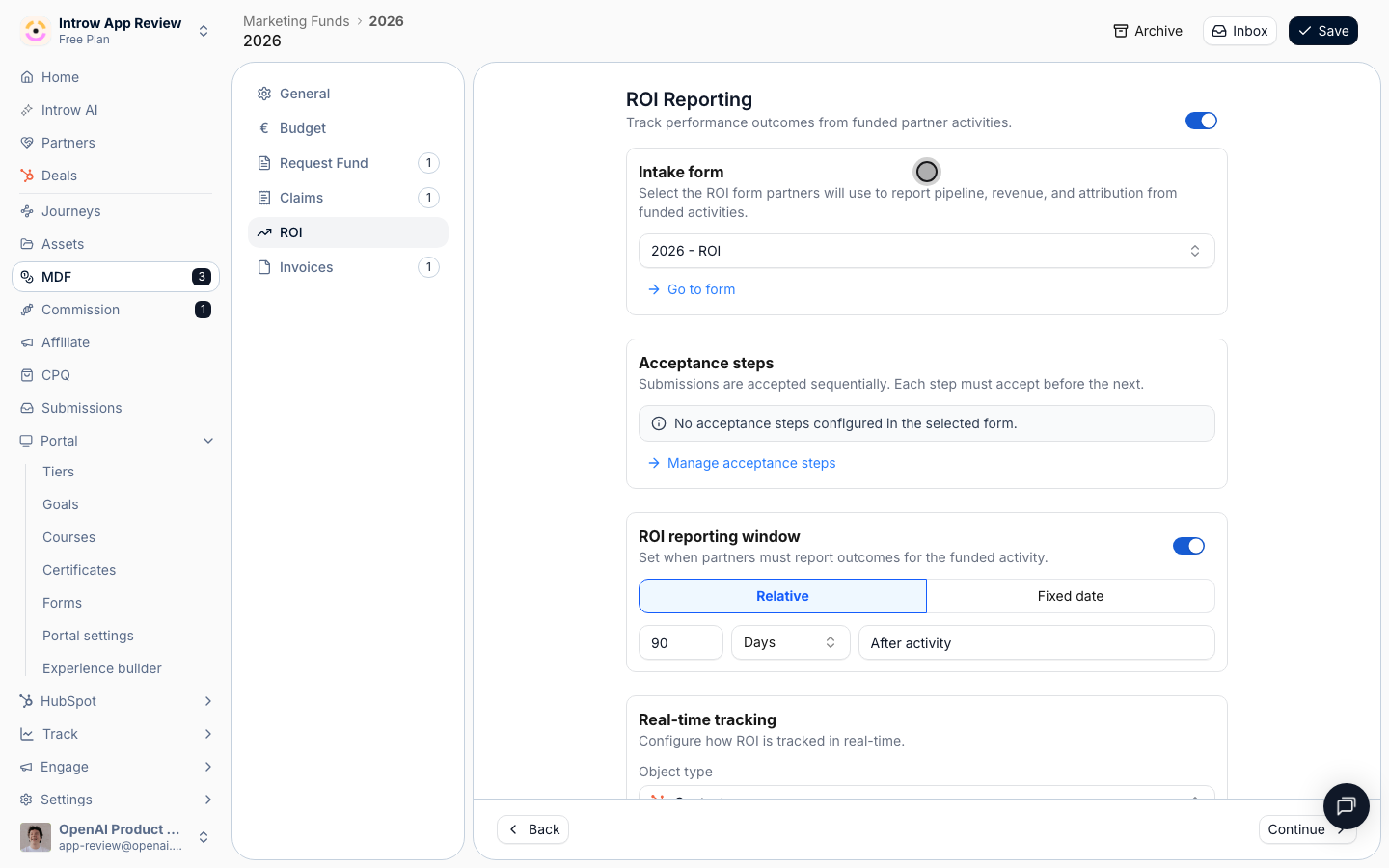
Under **Acceptance steps**, use **Manage acceptance steps** to set who reviews reported ROI, in order. Each approver can be a person, a partner-team role, or anyone; each step must accept before the next.
### Set the reporting window
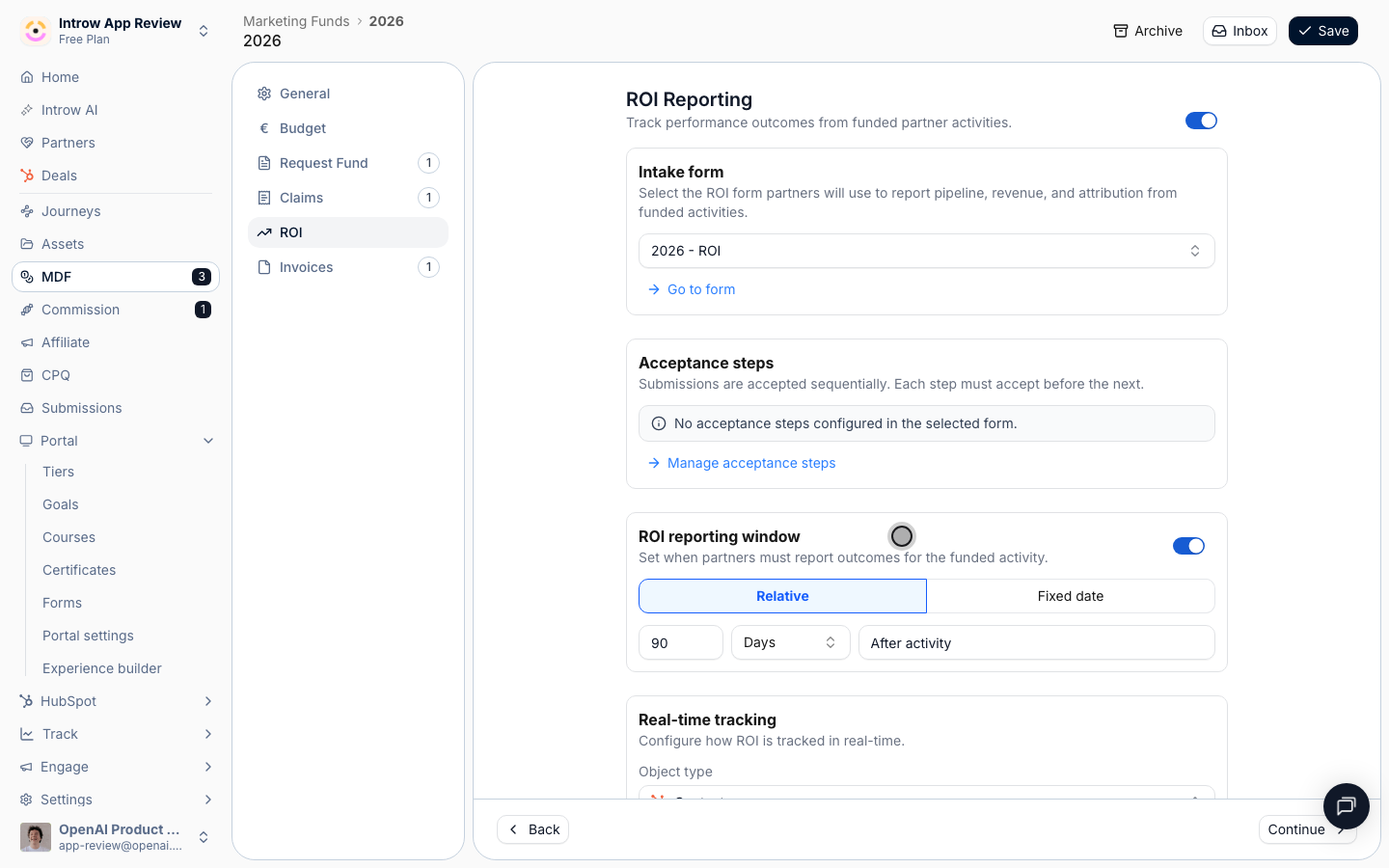
Set the **ROI reporting window** - when partners must report outcomes, relative to the activity date or as a fixed date - then **Save**.
On the **Form builder** tab, shape the fields partners report against - results, metrics, and a summary of what the activity produced. Fields are drag-in, no code.
On the **Automation** tab, the form's automation maps each field to a CRM property and records the reported outcomes against the project. See [CRM Automations](/features/forms/crm-automations).
### Set the approval gates
Enable the agentic review so complete, well-evidenced reports clear automatically above a certainty threshold, and the rest escalate.
Under **Acceptance steps**, use **Manage acceptance steps** to set who reviews reported ROI, in order. Each approver can be a person, a partner-team role, or anyone; each step must accept before the next.
### Set the reporting window
Set the **ROI reporting window** - when partners must report outcomes, relative to the activity date or as a fixed date - then **Save**.
 ## Verify it worked
Open the ROI step and confirm its form, acceptance steps, and reporting window are set. A test ROI report against a funded project lands against the project, runs the AI review, and routes to your approvers.
## Related
Track real-time ROI from CRM data, alongside partner-reported outcomes.
Operate the whole flow, from proposal through reimbursement.
How the ROI form maps and records against the project.
## Verify it worked
Open the ROI step and confirm its form, acceptance steps, and reporting window are set. A test ROI report against a funded project lands against the project, runs the AI review, and routes to your approvers.
## Related
Track real-time ROI from CRM data, alongside partner-reported outcomes.
Operate the whole flow, from proposal through reimbursement.
How the ROI form maps and records against the project.